


Google Sheets + EmailListVerify: verified outreach emails
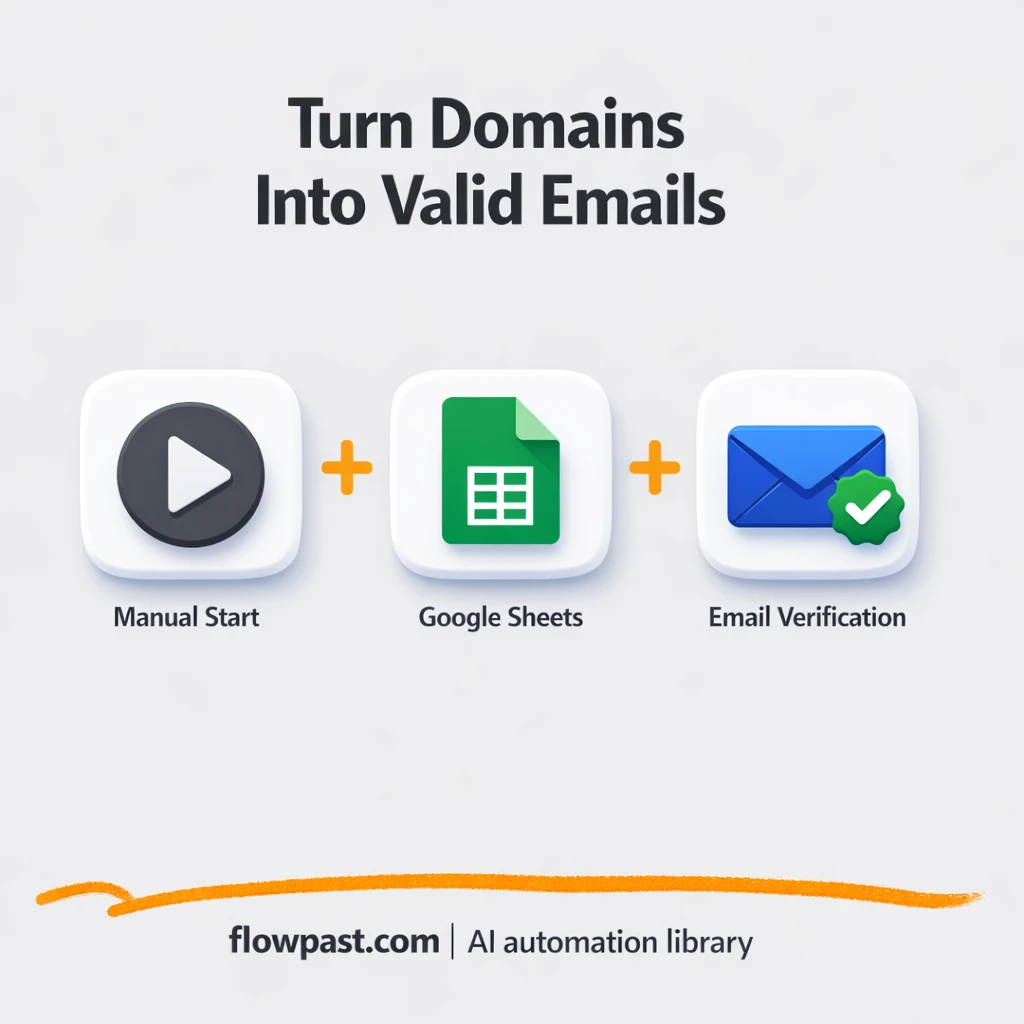

You’ve got a list of sites you want links from, but you don’t have the right contact emails. So you guess. You send. You bounce. And your sender reputation takes the hit for work that never had a chance.
This is the kind of mess that SEO link builders complain about the most, but agency owners and lean marketing managers feel it too. With this outreach email verification workflow, you turn a plain Google Sheets domain list into a clean set of verified email contacts you can actually outreach.
Below you’ll see how the automation works, what it replaces, and what you can tweak (like checking Gmail, Laposte, Seznam, or any provider you care about).
How This Automation Works
The full n8n workflow, from trigger to final output:
n8n Workflow Template: Google Sheets + EmailListVerify: verified outreach emails
flowchart LR

    subgraph sg0["When clicking ‘Execute workflow’ Flow"]
        direction LR
        n0@{ icon: "mdi:database", form: "rounded", label: "Save results", pos: "b", h: 48 }
        n1@{ icon: "mdi:database", form: "rounded", label: "Get list of domain", pos: "b", h: 48 }
        n2["<div style='background:#f5f5f5;padding:10px;border-radius:8px;display:inline-block;border:1px solid #e0e0e0'><img src='https://flowpast.com/wp-content/uploads/n8n-workflow-icons/merge.svg' width='40' height='40' /></div><br/>Create email candidates"]
        n3["<div style='background:#f5f5f5;padding:10px;border-radius:8px;display:inline-block;border:1px solid #e0e0e0'><img src='https://flowpast.com/wp-content/uploads/n8n-workflow-icons/httprequest.dark.svg' width='40' height='40' /></div><br/>Use EmailListVerify API to c.."]
        n4["<div style='background:#f5f5f5;padding:10px;border-radius:8px;display:inline-block;border:1px solid #e0e0e0'><img src='https://flowpast.com/wp-content/uploads/n8n-workflow-icons/merge.svg' width='40' height='40' /></div><br/>Combine results"]
        n5["<div style='background:#f5f5f5;padding:10px;border-radius:8px;display:inline-block;border:1px solid #e0e0e0'><img src='https://flowpast.com/wp-content/uploads/n8n-workflow-icons/code.svg' width='40' height='40' /></div><br/>Transform website into domai.."]
        n6@{ icon: "mdi:database", form: "rounded", label: "Get list of email extension", pos: "b", h: 48 }
        n7@{ icon: "mdi:play-circle", form: "rounded", label: "When clicking ‘Execute workf..", pos: "b", h: 48 }
        n4 --> n0
        n1 --> n5
        n2 --> n3
        n2 --> n4
        n6 --> n2
        n5 --> n2
        n7 --> n1
        n7 --> n6
        n3 --> n4
    end

    %% Styling
    classDef trigger fill:#e8f5e9,stroke:#388e3c,stroke-width:2px
    classDef ai fill:#e3f2fd,stroke:#1976d2,stroke-width:2px
    classDef aiModel fill:#e8eaf6,stroke:#3f51b5,stroke-width:2px
    classDef decision fill:#fff8e1,stroke:#f9a825,stroke-width:2px
    classDef database fill:#fce4ec,stroke:#c2185b,stroke-width:2px
    classDef api fill:#fff3e0,stroke:#e65100,stroke-width:2px
    classDef code fill:#f3e5f5,stroke:#7b1fa2,stroke-width:2px
    classDef disabled stroke-dasharray: 5 5,opacity: 0.5
    class n7 trigger
    class n0,n1,n6 database
    class n3 api
    class n5 code
    classDef customIcon fill:none,stroke:none
    class n2,n3,n4,n5 customIcon
The Problem: Outreach lists full of guesswork (and bounces)
Link building outreach usually starts with a simple spreadsheet of domains. The trouble begins when you try to find emails that are both likely and deliverable. You end up trying “contact@”, then “hello@”, then random combinations, and when that fails you guess the common pattern: [email protected] or [email protected]. It sounds quick until you do it for 200 sites, follow up twice, and realize a chunk of your sends never landed. That’s not just wasted time. It’s avoidable damage to your deliverability, which can make the next campaign harder too.
The friction compounds. Here’s where it breaks down.
- You spend hours assembling email guesses and still miss obvious patterns.
- Bounces pile up, which means your domain warm-up and reputation suffer.
- Teams argue about “best” email formats instead of shipping outreach.
- You can’t scale cleanly because validation happens late, if at all.
The Solution: Generate likely emails, then verify them automatically
This n8n workflow starts with the domains you already track in Google Sheets. It pulls each domain, extracts the “root” so you’re working with consistent inputs, then combines that root with one or more email extensions you choose (Gmail is the common starting point, but you can add local providers like laposte.net or seznam.cz). That creates a set of email candidates such as [email protected] or [email protected]. Next, the workflow sends each candidate to EmailListVerify via an HTTP request and collects the results. Finally, it appends the verified outputs back into your Google Sheet, so you end up with a practical outreach list instead of a pile of maybes.
The workflow begins when you run it manually in n8n. Google Sheets provides two inputs: your domain list and the email extensions to test. From there it assembles candidates, verifies them through EmailListVerify, and writes the verification outcome back to Sheets for exporting or handoff.
What You Get: Automation vs. Results
| What This Workflow Automates | Results You’ll Get |
|---|---|
|
|
Example: What This Looks Like
Say you have 200 domains to contact and you want to test three providers (Gmail plus two local providers). Doing this manually is usually “open site, guess, paste, repeat,” which is easily 2 minutes per domain even if you’re moving fast. That’s about 6 hours, and you still won’t know what’s valid until after you send. With this workflow, you paste domains and extensions into Google Sheets, run it, and wait for results to be appended. Your hands-on time is closer to 10 minutes, and your outreach list is ready to export.
What You’ll Need
- n8n instance (try n8n Cloud free)
- Self-hosting option if you prefer (Hostinger works well)
- Google Sheets for input domains and output results.
- EmailListVerify to validate email candidates via API.
- EmailListVerify API key (get it from your EmailListVerify account dashboard)
Skill level: Beginner. You’ll connect accounts, paste an API key, and point the Google Sheets nodes to your copy of the template.
Don’t want to set this up yourself? Talk to an automation expert (free 15-minute consultation).
How It Works
You start the run from n8n. This workflow uses a manual trigger, so you can test it safely, then run it whenever your domain list updates.
Google Sheets provides the two inputs. One sheet tab contains the domains you want to contact. Another tab contains the email “extensions” (providers) you want to check, like gmail.com or laposte.net.
The workflow builds candidates from the domain root. A small code step extracts a clean root from each domain, then a merge step combines that root with your chosen providers to create realistic email candidates.
EmailListVerify checks deliverability and the results go back to Sheets. The workflow sends candidates through an HTTP request, merges the verification responses, and appends the final rows into your results sheet for export.
You can easily modify the provider list to match a new region or niche based on your needs. See the full implementation guide below for customization options.
Step-by-Step Implementation Guide
Step 1: Configure the Manual Trigger
This workflow starts manually and immediately fans out to two data sources in parallel.
- Add the Manual Execution Start node as your trigger.
- Verify that Manual Execution Start connects to both Retrieve Domain List and Fetch Email Extensions in parallel.
Manual Execution Start outputs to both Retrieve Domain List and Fetch Email Extensions in parallel.
Step 2: Connect Google Sheets
Configure your input and output spreadsheets for domains, email extensions, and results.
- Open Retrieve Domain List and set Document to
[EmailListVerify N8N template] gmail finderand Sheet to[Input] domain. - Credential Required: Connect your googleSheetsOAuth2Api credentials in Retrieve Domain List.
- Open Fetch Email Extensions and set Document to
[EmailListVerify N8N template] gmail finderand Sheet to[Input] partern. - Credential Required: Connect your googleSheetsOAuth2Api credentials in Fetch Email Extensions.
- Open Append Email Results and set Document to
[EmailListVerify N8N template] gmail finderand Sheet to[OutPut] emails. - Map columns in Append Email Results: set Email to
={{ $json.root }}@{{ $json.extension }}and Status to={{ $json.data }}. - Credential Required: Connect your googleSheetsOAuth2Api credentials in Append Email Results.
Tip: Ensure the column headers in [OutPut] emails match Email and Status to avoid append errors.
Step 3: Set Up Domain Processing and Candidate Assembly
Extract the root domain and combine it with email extensions to generate candidate addresses.
- Open Extract Domain Root and confirm the JavaScript Code is set to the provided script (it extracts
rootfromdomain). - Verify Retrieve Domain List connects to Extract Domain Root.
- Configure Assemble Email Candidates with Mode set to
combineand Combine By set tocombineAll. - Connect Extract Domain Root to input 1 of Assemble Email Candidates and Fetch Email Extensions to input 2.
⚠️ Common Pitfall: The code in Extract Domain Root expects a domain field in the input sheet. If your sheet uses a different header, rename it to domain or update the code.
Step 4: Configure Validation and Merge Outputs
Validate the generated email candidates and merge the verification results before writing to the output sheet.
- Open Validate Email via API and set URL to
https://api.emaillistverify.com/api/verifyEmail. - Enable Send Query Parameters and set email to
={{ $json.root }}@{{ $json.extension }}. - Set Authentication to
genericCredentialTypeand Generic Auth Type tohttpHeaderAuth. - Credential Required: Connect your httpHeaderAuth (and httpQueryAuth if required by your provider) credentials in Validate Email via API.
- Configure Merge Verification Output with Mode set to
combineand Combine By set tocombineByPosition. - Ensure Assemble Email Candidates outputs to both Validate Email via API and Merge Verification Output in parallel, and that Validate Email via API also connects to Merge Verification Output.
- Connect Merge Verification Output to Append Email Results.
Assemble Email Candidates outputs to both Validate Email via API and Merge Verification Output in parallel.
Step 5: Test and Activate Your Workflow
Run a manual test to confirm data flows from inputs through validation into your output sheet.
- Click Execute Workflow to run Manual Execution Start.
- Verify that Retrieve Domain List and Fetch Email Extensions both return data, then check that Assemble Email Candidates produces combined items.
- Confirm Validate Email via API returns a verification response and Merge Verification Output combines it with the candidate data.
- Check the
[OutPut] emailssheet to ensure Append Email Results writes Email and Status values. - Once successful, toggle the workflow to Active for production use.
Common Gotchas
- EmailListVerify credentials can expire or be copied incorrectly. If things break, check your API key in the EmailListVerify dashboard first, then update the HTTP Request node in n8n.
- If you’re using Wait nodes or external rendering, processing times vary. Bump up the wait duration if downstream nodes fail on empty responses.
- Default prompts in AI nodes are generic. Add your brand voice early or you’ll be editing outputs forever.
Frequently Asked Questions
About 10 minutes if your sheet is ready.
No coding required. You’ll mainly connect Google Sheets and paste your EmailListVerify API key.
Yes. n8n has a free self-hosted option and a free trial on n8n Cloud. Cloud plans start at $20/month for higher volume. You’ll also need to factor in EmailListVerify costs (about $0.05 per email).
Two options: n8n Cloud (managed, easiest setup) or self-hosting on a VPS. For self-hosting, Hostinger VPS is affordable and handles n8n well. Self-hosting gives you unlimited executions but requires basic server management.
Yes, and it’s simple. Update the Google Sheets tab that stores your email extensions (the “Fetch Email Extensions” input), then re-run the workflow so “Assemble Email Candidates” uses the new provider list. Common tweaks include adding region-specific providers, testing multiple providers at once, or limiting candidates to only a few patterns you trust.
Usually it’s an API key issue. Regenerate your EmailListVerify key (or re-copy it from the dashboard) and update the HTTP Request node in n8n. If it still fails, check your EmailListVerify balance/plan limits, then look for rate limiting if you’re validating large batches in one run.
Hundreds per run is typical, and more is fine if you batch it.
Often, yes, because you’re generating multiple candidates per domain, looping through them, and merging results back into a sheet, which gets awkward (and pricey) in simpler tools. n8n is comfortable with split-in-batches logic, conditional checks, and “assemble then verify” patterns without forcing you into one linear path. You can also self-host, which removes execution anxiety when you want to run big lists. Zapier or Make can still work if you’re validating a small list occasionally, but it usually turns into a multi-Zap scenario. If you want a quick recommendation for your setup, Talk to an automation expert.
Once this is running, your outreach sheet stops being a liability. You get cleaner contacts, fewer bounces, and a process you can repeat every time you build a new domain list.
Need Help Setting This Up?
Our automation experts can build and customize this workflow for your specific needs. Free 15-minute consultation—no commitment required.
