


OpenAI to WordPress, blog posts published consistently

Publishing “consistently” sounds great until you’re staring at an empty draft at 9pm, copying chunks from notes, fixing headings, and redoing formatting you already did last week. Then you miss a week. Then two. And the blog quietly turns into a guilt project.
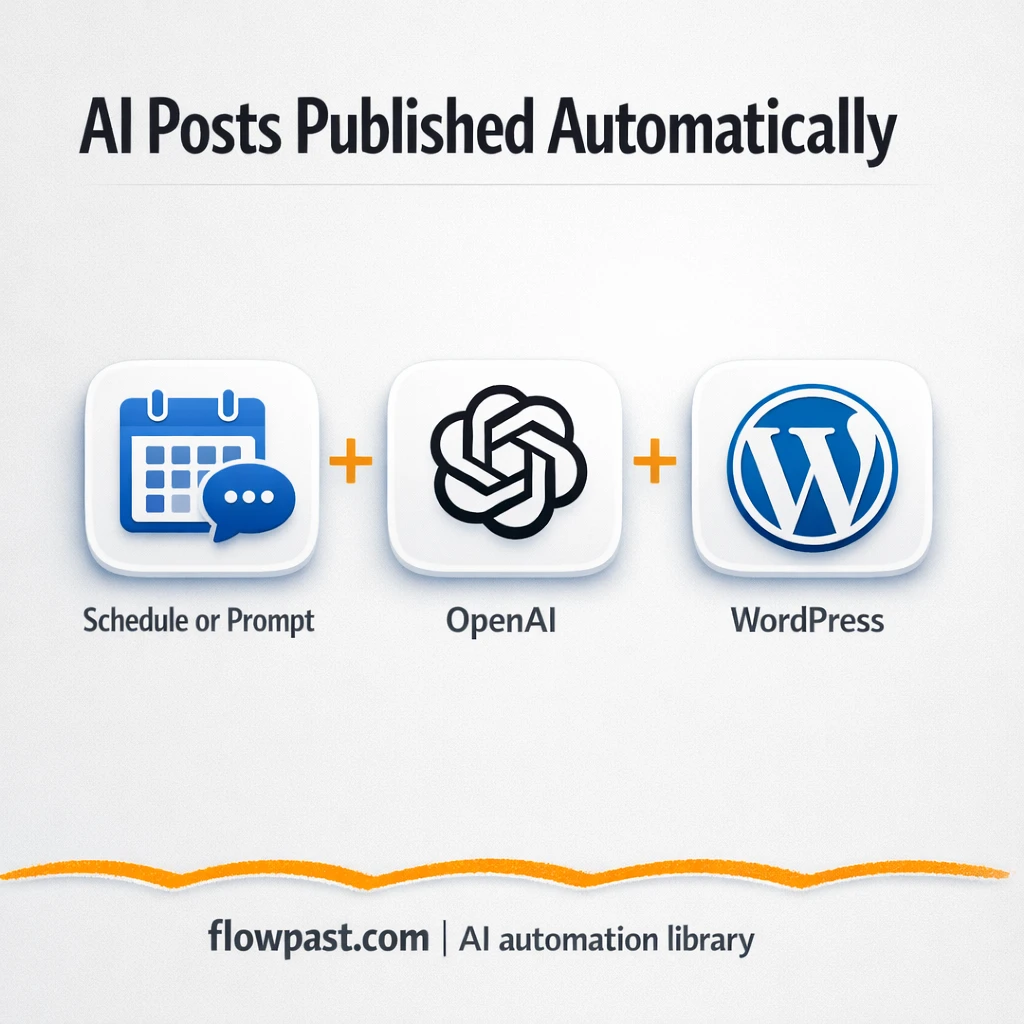
This is the kind of mess that slows down marketing managers trying to hit content goals, but founders and agency teams feel it too. With OpenAI WordPress automation, you can turn a short prompt or a schedule into publish-ready posts without living inside the editor.
Below you’ll see how the workflow runs, what it replaces in your process, and what you can tweak so the posts still sound like you (not a generic template).
How This Automation Works
The full n8n workflow, from trigger to final output:
n8n Workflow Template: OpenAI to WordPress, blog posts published consistently
flowchart LR

    subgraph sg0["Scheduled Automation Flow"]
        direction LR
        n0@{ icon: "mdi:play-circle", form: "rounded", label: "Scheduled Automation Trigger", pos: "b", h: 48 }
        n1@{ icon: "mdi:play-circle", form: "rounded", label: "Chat Input Trigger", pos: "b", h: 48 }
        n2["<div style='background:#f5f5f5;padding:10px;border-radius:8px;display:inline-block;border:1px solid #e0e0e0'><img src='https://flowpast.com/wp-content/uploads/n8n-workflow-icons/code.svg' width='40' height='40' /></div><br/>Select Input Text"]
        n3["<div style='background:#f5f5f5;padding:10px;border-radius:8px;display:inline-block;border:1px solid #e0e0e0'><img src='https://flowpast.com/wp-content/uploads/n8n-workflow-icons/code.svg' width='40' height='40' /></div><br/>Chat Extract Slugs"]
        n4@{ icon: "mdi:cog", form: "rounded", label: "Chat Convert Sitemap", pos: "b", h: 48 }
        n5["<div style='background:#f5f5f5;padding:10px;border-radius:8px;display:inline-block;border:1px solid #e0e0e0'><img src='https://flowpast.com/wp-content/uploads/n8n-workflow-icons/httprequest.dark.svg' width='40' height='40' /></div><br/>Chat Fetch Sitemap"]
        n6["<div style='background:#f5f5f5;padding:10px;border-radius:8px;display:inline-block;border:1px solid #e0e0e0'><img src='https://flowpast.com/wp-content/uploads/n8n-workflow-icons/httprequest.dark.svg' width='40' height='40' /></div><br/>Schedule Fetch Sitemap"]
        n7@{ icon: "mdi:cog", form: "rounded", label: "Schedule Parse Sitemap", pos: "b", h: 48 }
        n8["<div style='background:#f5f5f5;padding:10px;border-radius:8px;display:inline-block;border:1px solid #e0e0e0'><img src='https://flowpast.com/wp-content/uploads/n8n-workflow-icons/code.svg' width='40' height='40' /></div><br/>Schedule Extract Slugs"]
        n9@{ icon: "mdi:robot", form: "rounded", label: "Schedule Topic Suggestion", pos: "b", h: 48 }
        n10@{ icon: "mdi:robot", form: "rounded", label: "Generate Draft Post", pos: "b", h: 48 }
        n11@{ icon: "mdi:robot", form: "rounded", label: "Edit and Validate Post", pos: "b", h: 48 }
        n12["<div style='background:#f5f5f5;padding:10px;border-radius:8px;display:inline-block;border:1px solid #e0e0e0'><img src='https://flowpast.com/wp-content/uploads/n8n-workflow-icons/wordpress.svg' width='40' height='40' /></div><br/>Publish to WordPress"]
        n10 --> n11
        n11 --> n12
        n1 --> n5
        n2 --> n10
        n0 --> n6
        n5 --> n4
        n3 --> n2
        n4 --> n3
        n6 --> n7
        n8 --> n9
        n7 --> n8
        n9 --> n2
    end

    %% Styling
    classDef trigger fill:#e8f5e9,stroke:#388e3c,stroke-width:2px
    classDef ai fill:#e3f2fd,stroke:#1976d2,stroke-width:2px
    classDef aiModel fill:#e8eaf6,stroke:#3f51b5,stroke-width:2px
    classDef decision fill:#fff8e1,stroke:#f9a825,stroke-width:2px
    classDef database fill:#fce4ec,stroke:#c2185b,stroke-width:2px
    classDef api fill:#fff3e0,stroke:#e65100,stroke-width:2px
    classDef code fill:#f3e5f5,stroke:#7b1fa2,stroke-width:2px
    classDef disabled stroke-dasharray: 5 5,opacity: 0.5
    class n0,n1 trigger
    class n9,n10,n11 ai
    class n5,n6 api
    class n2,n3,n8 code
    classDef customIcon fill:none,stroke:none
    class n2,n3,n5,n6,n8,n12 customIcon
The Problem: Consistent blogging turns into a weekly scramble
A blog isn’t hard because writing is hard. It’s hard because the work shows up in little chunks all week. You need a topic, a draft, a quick SEO pass, a clean WordPress layout, then the final publish. When you do it manually, it steals the “in-between” time that you thought you had. And the worst part is the context switching: you go from creative thinking to admin work to formatting to “wait, where’s that old link?” Realistically, one post can eat about 2–4 hours even when you’re moving fast.
The friction compounds. Here’s where it breaks down.
- You keep postponing publishing because the last 20% (formatting, links, headings) feels endless.
- Ideas die in notes because turning them into a structured draft takes a full focused block of time.
- Quality gets inconsistent when you rush, which means more editing and second-guessing later.
- WordPress publishing becomes a separate chore, so drafts pile up and nothing goes live.
The Solution: AI drafts + editorial polish + auto-publish to WordPress
This n8n workflow connects OpenAI and WordPress so posts go from “input” to “published” with far less manual effort. You can run it on a schedule (hands-off) or trigger it from a chat-style prompt (fast and flexible). In scheduled mode, the workflow checks your site map, generates a topic idea that fits your site, then writes a full draft. In prompt mode, you feed it a short phrase (even one or two words) and it builds the article from that seed. After the draft, an editorial pass cleans up structure, tone, and basic SEO elements before the post is published straight to your WordPress site through the API.
The workflow starts with either a scheduled trigger or a chat intake message. It then gathers context from your WordPress site (via sitemap requests and parsing), generates the content in a few AI stages, and pushes the finished article into WordPress as a new post. No copy-paste. No reformatting marathons.
What You Get: Automation vs. Results
| What This Workflow Automates | Results You’ll Get |
|---|---|
|
|
Example: What This Looks Like
Say you publish 3 posts a week. Manually, a “quick” post is still about 3 hours when you include outlining, drafting, cleanup, and WordPress formatting, so that’s roughly 9 hours weekly. With this workflow, you can spend about 10 minutes dropping prompts or reviewing topic ideas, then let the AI writing + editorial pass run and publish in the background (usually within about 5 minutes per post). You still review when it matters, but you’re no longer donating a full day every week to production.
What You’ll Need
- n8n instance (try n8n Cloud free)
- Self-hosting option if you prefer (Hostinger works well)
- OpenAI for topic generation, drafting, and editing
- WordPress to publish posts via API access
- OpenAI API key (get it from your OpenAI account dashboard)
Skill level: Intermediate. You’ll connect accounts, add API credentials, and tweak prompts so the output matches your brand.
Don’t want to set this up yourself? Talk to an automation expert (free 15-minute consultation).
How It Works
Scheduled run or chat prompt kicks things off. You can let it run on a timetable with the Scheduled Run Trigger, or you can start it by sending a short topic prompt through the Chat Intake Trigger.
Your site context gets pulled automatically. The workflow requests your sitemap (HTTP Request), parses it (XML), and extracts slugs, so the AI can reference what you already publish and avoid repeating itself.
OpenAI generates the content in stages. One node creates a topic idea (useful for scheduled mode), another builds the full draft, and a final “editorial review” pass tightens tone and structure before anything goes live. Honestly, this staged approach is what makes it feel less like raw AI output.
WordPress receives a ready-to-publish post. The final node publishes directly to your WordPress site through the API, so the draft becomes an actual post without you touching the editor.
You can easily modify the prompts to match your voice or adjust publishing frequency based on your needs. See the full implementation guide below for customization options.
Step-by-Step Implementation Guide
Step 1: Configure the Trigger Type
Set up both entry points so the workflow can run on a schedule or from a chat-triggered request.
- Open Scheduled Run Trigger and define the schedule under Rule to match your desired cadence.
- Open Chat Intake Trigger and keep Allow File Uploads set to
falseunless you want file inputs. - Confirm the execution flow for triggers: Scheduled Run Trigger → Scheduled Sitemap Request and Chat Intake Trigger → Chat Sitemap Request.
Step 2: Connect the Sitemap Data Source
Both entry paths fetch and parse your sitemap so the workflow can extract existing slugs and avoid duplicate topics.
- In Scheduled Sitemap Request, set URL to
https://bruzzi.online/sitemap.xml. - In Chat Sitemap Request, set URL to
https://bruzzi.online/sitemap.xml. - Keep Scheduled Sitemap Parser and Chat Sitemap Parser as-is to parse XML into JSON.
- Verify parsing flows: Scheduled Sitemap Request → Scheduled Sitemap Parser → Scheduled Slug Extractor and Chat Sitemap Request → Chat Sitemap Parser → Chat Slug Extractor.
Step 3: Set Up Input Selection and Slug Extraction
This layer unifies inputs from either chat or scheduled topic generation and extracts slug lists used by the AI prompts.
- In Scheduled Slug Extractor, keep the JavaScript logic that maps
items[0].json.urlset.urlintoslugs. - In Chat Slug Extractor, keep the same JavaScript logic to extract slugs from the chat-requested sitemap.
- In Select Input Source, keep the JavaScript that outputs
resultfrom either$json.chatInputor$json.message.content. - Confirm routing: Chat Slug Extractor → Select Input Source and Generate Topic Idea → Select Input Source.
Step 4: Set Up AI Content Generation
Configure the three AI steps to generate the topic, draft the article, and run editorial refinement.
- Open Generate Topic Idea and keep the model selection
gpt-5-nano. Credential Required: Connect your openAiApi credentials. - In Generate Topic Idea, keep the prompt content that references
{{ $json.slugs }}so existing topics are avoided. - Open Draft Article Builder and keep the model selection
gpt-4o-mini-search-preview. Credential Required: Connect your openAiApi credentials. - Verify the prompt references the selected topic via
{{ $('Select Input Source').item.json.result }}and slug list via{{ $json.slugs }}. - Open Editorial Review Pass and keep JSON Output enabled. Credential Required: Connect your openAiApi credentials.
- Ensure the prompt in Editorial Review Pass references internal slugs using
{{ $('Chat Slug Extractor').item.json.slugs }}and content input via{{ $json.message.content }}.
Step 4: Configure Output/Action Nodes
Finalize publishing to WordPress using the structured output from the editorial pass.
- Open Publish to WordPress and connect the site. Credential Required: Connect your wordpressApi credentials.
- Set Title to
={{ $json.message.content.title }}. - Under Additional Fields, set Slug to
={{ $json.message.content.slug }}, Status topublish, and Content to={{ $json.message.content.content }}. - Confirm the publishing chain: Draft Article Builder → Editorial Review Pass → Publish to WordPress.
draft in Publish to WordPress.Step 5: Test and Activate Your Workflow
Run a controlled test to validate sitemap parsing, AI generation, and WordPress publishing.
- Manually execute Scheduled Run Trigger to test the scheduled path or send a test message through Chat Intake Trigger for the chat path.
- Confirm Scheduled Sitemap Parser or Chat Sitemap Parser outputs a populated
urlset.urlstructure and that Scheduled Slug Extractor / Chat Slug Extractor produces aslugsarray. - Verify Editorial Review Pass returns JSON with
title,slug, andcontentfields. - Check WordPress to confirm a new post appears with the expected title, slug, and HTML content.
- When everything looks correct, toggle the workflow to Active to enable production scheduling.
Common Gotchas
- WordPress credentials can expire or need specific permissions. If things break, check your WordPress Application Passwords (or the user role permissions) first.
- If you’re using Wait nodes or external rendering, processing times vary. Bump up the wait duration if downstream nodes fail on empty responses.
- Default prompts in AI nodes are generic. Add your brand voice early or you’ll be editing outputs forever.
Frequently Asked Questions
About 5 minutes if your WordPress API access and OpenAI key are ready.
No. You’ll mostly paste credentials and tweak the prompts. The only “technical” part is confirming your WordPress API connection works.
Yes. n8n has a free self-hosted option and a free trial on n8n Cloud. Cloud plans start at $20/month for higher volume. You’ll also need to factor in OpenAI API costs based on your model and usage.
Two options: n8n Cloud (managed, easiest setup) or self-hosting on a VPS. For self-hosting, Hostinger VPS is affordable and handles n8n well. Self-hosting gives you unlimited executions but requires basic server management.
Yes, but you’ll change one key behavior. In the “Publish to WordPress” node, switch the status from publish to draft so content lands in WordPress for review. You can also tune the “Draft Article Builder” and “Editorial Review Pass” prompts to enforce your structure (intro length, headings, internal links, and CTA style). If you want, keep scheduled mode for drafting, and use prompt mode only when you need a fast one-off post.
Usually it’s an Application Password issue or the user role can’t create posts. Regenerate the WordPress Application Password, update it in n8n, then confirm the account has permission to publish (or at least create drafts). Also check your WordPress URL in the credentials; http vs https mismatches are a common, annoying cause.
On self-hosted n8n, it can handle as many runs as your server can process.
Often, yes. This workflow relies on multi-step logic (scheduled mode vs prompt mode), pulling and parsing your sitemap, and running a few AI stages before publishing, which is easier to manage in n8n than forcing it into a linear 2–3 step zap. n8n also gives you a real self-hosting option, which matters if you plan to publish frequently and don’t want to pay per task. Zapier or Make can still be fine for very simple “prompt → draft” flows. If you want help choosing, Talk to an automation expert.
Once this is running, your blog stops depending on “finding time to write.” You feed it ideas, review what matters, and WordPress stays active without the copy-paste grind.
Need Help Setting This Up?
Our automation experts can build and customize this workflow for your specific needs. Free 15-minute consultation—no commitment required.
