


OpenAI + Anthropic, pick the best model every prompt
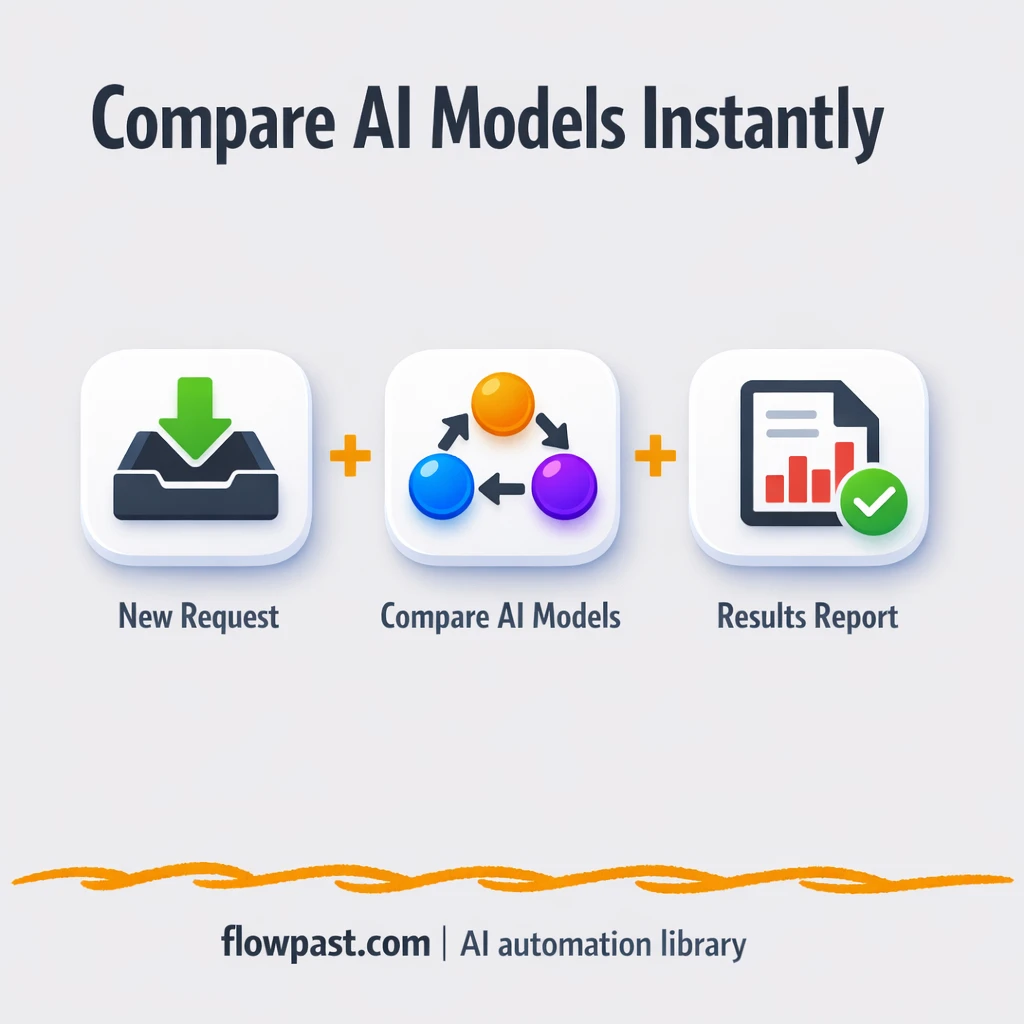

You run the same prompt twice and get two different “best” answers. Worse, you have no clue what it cost, how long it took, or which provider quietly timed out. That’s the mess LLM routing automation fixes.
Marketing Ops teams feel it when content QA turns into endless re-prompts. Product folks hit it when latency spikes break an in-app experience. And if you run an agency, you already know the pain: clients expect consistency, not “the model was moody today.”
This n8n workflow sends one prompt to OpenAI, Anthropic, and Groq in parallel, scores the results, and returns a clear recommendation. You’ll see exactly what it does, what you need, and how teams use it to stop guessing.
How This Automation Works
The full n8n workflow, from trigger to final output:
n8n Workflow Template: OpenAI + Anthropic, pick the best model every prompt
flowchart LR

    subgraph sg0["OpenAI Analysis Agen Flow"]
        direction LR
        n0["<div style='background:#f5f5f5;padding:10px;border-radius:8px;display:inline-block;border:1px solid #e0e0e0'><img src='https://flowpast.com/wp-content/uploads/n8n-workflow-icons/webhook.dark.svg' width='40' height='40' /></div><br/>Incoming Webhook Trigger"]
        n1@{ icon: "mdi:swap-vertical", form: "rounded", label: "Map Request Fields", pos: "b", h: 48 }
        n2["<div style='background:#f5f5f5;padding:10px;border-radius:8px;display:inline-block;border:1px solid #e0e0e0'><img src='https://flowpast.com/wp-content/uploads/n8n-workflow-icons/code.svg' width='40' height='40' /></div><br/>LLM Routing Logic"]
        n3@{ icon: "mdi:swap-horizontal", form: "rounded", label: "Provider Branch Router", pos: "b", h: 48 }
        n4@{ icon: "mdi:robot", form: "rounded", label: "OpenAI Analysis Agent", pos: "b", h: 48 }
        n5@{ icon: "mdi:robot", form: "rounded", label: "Anthropic Analysis Agent", pos: "b", h: 48 }
        n6@{ icon: "mdi:robot", form: "rounded", label: "Groq Analysis Agent", pos: "b", h: 48 }
        n7["<div style='background:#f5f5f5;padding:10px;border-radius:8px;display:inline-block;border:1px solid #e0e0e0'><img src='https://flowpast.com/wp-content/uploads/n8n-workflow-icons/merge.svg' width='40' height='40' /></div><br/>Combine Agent Results"]
        n8["<div style='background:#f5f5f5;padding:10px;border-radius:8px;display:inline-block;border:1px solid #e0e0e0'><img src='https://flowpast.com/wp-content/uploads/n8n-workflow-icons/code.svg' width='40' height='40' /></div><br/>Compute Performance Stats"]
        n9["<div style='background:#f5f5f5;padding:10px;border-radius:8px;display:inline-block;border:1px solid #e0e0e0'><img src='https://flowpast.com/wp-content/uploads/n8n-workflow-icons/webhook.dark.svg' width='40' height='40' /></div><br/>Return Webhook Response"]
        n10@{ icon: "mdi:brain", form: "rounded", label: "OpenAI Chat Model", pos: "b", h: 48 }
        n11@{ icon: "mdi:robot", form: "rounded", label: "Structured Output Reader B", pos: "b", h: 48 }
        n12@{ icon: "mdi:brain", form: "rounded", label: "Anthropic Chat Model", pos: "b", h: 48 }
        n13@{ icon: "mdi:robot", form: "rounded", label: "Structured Output Reader A", pos: "b", h: 48 }
        n14@{ icon: "mdi:brain", form: "rounded", label: "Groq Chat Model", pos: "b", h: 48 }
        n15@{ icon: "mdi:robot", form: "rounded", label: "Structured Output Reader C", pos: "b", h: 48 }
        n0 --> n1
        n6 --> n7
        n14 -.-> n6
        n4 --> n7
        n10 -.-> n4
        n7 --> n8
        n13 -.-> n5
        n11 -.-> n4
        n15 -.-> n6
        n5 --> n7
        n12 -.-> n5
        n3 --> n4
        n3 --> n5
        n3 --> n6
        n2 --> n3
        n2 --> n7
        n1 --> n2
        n8 --> n9
    end

    %% Styling
    classDef trigger fill:#e8f5e9,stroke:#388e3c,stroke-width:2px
    classDef ai fill:#e3f2fd,stroke:#1976d2,stroke-width:2px
    classDef aiModel fill:#e8eaf6,stroke:#3f51b5,stroke-width:2px
    classDef decision fill:#fff8e1,stroke:#f9a825,stroke-width:2px
    classDef database fill:#fce4ec,stroke:#c2185b,stroke-width:2px
    classDef api fill:#fff3e0,stroke:#e65100,stroke-width:2px
    classDef code fill:#f3e5f5,stroke:#7b1fa2,stroke-width:2px
    classDef disabled stroke-dasharray: 5 5,opacity: 0.5
    class n4,n5,n6,n11,n13,n15 ai
    class n10,n12,n14 aiModel
    class n3 decision
    class n0,n9 api
    class n2,n8 code
    classDef customIcon fill:none,stroke:none
    class n0,n2,n7,n8,n9 customIcon
The Problem: Picking an LLM Provider Is Still Guesswork
Most teams “choose a model” once, then build everything on top of that decision. It feels efficient until reality shows up. A prompt that works great in OpenAI might drift in Anthropic. Groq might be blazing fast for one task, then hit a limit on another. Now you’re stuck running ad-hoc tests, copy-pasting prompts into three playgrounds, and trying to remember what you changed last time. Honestly, it’s not just slow. It makes you avoid experimentation, which is the whole point of using LLMs in the first place.
The friction compounds. Small uncertainties turn into big operational problems once this is used by a team instead of one person.
- You end up paying for the “safe” provider because you can’t compare costs quickly in a real workflow.
- Latency surprises show up in production, because you tested manually once on a good day.
- Outputs aren’t structured the same way across providers, which means your downstream automations break or need extra cleanup.
- When results look off, nobody can answer “what changed” without rerunning everything by hand.
The Solution: Run the Same Prompt Across Providers and Score the Winner
This workflow gives you a single endpoint (a webhook) where you send a prompt and a few settings. n8n maps and validates the request, then applies routing logic so you can compare providers fairly or bias toward your priority (cost, speed, or a prompt type). From there, three AI agents run at the same time: one for OpenAI, one for Anthropic, and one for Groq. Each agent returns an answer plus structured metadata, so results don’t arrive as a blob of text. Finally, n8n merges everything, calculates performance stats (think time, estimated cost, and a quality score you can tune), and responds with the outputs and a recommended provider for that specific prompt.
The workflow starts with a POST request to your n8n webhook. Then it fans out to OpenAI, Anthropic, and Groq in parallel, parses each response into a consistent shape, and merges them into one payload. Last, it computes metrics and returns a single “here’s the best option” response you can use inside a product, a tool, or a QA process.
What You Get: Automation vs. Results
| What This Workflow Automates | Results You’ll Get |
|---|---|
|
|
Example: What This Looks Like
Say your team reviews 20 prompts a week for a chatbot or content pipeline. Manually, a fair comparison usually means testing three providers, copying results into a doc, and timing it yourself, which is easily 10 minutes per prompt (so about 3 hours a week). With this workflow, you send one POST request that triggers all three runs in parallel, then you get a single response back with outputs plus timing and cost estimates. In practice, it becomes a few minutes of review instead of a weekly chunk of busywork.
What You’ll Need
- n8n instance (try n8n Cloud free)
- Self-hosting option if you prefer (Hostinger works well)
- OpenAI API for one provider’s chat model access
- Anthropic API to run the parallel Anthropic agent
- Groq API key (get it from your Groq dashboard)
Skill level: Intermediate. You’ll paste API keys, test a webhook request, and tweak a scoring formula without needing to write an app.
Don’t want to set this up yourself? Talk to an automation expert (free 15-minute consultation).
How It Works
An incoming webhook receives your prompt. You send a POST request with the prompt text and settings like model choice, token limits, or temperature. Authentication is enabled so random traffic can’t burn your API credits.
Request fields are cleaned up and validated. n8n maps the incoming payload into the exact fields the workflow expects, so a missing parameter doesn’t silently produce garbage results.
Routing logic decides how to run the comparison. The workflow can run all providers for benchmarking, or route based on what you care about that moment (lower cost, lower latency, or a task type).
Three agents run in parallel, then results get merged and scored. OpenAI, Anthropic, and Groq each return an output that gets parsed into a consistent structure. A metrics step computes time and estimated cost, then the workflow returns one response payload with the winner and the evidence.
You can easily modify the scoring rules to match your standards based on your needs. See the full implementation guide below for customization options.
Step-by-Step Implementation Guide
Step 1: Configure the Webhook Trigger
Set up the inbound webhook that accepts POST requests and hands off data for routing.
- Add and open Incoming Webhook Trigger.
- Set Path to
ai-pipeline. - Set HTTP Method to
POST. - Set Response Mode to
responseNodeso that Return Webhook Response handles the reply.
Step 2: Connect and Normalize Incoming Data
Map the inbound request body into consistent fields used by the routing logic and AI agents.
- Open Map Request Fields and create three assignments.
- Set input_data to
{{ $json.body.data }}. - Set task_type to
{{ $json.body.task_type || 'general' }}. - Set priority to
{{ $json.body.priority || 'balanced' }}.
Step 3: Configure Routing Logic and Parallel Branches
Define the cost/performance routing rules and send data down parallel paths for branching and metrics.
- Open LLM Routing Logic and paste the full JavaScript from the workflow so it returns
routing_decisionandtimestamp. - Confirm the logic uses input fields
$input.item.json.input_data,$input.item.json.task_type, and$input.item.json.priority. - Ensure connections match the execution order: LLM Routing Logic outputs to both Provider Branch Router and Combine Agent Results in parallel.
Step 4: Route Providers and Configure AI Agents
Branch to the correct model provider and configure each AI agent with its language model and structured output parser.
- Open Provider Branch Router and ensure each rule checks
{{ $json.routing_decision.provider }}equalsopenai,anthropic, orgroq. - In OpenAI Analysis Agent, set Text to the full prompt expression:
{{ "You are a data enrichment AI assistant. Analyze and enrich the following data with insights, structure it properly, and provide actionable recommendations.\n\nTask Type: " + $json.task_type + "\n\nInput Data:\n" + $json.input_data + "\n\nProvide:\n1. Structured analysis\n2. Key insights\n3. Data enrichment\n4. Actionable recommendations\n5. Quality score (1-10)\n\nFormat as JSON." }}. - Repeat the same Text expression in Anthropic Analysis Agent and Groq Analysis Agent.
- Verify the system message is set in each agent to
=You are processing data with {{ $json.routing_decision.provider }} ({{ $json.routing_decision.model }}). Quality level: {{ $json.routing_decision.expected_quality }}/10.. - Connect language models: OpenAI Chat Model → OpenAI Analysis Agent, Anthropic Chat Model → Anthropic Analysis Agent, Groq Chat Model → Groq Analysis Agent.
- Connect structured parsers: Structured Output Reader B → OpenAI Analysis Agent, Structured Output Reader A → Anthropic Analysis Agent, Structured Output Reader C → Groq Analysis Agent.
Credential Required: Connect your openAiApi credentials in OpenAI Chat Model.
Credential Required: Connect your anthropicApi credentials in Anthropic Chat Model.
Step 5: Combine Results and Compute Performance Metrics
Merge the routing decision with the AI response and calculate performance statistics.
- Open Combine Agent Results and set Mode to
combine. - Verify that OpenAI Analysis Agent, Anthropic Analysis Agent, and Groq Analysis Agent feed into Combine Agent Results on index 1, while LLM Routing Logic feeds index 0.
- Open Compute Performance Stats and paste the full JavaScript code to calculate processing time, cost efficiency, and performance score.
quality_score, Compute Performance Stats falls back to the expected quality. Ensure your model outputs a numeric quality_score for best results.Step 6: Configure the Webhook Response
Return the enriched output and performance metrics as the HTTP response.
- Open Return Webhook Response and set Respond With to
allIncomingItems. - Confirm the response headers include
Content-Type: application/jsonand the response code is200.
Step 7: Test and Activate Your Workflow
Validate the routing, AI responses, and webhook output before enabling production use.
- Click Execute Workflow and send a POST request to the Incoming Webhook Trigger URL with a JSON body that includes
data,task_type, andpriority. - Confirm that Provider Branch Router routes to the correct agent and that Combine Agent Results merges the routing decision with the AI output.
- Verify that Return Webhook Response returns the final object containing
enriched_dataandperformance_metrics. - Once successful, toggle the workflow to Active for production use.
Common Gotchas
- OpenAI credentials can expire or need specific permissions. If things break, check your OpenAI API keys and project settings in the OpenAI dashboard first.
- If you’re using Wait nodes or external rendering, processing times vary. Bump up the wait duration if downstream nodes fail on empty responses.
- Default prompts in AI nodes are generic. Add your brand voice early or you’ll be editing outputs forever.
Frequently Asked Questions
About 30 minutes if you already have API keys ready.
No. You’ll mostly connect credentials and adjust a few settings in n8n. The only “code” part is optional tweaking of the routing and scoring rules.
Yes. n8n has a free self-hosted option and a free trial on n8n Cloud. Cloud plans start at $20/month for higher volume. You’ll also need to factor in OpenAI, Anthropic, and Groq API usage costs per request.
Two options: n8n Cloud (managed, easiest setup) or self-hosting on a VPS. For self-hosting, Hostinger VPS is affordable and handles n8n well. Self-hosting gives you unlimited executions but requires basic server management.
Yes, and it’s one of the best reasons to use this setup. Adjust the Provider Branch Router rules to prefer the lowest estimated cost, then tweak the Compute Performance Stats scoring so cost is weighted higher than speed or quality. You can also change the structured output fields so each agent reports token usage consistently. Once that’s done, your webhook response will return “cheapest for this prompt” automatically, not just three raw answers.
Usually it’s an invalid or expired API key set in the OpenAI Chat Model credentials inside n8n. It can also be missing billing access on your OpenAI account, or a model name that isn’t available to your project. If it fails only under load, you may be hitting rate limits, so reduce concurrency or add retry handling around the OpenAI agent.
It depends on your n8n plan and your provider rate limits, but most small teams can run hundreds of prompts a day without trouble if keys and limits are set correctly.
Often, yes. n8n is more comfortable when you need parallel calls, branching logic, and custom scoring without paying extra per “path.” It also gives you a self-hosting option, which means you can scale executions without a big automation bill. Zapier or Make can still be fine for simple, linear flows, especially if your team lives in those ecosystems. If you’re unsure, Talk to an automation expert and you’ll get an opinion tailored to your volume and use case.
This workflow turns “which model should we use?” into a repeatable decision you can trust. Set it up once, and let the numbers guide every prompt after that.
Need Help Setting This Up?
Our automation experts can build and customize this workflow for your specific needs. Free 15-minute consultation—no commitment required.
