


OpenAI + Google Sheets: influencer drafts on demand

Your content pipeline probably isn’t “blocked” by ideas. It’s blocked by the messy middle: finding the right assets, getting captions that don’t sound generic, and keeping drafts from vanishing into DMs and comment threads.
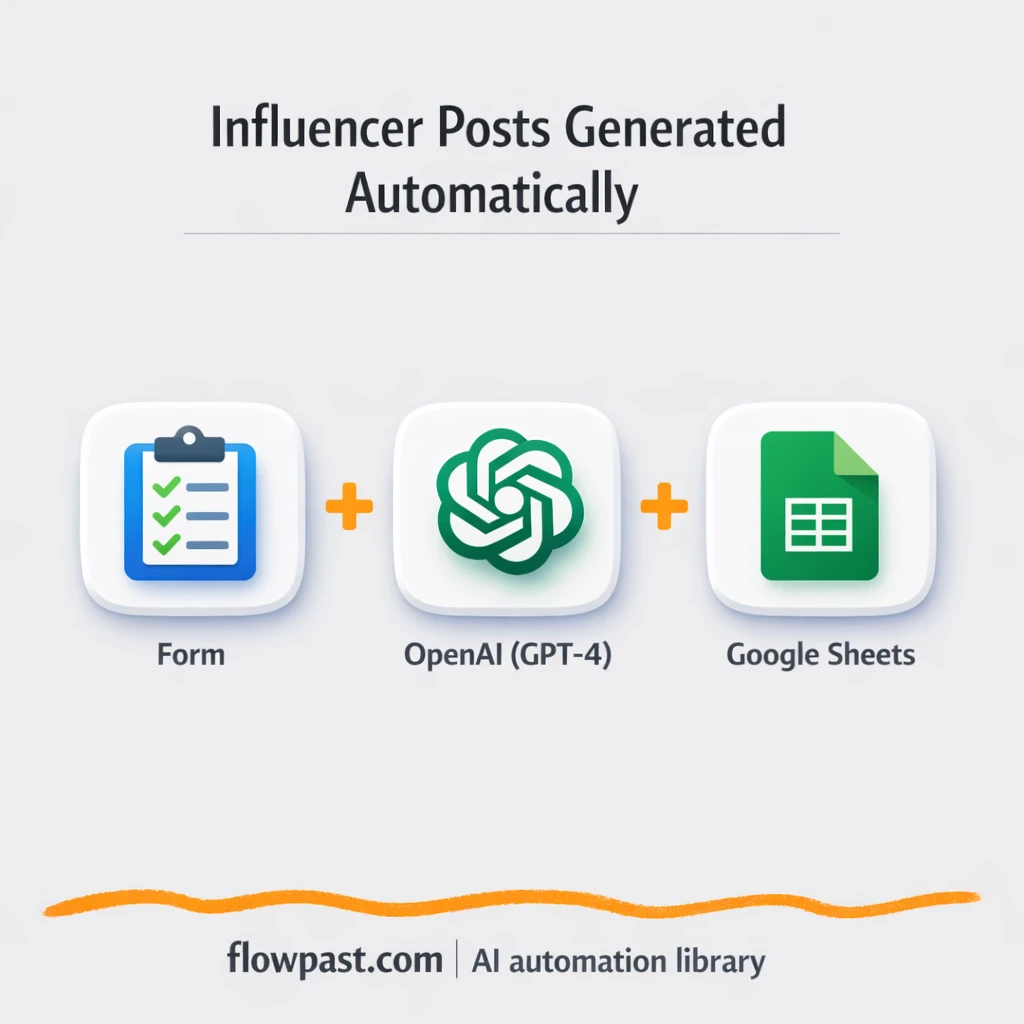
This OpenAI Sheets automation hits social media managers hardest, but brand marketers and small agency teams feel it too. You upload a few brand files, get influencer-style post drafts with visual prompts, and everything lands in Google Sheets so review is fast and trackable.
Below, you’ll see how the workflow runs, what it replaces, and how to implement it without turning your week into a “systems project.”
How This Automation Works
See how this solves the problem:
n8n Workflow Template: OpenAI + Google Sheets: influencer drafts on demand
flowchart LR

    subgraph sg0["On form submission Flow"]
        direction LR
        n0["<div style='background:#f5f5f5;padding:10px;border-radius:8px;display:inline-block;border:1px solid #e0e0e0'><img src='https://flowpast.com/wp-content/uploads/n8n-workflow-icons/form.svg' width='40' height='40' /></div><br/>On form submission"]
        n1@{ icon: "mdi:wrench", form: "rounded", label: "Think", pos: "b", h: 48 }
        n2@{ icon: "mdi:robot", form: "rounded", label: "Structured Output Parser", pos: "b", h: 48 }
        n3["<div style='background:#f5f5f5;padding:10px;border-radius:8px;display:inline-block;border:1px solid #e0e0e0'><img src='https://flowpast.com/wp-content/uploads/n8n-workflow-icons/merge.svg' width='40' height='40' /></div><br/>Merge Inputs"]
        n4@{ icon: "mdi:robot", form: "rounded", label: "Generate Post Ideas", pos: "b", h: 48 }
        n5@{ icon: "mdi:cog", form: "rounded", label: "Character Image", pos: "b", h: 48 }
        n6@{ icon: "mdi:cog", form: "rounded", label: "Setting Image", pos: "b", h: 48 }
        n7@{ icon: "mdi:cog", form: "rounded", label: "Item Image", pos: "b", h: 48 }
        n8["<div style='background:#f5f5f5;padding:10px;border-radius:8px;display:inline-block;border:1px solid #e0e0e0'><img src='https://flowpast.com/wp-content/uploads/n8n-workflow-icons/httprequest.dark.svg' width='40' height='40' /></div><br/>Upload Images (Base64→URL)"]
        n9@{ icon: "mdi:cog", form: "rounded", label: "Aggregate Uploaded URLs", pos: "b", h: 48 }
        n10@{ icon: "mdi:brain", form: "rounded", label: "LLM (OpenAI Chat Model)", pos: "b", h: 48 }
        n11@{ icon: "mdi:swap-vertical", form: "rounded", label: "Split Posts", pos: "b", h: 48 }
        n12@{ icon: "mdi:cog", form: "rounded", label: "Create Image Task", pos: "b", h: 48 }
        n13@{ icon: "mdi:swap-horizontal", form: "rounded", label: "If Video Post", pos: "b", h: 48 }
        n14@{ icon: "mdi:cog", form: "rounded", label: "Create Video Task", pos: "b", h: 48 }
        n15@{ icon: "mdi:database", form: "rounded", label: "Append row in sheet", pos: "b", h: 48 }
        n16@{ icon: "mdi:database", form: "rounded", label: "Update row in sheet", pos: "b", h: 48 }
        n1 -.-> n4
        n7 --> n3
        n11 --> n12
        n3 --> n8
        n13 --> n14
        n6 --> n3
        n5 --> n3
        n12 --> n15
        n14 --> n16
        n0 --> n5
        n0 --> n6
        n15 --> n13
        n4 --> n11
        n9 --> n4
        n10 -.-> n4
        n2 -.-> n4
        n8 --> n9
    end

    %% Styling
    classDef trigger fill:#e8f5e9,stroke:#388e3c,stroke-width:2px
    classDef ai fill:#e3f2fd,stroke:#1976d2,stroke-width:2px
    classDef aiModel fill:#e8eaf6,stroke:#3f51b5,stroke-width:2px
    classDef decision fill:#fff8e1,stroke:#f9a825,stroke-width:2px
    classDef database fill:#fce4ec,stroke:#c2185b,stroke-width:2px
    classDef api fill:#fff3e0,stroke:#e65100,stroke-width:2px
    classDef code fill:#f3e5f5,stroke:#7b1fa2,stroke-width:2px
    classDef disabled stroke-dasharray: 5 5,opacity: 0.5
    class n0 trigger
    class n2,n4 ai
    class n10 aiModel
    class n1 ai
    class n13 decision
    class n15,n16 database
    class n8 api
    classDef customIcon fill:none,stroke:none
    class n0,n3,n8 customIcon
The Challenge: Turning Assets Into Review-Ready Drafts
You get a product photo, a background image, maybe a prop shot, and a vague request like “make it feel like an influencer post.” Then the real time sink starts. Someone has to interpret the brand tone, write captions, come up with visual directions for design (or an image model), and keep track of what’s been drafted versus what’s approved. It’s not hard work, but it’s interrupt-driven work. And the handoffs are where drafts go to die.
It adds up fast. Here’s where it usually breaks down.
- Captions get rewritten three times because the first pass sounds like everyone else’s feed.
- Asset links live in scattered places, so reviewers can’t quickly see “the draft + the visuals + the context” together.
- Teams lose a surprising amount of time copying outputs into a tracker, which also invites mistakes and missing fields.
- Visual prompts don’t match the brand because the brief was incomplete or the generator didn’t “see” the assets.
The Fix: Generate Influencer Drafts From Uploaded Assets
This workflow turns “here are the brand assets” into structured, reviewable content in one run. It starts with a form submission where you upload up to three files (for example: product, background, prop/character). n8n extracts and combines what it needs from those uploads, sends the media in a format your generation stack can use, and asks OpenAI to analyze the tone and create influencer-style post concepts. Each concept becomes its own draft record, then optional sub-workflows generate image and video outputs using whatever APIs you prefer. Finally, the workflow writes everything into Google Sheets, so each draft has captions, prompt text, and media URLs in one place.
The workflow begins when a teammate submits the upload form. From there, OpenAI generates multiple post concepts and visual prompts based on the actual assets provided. Google Sheets becomes the single review hub, with rows updated as image and video links come back.
What Changes: Before vs. After
| What This Eliminates | Impact You’ll See |
|---|---|
|
|
Real-World Impact
Say your team builds 10 influencer-style drafts for a product launch. Manually, you might spend about 10 minutes per draft collecting assets and links, then another 10 minutes writing captions and visual directions, plus 5 minutes logging everything. That’s roughly 4 hours of busywork. With this workflow, the human time is closer to 10 minutes to upload assets and submit the form, then you wait for processing while Sheets fills in. You get most of that afternoon back.
Requirements
- n8n instance (try n8n Cloud free)
- Self-hosting option if you prefer (Hostinger works well)
- OpenAI for captions, concepts, and prompts.
- Google Sheets to store drafts and media URLs.
- Image/video generation API key (get it from your chosen provider’s developer settings).
Skill level: Intermediate. You’ll mostly paste IDs/keys and connect accounts, but you should feel comfortable checking a node’s settings if a run fails.
Need help implementing this? Talk to an automation expert (free 15-minute consultation).
The Workflow Flow
A form submission kicks things off. Someone uploads up to three brand assets (product/background/prop or character) using the n8n form trigger. No hunting through folders, no “can you resend that file?” messages.
The files are extracted and packaged for downstream tools. n8n reads the uploaded files (including PDFs if you use them for brand notes), merges inputs, and prepares the media so an HTTP Request step can upload it to your preferred file/media endpoint.
OpenAI generates structured post concepts. The LLM chat engine and agent nodes create influencer-style titles, captions, and visual prompts. A structured output parser keeps results consistent, so your Google Sheet columns don’t turn into a free-for-all.
Sub-workflows generate images and videos, then Sheets gets updated. Each post concept is split into a record, an image generation sub-workflow runs, and a Google Sheets row is appended. If a concept is flagged for video, a second sub-workflow runs and the sheet row is updated with video URLs after processing.
You can easily modify the image/video generation pieces to match your exact tools, so you’re not locked into one provider. See the full implementation guide below for customization options.
Step-by-Step Implementation Guide
Step 1: Configure the Form Trigger
Set up the intake form that starts the workflow and collects creative inputs and files.
- Add and open Form Submission Trigger.
- Set Form Title to
Creative Brief. - Confirm the form fields match the JSON: Character Image (file, required), Setting image (file), Item Image (file), How many images? (dropdown 1–10), How many Videos? (dropdown 1–10), Creative Direction (text), and Aspect Ratio (radio:
9:16,16:9). - Note the parallel path: Form Submission Trigger outputs to both Extract Character File and Extract Background File in parallel.
Step 2: Prepare and Upload Reference Media
Convert uploaded files to properties, merge them, and upload to your file endpoint.
- In Extract Character File, set Operation to
binaryToProperyand Binary Property Name to=Character_Image. - In Extract Background File, set Operation to
binaryToProperyand Binary Property Name toSetting_image. - In Extract Item File, set Operation to
binaryToProperyand Binary Property Name toItem_Image. - In Combine Input Files, set Number Inputs to
3and connect all three extract nodes into it. - In Upload Media Base64, set URL to
=<, Method to>/api/file_base64-upload POST, and enable Send Body. - Set body parameters in Upload Media Base64 to: base64Data =
{{ $json.data }}, uploadPath =documents/uploads, and fileName ={{ $now }}.jpg. - In Collect Upload Links, aggregate data.downloadUrl so the next step can reference it.
base64Data in the request body. Verify your API supports this payload format before testing.Step 3: Set Up AI Prompt Generation
Configure the AI agent that generates post concepts and ensure the AI tools are attached correctly.
- Open Compose Post Concepts and keep Prompt Type set to
definewith the full prompt text provided in the node. - Confirm the embedded expressions in Compose Post Concepts are present, including
{{ $('Form Submission Trigger').item.json['How many images?'] }},{{ $('Form Submission Trigger').item.json['How many Videos?'] }},{{ $('Form Submission Trigger').item.json['Aspect Ratio'] }}, and{{ $('Form Submission Trigger').item.json['Creative Direction'] }}. - Ensure LLM Chat Engine is connected as the language model for Compose Post Concepts. Credential Required: Connect your openAiApi credentials in LLM Chat Engine.
- Verify Structured Result Parser is attached as the output parser and Reasoning Tool is attached as the tool for Compose Post Concepts. Add credentials to the parent node (LLM Chat Engine), not these sub-nodes.
- In Split Post Records, set Field to Split Out to
output.poststo process each post individually.
Step 4: Configure Sub-Workflows and Filtering
Send prompts to dedicated sub-workflows and route video posts for follow-up processing.
- In Run Sub-Workflow (Configure Required), choose a workflow in Workflow ID and map inputs: image_prompt =
{{ $json.image_prompt }}, downloadUrl ={{ $('Collect Upload Links').item.json.downloadUrl }}, and include the full form data with{{ $('Form Submission Trigger').item.json }}. - In Filter Video Posts, keep the conditions: post_type equals
videoand status not equalserror. - In Run Sub-Workflow (Configure Required) 2, choose a workflow in Workflow ID and pass video_prompt =
{{ $('Split Post Records').item.json.video_prompt }}with form data{{ $('Form Submission Trigger').item.json }}.
Step 5: Configure Google Sheets Outputs
Save image results and update video results in Google Sheets.
- Open Append Sheet Row and set Operation to
append. - Set Document ID to
=<and select Sheet Name> Sheet1(gid=0). - Map columns in Append Sheet Row exactly: id =
{{ $execution.id }}_{{ $('Split Post Records').item.json.title }}, title ={{ $('Split Post Records').item.json.title }}, status ={{ $json.image_result && $json.image_result.includes('https://') ? 'scheduled' : 'error' }}, caption ={{ $('Split Post Records').item.json.caption }}, image_output ={{ $json.image_result }}. - Open Update Sheet Row and set Operation to
update, then select the same sheet and document used above. - Credential Required: Connect your Google Sheets credentials to both Append Sheet Row and Update Sheet Row.
id, title, caption, image_output, video_output, status) to avoid mapping errors.Step 6: Test and Activate Your Workflow
Run a full test to verify file upload, AI generation, and sheet updates before turning the workflow on.
- Click Execute Workflow and submit the Form Submission Trigger with sample files and selections.
- Confirm Upload Media Base64 returns a valid
data.downloadUrland Collect Upload Links aggregates it. - Verify Compose Post Concepts outputs structured
output.posts, and Split Post Records creates separate items. - Check that Append Sheet Row appends rows and that Filter Video Posts routes only valid video posts to Run Sub-Workflow (Configure Required) 2.
- When successful, set the workflow to Active so new form submissions trigger production runs.
Watch Out For
- Google Sheets credentials can expire or lack edit permissions. If rows don’t append or update, check the connected Google account and the spreadsheet sharing settings first.
- If you’re using Wait nodes or external rendering, processing times vary. Bump up the wait duration if downstream nodes fail on empty responses.
- Default prompts in AI nodes are generic. Add your brand voice early or you’ll be editing outputs forever.
Common Questions
Usually about an hour once your accounts are ready.
Yes. You’ll connect OpenAI and Google Sheets, then replace a few placeholders like your Sheet ID and API keys.
Yes. n8n has a free self-hosted option and a free trial on n8n Cloud. Cloud plans start at $20/month for higher volume. You’ll also need to factor in OpenAI and media generation API usage, which depends on how many drafts you create.
Two options: n8n Cloud (managed, easiest setup) or self-hosting on a VPS. For self-hosting, Hostinger VPS is affordable and handles n8n well. Self-hosting gives you unlimited executions but requires basic server management.
You can swap the media generation pieces without changing the overall flow. In practice, you keep the Form Submission Trigger, the OpenAI generation (LLM Chat Engine / Compose Post Concepts), and Google Sheets nodes, then replace the HTTP Request upload and the two “Run Sub-Workflow (Configure Required)” steps with your own image/video API calls. Common tweaks include generating more (or fewer) post concepts per upload, enforcing stricter brand rules in the prompt, and writing extra columns in Sheets for reviewer status.
Usually it’s permissions or the wrong spreadsheet ID. Reconnect the Google Sheets credential in n8n, then confirm the Sheet is shared with that Google account and that the workflow is pointing at the correct tab. If “Append Sheet Row” works but “Update Sheet Row” fails, the row identifier being passed forward may be missing because an upstream node didn’t return a result.
On n8n Cloud, capacity depends on your plan’s monthly executions, and each generated post record can count as additional executions. If you self-host, there’s no platform execution cap; your practical limit is your server plus API rate limits from OpenAI and your image/video provider. For most small teams, handling a few dozen drafts a day is realistic if you keep media generation queues under control.
Often, yes, especially if you want multiple branches, structured AI outputs, and sub-workflows for image/video generation. Zapier and Make can do parts of this, but multi-step AI workflows tend to get expensive and harder to maintain once you add conditional logic (like filtering video posts) and “append then update” patterns in Sheets. n8n also gives you a self-host option, which can matter when you’re generating lots of drafts. If you only need a basic “form to sheet” capture, Zapier is fine. If you’re unsure, Talk to an automation expert and you’ll get a straight recommendation.
Once this is running, drafts stop being a bottleneck and start being a steady flow. The workflow handles the repetitive handoffs so you can focus on what actually makes content perform.
Need Help Setting This Up?
Our automation experts can build and customize this workflow for your specific needs. Free 15-minute consultation—no commitment required.
