


SerpAPI to Google Sheets, lead lists you can trust

You find a good niche, run a Google search, and then the slow part starts. Tabs everywhere, copy-pasting names, guessing the real website, and still ending up with a messy sheet that needs another hour of cleanup.
Marketing managers feel it when lead goals are due. A freelancer building a prospect list for a new client feels it too. Same for an agency owner delegating research to a junior and then fixing the results. This SerpAPI Google Sheets automation gives you a lead list you can actually use, without the “is this even the right company?” spiral.
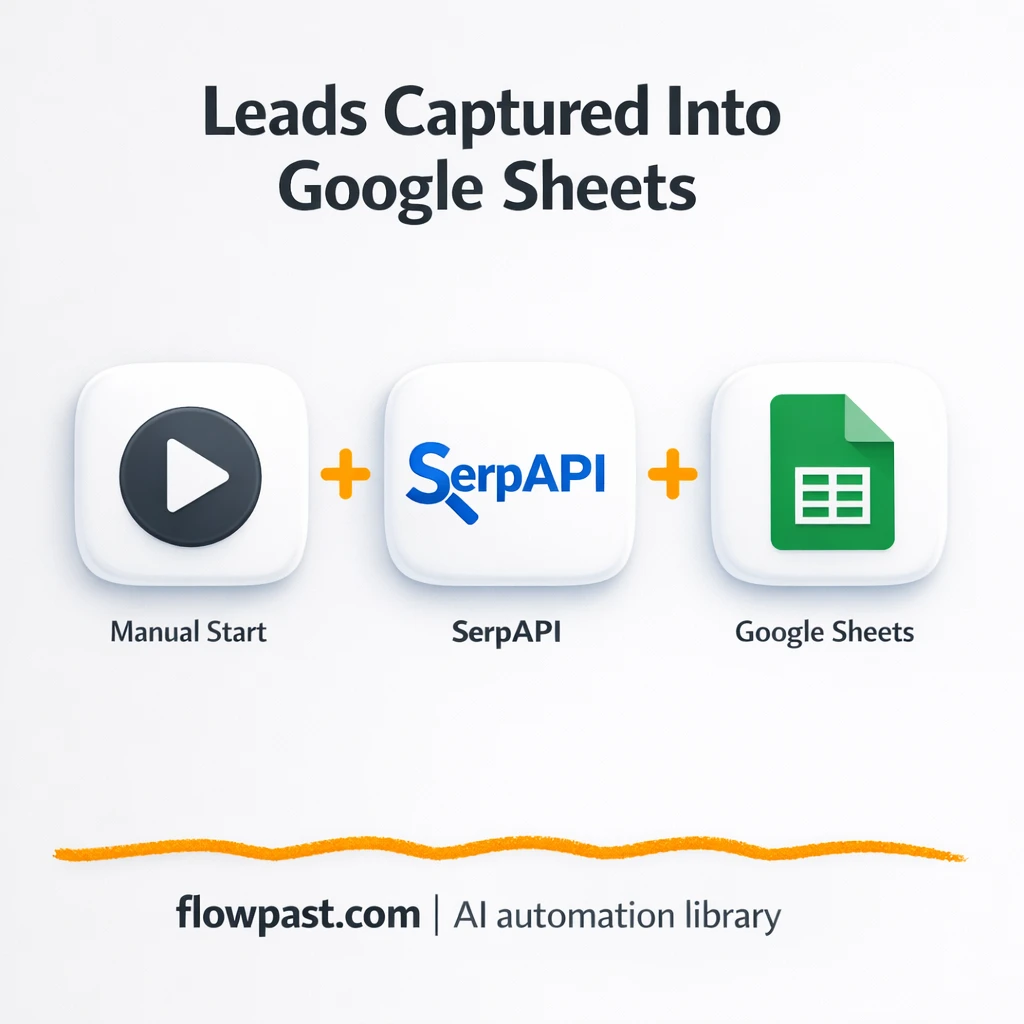
This workflow pulls business leads from Google Search via SerpAPI, optionally checks each site for richer details, and logs structured rows into Google Sheets. You’ll see what it automates, the outcomes you can expect, and what you need to run it reliably.
How This Automation Works
See how this solves the problem:
n8n Workflow Template: SerpAPI to Google Sheets, lead lists you can trust
flowchart LR

    subgraph sg0["When clicking ‘Test workflow’ Flow"]
        direction LR
        n0@{ icon: "mdi:play-circle", form: "rounded", label: "When clicking ‘Test workflow’", pos: "b", h: 48 }
        n1["<div style='background:#f5f5f5;padding:10px;border-radius:8px;display:inline-block;border:1px solid #e0e0e0'><img src='https://flowpast.com/wp-content/uploads/n8n-workflow-icons/httprequest.dark.svg' width='40' height='40' /></div><br/>SERPAPI- GOOGE SEARCH"]
        n2@{ icon: "mdi:swap-vertical", form: "rounded", label: "Split Out", pos: "b", h: 48 }
        n3["<div style='background:#f5f5f5;padding:10px;border-radius:8px;display:inline-block;border:1px solid #e0e0e0'><img src='https://flowpast.com/wp-content/uploads/n8n-workflow-icons/httprequest.dark.svg' width='40' height='40' /></div><br/>HTTP Request"]
        n4["<div style='background:#f5f5f5;padding:10px;border-radius:8px;display:inline-block;border:1px solid #e0e0e0'><img src='https://flowpast.com/wp-content/uploads/n8n-workflow-icons/merge.svg' width='40' height='40' /></div><br/>Merge"]
        n5["<div style='background:#f5f5f5;padding:10px;border-radius:8px;display:inline-block;border:1px solid #e0e0e0'><img src='https://flowpast.com/wp-content/uploads/n8n-workflow-icons/code.svg' width='40' height='40' /></div><br/>Code"]
        n6@{ icon: "mdi:database", form: "rounded", label: "Google Sheets", pos: "b", h: 48 }
        n5 --> n6
        n4 --> n5
        n2 --> n3
        n2 --> n4
        n3 --> n4
        n1 --> n2
        n0 --> n1
    end

    %% Styling
    classDef trigger fill:#e8f5e9,stroke:#388e3c,stroke-width:2px
    classDef ai fill:#e3f2fd,stroke:#1976d2,stroke-width:2px
    classDef aiModel fill:#e8eaf6,stroke:#3f51b5,stroke-width:2px
    classDef decision fill:#fff8e1,stroke:#f9a825,stroke-width:2px
    classDef database fill:#fce4ec,stroke:#c2185b,stroke-width:2px
    classDef api fill:#fff3e0,stroke:#e65100,stroke-width:2px
    classDef code fill:#f3e5f5,stroke:#7b1fa2,stroke-width:2px
    classDef disabled stroke-dasharray: 5 5,opacity: 0.5
    class n0 trigger
    class n6 database
    class n1,n3 api
    class n5 code
    classDef customIcon fill:none,stroke:none
    class n1,n3,n4,n5 customIcon
The Challenge: Turning Google results into a usable lead list
Google is great for finding businesses. It’s terrible at giving you a clean, consistent list you can hand to outreach or import into a CRM. You click a result, it’s a directory. Or it’s a business with no clear contact info. Then you start “just quickly” checking the website, copying a phone number, pasting into Sheets, and trying to keep columns consistent. Multiply that by 50 searches and it becomes a real weekly chore, plus you still don’t fully trust what you captured.
It adds up fast. Here’s where it usually breaks down once you try to scale it beyond a handful of leads.
- Copy-paste lead building takes about 5 minutes per business once you include verification and formatting.
- Website fields get inconsistent because some results are directories, redirects, or franchise pages.
- Teams waste time re-checking “already researched” leads because there’s no reliable source trail.
- The sheet looks complete until outreach starts, and then missing phones or bad URLs show up at the worst time.
The Fix: SerpAPI pulls leads, Sheets stays clean
This n8n workflow turns Google Search results into structured leads automatically. You start with a niche query (for example, “plumbers in New York”), and SerpAPI returns the result set in a predictable format. Each result gets split into individual items so it can be processed like a real pipeline, not a blob of data. If you want deeper verification, the workflow can also visit each website and pull useful page content to improve what you store. Then a transformation step filters, validates, and formats key fields like company name, website, email, and phone. Finally, the workflow appends clean rows into Google Sheets so your list is immediately ready for outreach or CRM import.
The workflow kicks off with a manual run in n8n, so you can control when you pull fresh leads. SerpAPI fetches Google results, the workflow optionally enriches them by visiting each site, and then everything is merged and normalized before it ever hits your spreadsheet.
What Changes: Before vs. After
| What This Eliminates | Impact You’ll See |
|---|---|
|
|
Real-World Impact
Say you need 60 leads for a local campaign. Manually, if you spend about 5 minutes per lead between Google, clicking sites, finding contact info, and keeping Sheets tidy, that’s about 5 hours of work (and it’s not fun work). With this workflow, you can set your search term, run it, and let it append results while you spot-check. In practice, you’ll spend about 10 minutes configuring and then maybe 20 minutes reviewing and pruning, so you get most of that afternoon back.
Requirements
- n8n instance (try n8n Cloud free)
- Self-hosting option if you prefer (Hostinger works well)
- SerpAPI for Google Search results via API
- Google Sheets to store and share the lead list
- SerpAPI API key (get it from your SerpAPI dashboard)
Skill level: Beginner. You’ll connect accounts, paste an API key, and edit a search query.
Need help implementing this? Talk to an automation expert (free 15-minute consultation).
The Workflow Flow
You run the workflow with a niche query. The manual start keeps it simple: update the search term, hit execute, and you’re off.
SerpAPI pulls the Google results. n8n uses an HTTP request to call SerpAPI, which returns structured data you can reliably parse instead of scraping HTML.
Each result gets processed like its own lead. The workflow splits results into items, optionally visits each website for extra page content, and merges those streams so you can enrich leads without losing the original search context.
Leads are cleaned up, then written to Google Sheets. A code transformation step validates and formats fields (so your columns stay consistent), and the final node appends each lead as a new row.
You can easily modify the search term and the validation rules to match your outreach standards. See the full implementation guide below for customization options.
Step-by-Step Implementation Guide
Step 1: Configure the Manual Trigger
This workflow starts manually so you can test and validate the lead capture process before automating it.
- Add or verify the Manual Execution Start node as the trigger.
- Confirm there are no parameters required in Manual Execution Start.
- Optionally keep the Flowpast Branding sticky note for documentation context.
Step 2: Connect Google Sheets
Set up the spreadsheet destination where the normalized lead data will be appended.
- Open Append to Sheets and select the target spreadsheet.
- Set Document to
LEAD AUTOMATION. - Set Sheet Name to
LEADS. - Credential Required: Connect your
googleSheetsOAuth2Apicredentials.
Step 3: Set Up Data Retrieval and Parallel Scraping
Configure the search query and split the results into individual items for scraping and merging.
- In Search Results API Call, set the URL to
https://serpapi.com/search. - Enable Send Query and set query parameters: engine
google, qplumbers in New York, api_key[CONFIGURE_YOUR_API_KEY], num20, typesearch. - In Extract Result Items, set Field to Split Out to
organic_results. - Extract Result Items outputs to both Fetch Page Content and Combine Streams in parallel.
- In Fetch Page Content, set URL to
{{ $json.link }}and keep Send Headers enabled with the provided browser-like headers. - In Combine Streams, set Mode to
combineand Combine By tocombineByPosition.
[CONFIGURE_YOUR_API_KEY] in Search Results API Call—replace it with your SerpAPI key or the request will fail.Step 4: Set Up Processing Logic
Normalize and enrich lead data before writing it to your spreadsheet.
- Open Transform Lead Data and keep the provided JavaScript Code to normalize business name, website, email, phone, and snippet.
- Review the
doScrapeFallbackflag in the code if you want to disable HTML-based fallback parsing. - Ensure Transform Lead Data is connected to Append to Sheets for output.
Step 5: Configure Output to Google Sheets
Finalize how data is appended so each lead becomes a new row.
- In Append to Sheets, set Operation to
append. - Keep Columns mapping in
autoMapInputDatato map fields likebusiness_name,website,email, andphoneautomatically.
Step 6: Test and Activate Your Workflow
Run a full test to verify data flows from search to spreadsheet, then activate for ongoing use.
- Click Execute Workflow to run Manual Execution Start.
- Confirm Search Results API Call returns results and Transform Lead Data outputs normalized fields.
- Check your
LEADSsheet to confirm new rows were appended by Append to Sheets. - When satisfied, toggle the workflow to Active for production use.
Watch Out For
- SerpAPI credentials can expire or you may hit plan limits. If the API call fails, check your SerpAPI dashboard usage and regenerate the key if needed.
- If you’re using Wait nodes or external rendering, processing times vary. Bump up the wait duration if downstream nodes fail on empty responses.
- Google Sheets permissions can block appends if the connected account loses access. If new rows stop appearing, confirm the sheet is shared with the same Google account used in n8n.
Common Questions
About 10 minutes if you already have your SerpAPI key and a Sheet ready.
Yes. You’ll mostly paste credentials and change the search query. The parsing logic is already done for you.
Yes. n8n has a free self-hosted option and a free trial on n8n Cloud. Cloud plans start at $20/month for higher volume. You’ll also need to factor in SerpAPI usage, since it’s a paid API based on how many searches you run.
Two options: n8n Cloud (managed, easiest setup) or self-hosting on a VPS. For self-hosting, Hostinger VPS is affordable and handles n8n well. Self-hosting gives you unlimited executions but requires basic server management.
Start by changing the query in the “Search Results API Call” request so it matches your niche and location. If you want stricter lead quality, tweak the “Transform Lead Data” code to drop results missing a website, phone, or a valid domain. You can also skip the “Fetch Page Content” request if you only want what SerpAPI returns, which makes runs faster. For richer lists, do the opposite and expand the parsing rules to pull emails or contact-page URLs when they appear.
Usually it’s an invalid or expired API key, or your SerpAPI plan is out of credits. Check the SerpAPI dashboard first, then update the key inside the HTTP Request node in n8n. If the request works but returns empty results, your query may be too narrow or blocked by location settings. Rate limits can also show up if you run big batches back-to-back.
It depends more on your SerpAPI limits than n8n, but processing a few hundred results per run is realistic for most setups.
Often, yes, because this kind of lead processing needs branching, merging, and custom validation that’s awkward in simpler “trigger-action” tools. n8n handles split processing and merge logic cleanly, and you can self-host for unlimited executions if you’re running lots of searches. You also get full control over how leads are filtered, which matters when you’re trying to protect deliverability and brand reputation. Zapier or Make can still work if you only want to pull the raw SerpAPI response and dump it into a sheet with minimal cleanup. Talk to an automation expert if you want help choosing.
Once this is set up, lead research stops being a recurring fire drill. The workflow handles the repetitive capture and formatting so you can focus on outreach, offers, and closing.
Need Help Setting This Up?
Our automation experts can build and customize this workflow for your specific needs. Free 15-minute consultation—no commitment required.
