


WordPress + OpenAI: publish-ready posts, hands free

Your content pipeline probably isn’t “hard.” It’s just annoying. Research in one tab, outlines in another, drafts in a doc, images somewhere else, then the WordPress copy-paste marathon (plus fixing headings, slugs, excerpts, featured images). That’s why WordPress OpenAI automation is suddenly on every marketer’s shortlist.
If you’re a content manager, you feel it when deadlines stack up. If you run a small business site, the blog slips because publishing is a whole project. And agency leads hit the same wall when they try to scale output without sacrificing quality.
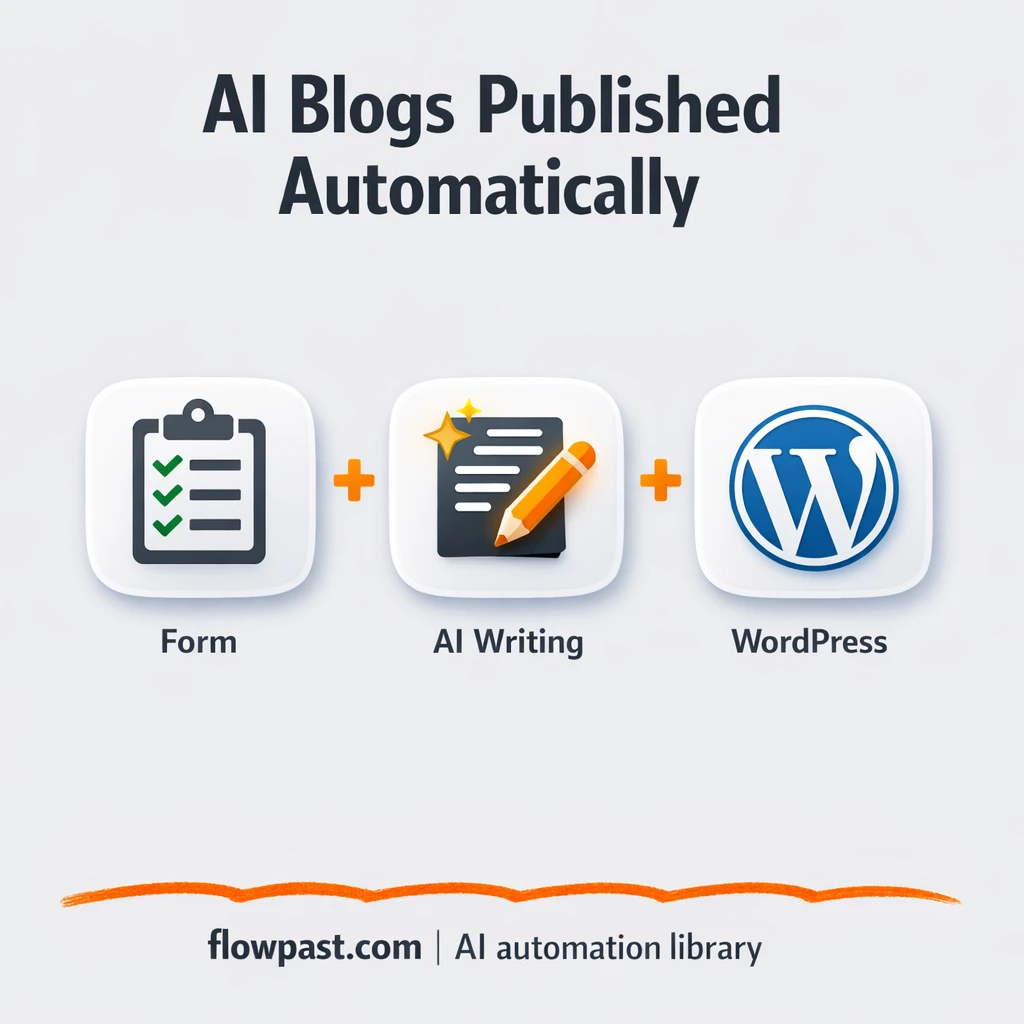
This workflow turns a simple form submission into a research-backed, publish-ready WordPress post with images and metadata. You’ll see exactly how it works, what you need, and where people usually get stuck.
How This Automation Works
Here’s the complete workflow you’ll be setting up:
n8n Workflow Template: WordPress + OpenAI: publish-ready posts, hands free
flowchart LR

    subgraph sg0["On form submission Flow"]
        direction LR
        n0@{ icon: "mdi:robot", form: "rounded", label: "Structured Output Parser", pos: "b", h: 48 }
        n3@{ icon: "mdi:swap-horizontal", form: "rounded", label: "If", pos: "b", h: 48 }
        n4@{ icon: "mdi:cog", form: "rounded", label: "Wait", pos: "b", h: 48 }
        n5@{ icon: "mdi:brain", form: "rounded", label: "Google Gemini Chat Model2", pos: "b", h: 48 }
        n6@{ icon: "mdi:swap-vertical", form: "rounded", label: "Loop Over Items", pos: "b", h: 48 }
        n7@{ icon: "mdi:cog", form: "rounded", label: "Wait1", pos: "b", h: 48 }
        n8["<div style='background:#f5f5f5;padding:10px;border-radius:8px;display:inline-block;border:1px solid #e0e0e0'><img src='https://flowpast.com/wp-content/uploads/n8n-workflow-icons/code.svg' width='40' height='40' /></div><br/>Code"]
        n9["<div style='background:#f5f5f5;padding:10px;border-radius:8px;display:inline-block;border:1px solid #e0e0e0'><img src='https://flowpast.com/wp-content/uploads/n8n-workflow-icons/code.svg' width='40' height='40' /></div><br/>all_images"]
        n10@{ icon: "mdi:swap-vertical", form: "rounded", label: "html_content", pos: "b", h: 48 }
        n11@{ icon: "mdi:swap-horizontal", form: "rounded", label: "If1", pos: "b", h: 48 }
        n12@{ icon: "mdi:cog", form: "rounded", label: "Wait2", pos: "b", h: 48 }
        n13@{ icon: "mdi:web", form: "rounded", label: "URL Scraper", pos: "b", h: 48 }
        n14@{ icon: "mdi:cog", form: "rounded", label: "Message a model in Perplexity", pos: "b", h: 48 }
        n15["<div style='background:#f5f5f5;padding:10px;border-radius:8px;display:inline-block;border:1px solid #e0e0e0'><img src='https://flowpast.com/wp-content/uploads/n8n-workflow-icons/httprequest.dark.svg' width='40' height='40' /></div><br/>download image"]
        n16@{ icon: "mdi:cog", form: "rounded", label: "Edit Image (only for changin..", pos: "b", h: 48 }
        n17["<div style='background:#f5f5f5;padding:10px;border-radius:8px;display:inline-block;border:1px solid #e0e0e0'><img src='https://flowpast.com/wp-content/uploads/n8n-workflow-icons/httprequest.dark.svg' width='40' height='40' /></div><br/>nano banana"]
        n18@{ icon: "mdi:swap-vertical", form: "rounded", label: "Edit Fields (set image promp..", pos: "b", h: 48 }
        n19@{ icon: "mdi:swap-vertical", form: "rounded", label: "final image url", pos: "b", h: 48 }
        n20["<div style='background:#f5f5f5;padding:10px;border-radius:8px;display:inline-block;border:1px solid #e0e0e0'><img src='https://flowpast.com/wp-content/uploads/n8n-workflow-icons/code.svg' width='40' height='40' /></div><br/>imbed images in html"]
        n21@{ icon: "mdi:swap-vertical", form: "rounded", label: "API Keys", pos: "b", h: 48 }
        n22["<div style='background:#f5f5f5;padding:10px;border-radius:8px;display:inline-block;border:1px solid #e0e0e0'><img src='https://flowpast.com/wp-content/uploads/n8n-workflow-icons/form.svg' width='40' height='40' /></div><br/>On form submission"]
        n24@{ icon: "mdi:cog", form: "rounded", label: "save blog", pos: "b", h: 48 }
        n25@{ icon: "mdi:cog", form: "rounded", label: "save blog1", pos: "b", h: 48 }
        n26@{ icon: "mdi:brain", form: "rounded", label: "OpenAI Chat Model", pos: "b", h: 48 }
        n27@{ icon: "mdi:brain", form: "rounded", label: "OpenAI Chat Model1", pos: "b", h: 48 }
        n28@{ icon: "mdi:brain", form: "rounded", label: "OpenAI Chat Model2", pos: "b", h: 48 }
        n29["<div style='background:#f5f5f5;padding:10px;border-radius:8px;display:inline-block;border:1px solid #e0e0e0'><img src='https://flowpast.com/wp-content/uploads/n8n-workflow-icons/httprequest.dark.svg' width='40' height='40' /></div><br/>Upload image"]
        n30["<div style='background:#f5f5f5;padding:10px;border-radius:8px;display:inline-block;border:1px solid #e0e0e0'><img src='https://flowpast.com/wp-content/uploads/n8n-workflow-icons/wordpress.svg' width='40' height='40' /></div><br/>Create a post"]
        n31["<div style='background:#f5f5f5;padding:10px;border-radius:8px;display:inline-block;border:1px solid #e0e0e0'><img src='https://flowpast.com/wp-content/uploads/n8n-workflow-icons/httprequest.dark.svg' width='40' height='40' /></div><br/>Set Image"]
        n32@{ icon: "mdi:swap-horizontal", form: "rounded", label: "If2", pos: "b", h: 48 }
        n33@{ icon: "mdi:cog", form: "rounded", label: "Wait3", pos: "b", h: 48 }
        n34@{ icon: "mdi:robot", form: "rounded", label: "Researcher Agent", pos: "b", h: 48 }
        n35@{ icon: "mdi:robot", form: "rounded", label: "Writer Agent", pos: "b", h: 48 }
        n36@{ icon: "mdi:robot", form: "rounded", label: "Image Prompts Writer", pos: "b", h: 48 }
        n37@{ icon: "mdi:robot", form: "rounded", label: "image name writer", pos: "b", h: 48 }
        n38@{ icon: "mdi:cog", form: "rounded", label: "RSS Read3", pos: "b", h: 48 }
        n39@{ icon: "mdi:cog", form: "rounded", label: "Aggregate", pos: "b", h: 48 }
        n40["<div style='background:#f5f5f5;padding:10px;border-radius:8px;display:inline-block;border:1px solid #e0e0e0'><img src='https://flowpast.com/wp-content/uploads/n8n-workflow-icons/code.svg' width='40' height='40' /></div><br/>Code in JavaScript"]
        n3 --> n4
        n3 --> n35
        n11 --> n12
        n11 --> n24
        n32 --> n15
        n32 --> n33
        n8 --> n6
        n4 --> n34
        n7 --> n6
        n12 --> n35
        n33 --> n18
        n21 --> n38
        n39 --> n40
        n38 --> n39
        n24 --> n36
        n9 --> n10
        n25 --> n30
        n13 -.-> n34
        n13 -.-> n35
        n17 --> n32
        n29 --> n19
        n35 --> n11
        n10 --> n20
        n30 --> n31
        n15 --> n16
        n6 --> n9
        n6 --> n37
        n19 --> n7
        n34 --> n3
        n26 -.-> n35
        n37 --> n18
        n40 --> n34
        n22 --> n21
        n27 -.-> n34
        n28 -.-> n36
        n36 --> n8
        n20 --> n25
        n0 -.-> n35
        n5 -.-> n0
        n14 -.-> n34
        n14 -.-> n35
        n16 --> n29
        n18 --> n17
    end

    subgraph sg1["Flow 2"]
        direction LR
        n2@{ icon: "mdi:brain", form: "rounded", label: "Google Gemini Chat Model1", pos: "b", h: 48 }
    end

    subgraph sg2["Flow 3"]
        direction LR
        n1@{ icon: "mdi:brain", form: "rounded", label: "Google Gemini Chat Model", pos: "b", h: 48 }
    end

    subgraph sg3["Flow 4"]
        direction LR
        n23@{ icon: "mdi:web", form: "rounded", label: "tavily search", pos: "b", h: 48 }
    end

    %% Styling
    classDef trigger fill:#e8f5e9,stroke:#388e3c,stroke-width:2px
    classDef ai fill:#e3f2fd,stroke:#1976d2,stroke-width:2px
    classDef aiModel fill:#e8eaf6,stroke:#3f51b5,stroke-width:2px
    classDef decision fill:#fff8e1,stroke:#f9a825,stroke-width:2px
    classDef database fill:#fce4ec,stroke:#c2185b,stroke-width:2px
    classDef api fill:#fff3e0,stroke:#e65100,stroke-width:2px
    classDef code fill:#f3e5f5,stroke:#7b1fa2,stroke-width:2px
    classDef disabled stroke-dasharray: 5 5,opacity: 0.5
    class n22 trigger
    class n0,n34,n35,n36,n37 ai
    class n5,n26,n27,n28,n2,n1 aiModel
    class n3,n11,n32 decision
    class n13,n15,n17,n29,n31,n23 api
    class n8,n9,n20,n40 code
    classDef customIcon fill:none,stroke:none
    class n8,n9,n15,n17,n20,n22,n29,n30,n31,n40 customIcon
Why This Matters: Publishing Bottlenecks Kill Consistency
Most teams don’t fail at content because they can’t write. They fail because shipping is slow and messy. Research takes longer than expected, drafts get stuck in review, and by the time you format everything in WordPress you’re already behind on the next post. The worst part is the mental load. You’re not just “writing,” you’re managing slugs, excerpts, categories, image sizes, media uploads, and a dozen tiny checks that only show up when something breaks on the live page. Honestly, it’s the kind of work that makes people dread publishing.
The friction compounds. Here’s where it usually breaks down.
- You spend about 1–2 hours per post doing research, formatting, and WordPress cleanup instead of writing.
- Images become the blocker, because sourcing, generating, naming, uploading, and embedding adds more steps than it should.
- SEO structure ends up inconsistent, which means posts look different week to week and editing takes longer.
- When content lives across docs, chats, and spreadsheets, you lose track of what’s drafted, reviewed, or published.
What You’ll Build: A Form-to-WordPress Publishing Machine
This n8n workflow starts with a simple form submission: you provide a topic, target audience, and industry. From there, an AI “research agent” uses web search tools (like Tavily and Perplexity) to gather context and patterns from what’s already ranking. Next, a writing agent turns that research into a full blog post with proper HTML structure for WordPress, so headings, sections, and formatting are already in place. Then it generates a featured image plus supporting images, uploads them to your WordPress media library, and embeds them into the post body. Finally, it publishes the post (or saves it as a draft), sets metadata like slug and excerpt, and assigns the featured image so the post looks complete the moment it hits your site.
The workflow begins with your content brief and ends with a real WordPress post, created via the WordPress API. In the middle, it stores intermediate drafts in an n8n data table, runs quality checks, and retries steps if an image or response isn’t ready yet.
What You’re Building
| What Gets Automated | What You’ll Achieve |
|---|---|
|
|
Expected Results
Say you publish 3 posts per week. Manually, a “write + format + upload images + WordPress setup” routine is often about 2 hours per post, so you’re spending roughly 6 hours a week just to get content live. With this workflow, you might spend 5 minutes filling the form and another 10–15 minutes reviewing the draft and images before you let it publish. That’s about 5 hours back most weeks, without skipping the parts that make the post look polished.
Before You Start
- n8n instance (try n8n Cloud free)
- Self-hosting option if you prefer (Hostinger works well)
- WordPress for publishing posts via the API
- OpenAI to research and write the article
- Tavily API key (get it from tavily.com)
Skill level: Intermediate. You’ll connect credentials, edit a few URLs, and test with a sample post.
Want someone to build this for you? Talk to an automation expert (free 15-minute consultation).
Step by Step
A form submission kicks things off. You enter the topic, audience, and industry, then submit. n8n captures that input and loads your saved API keys so the rest of the workflow can run unattended.
Research gets compiled before writing begins. The workflow queries web search tools and aggregates the findings, which gives the writing agent better raw material than a blank prompt. This is also where it can pull from feeds or other sources if you choose to extend it later.
The post is drafted in publishable structure. The writing agent produces HTML-ready content, then a builder step assembles sections cleanly (headings, paragraphs, and placeholders for images). A data table entry is created so you have a saved draft even if you stop before publishing.
Images are generated, uploaded, and embedded. The workflow extracts image prompts, calls an image generation service, converts files when needed, uploads media to WordPress, then injects the resulting URLs directly into the HTML.
WordPress publishes and assigns metadata. A WordPress node creates the post (draft or publish), then an API call assigns the featured image and final fields like excerpt, slug, category, author, and status.
You can easily modify the publishing status to “draft” instead of “publish” based on your needs. See the full implementation guide below for customization options.
Step-by-Step Implementation Guide
Step 1: Configure the Form Trigger
Start the workflow with a form submission that collects the content request details.
- Add or open Form Submission Trigger and define the form fields your users will submit (topic, keywords, sources, tone, etc.).
- Save the form and confirm that Form Submission Trigger is connected to Configure API Keys.
- Optionally keep Flowpast Branding as a reference note in the canvas.
Step 2: Connect RSS Data and Normalize Inputs
Pull external sources and aggregate them before research begins.
- In Configure API Keys, set the API key fields you plan to use throughout the workflow (for example, keys passed from the form).
- Configure RSS Feed Reader to read the RSS URL(s) you want to include as sources.
- Ensure RSS Feed Reader flows into Aggregate Records, then into JavaScript Transform for normalization.
Step 3: Set Up the Research Agent Loop
Use the research agent to gather and validate input before writing.
- Open Research Agent and confirm it receives input from JavaScript Transform.
- Verify Research Agent outputs to Conditional Branch, which either routes to Delay Step (for retries) or to Writing Agent.
- Keep the loop intact: Delay Step should return to Research Agent so the agent can retry on missing research.
- Confirm URL Extraction Tool and Perplexity Query Tool are attached as AI tools for both Research Agent and Writing Agent.
Step 4: Configure Writing and Draft Storage
Generate the main draft content and store it for image extraction.
- Open Writing Agent and verify it follows Conditional Branch.
- Confirm the flow from Writing Agent to Branch Logic 2, which routes to Delay Step 3 (for retries) or to Store Blog Draft.
- Ensure Store Blog Draft connects to Image Prompt Extractor to pull image ideas from the draft.
- Verify Structured Result Parser is attached to Writing Agent via
ai_outputParser.
Step 5: Extract Image Prompts and Batch Processing
Split the draft into image prompts and build a list for generation and embedding.
- Confirm Image Prompt Extractor outputs to Custom Script Step, then to Iterate Through Records.
- Iterate Through Records outputs to both Compile Image List and Image Name Generator in parallel.
- Keep Compile Image List connected to HTML Content Builder for later HTML assembly.
Step 6: Generate, Process, and Store Images
Generate images, validate them, and store usable assets for final HTML assembly.
- Verify Image Name Generator feeds Map Image Prompt Fields, which then calls Image Generation Call.
- Check that Image Generation Call goes to Image Branch Check, which routes to Retrieve Image File on success or Delay Step 4 to retry.
- Follow the processing chain: Retrieve Image File → Convert Image to PNG → Upload Image Asset → Finalize Image URL → Delay Step 2 → Iterate Through Records.
Step 7: Build HTML and Publish to WordPress
Compile the final HTML, store it, and publish a WordPress post with a featured image.
- Confirm HTML Content Builder receives the image list from Compile Image List and passes output to Embed Images in HTML.
- Verify Embed Images in HTML stores the final content in Store Blog Draft 2.
- Ensure Store Blog Draft 2 connects to Publish WordPress Post, then to Assign Featured Image.
Step 8: Test and Activate Your Workflow
Validate the end-to-end flow, then activate the workflow for production use.
- Click Execute Workflow and submit a test entry in Form Submission Trigger.
- Confirm successful execution: Store Blog Draft and Store Blog Draft 2 should contain records, and Publish WordPress Post should create a draft or post.
- Verify that images were generated, processed, and embedded in the HTML output.
- Once verified, switch the workflow to Active to enable production runs.
Troubleshooting Tips
- WordPress Application Passwords can be revoked or blocked by security plugins. If publishing fails, re-check Users → Your Profile → Application Passwords and confirm REST API access isn’t restricted.
- If you’re using Wait nodes or external rendering, processing times vary. Bump up the wait duration if downstream nodes fail on empty responses.
- Default prompts in AI nodes are generic. Add your brand voice early or you’ll be editing outputs forever.
Quick Answers
About 30 minutes if your accounts and keys are ready.
No. You’ll connect credentials and adjust a couple of WordPress URLs in the HTTP Request nodes.
Yes. n8n has a free self-hosted option and a free trial on n8n Cloud. Cloud plans start at $20/month for higher volume. You’ll also need to factor in OpenAI API costs plus research and image API costs (often a few cents per post, depending on length and images).
Two options: n8n Cloud (managed, easiest setup) or self-hosting on a VPS. For self-hosting, Hostinger VPS is affordable and handles n8n well. Self-hosting gives you unlimited executions but requires basic server management.
Yes, and you should. You can swap the research sources by changing the Tavily Search Tool or Perplexity Query Tool nodes, and you can adjust writing style inside the Research Agent and Writing Agent prompts. Common tweaks include setting WordPress status to draft, enforcing your section template, and generating only a featured image (not in-body images) for faster turnaround.
Usually it’s the Application Password or the REST API endpoint URL. Regenerate the application password, update the credential in n8n, and confirm your publish node is pointing at your real site URL. If it still fails, check for security plugins or hosting rules that block /wp-json/ requests, and make sure the user has permission to publish posts and upload media.
On a typical n8n Cloud plan, you can run plenty of posts per month for a small site, and self-hosting removes execution caps (your server becomes the limit). Practically, image generation and upload are the slow parts, so expect a post to take a few minutes end-to-end even when everything is working smoothly. If you batch many posts at once, plan for API rate limits and longer waits.
For AI-heavy publishing, n8n is usually the better fit because you can add branching logic, retries, and multi-step processing without fighting platform limits. It’s also much easier to store intermediate drafts (like an n8n data table) so you can stop at “review” instead of always publishing. Zapier and Make can still work, but they tend to get expensive once you add research, multiple AI calls, and image handling. If you’re aiming for one clean pipeline from brief to WordPress, this workflow is closer to a real system than a simple two-step integration. Talk to an automation expert if you want help picking the right stack.
Once this is running, publishing stops being a weekly scramble. The workflow handles the repetitive parts so you can focus on what actually moves the needle: topics, positioning, and a quick final review.
Need Help Setting This Up?
Our automation experts can build and customize this workflow for your specific needs. Free 15-minute consultation—no commitment required.
