


Airtop + Gmail: competitor ad briefs in your inbox
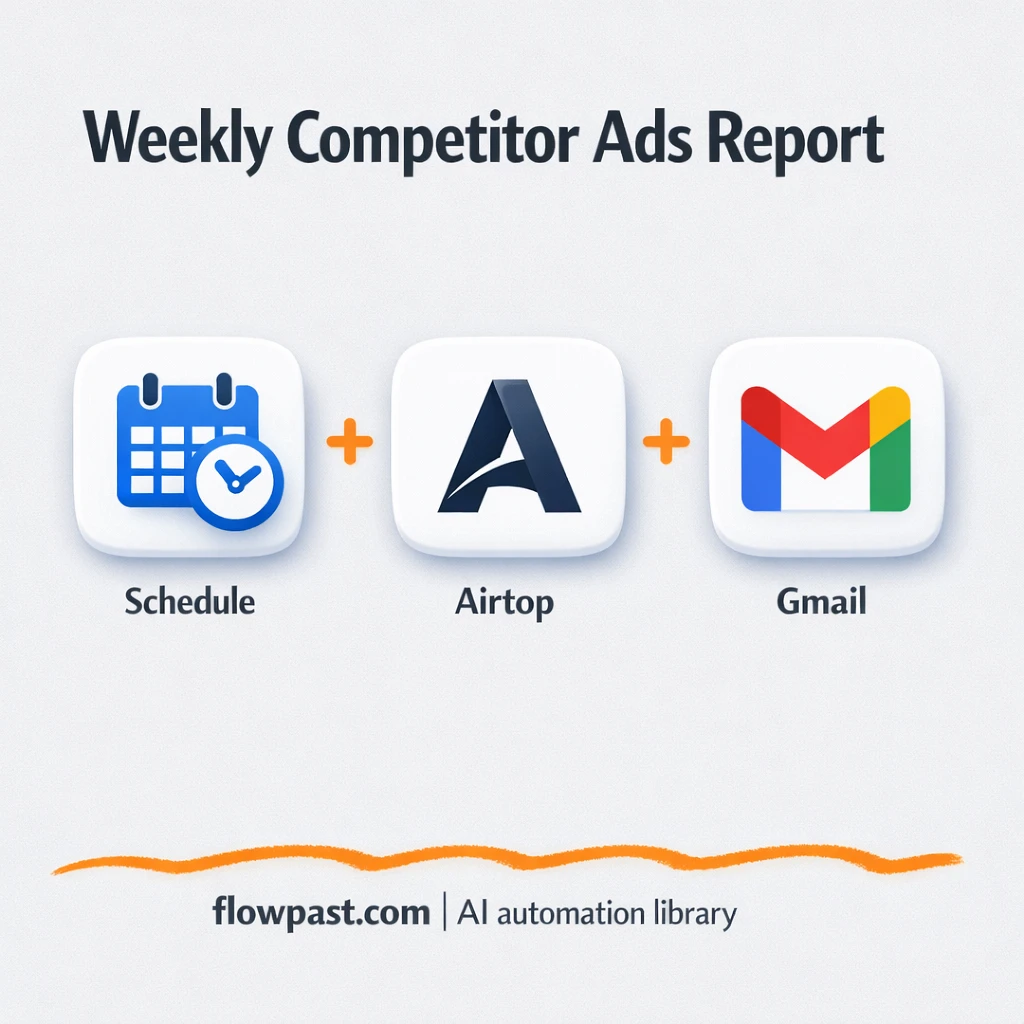

You shouldn’t need a tab graveyard just to see what a competitor is running on Facebook. But manual Ad Library checks turn into a weekly ritual: searching, screenshotting, copying notes, then trying to summarize it all when your brain is already fried.
This competitor ad briefs automation hits performance marketers first, honestly. Agency leads feel it when clients ask “what’s working right now?” on a Monday morning. And founders doing their own marketing get stuck in research instead of shipping campaigns.
This n8n workflow pulls up to 30 active ads from Facebook Ad Library via Airtop, formats a clean HTML brief, and sends it through Gmail. You’ll see what it does, why it matters, and how to tailor it to your competitors.
How This Automation Works
The full n8n workflow, from trigger to final output:
n8n Workflow Template: Airtop + Gmail: competitor ad briefs in your inbox
flowchart LR

    subgraph sg0["Schedule Flow"]
        direction LR
        n0@{ icon: "mdi:play-circle", form: "rounded", label: "Schedule Trigger", pos: "b", h: 48 }
        n1["<div style='background:#f5f5f5;padding:10px;border-radius:8px;display:inline-block;border:1px solid #e0e0e0'><img src='https://flowpast.com/wp-content/uploads/n8n-workflow-icons/airtop.svg' width='40' height='40' /></div><br/>Query Facebook Ad Library"]
        n2@{ icon: "mdi:message-outline", form: "rounded", label: "Send Report", pos: "b", h: 48 }
        n0 --> n1
        n1 --> n2
    end

    %% Styling
    classDef trigger fill:#e8f5e9,stroke:#388e3c,stroke-width:2px
    classDef ai fill:#e3f2fd,stroke:#1976d2,stroke-width:2px
    classDef aiModel fill:#e8eaf6,stroke:#3f51b5,stroke-width:2px
    classDef decision fill:#fff8e1,stroke:#f9a825,stroke-width:2px
    classDef database fill:#fce4ec,stroke:#c2185b,stroke-width:2px
    classDef api fill:#fff3e0,stroke:#e65100,stroke-width:2px
    classDef code fill:#f3e5f5,stroke:#7b1fa2,stroke-width:2px
    classDef disabled stroke-dasharray: 5 5,opacity: 0.5
    class n0 trigger
    classDef customIcon fill:none,stroke:none
    class n1 customIcon
The Problem: Competitor Ad Research Is Always “Later”
Competitor research sounds simple until you do it consistently. You open Facebook Ad Library, search a brand, click around, try to interpret what’s actually new, and then you still have to write it up for your team or clients. One competitor turns into three. Three turns into “I’ll do it Friday,” and Friday turns into next month. Meanwhile, their new angle is already flooding your feed, and you are reacting instead of planning. That’s the quiet cost: missed patterns, sloppy notes, and decisions made on vibes.
The friction compounds. Here’s where it breaks down in real life.
- You waste about 1–2 hours a week bouncing between ads, creatives, and half-finished notes.
- Your “summary” ends up being screenshots in Slack, which nobody can scan quickly later.
- You miss timing signals like how long an ad has been active, so you can’t tell tests from winners.
- Sharing findings takes extra effort, so the research stays trapped in one person’s head.
The Solution: Weekly HTML Ad Briefs Delivered Automatically
This workflow turns competitor ad monitoring into a simple weekly delivery. On a schedule you choose, n8n triggers Airtop to open a competitor’s Facebook Ad Library URL and extract up to 30 active ads. Airtop returns structured information and formats it into an HTML report so it’s easy to skim in an inbox. Then Gmail sends the brief to whoever needs it, which means the intel arrives even when nobody “has time” to go looking for it. The end result is a clean, repeatable briefing rhythm: new messaging, offers, CTAs, and themes collected the same way every week, ready to forward or paste into a doc.
The workflow starts with a weekly schedule trigger. Airtop does the heavy lifting by visiting the Ad Library page and pulling the ads into a readable HTML layout with key takeaways. Finally, Gmail delivers the brief so you can scan it in minutes and act.
What You Get: Automation vs. Results
| What This Workflow Automates | Results You’ll Get |
|---|---|
|
|
Example: What This Looks Like
Say you track 3 competitors and you normally review about 10 ads each. If you spend roughly 5 minutes per ad between loading, scanning, and taking notes, that’s about 150 minutes a week (and that’s on a good week). With this workflow, the “work” becomes checking your inbox: maybe 2 minutes to open the email and skim, plus a few minutes to forward it to a client or drop insights into your planning doc. Airtop does the extraction and formatting in the background, so the time you feel is closer to 10 minutes, not 2+ hours.
What You’ll Need
- n8n instance (try n8n Cloud free)
- Self-hosting option if you prefer (Hostinger works well)
- Airtop for extracting ads from Facebook Ad Library
- Gmail to send the HTML brief automatically
- Airtop API key (get it from the Airtop dashboard)
Skill level: Beginner. You’ll paste a competitor URL, connect Airtop and Gmail, and adjust the schedule time.
Don’t want to set this up yourself? Talk to an automation expert (free 15-minute consultation).
How It Works
Weekly trigger fires. n8n runs this on the schedule you set (for example, Monday morning), so competitor monitoring becomes a routine without anyone owning the calendar reminder.
Airtop visits the Ad Library page. It opens your competitor’s Facebook Ad Library URL and extracts up to 30 active ads, then turns them into structured output you can actually use.
The brief gets summarized and formatted. Each ad is condensed into the points you care about most: message, topic, CTA, how long it’s been active, language, and inferred targeting cues (based on what’s visible).
Gmail delivers the HTML report. You get one email with everything compiled neatly, which makes it easy to forward, archive, or drop into your weekly growth meeting notes.
You can easily modify the competitor Ad Library URL to monitor a different brand based on your needs. See the full implementation guide below for customization options.
Step-by-Step Implementation Guide
Step 1: Configure the Schedule Trigger
This workflow starts on a schedule using Scheduled Automation Trigger to run weekly.
- Add the Scheduled Automation Trigger node to your canvas.
- Set the scheduling rule to run weekly by configuring rule → interval with field set to
weeks. - Set triggerAtHour to
19to run at 7:00 PM.
Step 2: Connect Airtop and Extract Ad Library Data
Retrieve Ad Library Data uses Airtop to extract structured ad insights from Facebook’s Ad Library.
- Add the Retrieve Ad Library Data node and connect it after Scheduled Automation Trigger.
- Credential Required: Connect your airtopApi credentials.
- Set resource to
extractionand operation toquery. - Set sessionMode to
new. - Set url to
https://www.facebook.com/ads/library/?active_status=active&ad_type=all&country=US&is_targeted_country=false&media_type=all&search_type=page&view_all_page_id=[YOUR_ID]. - Paste the full extraction prompt into prompt exactly as provided in the node parameters, including the request for an HTML formatted report.
⚠️ Common Pitfall: Replace [YOUR_ID] in the Ad Library URL with a valid Facebook Page ID, or the extraction will fail.
Step 3: Configure the Email Output
Dispatch Email Brief sends the HTML report generated by Airtop to your inbox.
- Add the Dispatch Email Brief node and connect it after Retrieve Ad Library Data.
- Credential Required: Connect your gmailOAuth2 credentials.
- Set sendTo to
[YOUR_EMAIL]. - Set subject to
Facebook Ad Library Competitor Report:. - Set message to the expression
{{ $json.data.modelResponse }}to pass the HTML report from Airtop.
⚠️ Common Pitfall: Replace [YOUR_EMAIL] with a valid recipient address to avoid delivery errors.
Step 4: Test and Activate Your Workflow
Verify the workflow end-to-end before enabling it for scheduled runs.
- Click Execute Workflow to run the process manually from Scheduled Automation Trigger.
- Confirm Retrieve Ad Library Data returns an HTML report in its output under
data.modelResponse. - Check that Dispatch Email Brief sends the email and that the report renders correctly.
- Toggle the workflow to Active to enable the weekly schedule.
Common Gotchas
- Airtop credentials can expire or need specific permissions. If things break, check your Airtop API key and the n8n Airtop credential settings first.
- If you’re using Wait nodes or external rendering, processing times vary. Bump up the wait duration if downstream nodes fail on empty responses.
- Gmail OAuth can silently fail if the connected Google account changes password or security settings. Reconnect the Gmail credential in n8n and confirm the “send email” permission is still granted.
Frequently Asked Questions
About 20 minutes once you have your Airtop API key and Gmail connected.
No. You’ll mainly paste a URL, connect Airtop and Gmail, and test-send an email.
Yes. n8n has a free self-hosted option and a free trial on n8n Cloud. Cloud plans start at $20/month for higher volume. You’ll also need to factor in Airtop usage costs based on your plan.
Two options: n8n Cloud (managed, easiest setup) or self-hosting on a VPS. For self-hosting, Hostinger VPS is affordable and handles n8n well. Self-hosting gives you unlimited executions but requires basic server management.
Yes, but you’ll want to do it cleanly. The simplest approach is duplicating the Airtop extraction step for each competitor URL and merging the outputs into one combined HTML email. If you prefer one email per competitor, keep the Gmail step inside each branch. Many teams also customize the HTML layout to group ads by competitor, which makes the brief faster to skim.
Usually it’s an invalid or expired Airtop API key saved in the n8n Airtop credential. It can also happen when the Ad Library URL is wrong (the workflow is pointed at an old page ID), or when Airtop can’t load the page reliably and returns an empty extraction. Check the Airtop node’s last execution output first, then verify the credential and the exact competitor URL you pasted.
This workflow pulls up to 30 active ads per run by default, and you can raise or lower that depending on what you want to scan.
Often, yes, because this kind of workflow benefits from more control over formatting and logic. n8n also gives you the option to self-host for unlimited executions, which matters when you start monitoring multiple competitors on a schedule. Zapier or Make can be fine for simple email alerts, but they tend to get clunky when you need richer HTML output and more nuanced extraction. If you’re unsure, it’s worth pressure-testing your requirements first: number of competitors, frequency, and where you want the brief to live long-term. Talk to an automation expert and you’ll get a straight recommendation.
Once this is running, competitor monitoring becomes a quiet background habit instead of a weekly scramble. You get the intel. Then you decide what to do with it.
Need Help Setting This Up?
Our automation experts can build and customize this workflow for your specific needs. Free 15-minute consultation—no commitment required.
