


Bright Data + Google Sheets for backlink insights
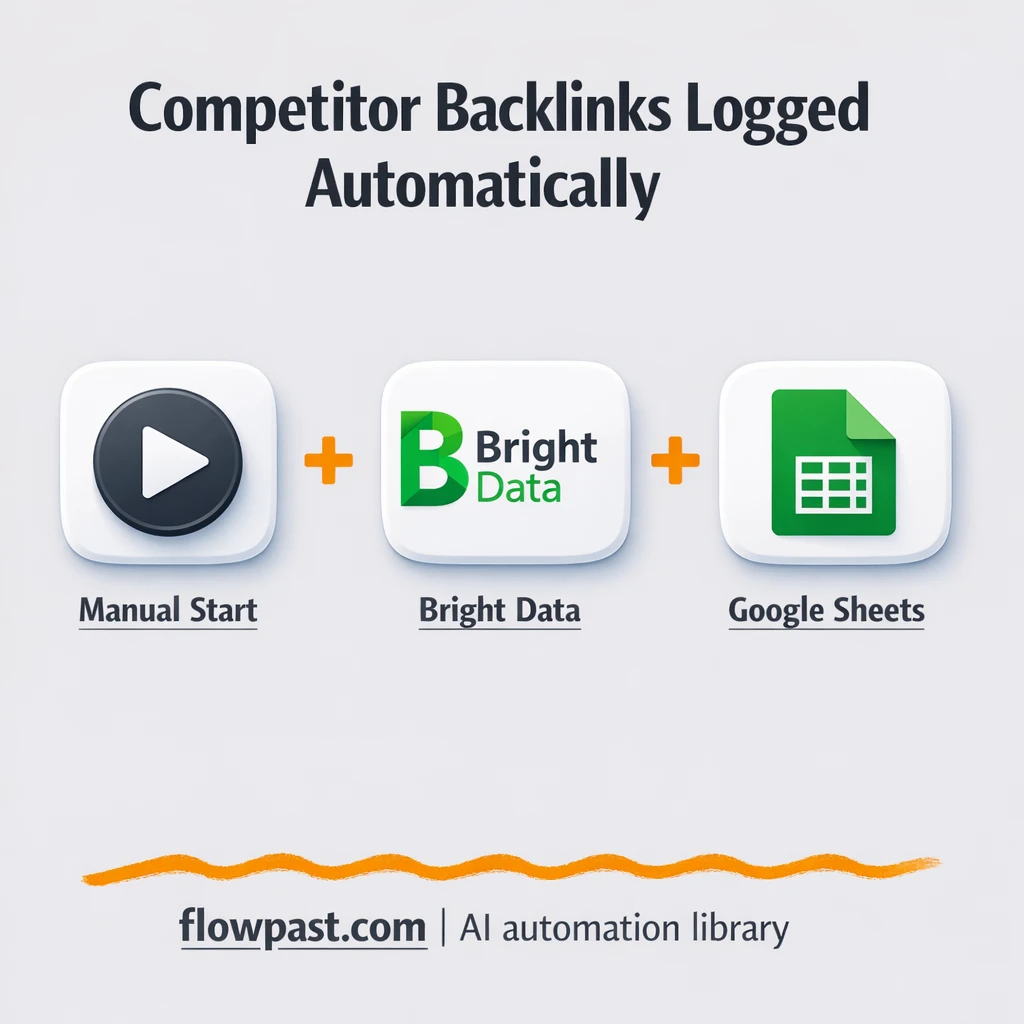

Competitor backlink research gets messy fast. You export a report, clean it up, try to spot patterns, then realize the “good” links are buried under duplicates and junk.
SEO managers usually feel this first. But agency owners and in-house marketers end up in the same loop. This backlink insights automation pulls competitor links into Google Sheets and makes the “what do we do next?” part way easier.
You’ll set up a workflow that scrapes backlink data reliably (without getting blocked), formats it, and uses OpenAI to highlight patterns and priorities so you can move straight into outreach.
How This Automation Works
Here’s the complete workflow you’ll be setting up:
n8n Workflow Template: Bright Data + Google Sheets for backlink insights
flowchart LR

    subgraph sg0["Trigger: Manual Execute Flow"]
        direction LR
        n0@{ icon: "mdi:brain", form: "rounded", label: "OpenAI Chat Model", pos: "b", h: 48 }
        n1@{ icon: "mdi:cog", form: "rounded", label: "MCP Client", pos: "b", h: 48 }
        n2@{ icon: "mdi:play-circle", form: "rounded", label: "Trigger: Manual Execute", pos: "b", h: 48 }
        n3@{ icon: "mdi:swap-vertical", form: "rounded", label: "Set: Competitor Domain", pos: "b", h: 48 }
        n4@{ icon: "mdi:robot", form: "rounded", label: "Agent: Scrape Backlinks (Bri..", pos: "b", h: 48 }
        n5["<div style='background:#f5f5f5;padding:10px;border-radius:8px;display:inline-block;border:1px solid #e0e0e0'><img src='https://flowpast.com/wp-content/uploads/n8n-workflow-icons/code.svg' width='40' height='40' /></div><br/>Function: Split Backlinks"]
        n6@{ icon: "mdi:database", form: "rounded", label: "Google Sheets: Append Backli..", pos: "b", h: 48 }
        n7@{ icon: "mdi:robot", form: "rounded", label: "Auto-fixing Output Parser", pos: "b", h: 48 }
        n8@{ icon: "mdi:brain", form: "rounded", label: "OpenAI Chat Model1", pos: "b", h: 48 }
        n9@{ icon: "mdi:robot", form: "rounded", label: "Structured Output Parser", pos: "b", h: 48 }
        n1 -.-> n4
        n0 -.-> n4
        n8 -.-> n7
        n3 --> n4
        n2 --> n3
        n9 -.-> n7
        n7 -.-> n4
        n5 --> n6
        n4 --> n5
    end

    %% Styling
    classDef trigger fill:#e8f5e9,stroke:#388e3c,stroke-width:2px
    classDef ai fill:#e3f2fd,stroke:#1976d2,stroke-width:2px
    classDef aiModel fill:#e8eaf6,stroke:#3f51b5,stroke-width:2px
    classDef decision fill:#fff8e1,stroke:#f9a825,stroke-width:2px
    classDef database fill:#fce4ec,stroke:#c2185b,stroke-width:2px
    classDef api fill:#fff3e0,stroke:#e65100,stroke-width:2px
    classDef code fill:#f3e5f5,stroke:#7b1fa2,stroke-width:2px
    classDef disabled stroke-dasharray: 5 5,opacity: 0.5
    class n2 trigger
    class n4,n7,n9 ai
    class n0,n8 aiModel
    class n6 database
    class n5 code
    classDef customIcon fill:none,stroke:none
    class n5 customIcon
Why This Matters: Competitor backlink research is a time sink
Backlink analysis sounds straightforward until you actually do it. You grab competitor links from a tool or a few pages, paste them into a spreadsheet, and then spend the rest of your afternoon sorting, deduping, and trying to figure out what’s “real” versus noise. Then the real pain shows up: you still don’t know which link types are driving authority, which anchors are repeating, and which domains are worth pursuing for your own outreach. Honestly, the manual work is bad, but the decision fatigue is worse.
The friction compounds. Here’s where it usually breaks down:
- You keep exporting and reformatting reports because each source labels fields differently.
- Duplicates creep in, which means your “top referring domains” list is quietly wrong.
- It’s hard to spot patterns across hundreds of rows, so you default to guessing and chasing familiar sites.
- By the time you finish cleanup, the data is already stale and your outreach plan is still not written.
What You’ll Build: Automated competitor backlink analysis in Sheets
This workflow gives you a repeatable way to pull competitor backlink profiles into a spreadsheet and turn them into actual next steps. It starts when you run the workflow (manual trigger), then assigns the competitor domain you want to analyze. Bright Data handles the heavy lifting by scraping backlink sources and competitor pages in a way that’s less likely to get blocked. From there, n8n splits the backlink results into clean, row-friendly items and appends them to Google Sheets. Finally, an AI Agent powered by OpenAI reviews the structured data and summarizes patterns you’d normally miss, like recurring anchors, common referring domain themes, and “high intent” pages that attract links.
The workflow begins with a competitor domain input, then collects backlink data and normalizes it into consistent fields. After that, it writes everything into Google Sheets and produces AI-assisted insights you can use to prioritize outreach, partnerships, and content updates.
What You’re Building
| What Gets Automated | What You’ll Achieve |
|---|---|
|
|
Expected Results
Say you review 3 competitors each week. Manually, you might spend about 45 minutes exporting backlinks per competitor, then another hour cleaning and deduping in Sheets, so you’re looking at roughly 5 hours weekly before you even decide what to pursue. With this workflow, you run the scrape, wait for data to come back, and then skim the AI summary plus the sheet. That’s usually closer to 30 minutes of hands-on time for the whole week’s research.
Before You Start
- n8n instance (try n8n Cloud free)
- Self-hosting option if you prefer (Hostinger works well)
- Bright Data for scraping backlink sources reliably
- Google Sheets to store backlink rows and insights
- OpenAI API key (get it from the OpenAI dashboard)
Skill level: Intermediate. You’ll connect accounts, paste a couple of API keys, and map fields into a sheet.
Want someone to build this for you? Talk to an automation expert (free 15-minute consultation).
Step by Step
You choose a competitor domain and start the run. The workflow uses a manual trigger, then a “set” step that defines the rival domain you want to analyze right now.
Backlink data gets collected via Bright Data. The scraping agent pulls backlink-related information (referring domains, anchors, and other link details) in a way that’s designed to avoid common blocking and rate-limit issues.
The raw results are split into clean spreadsheet rows. A code step takes the big blob of results and turns it into individual items, so each backlink becomes a row you can filter and sort in Google Sheets.
Your sheet becomes the source of truth. n8n appends the rows into Google Sheets, and the OpenAI-powered agent can also produce structured summaries you can paste into an “Insights” tab or send to your team.
You can easily modify the competitor domain input to analyze multiple rivals, or expand the fields captured (like link type or page category) based on your needs. See the full implementation guide below for customization options.
Step-by-Step Implementation Guide
Step 1: Configure the Manual Trigger
Start the workflow with a manual trigger so you can test the backlink extraction on demand.
- Add the Manual Execution Start node as the trigger.
- Confirm Manual Execution Start is connected to Assign Rival Domain.
- (Optional) Keep Flowpast Branding as a visual note; it does not affect execution.
Step 2: Configure the Rival Domain Input
Define the competitor website that will be analyzed for backlinks.
- Open Assign Rival Domain and set the url value to
https://ahrefs.com/. - Ensure the connection flow is Manual Execution Start → Assign Rival Domain → Backlink Scrape Agent.
Step 3: Set Up the AI Backlink Extraction
Configure the AI agent, tool runner, and parsers that extract and structure backlinks.
- Open Backlink Scrape Agent and set the Text field to
=extract any backlinks available from the following url:
{{ $json.url }}
. - Confirm Backlink Scrape Agent has Has Output Parser enabled.
- In MCP Tool Runner, set Tool Name to
scrape_as_markdownand Tool Parameters to={{ /*n8n-auto-generated-fromAI-override*/ $fromAI('Tool_Parameters', ``, 'json') }}. - Open Structured JSON Parser and keep the provided JSON Schema Example to guide the output structure.
- Ensure Auto Repair Parser is connected between Structured JSON Parser and Backlink Scrape Agent for output correction.
- Credential Required: Connect your openAiApi credentials in LLM Chat Engine (language model for Backlink Scrape Agent).
- Credential Required: Connect your mcpClientApi credentials in MCP Tool Runner (AI tool for Backlink Scrape Agent).
- Credential Required: Connect your openAiApi credentials in LLM Chat Engine B (language model for Auto Repair Parser).
Step 4: Split and Normalize Backlink Items
Convert the AI output into a list of individual backlink records for spreadsheet insertion.
- Open Split Backlink Items and keep the provided JavaScript Code that maps
output.backlinksinto individual items. - Confirm the flow is Backlink Scrape Agent → Split Backlink Items.
Step 5: Connect Google Sheets
Append each backlink to your Google Sheet with mapped columns.
- Open Append Links to Sheets and set Operation to
append. - Set Document to
[YOUR_ID]and Sheet togid=0. - Map columns in Columns to: url →
={{ $json.url }}, date →={{ $json.date }}, title →={{ $json.title }}, domain →={{ $json.domain }}, category →={{ $json.category }}. - Credential Required: Connect your googleSheetsOAuth2Api credentials in Append Links to Sheets.
domain, title, url, category, and date to match the mapping.Step 6: Test and Activate Your Workflow
Run a manual test to confirm backlinks are extracted and appended, then activate for ongoing use.
- Click Execute Workflow on Manual Execution Start to run a test.
- Verify Split Backlink Items outputs multiple items and Append Links to Sheets adds rows to your sheet.
- When the output looks correct, toggle the workflow to Active for production use.
Troubleshooting Tips
- Bright Data credentials can expire or need specific permissions. If things break, check your Bright Data zone settings and auth details first.
- If you’re using Wait nodes or external rendering, processing times vary. Bump up the wait duration if downstream nodes fail on empty responses.
- Default prompts in AI nodes are generic. Add your brand voice early or you’ll be editing outputs forever.
Quick Answers
About 45 minutes if you already have Bright Data, OpenAI, and Google Sheets ready.
No. You’ll mostly connect accounts and adjust a few fields in n8n.
Yes. n8n has a free self-hosted option and a free trial on n8n Cloud. Cloud plans start at $20/month for higher volume. You’ll also need to factor in OpenAI API costs (often a few cents per run) and Bright Data usage based on how much you scrape.
Two options: n8n Cloud (managed, easiest setup) or self-hosting on a VPS. For self-hosting, Hostinger VPS is affordable and handles n8n well. Self-hosting gives you unlimited executions but requires basic server management.
Yes, and you probably should. You can replace the “Assign Rival Domain” step with a Google Sheets list of competitors, then loop through them. You can also tweak the Backlink Scrape Agent prompt to focus on specific signals (guest posts, resource pages, directory links), and adjust what gets written in “Append Links to Sheets” so the sheet matches your outreach process.
Most of the time it’s an auth issue in the Bright Data MCP client setup. Regenerate the token or confirm the zone is active, then update credentials inside n8n. If it still fails, it can be blocked targets, too-aggressive concurrency, or a request format the target doesn’t like, so try smaller batches and verify the scraping endpoint.
If you self-host n8n, there’s no fixed execution limit (it depends on your server and scraping budget). On n8n Cloud, your monthly execution cap depends on your plan, and this workflow may use multiple executions per competitor if you expand it. Practically, most teams start with a few competitors per week, then scale once the sheet format and AI summary are dialed in.
Often, yes, because this workflow benefits from custom logic and data shaping. n8n is comfortable with “messy” outputs like scraped content, and you can add code steps, branching, and structured parsing without hitting a paywall for every extra step. Zapier and Make can work for simpler pulls, but scraping plus AI cleanup tends to get brittle there. If your team needs help choosing, Talk to an automation expert and we’ll map it to your volume and workflow.
Once this is running, competitor backlink research stops being a weekly fire drill. The workflow does the collecting and cleanup so you can focus on the outreach decisions that actually move rankings.
Need Help Setting This Up?
Our automation experts can build and customize this workflow for your specific needs. Free 15-minute consultation—no commitment required.
