


Bright Data to Google Sheets, TikTok trends tracked
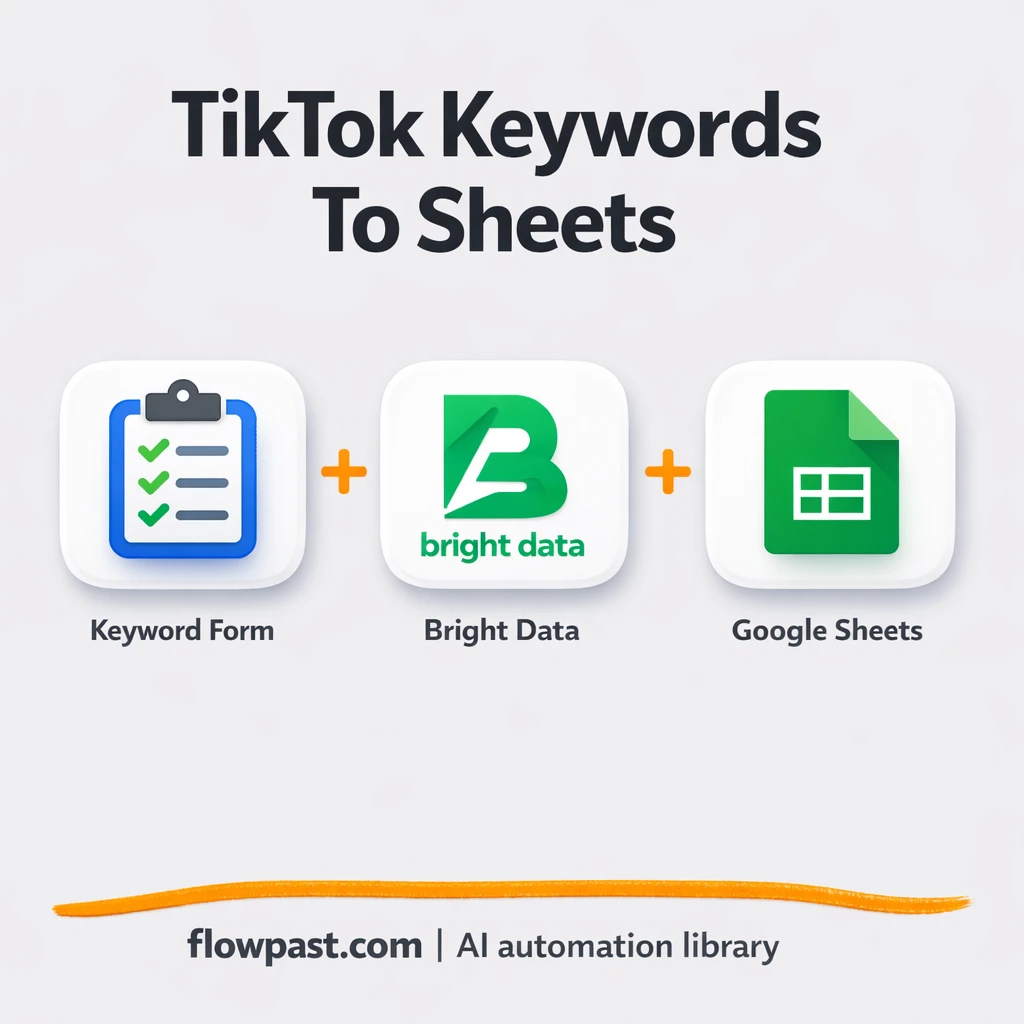

Manually tracking TikTok trends is a mess. You search a keyword, open 20 tabs, jot down a few URLs, and then realize you forgot to capture views, likes, or even the creator handle.
This TikTok trends tracking automation helps marketers turn “random scrolling” into a repeatable research habit. It also hits founders building content systems and agency teams who need clean weekly reporting without babysitting spreadsheets.
You submit a keyword, the workflow pulls matching TikTok posts via Bright Data, and Google Sheets becomes the place you check for trend ideas and performance clues. Below you’ll see exactly what it does, what you get, and how to avoid the usual setup headaches.
How This Automation Works
The full n8n workflow, from trigger to final output:
n8n Workflow Template: Bright Data to Google Sheets, TikTok trends tracked
flowchart LR

    subgraph sg0["Accepts keyword input from the user. Flow"]
        direction LR
        n0@{ icon: "mdi:database", form: "rounded", label: "Google Sheets", pos: "b", h: 48 }
        n1["<div style='background:#f5f5f5;padding:10px;border-radius:8px;display:inline-block;border:1px solid #e0e0e0'><img src='https://flowpast.com/wp-content/uploads/n8n-workflow-icons/httprequest.dark.svg' width='40' height='40' /></div><br/>Decode Snapshot from Response"]
        n2@{ icon: "mdi:cog", form: "rounded", label: "Wait 1 minute", pos: "b", h: 48 }
        n3["<div style='background:#f5f5f5;padding:10px;border-radius:8px;display:inline-block;border:1px solid #e0e0e0'><img src='https://flowpast.com/wp-content/uploads/n8n-workflow-icons/form.svg' width='40' height='40' /></div><br/>Accepts keyword input from t.."]
        n4["<div style='background:#f5f5f5;padding:10px;border-radius:8px;display:inline-block;border:1px solid #e0e0e0'><img src='https://flowpast.com/wp-content/uploads/n8n-workflow-icons/httprequest.dark.svg' width='40' height='40' /></div><br/>Sends keyword to Bright Data.."]
        n5["<div style='background:#f5f5f5;padding:10px;border-radius:8px;display:inline-block;border:1px solid #e0e0e0'><img src='https://flowpast.com/wp-content/uploads/n8n-workflow-icons/httprequest.dark.svg' width='40' height='40' /></div><br/>Checks the scraping status u.."]
        n6@{ icon: "mdi:swap-horizontal", form: "rounded", label: "Check Final Status", pos: "b", h: 48 }
        n2 --> n6
        n6 --> n1
        n6 --> n5
        n1 --> n0
        n3 --> n4
        n5 --> n2
        n4 --> n5
    end

    %% Styling
    classDef trigger fill:#e8f5e9,stroke:#388e3c,stroke-width:2px
    classDef ai fill:#e3f2fd,stroke:#1976d2,stroke-width:2px
    classDef aiModel fill:#e8eaf6,stroke:#3f51b5,stroke-width:2px
    classDef decision fill:#fff8e1,stroke:#f9a825,stroke-width:2px
    classDef database fill:#fce4ec,stroke:#c2185b,stroke-width:2px
    classDef api fill:#fff3e0,stroke:#e65100,stroke-width:2px
    classDef code fill:#f3e5f5,stroke:#7b1fa2,stroke-width:2px
    classDef disabled stroke-dasharray: 5 5,opacity: 0.5
    class n3 trigger
    class n6 decision
    class n0 database
    class n1,n4,n5 api
    classDef customIcon fill:none,stroke:none
    class n1,n3,n4,n5 customIcon
The Problem: TikTok research doesn’t stay organized
TikTok is great at showing you what’s working. It’s terrible at helping you keep receipts. You find a strong hook, a pattern of hashtags, or a creator you want to reference later, then the moment passes and the details are gone. Even when you try to document it, you end up with incomplete notes: a URL without metrics, a screenshot without context, or a spreadsheet that’s missing half the fields you need for real analysis. After a week, your “trend research” folder becomes a junk drawer.
The friction compounds. Here’s where it usually breaks down.
- You waste about 1–2 hours per week re-finding posts you already saw because there’s no consistent logging system.
- Metrics get captured at different times, so comparisons are shaky and your “top posts” list changes every time you check it.
- Manual copy-paste invites mistakes, especially on creator usernames, follower counts, and long video URLs.
- Reporting becomes a last-minute scramble, which means trend insights don’t actually make it into your content plan.
The Solution: Keyword-based TikTok scraping into Sheets
This workflow gives you a simple input (a keyword) and a reliable output (a structured row in Google Sheets for each TikTok post found). You submit a keyword through an n8n web form, and n8n sends that keyword to the Bright Data API, which runs the TikTok scraping dataset behind the scenes. While the scrape is running, the workflow monitors status and waits, so you don’t have to keep clicking refresh or re-running the job. Once the results are ready, n8n parses the JSON response, cleans up the fields, and writes everything into a “Tiktok by keyword” tab in Google Sheets. That sheet becomes a living library of examples, metrics, and creator signals you can filter anytime.
The workflow starts with a keyword submission. Bright Data searches TikTok for matching posts and returns the posts plus metadata like views, likes, comments, hashtags, usernames, and media URLs. Finally, Google Sheets stores the full dataset so you can sort, filter, and build reporting from one place.
What You Get: Automation vs. Results
| What This Workflow Automates | Results You’ll Get |
|---|---|
|
|
Example: What This Looks Like
Say you research 10 keywords each week (for a niche, a product angle, and a few competitor themes). Manually, even a “quick check” is maybe 10 minutes per keyword once you search, open posts, copy links, and write down metrics, which is about 1–2 hours weekly. With this workflow, you submit the keyword in the form, wait a few minutes for the scrape to finish (typically 2–5 minutes), and the rows land in Sheets automatically. You still review the results, but the busywork is basically gone.
What You’ll Need
- n8n instance (try n8n Cloud free)
- Self-hosting option if you prefer (Hostinger works well)
- Bright Data for TikTok keyword scraping dataset access.
- Google Sheets to store and filter the extracted posts.
- Bright Data API key (get it from your Bright Data dashboard).
Skill level: Beginner. You’ll paste credentials, confirm a sheet tab name, and run a test keyword once.
Don’t want to set this up yourself? Talk to an automation expert (free 15-minute consultation).
How It Works
Keyword submission trigger. You open the n8n form URL and enter a keyword like “cooking tips” or “running shoes.” That single input is the starting gun for the whole run.
Scrape job creation and monitoring. n8n calls Bright Data’s TikTok dataset (configured for keyword discovery) and kicks off a scrape job. Then it checks status, waits about a minute between checks, and continues only when the dataset results are ready.
Data cleanup and shaping. The workflow processes the JSON into neat fields you can actually use: url, post_id, description, digg_count, share_count, comment_count, play_count, profile_username, profile_followers, hashtags, create_time, and video_url. This is where “raw API output” turns into spreadsheet-friendly rows.
Google Sheets output. Each post becomes a row in a tab named “Tiktok by keyword,” so your research stays queryable. You can add filters, create pivots, or build a weekly trend report without rewriting anything.
You can easily modify the keywords you track to include competitor names, product problems, or content formats based on your needs. See the full implementation guide below for customization options.
Common Gotchas
- Bright Data credentials can expire or need specific permissions. If things break, check your Bright Data dashboard dataset access and API key status first.
- If you’re using Wait nodes or external rendering, processing times vary. Bump up the wait duration if downstream nodes fail on empty responses.
- Google Sheets writes can fail when the Sheet ID is wrong or the tab name doesn’t match. Confirm the tab is exactly “Tiktok by keyword” and that your OAuth connection still has access.
Frequently Asked Questions
About 10–15 minutes if your Bright Data and Google access are ready.
No. You’ll mostly connect accounts and paste an API key. The workflow already handles the loop and formatting.
Yes. n8n has a free self-hosted option and a free trial on n8n Cloud. Cloud plans start at $20/month for higher volume. You’ll also need to factor in Bright Data usage charges based on your dataset and volume.
Two options: n8n Cloud (managed, easiest setup) or self-hosting on a VPS. For self-hosting, Hostinger VPS is affordable and handles n8n well. Self-hosting gives you unlimited executions but requires basic server management.
Yes, but you’ll do it in Bright Data settings for the dataset run rather than in Google Sheets. In the Bright Data request payload (the dataset configuration in the HTTP request), change “results per input” from 2 to the number you want, then make sure your Sheets insert step is set to append multiple rows. Common customizations include adding extra keywords per run, storing the keyword in its own column, and writing to a new tab per campaign.
Usually it’s an invalid or expired API key, or your account doesn’t have access to the TikTok dataset ID configured in the workflow. Check the Bright Data dashboard for dataset permissions and remaining credits, then update the API key in n8n credentials and re-test. If it works in Bright Data but fails in n8n, it can also be a simple copy/paste issue in the dataset ID or the authorization header.
It depends more on your Bright Data limits and your n8n execution capacity than the workflow logic itself. On n8n Cloud Starter, you’re limited by monthly executions, so batching lots of keywords can push you into a higher plan. If you self-host, there’s no execution limit, but your server still has to handle runs and waiting. Practically, most teams start with 20–50 keywords a week, confirm the data is useful, then scale up from there.
Often, yes. This workflow relies on an API scrape job plus status checking, which is the kind of multi-step logic that gets awkward (and pricey) in simpler automation tools. n8n also gives you options like code steps and branching without turning every extra step into a billing surprise. Zapier or Make can still work if you only want a lightweight “keyword in, row out” setup and you never need retries, waiting, or data cleanup. If you’re unsure, Talk to an automation expert and describe what “done” looks like.
Once this is running, trend research stops feeling like doom-scrolling with extra steps. Your sheet stays current, your examples are searchable, and you can spend your time deciding what to create next.
Need Help Setting This Up?
Our automation experts can build and customize this workflow for your specific needs. Free 15-minute consultation—no commitment required.
