


ClickUp to Gmail, overdue task reports in your inbox
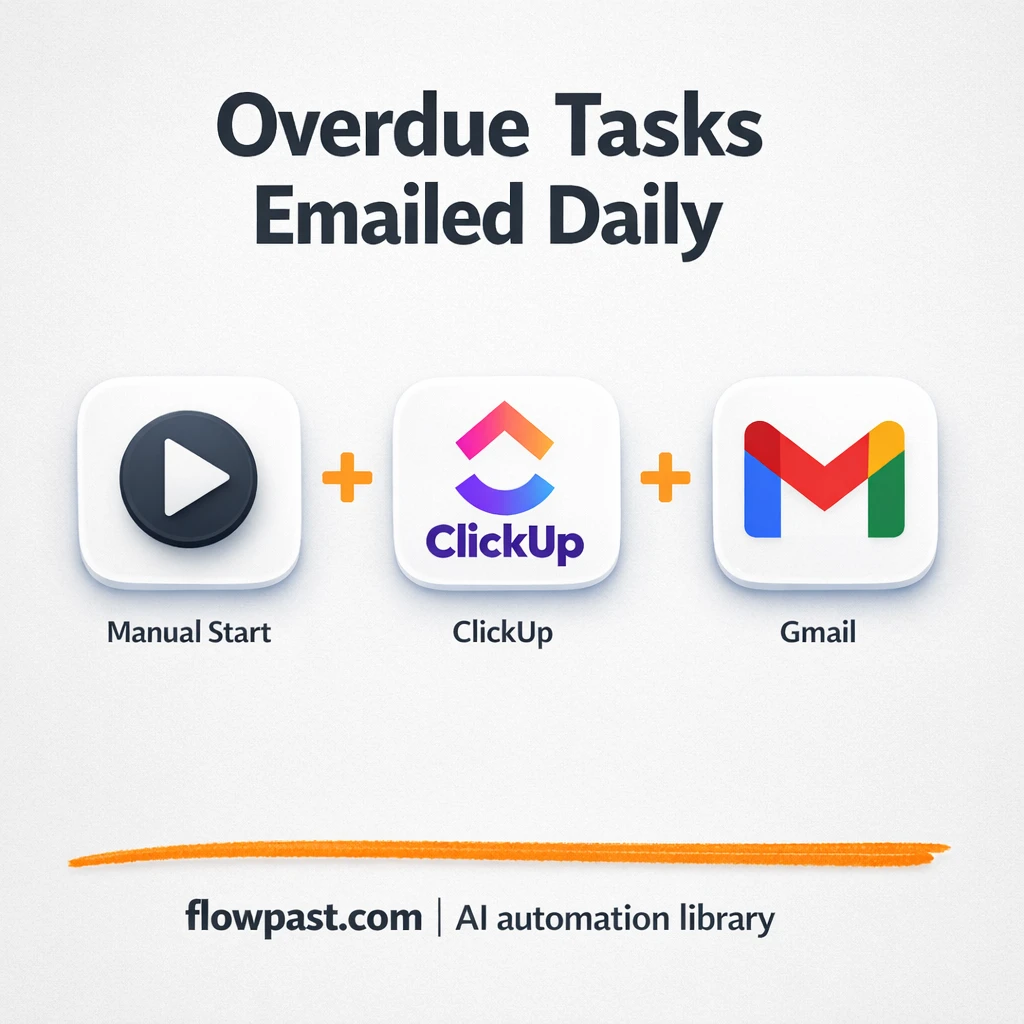

Overdue tasks don’t usually fail because nobody cares. They fail because the “what’s late?” check lives in someone’s head, gets skipped on busy days, and turns into a scramble right before a meeting.
Sales managers feel it when follow-ups slip. Project leads feel it when sprints stall. And ops folks end up playing detective. This ClickUp Gmail reports automation puts a clean overdue report in your inbox, grouped by assignee, so you can push the right work forward in minutes.
Below you’ll see how the workflow runs, what it sends, and what you can tweak to match your team’s process.
How This Automation Works
The full n8n workflow, from trigger to final output:
n8n Workflow Template: ClickUp to Gmail, overdue task reports in your inbox
flowchart LR

    subgraph sg0["When clicking 'Execute workflow' Flow"]
        direction LR
        n0@{ icon: "mdi:play-circle", form: "rounded", label: "When clicking 'Execute workf..", pos: "b", h: 48 }
        n1@{ icon: "mdi:code-braces", form: "rounded", label: "Process Sprint Data", pos: "b", h: 48 }
        n2@{ icon: "mdi:message-outline", form: "rounded", label: "Send Daily Report Email", pos: "b", h: 48 }
        n3["<div style='background:#f5f5f5;padding:10px;border-radius:8px;display:inline-block;border:1px solid #e0e0e0'><img src='https://flowpast.com/wp-content/uploads/n8n-workflow-icons/clickup.svg' width='40' height='40' /></div><br/>Get many tasks"]
        n4@{ icon: "mdi:code-braces", form: "rounded", label: "creating report", pos: "b", h: 48 }
        n3 --> n1
        n4 --> n2
        n1 --> n4
        n0 --> n3
    end

    %% Styling
    classDef trigger fill:#e8f5e9,stroke:#388e3c,stroke-width:2px
    classDef ai fill:#e3f2fd,stroke:#1976d2,stroke-width:2px
    classDef aiModel fill:#e8eaf6,stroke:#3f51b5,stroke-width:2px
    classDef decision fill:#fff8e1,stroke:#f9a825,stroke-width:2px
    classDef database fill:#fce4ec,stroke:#c2185b,stroke-width:2px
    classDef api fill:#fff3e0,stroke:#e65100,stroke-width:2px
    classDef code fill:#f3e5f5,stroke:#7b1fa2,stroke-width:2px
    classDef disabled stroke-dasharray: 5 5,opacity: 0.5
    class n0 trigger
    class n1,n4 code
    classDef customIcon fill:none,stroke:none
    class n3 customIcon
The Problem: Overdue tasks get noticed too late
ClickUp already has “Overdue” views, so in theory this is solved. In practice, someone still has to remember to check them, interpret what’s actually urgent, and then chase owners across email and chat. That’s not just time. It’s mental load, context switching, and the slow creep of “we’ll get to it tomorrow.” The worst part is the ambiguity: you know work is late, but you don’t know who’s holding it up until you dig. And digging is where the day goes.
The friction compounds. Here’s where it breaks down on real teams.
- Someone has to manually pull overdue tasks every morning, which quietly becomes a 30-minute routine.
- Owners aren’t clear at a glance, so follow-ups turn into a Slack thread, then a meeting, then more delay.
- Priority gets argued instead of acted on because there’s no consistent, shared snapshot.
- Small data issues add up fast, like tasks missing sprint points or stale statuses that hide what’s actually blocked.
The Solution: Daily overdue reports from ClickUp sent via Gmail
This workflow runs on a daily schedule (or whenever you trigger it manually) and pulls a list of ClickUp tasks that are past due. It then cleans and analyzes that list, grouping tasks by assignee and calculating simple rollups like “total overdue per person” and team-wide counts. Next, it formats everything into a polished HTML email that’s easy to scan, even on mobile. Finally, Gmail sends the report to the recipients you choose, so your team gets the same view of reality at the same time. No more “I didn’t see that task.”
The workflow starts by fetching tasks from ClickUp. Two function steps organize and summarize the data, including sprint-related fields like points when they exist. Gmail then dispatches the final HTML report, ready for quick follow-ups.
What You Get: Automation vs. Results
| What This Workflow Automates | Results You’ll Get |
|---|---|
|
|
Example: What This Looks Like
Say you manage a team of 8 and you do an overdue sweep every weekday. Typical routine: open ClickUp, filter tasks, check owners, copy a few links into an email or Slack, then repeat for each person. That’s maybe 5 minutes per person, plus a little cleanup, so about 45 minutes a day. With this workflow, you spend about 2 minutes reading the email and sending targeted follow-ups. Over a week, that’s roughly 3 hours back.
What You’ll Need
- n8n instance (try n8n Cloud free)
- Self-hosting option if you prefer (Hostinger works well)
- ClickUp to fetch tasks from your workspace or list.
- Gmail to send the HTML report to stakeholders.
- ClickUp API token (get it from ClickUp Settings → Apps).
Skill level: Beginner. You’ll paste API tokens, pick the right ClickUp space/list, and set the email recipients.
Don’t want to set this up yourself? Talk to an automation expert (free 15-minute consultation).
How It Works
Daily run kicks things off. You can run it manually for testing, then switch it to a weekday schedule (many teams pick around 8 AM so the report lands before the day gets noisy).
ClickUp tasks are retrieved. The workflow queries ClickUp for tasks with due dates in the past, pulling the fields you actually need for action: task name, status, assignee, and sprint-related details when present.
The task list gets organized and summarized. Two function steps analyze the records, group them by assignee, add priority indicators, and compute summary stats so the email isn’t just a dump of links.
Gmail sends the HTML report. The final output is a professional email your team can scan quickly, then act on without opening ClickUp first.
You can easily modify recipients and reporting scope based on your needs. See the full implementation guide below for customization options.
Step-by-Step Implementation Guide
Step 1: Configure the Manual Trigger
Set up the manual trigger that starts the workflow so you can run tests on demand.
- Add the Manual Execution Start node to the canvas if it is not already present.
- Connect Manual Execution Start to Retrieve Task List to match the execution flow.
Step 2: Connect ClickUp
Configure the task source so the workflow can pull the current list of tasks for analysis.
- Select the Retrieve Task List node.
- Credential Required: Connect your ClickUp credentials.
- Confirm the node is connected to Analyze Sprint Records.
Step 3: Set Up Processing Nodes
Use the function nodes to analyze sprint data and format the report content.
- Open Analyze Sprint Records and add your logic for filtering overdue tasks and sprint metrics.
- Connect Analyze Sprint Records to Compile Report Data to format the final email payload.
- Open Compile Report Data and structure fields for the email body (for example, subject line and HTML content).
Step 4: Configure the Email Output
Send the compiled report to your team through Gmail.
- Select the Dispatch Daily Email node.
- Credential Required: Connect your Gmail credentials.
- Map the email fields to the output of Compile Report Data (e.g., subject and body).
Step 5: Test and Activate Your Workflow
Run a full test to confirm the task list is retrieved, analyzed, compiled, and emailed correctly.
- Click Execute Workflow on Manual Execution Start to run a manual test.
- Verify that Retrieve Task List returns tasks, Analyze Sprint Records processes them, and Compile Report Data outputs a valid email payload.
- Confirm the email is delivered by Dispatch Daily Email with the expected content.
- Toggle the workflow to Active when you are ready for production use.
Common Gotchas
- ClickUp tokens can expire or have limited access. If tasks stop appearing, check your ClickUp credential in n8n first, then confirm the workspace/list ID you’re querying.
- Gmail often fails because of authentication, not the workflow. Use an app-specific password (with 2FA enabled), and if the send node errors, re-check the Gmail credential settings.
- The default HTML formatting is “professional,” but not magically your voice. Honestly, add your team’s labels (what “urgent” means, expected response time) inside the report-building function or you’ll keep rewriting the email manually.
Frequently Asked Questions
About 20 minutes if your ClickUp token and Gmail login are ready.
No. You’ll mostly connect accounts and paste IDs/tokens. The “Function” steps are already built, so you’re configuring, not programming.
Yes. n8n has a free self-hosted option and a free trial on n8n Cloud. Cloud plans start at $20/month for higher volume. You may also need to budget for your email and ClickUp plan, but this workflow itself doesn’t require a paid AI API.
Two options: n8n Cloud (managed, easiest setup) or self-hosting on a VPS. For self-hosting, Hostinger VPS is affordable and handles n8n well. Self-hosting gives you unlimited executions but requires basic server management.
Yes, and it’s the kind of customization that’s worth doing. You can change the ClickUp “Retrieve Task List” node to point at a specific space, folder, or list, and you can adjust the filter so it only includes certain statuses (for example, exclude “Blocked” if you track that separately). The “Compile Report Data” function is where you’d tweak grouping, add extra columns like due date age, or change the priority labels. You can also swap the daily schedule for weekdays-only, or send different versions to different recipients.
Usually it’s an invalid or expired ClickUp API token. Regenerate the token in ClickUp Settings → Apps, then update the credential in n8n. If the token is fine, double-check the workspace/list IDs and confirm the token has access to that location.
For most small teams, hundreds of overdue tasks in one run is fine. On n8n Cloud, your practical limit is your monthly execution allowance, and on self-hosted it depends on your server. If you routinely have thousands of tasks, you’ll want to filter by list, space, or status so the email stays readable.
Often, yes, because this isn’t a simple “send me a reminder” zap. n8n handles richer logic (grouping by assignee, summary stats, custom HTML) without forcing you into awkward workarounds, and self-hosting keeps high-volume reporting affordable. Zapier or Make can be quicker for basic two-step notifications, and that’s fine. For accountability reporting that has to look clean and be consistent, n8n is usually the smoother long-term choice. If you want help deciding, Talk to an automation expert.
Once this is running, overdue work stops being a surprise and becomes a simple daily habit. The workflow does the chasing for visibility, so you can spend your time actually unblocking people.
Need Help Setting This Up?
Our automation experts can build and customize this workflow for your specific needs. Free 15-minute consultation—no commitment required.
