


ConvertKit + Google Sheets: tags stay clean
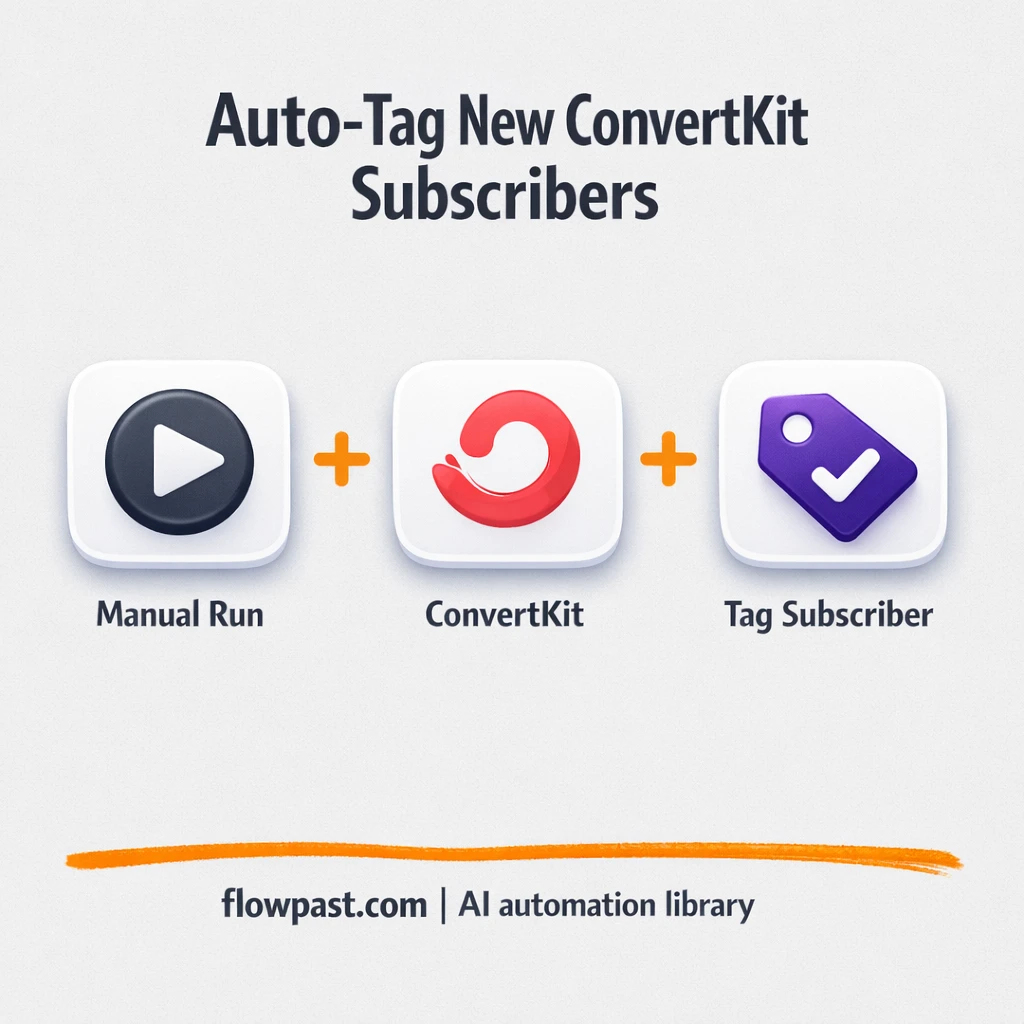

You add a new subscriber, then you “quickly” tag them. And somehow they end up with the wrong tag, no tag, or three tags that all mean the same thing.
This ConvertKit tag automation hits email marketers first, but agency owners cleaning up client accounts and course creators managing launches feel it too. When tags stay clean, segments behave, automations fire correctly, and you stop second-guessing every send.
This guide breaks down the workflow, what it solves, and how to adapt it so new subscribers get the right tags every time (with an audit trail you can trust).
How This Automation Works
Here’s the complete workflow you’ll be setting up:
n8n Workflow Template: ConvertKit + Google Sheets: tags stay clean
flowchart LR

    subgraph sg0["Manual Launch Flow"]
        direction LR
        n0@{ icon: "mdi:play-circle", form: "rounded", label: "Manual Launch Trigger", pos: "b", h: 48 }
        n1["<div style='background:#f5f5f5;padding:10px;border-radius:8px;display:inline-block;border:1px solid #e0e0e0'><img src='https://flowpast.com/wp-content/uploads/n8n-workflow-icons/convertKit.svg' width='40' height='40' /></div><br/>Create Form Subscriber"]
        n2["<div style='background:#f5f5f5;padding:10px;border-radius:8px;display:inline-block;border:1px solid #e0e0e0'><img src='https://flowpast.com/wp-content/uploads/n8n-workflow-icons/convertKit.svg' width='40' height='40' /></div><br/>Generate Tag Record"]
        n3["<div style='background:#f5f5f5;padding:10px;border-radius:8px;display:inline-block;border:1px solid #e0e0e0'><img src='https://flowpast.com/wp-content/uploads/n8n-workflow-icons/convertKit.svg' width='40' height='40' /></div><br/>Attach Subscriber to Tag"]
        n1 --> n2
        n2 --> n3
        n0 --> n1
    end

    %% Styling
    classDef trigger fill:#e8f5e9,stroke:#388e3c,stroke-width:2px
    classDef ai fill:#e3f2fd,stroke:#1976d2,stroke-width:2px
    classDef aiModel fill:#e8eaf6,stroke:#3f51b5,stroke-width:2px
    classDef decision fill:#fff8e1,stroke:#f9a825,stroke-width:2px
    classDef database fill:#fce4ec,stroke:#c2185b,stroke-width:2px
    classDef api fill:#fff3e0,stroke:#e65100,stroke-width:2px
    classDef code fill:#f3e5f5,stroke:#7b1fa2,stroke-width:2px
    classDef disabled stroke-dasharray: 5 5,opacity: 0.5
    class n0 trigger
    classDef customIcon fill:none,stroke:none
    class n1,n2,n3 customIcon
Why This Matters: Tagging Gets Messy Fast
ConvertKit tags are simple. That’s the problem. Because when tagging is “easy,” it becomes casual, and casual turns into chaos after a few weeks of lead magnets, webinars, bundles, and collaboration swaps. Someone imports a list and forgets the tag. A VA applies the tag name they remember, not the one you standardized. Then automations start branching the wrong way, and you don’t notice until a promo goes to people who already bought. It’s not just embarrassing. It costs deliverability, support time, and real revenue.
It adds up fast. Here’s where it breaks down in day-to-day work.
- Manual tagging turns into “I’ll fix it later,” and later becomes hundreds of subscribers.
- One misspelled tag can quietly split a segment into two lists that never behave the same.
- When a tag is applied inconsistently, your automations fire unpredictably, which means you end up babysitting campaigns.
- No simple log exists, so you can’t answer basic questions like “Who was tagged from this form yesterday?” without digging.
What You’ll Build: Auto-Tag New ConvertKit Subscribers
This workflow creates a subscriber in ConvertKit from a specific form signup, makes sure the tag you want exists, then attaches that subscriber to the tag automatically. You kick it off with a manual run while you’re setting it up (useful for testing), and after you confirm it works, you can run it anytime you need clean, predictable tagging from a consistent entry point. The middle of the workflow handles the boring but important part: it generates the tag record first so you’re not relying on “someone created the tag earlier.” Finally, the workflow applies that tag to the subscriber, so your ConvertKit segments stay reliable and your downstream email sequences behave.
It starts with a subscriber being added via a ConvertKit form. Then ConvertKit is asked to create (or ensure) the tag record you care about. Last, the subscriber gets attached to that tag so your segmentation and automation rules stay aligned.
What You’re Building
| What Gets Automated | What You’ll Achieve |
|---|---|
|
|
Expected Results
Say you run one lead magnet and you get about 30 new subscribers a week. Manually tagging and double-checking those records is usually about 1 minute each, plus context switching, so call it roughly 45 minutes weekly. With this workflow, you spend about 10 minutes setting the tag and form mapping once, then new subscribers get tagged automatically in the background. You get most of that hour back every week, and the real win is fewer mistakes during launches.
Before You Start
- n8n instance (try n8n Cloud free)
- Self-hosting option if you prefer (Hostinger works well)
- ConvertKit to create subscribers and manage tags.
- Google Sheets to log each tagging event for tracking.
- ConvertKit API key (get it from ConvertKit account settings).
Skill level: Beginner. You’ll connect your ConvertKit account and paste one API key, then adjust a couple fields.
Want someone to build this for you? Talk to an automation expert (free 15-minute consultation).
Step by Step
Manual launch to test it. The workflow includes a Manual Trigger so you can run it on demand while you’re setting up forms, tags, and credentials.
Create the subscriber from a form. n8n sends subscriber details into ConvertKit using the “Create Form Subscriber” action, so the person is tied to the right entry point (the form you chose).
Ensure the tag exists. Next, the workflow generates the tag record in ConvertKit. This prevents the “tag not found” problem when you’re moving fast or duplicating workflows across clients.
Attach subscriber to the tag. The final step links the subscriber to the tag. From there, your ConvertKit segments and automations can do their job without you micromanaging.
You can easily modify the tag naming and which form triggers tagging based on your needs. See the full implementation guide below for customization options.
Step-by-Step Implementation Guide
Step 1: Configure the Manual Trigger
Set up the manual trigger so you can run the workflow on demand while testing.
- Add and open Manual Launch Trigger.
- Leave all fields at their default values (no configuration required).
- Confirm the node is connected to Create Form Subscriber as shown in the execution flow.
Step 2: Connect ConvertKit
All ConvertKit actions in this workflow require the same credential type.
- Open Create Form Subscriber and connect credentials.
- Credential Required: Connect your convertKitApi credentials.
- Repeat the same credential connection for Generate Tag Record and Attach Subscriber to Tag.
Step 3: Set Up Create Form Subscriber
This node creates the new subscriber in ConvertKit and passes the email forward.
- Open Create Form Subscriber and set id to your ConvertKit Form ID, replacing
[YOUR_ID]. - Set email to the subscriber email you want to add (currently blank).
- Keep additionalFields empty unless you want to map custom fields.
⚠️ Common Pitfall: Leaving id as [YOUR_ID] or email empty will cause ConvertKit to reject the request.
Step 4: Configure Tag Creation and Subscriber Tagging
These nodes create a tag and then attach the new subscriber to that tag.
- Open Generate Tag Record and set name to the tag label you want to create (currently blank).
- Confirm resource is set to
tag. - Open Attach Subscriber to Tag and set tagId to your ConvertKit Tag ID, replacing
[YOUR_ID]. - Keep resource set to
tagSubscriberand operation set toadd. - Verify email uses the expression
{{$node["Create Form Subscriber"].json["subscriber"]["email_address"]}}to pull the newly created subscriber’s email.
Tip: The execution flow is linear: Manual Launch Trigger → Create Form Subscriber → Generate Tag Record → Attach Subscriber to Tag.
Step 5: Test and Activate Your Workflow
Run a manual test to confirm the subscriber and tag operations work as expected.
- Click Execute Workflow on Manual Launch Trigger to run a test.
- Verify Create Form Subscriber returns a valid subscriber object with
email_address. - Check that Generate Tag Record successfully creates or references the intended tag.
- Confirm Attach Subscriber to Tag adds the subscriber to the tag in ConvertKit.
- When satisfied, toggle the workflow to Active for production use.
Troubleshooting Tips
- ConvertKit credentials can expire or need specific permissions. If things break, check your ConvertKit API key in n8n Credentials first.
- If you’re using Wait nodes or external rendering, processing times vary. Bump up the wait duration if downstream nodes fail on empty responses.
- Default prompts in AI nodes are generic. Add your brand voice early or you’ll be editing outputs forever.
Quick Answers
About 30 minutes if your ConvertKit form and tag names are already decided.
No. You’ll connect ConvertKit in n8n and map a few fields. The hardest part is usually choosing consistent tag names.
Yes. n8n has a free self-hosted option and a free trial on n8n Cloud. Cloud plans start at $20/month for higher volume. You’ll also need to factor in ConvertKit plan costs (no extra API fees for most accounts).
Two options: n8n Cloud (managed, easiest setup) or self-hosting on a VPS. For self-hosting, Hostinger VPS is affordable and handles n8n well. Self-hosting gives you unlimited executions but requires basic server management.
Yes, but do it intentionally. You can swap which entry point you use by changing the “Create Form Subscriber” step to target a different form, and you can change the tagging logic by updating the “Generate Tag Record” and “Attach Subscriber to Tag” steps. Common tweaks include applying different tags per lead magnet, tagging based on a custom field, and adding a Google Sheets row to keep a simple audit log.
Usually it’s an API key issue. Regenerate your ConvertKit API key, update the credential in n8n, and confirm the account has access to the form and tags you’re targeting. If it works in a manual test but fails later, check rate limits and make sure you’re not sending blank fields into the subscriber step.
A typical setup can handle hundreds of new subscribers a day without drama, assuming your ConvertKit account is healthy and your n8n instance is stable.
Often, yes. n8n is better when you want tighter control over logic, repeatable workflows you can duplicate across clients, and the option to self-host for unlimited executions. It’s also easier to keep a clean “single workflow” that handles subscriber creation, tag creation, and tagging in one place. Zapier and Make can absolutely do tagging, but multi-step setups get expensive fast, and debugging can be annoying when you have lots of paths. If you’re only doing a simple two-step “form signup → add tag,” those tools may feel quicker. If you’re unsure, Talk to an automation expert.
Clean tags are boring, and that’s why they’re powerful. Set this up once, and your segments stay trustworthy while you move on to the work that actually grows the list.
Need Help Setting This Up?
Our automation experts can build and customize this workflow for your specific needs. Free 15-minute consultation—no commitment required.
