


DataForSEO to Google Sheets, daily SERP snapshots
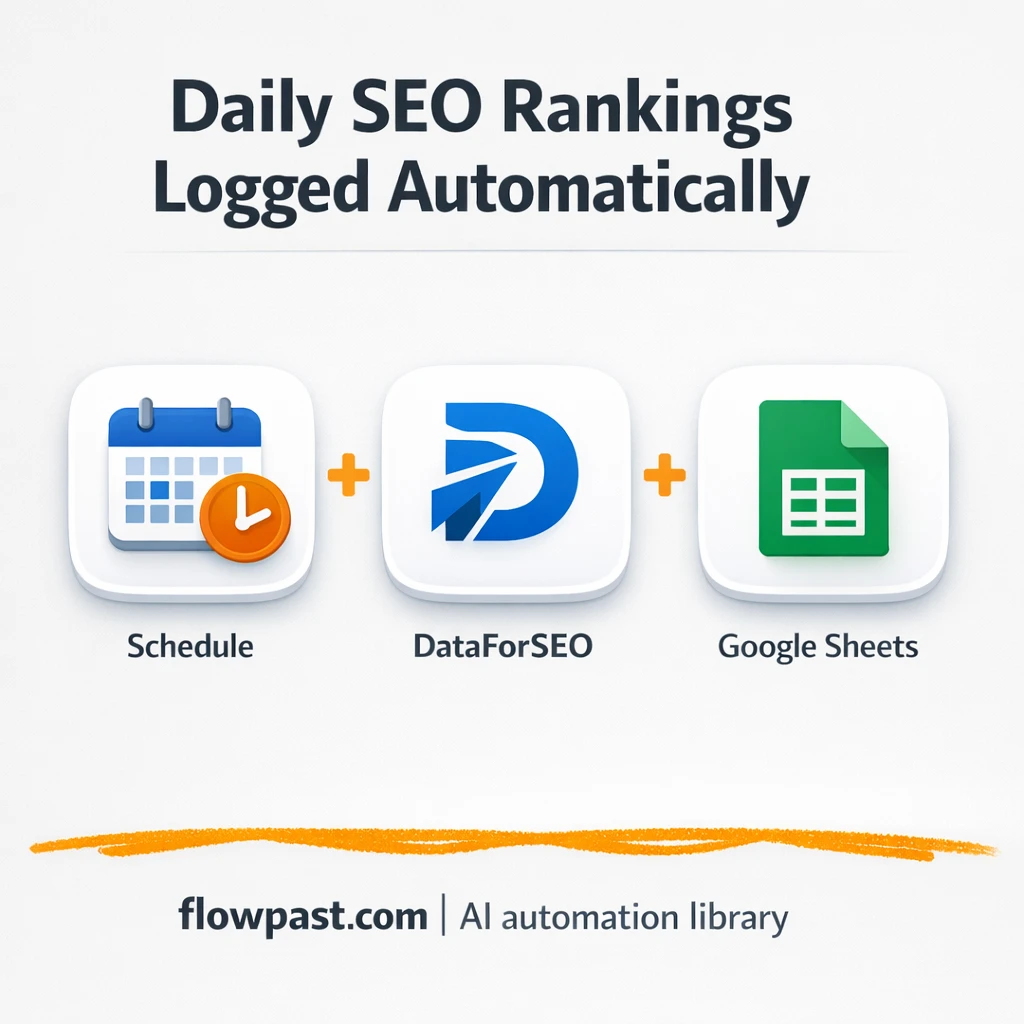

Daily rank checks sound simple until you are doing them for 40 keywords, across a few client sites, before your first meeting. Tabs everywhere. “Wait, which location did I check yesterday?” And then someone asks for a trend chart by Friday.
This SERP rank tracking automation hits SEO specialists hardest, but marketing managers and agency leads feel it too. You get a dated snapshot in Google Sheets every day without running searches, copying results, or rebuilding reports from scratch.
Below, you’ll see how the workflow pulls live Google SERPs via DataForSEO, parses what matters (query, rank, domain, date), and appends clean rows into your sheet for dashboards and client reporting.
How This Automation Works
See how this solves the problem:
n8n Workflow Template: DataForSEO to Google Sheets, daily SERP snapshots
flowchart LR

    subgraph sg0["Schedule Flow"]
        direction LR
        n0@{ icon: "mdi:play-circle", form: "rounded", label: "Schedule Trigger", pos: "b", h: 48 }
        n1@{ icon: "mdi:swap-vertical", form: "rounded", label: "Split Out", pos: "b", h: 48 }
        n2@{ icon: "mdi:database", form: "rounded", label: "Fetch Keyword List (Google S..", pos: "b", h: 48 }
        n3@{ icon: "mdi:cog", form: "rounded", label: "Fetch SERP Data (DataForSEO ..", pos: "b", h: 48 }
        n4["<div style='background:#f5f5f5;padding:10px;border-radius:8px;display:inline-block;border:1px solid #e0e0e0'><img src='https://flowpast.com/wp-content/uploads/n8n-workflow-icons/code.svg' width='40' height='40' /></div><br/>Extract Query, Rank & Domain"]
        n5@{ icon: "mdi:swap-vertical", form: "rounded", label: "Add Timestamp & Prepare Output", pos: "b", h: 48 }
        n6@{ icon: "mdi:database", form: "rounded", label: "Append Results to Google Sheet", pos: "b", h: 48 }
        n1 --> n4
        n0 --> n2
        n4 --> n5
        n5 --> n6
        n3 --> n1
        n2 --> n3
    end

    %% Styling
    classDef trigger fill:#e8f5e9,stroke:#388e3c,stroke-width:2px
    classDef ai fill:#e3f2fd,stroke:#1976d2,stroke-width:2px
    classDef aiModel fill:#e8eaf6,stroke:#3f51b5,stroke-width:2px
    classDef decision fill:#fff8e1,stroke:#f9a825,stroke-width:2px
    classDef database fill:#fce4ec,stroke:#c2185b,stroke-width:2px
    classDef api fill:#fff3e0,stroke:#e65100,stroke-width:2px
    classDef code fill:#f3e5f5,stroke:#7b1fa2,stroke-width:2px
    classDef disabled stroke-dasharray: 5 5,opacity: 0.5
    class n0 trigger
    class n2,n6 database
    class n4 code
    classDef customIcon fill:none,stroke:none
    class n4 customIcon
The Challenge: Daily rank tracking turns into busywork
Manual SERP tracking breaks down in boring ways. You search a keyword, scan results, jot down a rank, repeat. Then you do it again for the next keyword, and the next client, and suddenly you’ve spent about 2 hours doing something that still isn’t consistent. Rankings change by location and language, “incognito” is not a measurement standard, and it’s easy to accidentally record yesterday’s number twice. The worst part is the follow-up: turning scattered notes into something you can actually report on.
It adds up fast. Here’s where the friction compounds.
- You end up checking Google manually, which is slow and surprisingly inconsistent across team members.
- Copying ranks into Sheets creates small errors that ruin trend lines later, especially when you have dozens of keywords.
- Without a clean daily history, “Are we improving?” turns into guesswork instead of a chart.
- Client reporting becomes a monthly scramble because you’re rebuilding snapshots retroactively.
The Fix: Daily SERP snapshots appended to Google Sheets
This workflow runs on a daily schedule and turns your keyword list into a fresh SERP snapshot automatically. It starts by reading your “query” column in Google Sheets, then sends those keywords to DataForSEO to fetch live Google search results using a consistent location and language (so your tracking stays comparable). Next, it separates the API response into individual result rows, extracts the key fields you actually care about, and formats the date into a clean YYYY-MM-DD value. Finally, it appends everything into a ranking history sheet, so each day becomes another set of rows you can filter, chart, or feed into dashboards.
The workflow begins with a scheduled trigger. Google Sheets provides the keyword inputs, DataForSEO returns the SERP data, and n8n cleans it up so you get “query / rank / domain / date” as tidy, analyzable rows. No screenshotting. No “I swear it was #3 yesterday.”
What Changes: Before vs. After
| What This Eliminates | Impact You’ll See |
|---|---|
|
|
Real-World Impact
Say you track 40 keywords for a single site and you only log the top domain and its rank. Manually, that’s maybe 2 minutes per keyword between searching, confirming location, and typing into a sheet, which is about 80 minutes every day. With this workflow, your “work” is basically maintaining the keyword list (maybe 5 minutes when you add new terms) while the daily run appends the dated rows automatically. Over a normal week, you’re getting back roughly 6 hours, and your dataset is cleaner.
Requirements
- n8n instance (try n8n Cloud free)
- Self-hosting option if you prefer (Hostinger works well)
- Google Sheets for keyword input and daily history storage.
- DataForSEO to fetch live Google SERP results via API.
- DataForSEO API credentials (get them from your DataForSEO dashboard).
Skill level: Beginner. You’ll connect accounts, paste credentials, and point the workflow at the right sheet columns.
Need help implementing this? Talk to an automation expert (free 15-minute consultation).
The Workflow Flow
Daily schedule kickoff. The workflow runs once per day on a schedule, so tracking happens even when you’re busy (or on vacation).
Keywords are pulled from Google Sheets. It reads your keyword list from a sheet with a “query” column, so adding or removing tracked terms is as simple as editing a spreadsheet.
DataForSEO pulls live SERP data. For each keyword, the workflow requests results using your chosen location code and language code, which keeps the measurement consistent over time.
Results are parsed, dated, and appended. n8n separates the response into rows, extracts query/rank/domain, formats the date, and appends the new snapshot to your ranking history sheet.
You can easily modify location and language to match each client’s market based on your needs. See the full implementation guide below for customization options.
Step-by-Step Implementation Guide
Step 1: Configure the Schedule Trigger
Set the workflow to run automatically each day.
- Add or open Scheduled Daily Kickoff as your trigger node.
- Set the schedule rule to run at Hour
8(as configured in Scheduled Daily Kickoff). - Connect Scheduled Daily Kickoff to Retrieve Keyword Sheet to follow the execution flow.
Step 2: Connect Google Sheets
Pull the keywords to check and define where ranking results are stored.
- Open Retrieve Keyword Sheet and set Authentication to
serviceAccount. - Set Document to
[YOUR_ID]and Sheet toqueries. - Credential Required: Connect your
googleApicredentials for Retrieve Keyword Sheet. - Open Append to Ranking Sheet and set Operation to
appendand Authentication toserviceAccount. - Set Document to
[YOUR_ID]and Sheet torank. - Credential Required: Connect your
googleApicredentials for Append to Ranking Sheet.
Step 3: Set Up SERP Data Retrieval
Fetch ranking data from DataForSEO using each keyword.
- Open Pull SERP Metrics and set Resource to
serp. - Set Keyword to
={{ $json.query }}so each sheet row drives a lookup. - Set Depth to
10, Language Name toEnglish, and Location Name toUnited States. - Credential Required: Connect your
dataForSeoApicredentials for Pull SERP Metrics. - Confirm the flow: Retrieve Keyword Sheet → Pull SERP Metrics → Separate Results.
Step 4: Configure Processing and Formatting
Split SERP results, extract organic rankings, and add a date stamp before writing to the sheet.
- Open Separate Results and set Field to Split Out to
tasks[0].result. - In Parse Query Rank Domain, keep the provided JavaScript to extract
query,rank, anddomainfrom organic items. - In Add Date and Format, map fields with expressions: query
={{ $json.query }}, rank={{ $json.rank }}, domain={{ $json.domain }}, and date={{ new Date().toISOString().split('T')[0] }}. - Verify the execution flow: Separate Results → Parse Query Rank Domain → Add Date and Format → Append to Ranking Sheet.
Step 5: Configure Output Mapping
Write the final, formatted rows into your rankings sheet.
- In Append to Ranking Sheet, set the column mappings to: date
={{ $json.date }}, rank={{ $json.rank }}, query={{ $json.query }}, and domain={{ $json.domain }}. - Ensure Operation is
appendso each run adds new rows instead of overwriting.
Step 6: Test and Activate Your Workflow
Validate that keywords are retrieved, rankings are parsed, and rows are appended correctly.
- Click Execute Workflow to run a manual test from Scheduled Daily Kickoff.
- Check the output of Pull SERP Metrics and Parse Query Rank Domain to confirm organic results are extracted.
- Verify new rows appear in the
ranksheet with date, rank, query, and domain populated. - Turn on the workflow using the Active toggle to schedule daily execution.
Watch Out For
- Google Sheets access can fail if the connected Google account loses permission to the file. If appends stop, check the sheet sharing settings and the Google credential inside n8n first.
- If you increase the keyword list a lot, DataForSEO responses can get heavier and slower. Processing times vary, so if downstream parsing fails on missing data, add a longer wait or split keywords into smaller batches.
- Location and language settings in DataForSEO must stay stable for true trend tracking. Changing location_code midstream will make your charts look “wrong” even if nothing changed in SEO.
Common Questions
About 30 minutes if your accounts are ready.
Yes. No coding required, but you do need to connect Google Sheets and paste your DataForSEO credentials into the workflow.
Yes. n8n has a free self-hosted option and a free trial on n8n Cloud. Cloud plans start at $20/month for higher volume. You’ll also need to factor in DataForSEO API usage costs, which vary based on how many keywords you pull each day.
Two options: n8n Cloud (managed, easiest setup) or self-hosting on a VPS. For self-hosting, Hostinger VPS is affordable and handles n8n well. Self-hosting gives you unlimited executions but requires basic server management.
You can customize the DataForSEO request settings so the snapshot matches each site’s target market. The most common change is updating location_code and language_code inside the “Pull SERP Metrics” step, then keeping it consistent so trends remain comparable. Many teams also adjust the parsing logic so they store more fields, like URL or SERP features, not just rank and domain.
Usually it’s an invalid API login or password in the DataForSEO credentials used by the “Pull SERP Metrics” step.
It depends more on your plan and your keyword count than on the workflow itself. On n8n Cloud, higher tiers handle more monthly executions, and you can also split your keyword list to reduce per-run load. If you self-host, you’re not capped by executions, but your server still has to process the payload and write rows to Google Sheets. In practice, most small teams can track a few hundred keywords daily without drama, as long as they keep the sheet structure clean and don’t try to write tens of thousands of rows in a single run.
Often, yes, because this kind of workflow benefits from parsing logic and flexible data handling. n8n makes it easier to transform the DataForSEO response, split results into rows, and append clean history without paying extra for every branching step. Zapier and Make can still do it, but you may run into limits when the payload is large or when you want custom formatting. If you’re only tracking a handful of keywords and don’t care about clean history, a simpler tool can be fine. Talk to an automation expert if you want the fastest path for your setup.
Once daily snapshots run on autopilot, reporting stops being a fire drill and starts being a simple chart. Set it up once, then let the sheet quietly fill itself.
Need Help Setting This Up?
Our automation experts can build and customize this workflow for your specific needs. Free 15-minute consultation—no commitment required.
