


Docker + npm: keep packages installed, no surprises
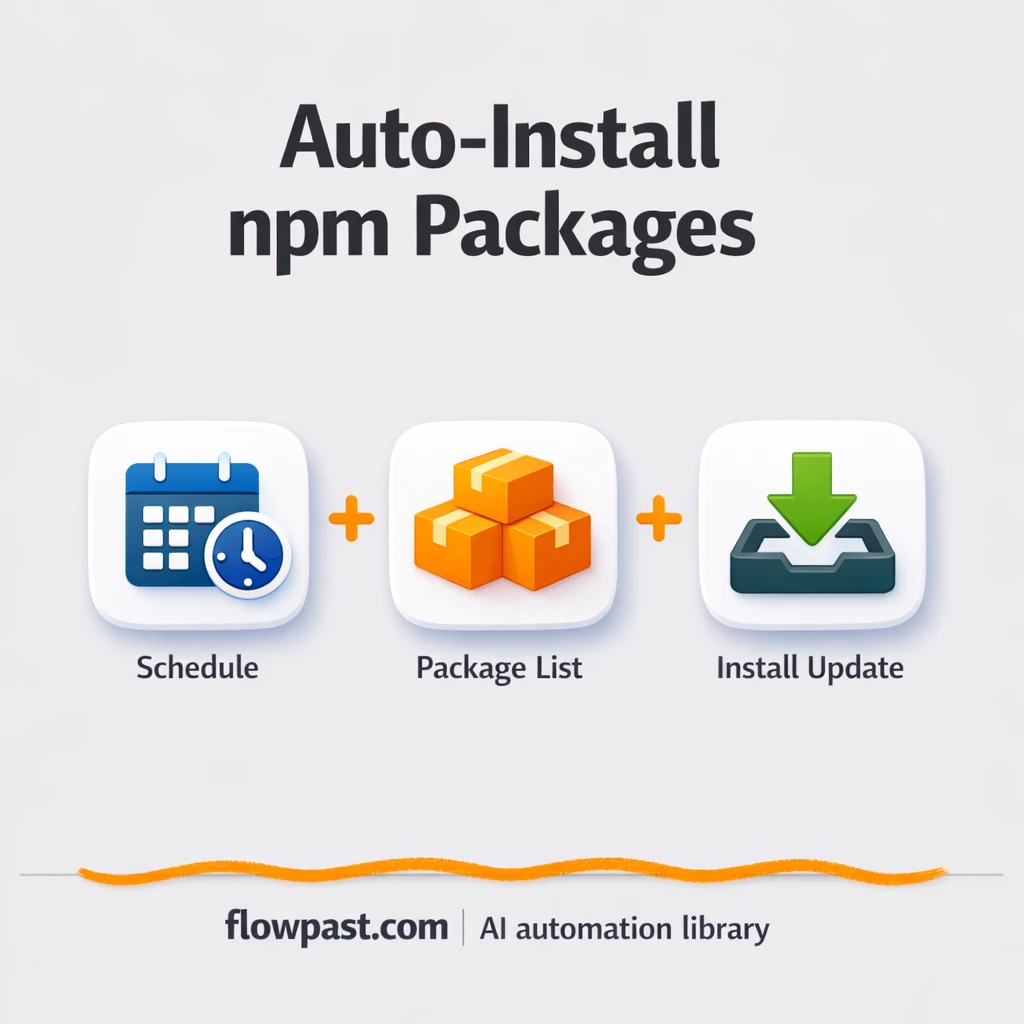

Your n8n workflow runs fine… until a container rebuild wipes the npm package you installed last week. Then a Code node throws “Cannot find module,” a client demo stalls, and you’re back to SSH-ing into a box to reinstall the same libraries again.
This npm Docker automation hits automation consultants and agency owners first because you’re responsible for reliability, not just “it works on my machine.” But ops-minded small business teams feel it too when a simple integration suddenly breaks after an update.
This workflow keeps your required npm packages installed inside your self-hosted n8n Docker container automatically, so rebuilds and upgrades stop turning into fire drills. You’ll see what it does, why it’s safer than manual installs, and how to run it on a schedule or at startup.
How This Automation Works
See how this solves the problem:
n8n Workflow Template: Docker + npm: keep packages installed, no surprises
flowchart LR

    subgraph sg0["Manual Execution Start Flow"]
        direction LR
        n0@{ icon: "mdi:swap-vertical", form: "rounded", label: "Define Libraries List", pos: "b", h: 48 }
        n1@{ icon: "mdi:play-circle", form: "rounded", label: "Manual Execution Start", pos: "b", h: 48 }
        n2@{ icon: "mdi:swap-vertical", form: "rounded", label: "Convert Libraries Array", pos: "b", h: 48 }
        n3@{ icon: "mdi:swap-vertical", form: "rounded", label: "Split Library Items", pos: "b", h: 48 }
        n4@{ icon: "mdi:cog", form: "rounded", label: "Install Library Package", pos: "b", h: 48 }
        n5@{ icon: "mdi:play-circle", form: "rounded", label: "Scheduled Automation Trigger", pos: "b", h: 48 }
        n6["<div style='background:#f5f5f5;padding:10px;border-radius:8px;display:inline-block;border:1px solid #e0e0e0'><img src='https://flowpast.com/wp-content/uploads/n8n-workflow-icons/n8nTrigger.svg' width='40' height='40' /></div><br/>Instance Init Trigger"]
        n0 --> n2
        n1 --> n0
        n2 --> n3
        n3 --> n4
        n6 --> n0
        n5 --> n0
    end

    %% Styling
    classDef trigger fill:#e8f5e9,stroke:#388e3c,stroke-width:2px
    classDef ai fill:#e3f2fd,stroke:#1976d2,stroke-width:2px
    classDef aiModel fill:#e8eaf6,stroke:#3f51b5,stroke-width:2px
    classDef decision fill:#fff8e1,stroke:#f9a825,stroke-width:2px
    classDef database fill:#fce4ec,stroke:#c2185b,stroke-width:2px
    classDef api fill:#fff3e0,stroke:#e65100,stroke-width:2px
    classDef code fill:#f3e5f5,stroke:#7b1fa2,stroke-width:2px
    classDef disabled stroke-dasharray: 5 5,opacity: 0.5
    class n1,n5,n6 trigger
    classDef customIcon fill:none,stroke:none
    class n6 customIcon
The Challenge: npm packages disappear after Docker rebuilds
On self-hosted n8n, you eventually need an external library in a Code node. Maybe it’s axios for an API call, cheerio for scraping, or node-fetch for a quick fetch wrapper. The first time, you install it and move on. Then n8n updates, Docker rebuilds, or the container restarts on a new host and suddenly the library is gone. Now a workflow that “used to work” fails in production, and you’re debugging at the worst possible moment. Honestly, it’s not the install that hurts. It’s the surprise.
The friction compounds in a few predictable places.
- You end up doing repetitive SSH sessions just to re-run npm install for the same packages.
- Workflows fail at runtime, which means you notice the problem only after a job has already missed its window.
- Different environments drift apart, so staging “works” while production quietly breaks.
- Handing off to a teammate becomes risky because tribal knowledge replaces a documented, repeatable process.
The Fix: automated npm installs inside your n8n container
This workflow turns npm package management into a repeatable routine instead of a late-night repair. You define a comma-separated list of libraries you want available to n8n Code nodes (for example, axios, cheerio, node-fetch). When the workflow runs, it converts that list into individual items and installs each package inside the running n8n Docker container using an automated command. You can start it manually the first time, schedule it daily to keep things current, and also run it when the n8n instance initializes so upgrades don’t wipe out your dependencies. The result is simple: the libraries your workflows expect are already there when your workflows execute.
The workflow begins from one of three triggers (manual, scheduled, or instance startup). It then normalizes your library list, loops through each package, and executes the install command per item. Your Code nodes can keep using external packages without you babysitting the container.
What Changes: Before vs. After
| What This Eliminates | Impact You’ll See |
|---|---|
|
|
Real-World Impact
Say you rely on 6 external packages across a few workflows. After a rebuild, a manual “log in, install, verify” cycle can easily take about 10 minutes per package by the time you find the right container and rerun failed executions, so you’ve lost roughly an hour. With this automation, you trigger once (or let the instance startup trigger run), wait a couple minutes for installs to complete, and you’re done. In practice that’s close to an hour saved every time your stack is rebuilt.
Requirements
- n8n instance (try n8n Cloud free)
- Self-hosting option if you prefer (Hostinger works well)
- Docker to run your self-hosted n8n container.
- npm (inside the container) to install the Node.js packages.
- NODE_FUNCTION_ALLOW_EXTERNAL (set in Docker Compose env vars)
Skill level: Intermediate. You should be comfortable editing Docker Compose environment variables and testing a workflow run in n8n.
Need help implementing this? Talk to an automation expert (free 15-minute consultation).
The Workflow Flow
A run starts from manual, schedule, or instance startup. You can click “Execute Workflow,” let it run daily, or have it fire when your self-hosted n8n instance initializes.
You define the libraries once. In the “Define Libraries List” step, you add a comma-separated list like axios,cheerio,node-fetch, which becomes the single source of truth for what your Code nodes may use.
The list becomes installable items. The workflow converts your text list into an array and splits it into one package per item, so each install is handled cleanly and repeatably.
n8n installs each npm package inside the container. Using an automated command execution step, the workflow runs the equivalent of npm install for each missing library so it’s immediately available to your workflows.
You can easily modify the library list to match your Code node needs, or align it with a tighter allowlist in NODE_FUNCTION_ALLOW_EXTERNAL. See the full implementation guide below for customization options.
Step-by-Step Implementation Guide
Step 1: Configure the Manual Trigger
This workflow can start manually, on schedule, or when the instance initializes. Configure all three triggers so they feed into the same library setup path.
- Add the Manual Execution Start node to enable manual runs.
- Add the Scheduled Automation Trigger node and keep its default rule structure (the workflow uses Rule with an empty Interval object).
- Add the Instance Init Trigger node and set Events to
initso it runs on instance startup. - Connect Manual Execution Start, Scheduled Automation Trigger, and Instance Init Trigger to Define Libraries List.
Step 2: Connect Library Definition
Define the list of npm libraries to install in a single comma-separated string.
- Open Define Libraries List.
- In Assignments, add a field named libraries with Type set to
string. - Set the Value to
axios,cheerio,node-fetch. - Leave Ignore Conversion Errors set to
falseto catch malformed input.
Step 3: Set Up Library List Processing
Convert the comma-separated list into an array and split it into individual items for iteration.
- Open Convert Libraries Array and add an Assignments entry for libraries with Type set to
array. - Set the Value to
{{ $json.libraries.split(",") }}to create an array. - Open Split Library Items and set Field to Split Out to
libraries. - In Options, set Destination Field Name to
libraryso each item is available as a single value.
Step 4: Configure the Installation Command
Run a shell script for each library to install it if it doesn’t already exist.
- Open Install Library Package and paste the full command script into Command exactly as shown in the workflow.
- Verify the script references the library name using
{{$json.library}}. - Set Execute Once to
falseso each split item installs independently.
npm install and write to /home/node/node_modules.Step 5: Test and Activate Your Workflow
Validate the workflow end-to-end before enabling automated runs.
- Click Execute Workflow to run Manual Execution Start and verify the path through Define Libraries List → Convert Libraries Array → Split Library Items → Install Library Package.
- Confirm each library logs either an install success message or an “already installed” message from the command output.
- Adjust the list in Define Libraries List if you need different packages, then re-run for validation.
- Toggle the workflow to Active to enable Scheduled Automation Trigger and Instance Init Trigger for production use.
Watch Out For
- Docker permissions can block installs if the container user can’t write to the node_modules path. If installs fail, check your container user and volume mounts first.
- If you’re using Wait nodes or external rendering, processing times vary. Bump up the wait duration if downstream nodes fail on empty responses.
- Default prompts in AI nodes are generic. Add your brand voice early or you’ll be editing outputs forever.
Common Questions
About 30 minutes if your self-hosted n8n and Docker access are ready.
Yes, but they will need someone comfortable with Docker Compose once. After the environment variable is set, running the workflow is point-and-click.
Yes. n8n has a free self-hosted option and a free trial on n8n Cloud. Cloud plans start at $20/month for higher volume. You’ll also need to factor in $0 for npm itself (most packages are free), plus whatever your server costs.
Two options: n8n Cloud (managed, easiest setup) or self-hosting on a VPS. For self-hosting, Hostinger VPS is affordable and handles n8n well. Self-hosting gives you unlimited executions but requires basic server management.
Start by changing the list in the “Define Libraries List” node. If you only want to allow specific packages in Code nodes, mirror that same list in your Docker Compose NODE_FUNCTION_ALLOW_EXTERNAL variable instead of using the wildcard. You can also adjust how often the “Scheduled Automation Trigger” runs (daily, weekly, or just on demand) depending on how stable you want your dependency set to be.
Usually it’s a permissions issue inside the container, or the execute command is pointing at the wrong container context. Check that the n8n process user can write where npm installs modules, and confirm the container name/paths match your setup. If it started failing right after an n8n upgrade, re-check NODE_FUNCTION_ALLOW_EXTERNAL because n8n will block external modules unless you allow them.
It scales to dozens of packages easily, and the limiting factor is usually your server CPU and disk speed during installs.
Yes, for this specific problem. Zapier and Make don’t manage what’s inside your Docker container, so they can’t reliably “install dependencies on startup” the way n8n can when self-hosted. n8n also lets you run commands and loop through items without paying extra for every branch, which matters when your package list grows. If you only need simple cloud-to-cloud automation, Zapier or Make can be simpler. For container-level control, they’re not really competing tools. Talk to an automation expert if you want help choosing.
Once this is in place, rebuilds stop being scary because your dependencies come back automatically. Set it up, run it on schedule, and move on to work that actually matters.
Need Help Setting This Up?
Our automation experts can build and customize this workflow for your specific needs. Free 15-minute consultation—no commitment required.
