


Gemini to Google Docs, eBook drafts ready to edit
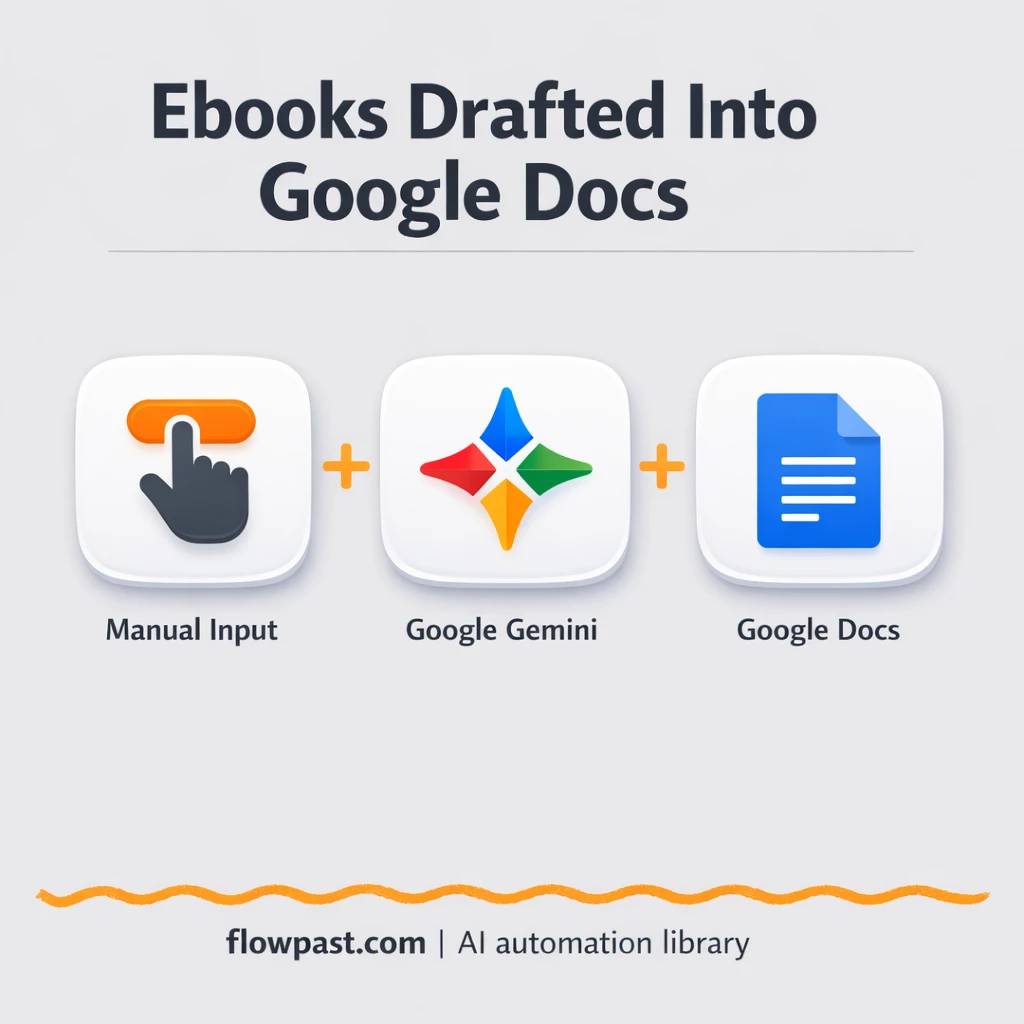

You sit down to “just draft” an eBook, and suddenly you’re juggling outlines, chapter consistency, formatting, and five half-finished docs. The writing isn’t the bottleneck. The busywork is. Gemini Google Docs automation is how you get back to actual thinking.
Content marketers feel it when a lead magnet needs to ship this week. A course creator feels it when modules need turning into a cohesive book. And an agency lead? They feel it when every client wants “one more guide” by Friday.
This workflow takes a topic or outline, has Gemini generate a structured table of contents and chapter drafts, then compiles everything into a single Google Doc you can review, edit, and publish from.
How This Automation Works
The full n8n workflow, from trigger to final output:
n8n Workflow Template: Gemini to Google Docs, eBook drafts ready to edit
flowchart LR

    subgraph sg0["When clicking ‘Execute workflow’ Flow"]
        direction LR
        n0@{ icon: "mdi:play-circle", form: "rounded", label: "When clicking ‘Execute workf..", pos: "b", h: 48 }
        n1@{ icon: "mdi:swap-vertical", form: "rounded", label: "Loop Over Items", pos: "b", h: 48 }
        n2@{ icon: "mdi:brain", form: "rounded", label: "Google Gemini Chat Model", pos: "b", h: 48 }
        n3@{ icon: "mdi:cog", form: "rounded", label: "Create a Google Doc", pos: "b", h: 48 }
        n4@{ icon: "mdi:cog", form: "rounded", label: "Update Google Docs", pos: "b", h: 48 }
        n5@{ icon: "mdi:swap-vertical", form: "rounded", label: "Set the Input Fields", pos: "b", h: 48 }
        n6@{ icon: "mdi:robot", form: "rounded", label: "Ebook Thought Creation", pos: "b", h: 48 }
        n7@{ icon: "mdi:brain", form: "rounded", label: "Google Gemini Chat Model for..", pos: "b", h: 48 }
        n8@{ icon: "mdi:robot", form: "rounded", label: "Structured Output Parser", pos: "b", h: 48 }
        n9["<div style='background:#f5f5f5;padding:10px;border-radius:8px;display:inline-block;border:1px solid #e0e0e0'><img src='https://flowpast.com/wp-content/uploads/n8n-workflow-icons/code.svg' width='40' height='40' /></div><br/>Code"]
        n10@{ icon: "mdi:robot", form: "rounded", label: "Generate Detailed Chapter Co..", pos: "b", h: 48 }
        n11@{ icon: "mdi:swap-vertical", form: "rounded", label: "Set the title, objective", pos: "b", h: 48 }
        n9 --> n1
        n1 --> n11
        n4 --> n1
        n3 --> n4
        n5 --> n6
        n6 --> n9
        n2 -.-> n10
        n11 --> n10
        n8 -.-> n6
        n10 --> n3
        n0 --> n5
        n7 -.-> n6
    end

    %% Styling
    classDef trigger fill:#e8f5e9,stroke:#388e3c,stroke-width:2px
    classDef ai fill:#e3f2fd,stroke:#1976d2,stroke-width:2px
    classDef aiModel fill:#e8eaf6,stroke:#3f51b5,stroke-width:2px
    classDef decision fill:#fff8e1,stroke:#f9a825,stroke-width:2px
    classDef database fill:#fce4ec,stroke:#c2185b,stroke-width:2px
    classDef api fill:#fff3e0,stroke:#e65100,stroke-width:2px
    classDef code fill:#f3e5f5,stroke:#7b1fa2,stroke-width:2px
    classDef disabled stroke-dasharray: 5 5,opacity: 0.5
    class n0 trigger
    class n6,n8,n10 ai
    class n2,n7 aiModel
    class n9 code
    classDef customIcon fill:none,stroke:none
    class n9 customIcon
The Problem: eBook Drafts Turn Into Formatting Projects
Drafting an eBook sounds straightforward until you try to keep everything aligned: chapter titles that match the promise, sections that don’t repeat themselves, and a table of contents that isn’t an afterthought. Most teams start in one doc, then split into many, then paste it all back together later. That’s when headings break, spacing goes weird, and “final_v7” shows up. The worst part is the mental load. You’re constantly context-switching instead of writing or editing with a clear head.
It adds up fast. Here’s where it breaks down in the real world.
- Outlines drift as you draft, so Chapter 6 no longer fits the original promise.
- Copy-pasting between tools quietly introduces errors, duplicate sections, and missing headings.
- Review becomes painful because the draft lives in multiple places, which slows approvals and edits.
- Even “AI writing” still needs structure, otherwise you spend hours rewriting to make it coherent.
The Solution: Gemini Generates Chapters and n8n Compiles the Doc
This n8n workflow starts with a single input (a topic or outline), then uses Google Gemini Flash 2.0 to generate a structured eBook plan: chapter titles, a table of contents, and the shape of what each chapter should cover. Next, it converts that plan into a clean list of chapters and loops through them one by one. For each chapter, Gemini produces section-wise content based on the outline, so the writing stays anchored to the same structure throughout. Finally, n8n creates a Google Doc and appends each chapter in order, so you end up with one consistent draft instead of fragments scattered across tools.
The workflow starts when you run it manually in n8n (or swap in a webhook/Jotform trigger if you prefer). Gemini generates the outline first, then chapter content, and Google Docs becomes the single place you review everything.
What You Get: Automation vs. Results
| What This Workflow Automates | Results You’ll Get |
|---|---|
|
|
Example: What This Looks Like
Say you’re producing a 10-chapter lead magnet. Manually, a typical process looks like: 30 minutes outlining, then about 20 minutes per chapter to draft rough sections, plus another 60 minutes just to merge, format headings, and fix the table of contents (about 5 hours total). With this workflow, you spend about 10 minutes writing a good topic/outline prompt, then let Gemini draft while n8n compiles the Google Doc. You usually come back to one formatted draft ready to edit in under an hour.
What You’ll Need
- n8n instance (try n8n Cloud free)
- Self-hosting option if you prefer (Hostinger works well)
- Google Gemini Flash 2.0 for outline and chapter generation
- Google Docs to compile the eBook draft
- Gemini API key (get it from Google AI Studio/Google Cloud)
Skill level: Intermediate. You’ll connect accounts, add an API key, and tweak prompts without needing to write code.
Don’t want to set this up yourself? Talk to an automation expert (free 15-minute consultation).
How It Works
You trigger the draft. Run the workflow manually to test, or replace the trigger with a webhook/Jotform submission when you want non-technical teammates to submit topics.
The outline gets generated and cleaned up. Gemini creates the eBook outline and table of contents, then n8n parses the structured response and transforms it into a chapter list your workflow can reliably loop through.
Chapters are written one at a time. n8n iterates through chapters in batches, maps each chapter’s details, and asks Gemini for section-wise content that matches the same structure and tone.
Everything lands in Google Docs. The workflow creates a fresh Google Doc, then appends each chapter as it’s generated so you end with a single draft that’s ready for edits and comments.
You can easily modify the prompt and chapter format to match your niche, then output to a new doc per run or append to an existing template. See the full implementation guide below for customization options.
Step-by-Step Implementation Guide
Step 1: Configure the Manual Trigger
Kick off the workflow manually and define the initial ebook topic input.
- Add the Manual Launch Trigger node as the starting trigger.
- Open Configure Input Fields and set the Title field to
Provide me n8n beginners guide with chapters and high-level steps. - Connect Manual Launch Trigger → Configure Input Fields.
Step 2: Connect Google Gemini
Set up the AI language models used for outline generation and chapter drafting.
- Open Gemini Model for Outline and set Model Name to
models/gemini-2.0-flash-exp. - Credential Required: Connect your googlePalmApi credentials in Gemini Model for Outline.
- Open Gemini Model for Chapters and set Model Name to
models/gemini-2.0-flash-exp. - Credential Required: Connect your googlePalmApi credentials in Gemini Model for Chapters.
Step 3: Set Up Outline Generation
Generate a structured outline in JSON and parse it into chapter data.
- Open Generate Ebook Outline and set Text to
={{ $json.Title }}

Make sure to output as JSON
. - Ensure Parse Structured Response is connected as the output parser for Generate Ebook Outline.
- In Parse Structured Response, keep Schema Type as
manualand paste the provided JSON schema into Input Schema. - Connect Configure Input Fields → Generate Ebook Outline → Transform Chapter List.
Step 4: Configure Chapter Loop and Content Prompts
Convert the outline into a chapter list, iterate through chapters, and prompt the AI for detailed content.
- In Transform Chapter List, set JavaScript Code to
return $input.first().json.output.structure.chapters. - Connect Transform Chapter List → Iterate Chapters to process chapters one-by-one.
- In Map Chapter Details, set title to
={{ $json.title }}and objectives to={{ $json.objectives.toJsonString() }}. - In Produce Chapter Content, set Text to
=Provide a detailed chapter explanation for the following

Title : {{ $json.title }}
Objective :
{{ $json.objectives }}
. - Connect Map Chapter Details → Produce Chapter Content.
Step 5: Configure Google Docs Output
Create a document per chapter and append the generated content.
- Open Create Document File and set Title to
={{ $('Map Chapter Details').item.json.title }}and Folder ID todefault. - Credential Required: Connect your googleDocsOAuth2Api credentials in Create Document File.
- Open Append Document Content and set Operation to
updateand Document URL to={{ $json.id }}. - In Append Document Content, ensure the action text is
={{ $('Produce Chapter Content').item.json.text }}with the insert action. - Credential Required: Connect your googleDocsOAuth2Api credentials in Append Document Content.
- Connect Produce Chapter Content → Create Document File → Append Document Content → Iterate Chapters.
Step 6: Test and Activate Your Workflow
Validate the ebook generation and enable the workflow for production use.
- Click Execute Workflow to run Manual Launch Trigger manually.
- Confirm that Generate Ebook Outline returns structured JSON and that Transform Chapter List outputs an array of chapters.
- Verify each run of Iterate Chapters creates a Google Doc in Create Document File and appends text via Append Document Content.
- When satisfied, set the workflow to Active to enable production usage.
Common Gotchas
- Google Docs credentials can expire or need specific permissions. If things break, check the connected Google account and OAuth permissions in n8n first.
- If you’re using Wait nodes or external rendering, processing times vary. Bump up the wait duration if downstream nodes fail on empty responses.
- Default prompts in AI nodes are generic. Add your brand voice early or you’ll be editing outputs forever.
Frequently Asked Questions
About 30 minutes if your Google account and Gemini API key are ready.
No. You will connect credentials and edit a few prompt fields. The “logic” is already built into the workflow.
Yes. n8n has a free self-hosted option and a free trial on n8n Cloud. Cloud plans start at $20/month for higher volume. You’ll also need to factor in Gemini API costs, which are usually a few cents per run depending on length.
Two options: n8n Cloud (managed, easiest setup) or self-hosting on a VPS. For self-hosting, Hostinger VPS is affordable and handles n8n well. Self-hosting gives you unlimited executions but requires basic server management.
Yes, and you should. Update the prompt text in the outline and chapter-generation steps so Gemini uses your tone, audience, and preferred chapter format. Common tweaks include adding a “brand voice” paragraph, enforcing chapter length limits, and requiring a summary + key takeaways section for each chapter.
Usually it’s an expired or switched Google OAuth connection in n8n, especially if you authenticated with one account and later tried to write to a Drive owned by another. Reconnect Google Docs in n8n and confirm the account has permission to create files. If it fails only on larger drafts, check for API quota limits or timeouts and try generating fewer chapters per run.
Practically, dozens per run, but long books are better split into smaller batches.
Often, yes, because this kind of workflow needs looping, structured parsing, and multi-step document building in a way that can get awkward (and expensive) in simpler automation tools. n8n also gives you the option to self-host, which matters if you plan to generate lots of drafts. Zapier or Make can still be fine for very small versions of this, like “topic in, outline out.” If you’re unsure, Talk to an automation expert and we’ll map the simplest setup that still gets you clean drafts.
A solid first draft should feel like a starting line, not a second job. Set this up once, then let Gemini and Google Docs handle the repeatable parts while you focus on making the content worth reading.
Need Help Setting This Up?
Our automation experts can build and customize this workflow for your specific needs. Free 15-minute consultation—no commitment required.
