


Gmail meets Google Calendar for effortless scheduling
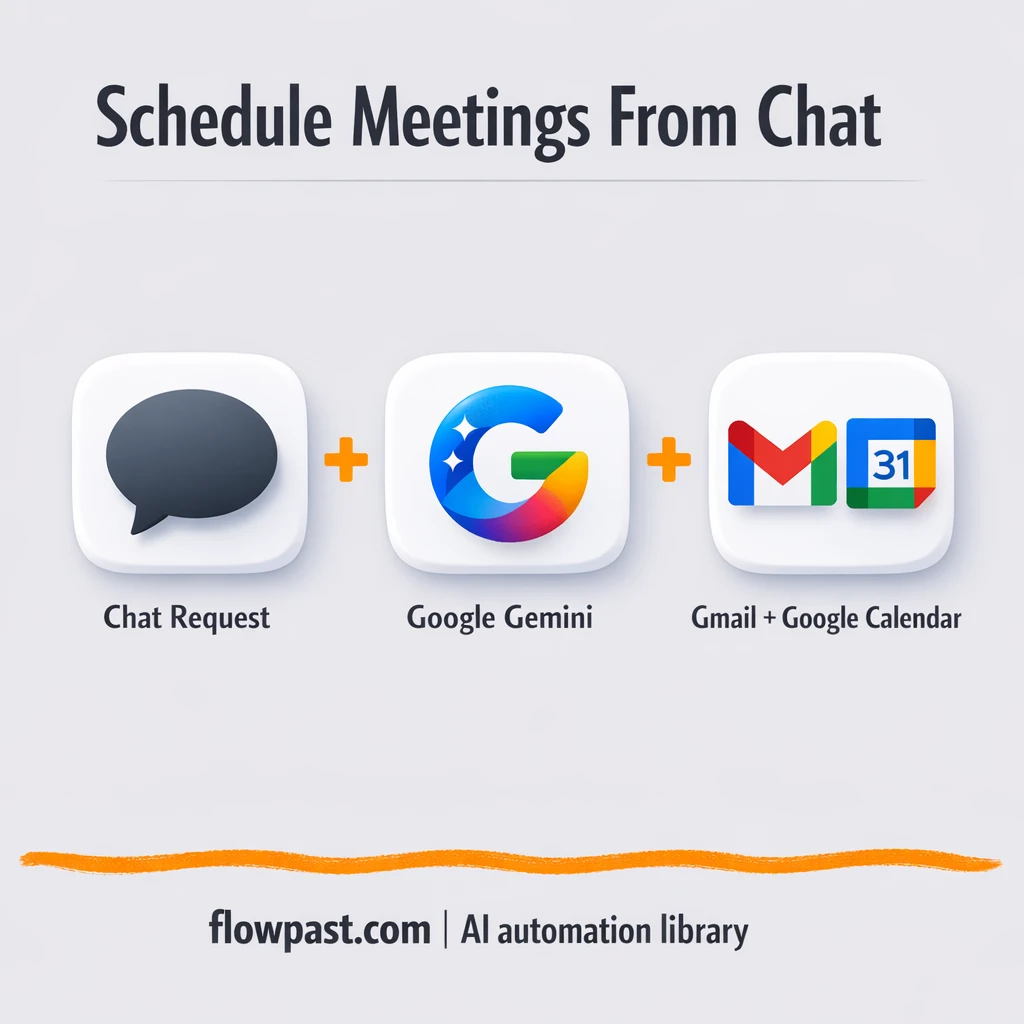

Your inbox fills up with “Can we meet next week?” and suddenly you’re doing the same little dance again. Open Gmail. Switch to Google Calendar. Scan for gaps. Propose a time. Realize you forgot the timezone. Start over.
This Gmail Calendar automation hits founders and freelancers hardest, because scheduling steals the exact hours you should be using to do real work. Client-facing teams feel it too. The outcome is simple: requests turn into calendar actions and ready-to-send email drafts, with a confirmation check so you’re not praying you booked the right slot.
Below you’ll see how this n8n workflow turns natural language (“book a call with Alex tomorrow”) into checked availability, created or updated events, and a clean Gmail message when it’s time to notify someone.
How This Automation Works
See how this solves the problem:
n8n Workflow Template: Gmail meets Google Calendar for effortless scheduling
flowchart LR

    subgraph sg0["Chat Node Flow"]
        direction LR
        n0@{ icon: "mdi:robot", form: "rounded", label: "AI Agent", pos: "b", h: 48 }
        n1@{ icon: "mdi:brain", form: "rounded", label: "Google Gemini Chat Model", pos: "b", h: 48 }
        n2@{ icon: "mdi:memory", form: "rounded", label: "Simple Memory", pos: "b", h: 48 }
        n3@{ icon: "mdi:message-outline", form: "rounded", label: "Send a message in Gmail", pos: "b", h: 48 }
        n4@{ icon: "mdi:message-outline", form: "rounded", label: "Get many messages in Gmail", pos: "b", h: 48 }
        n5@{ icon: "mdi:location-exit", form: "rounded", label: "Get many events in Google Ca..", pos: "b", h: 48 }
        n6@{ icon: "mdi:cog", form: "rounded", label: "Date & Time", pos: "b", h: 48 }
        n7@{ icon: "mdi:location-exit", form: "rounded", label: "Get availability in a calend..", pos: "b", h: 48 }
        n8@{ icon: "mdi:location-exit", form: "rounded", label: "Create an event in Google Ca..", pos: "b", h: 48 }
        n9@{ icon: "mdi:location-exit", form: "rounded", label: "Update an event in Google Ca..", pos: "b", h: 48 }
        n10@{ icon: "mdi:play-circle", form: "rounded", label: "Chat Node", pos: "b", h: 48 }
        n10 --> n0
        n6 -.-> n0
        n2 -.-> n0
        n3 -.-> n0
        n1 -.-> n0
        n4 -.-> n0
        n8 -.-> n0
        n5 -.-> n0
        n9 -.-> n0
        n7 -.-> n0
    end

    %% Styling
    classDef trigger fill:#e8f5e9,stroke:#388e3c,stroke-width:2px
    classDef ai fill:#e3f2fd,stroke:#1976d2,stroke-width:2px
    classDef aiModel fill:#e8eaf6,stroke:#3f51b5,stroke-width:2px
    classDef decision fill:#fff8e1,stroke:#f9a825,stroke-width:2px
    classDef database fill:#fce4ec,stroke:#c2185b,stroke-width:2px
    classDef api fill:#fff3e0,stroke:#e65100,stroke-width:2px
    classDef code fill:#f3e5f5,stroke:#7b1fa2,stroke-width:2px
    classDef disabled stroke-dasharray: 5 5,opacity: 0.5
    class n10 trigger
    class n0 ai
    class n1 aiModel
    class n2 ai
The Challenge: Scheduling Requests Turn Into Inbox Debt
Most scheduling problems aren’t “hard.” They’re just constant. One email asks for a meeting. Another asks to move it. Someone replies with a new time, but you’re already on a different thread. You check your calendar, forget what you saw, then check again to be safe. And when you do finally send the reply, it’s easy to miss a detail like meeting duration or timezone, which is how double-bookings and awkward follow-ups happen.
The friction compounds because the work is scattered across tabs, tools, and half-finished drafts.
- You lose about 10 minutes per request just context-switching between Gmail and Google Calendar.
- Small missing details (timezone, duration, attendees) force another email round-trip you didn’t have time for.
- When meetings get changed, updating the event and notifying people becomes two separate chores.
- Manual replies vary in tone and clarity, which means more “wait, what are we meeting about?” messages later.
The Fix: An AI Assistant That Actually Schedules (and Checks First)
This workflow gives you a chat-style assistant inside n8n that can read your natural-language request and choose the right action: check your upcoming events, verify availability, create a new meeting, update an existing one, or draft and send an email through Gmail. It uses a short-term memory buffer so your follow-up messages like “make it 30 minutes” or “invite Sam too” still make sense. A Date & Time step converts phrases such as “tomorrow at 3” into proper calendar times. And importantly, it has guardrails: when the request is missing something essential, the assistant asks you instead of guessing. Before it creates an event or emails someone, it confirms what it’s about to do.
The flow begins with an incoming chat message (from Telegram or another chat trigger you connect). From there, the AI agent interprets intent, pulls context from memory, and routes the request to Gmail or Google Calendar. Finally, you get a clear response back, plus a drafted or sent email and a calendar change when appropriate.
What Changes: Before vs. After
| What This Eliminates | Impact You’ll See |
|---|---|
|
|
Real-World Impact
Say you handle 10 scheduling requests a week. Manually, you typically spend about 10 minutes per request jumping between Gmail and Google Calendar, plus another 5 minutes writing or rewriting the reply. That’s roughly 2.5 hours weekly. With this workflow, you send a single chat message (about a minute), wait for the availability check and event creation, then approve the drafted reply. You get back around 2 hours most weeks, and the quality is steadier.
Requirements
- n8n instance (try n8n Cloud free)
- Self-hosting option if you prefer (Hostinger works well)
- Google Calendar to check availability and create/update events
- Gmail to retrieve messages and send replies
- AI model API key (get it from OpenAI or Google Gemini)
Skill level: Intermediate. You’ll connect OAuth credentials and adjust a few defaults like timezone and your calendar email.
Need help implementing this? Talk to an automation expert (free 15-minute consultation).
The Workflow Flow
A chat message kicks things off. You ask for what you want in plain English, like “Schedule a meeting with [email protected] tomorrow at 3 PM” or “What’s on my calendar next week?”
The assistant interprets intent and keeps context. The AI Agent uses the chat model plus a small memory window (roughly your last few interactions) so follow-ups don’t feel like starting over.
Time gets resolved, then your calendar is checked. Natural phrases are converted into real timestamps, and Google Calendar is queried to catch conflicts before anything is booked.
Gmail and Calendar actions happen with confirmation. If you’re creating or updating an event, the workflow prepares the details and asks you to confirm before it creates data or notifies someone. Email replies are generated with a clear subject and body, then dispatched via Gmail once approved.
You can easily modify the default meeting duration and email tone based on your needs. See the full implementation guide below for customization options.
Step-by-Step Implementation Guide
Step 1: Configure the Chat Trigger
Set up the entry point that starts the assistant when a user sends a chat message.
- Add the Incoming Chat Trigger node as your workflow trigger.
- Keep Options as the default empty object to accept standard chat inputs.
- Confirm the execution flow is Incoming Chat Trigger → Intelligent Assistant.
Step 2: Connect Google Services
Prepare Gmail and Google Calendar access for the assistant’s tools. These nodes act as AI tools connected to Intelligent Assistant.
- Open Dispatch Gmail Email and ensure the tool is connected to Intelligent Assistant.
- Open Retrieve Gmail Messages and ensure the tool is connected to Intelligent Assistant.
- Open Fetch Calendar Events, Check Calendar Availability, Create Calendar Event, and Modify Calendar Event and ensure each is connected to Intelligent Assistant.
- Update each Google Calendar node’s Calendar to your address:
[YOUR_EMAIL].
Credential Required: Connect your Gmail credentials. These Gmail tools are attached to Intelligent Assistant, so ensure the parent has access to Gmail.
Credential Required: Connect your Google Calendar credentials. These Calendar tools are attached to Intelligent Assistant, so ensure the parent has access to Google Calendar.
⚠️ Common Pitfall: If Gmail or Google Calendar credentials are missing, the agent will not be able to call tools even though the nodes are connected.
Step 3: Set Up the Intelligent Assistant
Configure the AI agent, its language model, and memory so it can interpret user requests and call the right tools.
- Open Intelligent Assistant and keep the System Message as provided to enforce tool-first behavior and confirmation logic.
- Attach Gemini Chat Engine as the language model for Intelligent Assistant.
- Attach Compact Memory Buffer as the memory for Intelligent Assistant and set Context Window Length to
10.
Credential Required: Connect your Google Gemini credentials in Gemini Chat Engine.
Tip: The memory window length of 10 keeps recent context tight—raise it if you want longer multi-turn sessions.
Step 4: Configure Output and Action Tools
Define how the assistant sends email, fetches email, resolves dates, and manages calendar events.
- In Dispatch Gmail Email, set Send To to
{{ /*n8n-auto-generated-fromAI-override*/ $fromAI('To', ``, 'string') }}, Subject to{{ /*n8n-auto-generated-fromAI-override*/ $fromAI('Subject', ``, 'string') }}, and Message to{{ /*n8n-auto-generated-fromAI-override*/ $fromAI('Message', ``, 'string') }}. Keep Append Attribution enabled. - In Retrieve Gmail Messages, set Operation to
getAll, Limit to{{ /*n8n-auto-generated-fromAI-override*/ $fromAI('Limit', `If the User Specifies a certain time frame, lets make it so that it returns it from that specific time frame and not from other than that time frame. ALSO IF IT ASKS FOR A CERTAIN TIME FRAME GIVE ALL IN THAT TIME FRAME `, 'number') }}, Simplify to{{ /*n8n-auto-generated-fromAI-override*/ $fromAI('Simplify', `Dont give a very short summary, give a more detailed Summary than a breif summary`, 'boolean') }}, and Filters → Query to{{ /*n8n-auto-generated-fromAI-override*/ $fromAI('Search', ``, 'string') }}. - In Date Time Resolver, set Timezone to
{{ /*n8n-auto-generated-fromAI-override*/ $fromAI('Timezone', ``, 'string') }}and Output Field Name to{{ /*n8n-auto-generated-fromAI-override*/ $fromAI('Output_Field_Name', ``, 'string') }}. - In Fetch Calendar Events, set Operation to
getAll, Time Min to{{ /*n8n-auto-generated-fromAI-override*/ $fromAI('After', ``, 'string') }}, and Time Max to{{ /*n8n-auto-generated-fromAI-override*/ $fromAI('Before', ``, 'string') }}. - In Check Calendar Availability, set Resource to
calendar, Time Min to{{ /*n8n-auto-generated-fromAI-override*/ $fromAI('Start_Time', ``, 'string') }}, and Time Max to{{ /*n8n-auto-generated-fromAI-override*/ $fromAI('End_Time', ``, 'string') }}. - In Create Calendar Event, set Start to
{{ /*n8n-auto-generated-fromAI-override*/ $fromAI('Start', ``, 'string') }}and End to{{ /*n8n-auto-generated-fromAI-override*/ $fromAI('End', ``, 'string') }}. Under Additional Fields, set Attendees to{{ /*n8n-auto-generated-fromAI-override*/ $fromAI('attendees0_Attendees', `you add attendees here, add there email here`, 'string') }}, Description to{{ /*n8n-auto-generated-fromAI-override*/ $fromAI('Description', ``, 'string') }}, and keep Conference Solution ashangoutsMeet. Set Use Default Reminders to{{ /*n8n-auto-generated-fromAI-override*/ $fromAI('Use_Default_Reminders', ``, 'boolean') }}. - In Modify Calendar Event, set Operation to
updateand Event ID to{{ /*n8n-auto-generated-fromAI-override*/ $fromAI('Event_ID', ``, 'string') }}.
⚠️ Common Pitfall: Leaving [YOUR_EMAIL] as the calendar value will create or modify events in the wrong account. Replace it with your actual calendar address.
Step 5: Test and Activate Your Workflow
Validate that the assistant can interpret requests, call tools, and return results correctly.
- Click Execute Workflow and send a test chat message to Incoming Chat Trigger (e.g., “Check my calendar tomorrow” or “Email Sam about the meeting”).
- Confirm that Intelligent Assistant responds with clarification when needed and calls tools like Fetch Calendar Events or Dispatch Gmail Email.
- Verify successful output: emails should appear in Gmail, and events should appear in Google Calendar with correct times and attendees.
- When satisfied, toggle the workflow to Active to enable production use.
Watch Out For
- Google Calendar OAuth credentials can expire or need specific permissions. If things break, check the credential status inside n8n (and your Google Cloud OAuth consent settings) first.
- If you’re using Wait nodes or external rendering, processing times vary. Bump up the wait duration if downstream nodes fail on empty responses.
- Default prompts in AI nodes are generic. Add your brand voice early or you’ll be editing outputs forever.
Common Questions
About 30 minutes if your Google credentials are ready.
Yes, but you will need someone comfortable connecting Google OAuth. After that, it’s mostly editing defaults like timezone and email templates.
Yes. n8n has a free self-hosted option and a free trial on n8n Cloud. Cloud plans start at $20/month for higher volume. You’ll also need to factor in AI model API costs (often just a few dollars a month at typical inbox volume).
Two options: n8n Cloud (managed, easiest setup) or self-hosting on a VPS. For self-hosting, Hostinger VPS is affordable and handles n8n well. Self-hosting gives you unlimited executions but requires basic server management.
You can swap the chat model (Gemini vs. OpenAI) by changing the Chat Model node the agent uses. Most customization happens in the AI Agent system prompt: add your preferred meeting length, your timezone rules, and the exact wording you want in Gmail replies. If you want extra notifications, route the “event created” outcome to Discord or Telegram. For stricter control, keep the confirmation behavior in place and tighten what counts as “enough details” to proceed.
Usually it’s expired or mis-scoped OAuth consent. Reconnect the Google Calendar credential in n8n, confirm the correct Google account is selected, and make sure the Calendar API is enabled in your Google Cloud project. If it only fails sometimes, rate limits can also show up when you run lots of requests quickly.
On most setups, it easily handles dozens of requests per day.
For an assistant-style flow, n8n is frankly a better fit because it can branch, hold short-term memory, and run “ask a clarifying question” loops without turning into a fragile maze of zaps. Zapier and Make shine when the automation is linear, like “email received → create event” with fixed rules. Here, the request can be “create,” “update,” “check my week,” or “email this person,” and the workflow needs to decide. Also, self-hosting means you’re not paying per tiny step in the same way. If you want help choosing, Talk to an automation expert and we’ll sanity-check your use case.
Once this is running, scheduling stops being a daily interruption. The workflow takes the repetitive back-and-forth, and you keep control with a simple confirmation before anything goes out.
Need Help Setting This Up?
Our automation experts can build and customize this workflow for your specific needs. Free 15-minute consultation—no commitment required.
