


Gmail to WordPress, approve drafts then publish fast
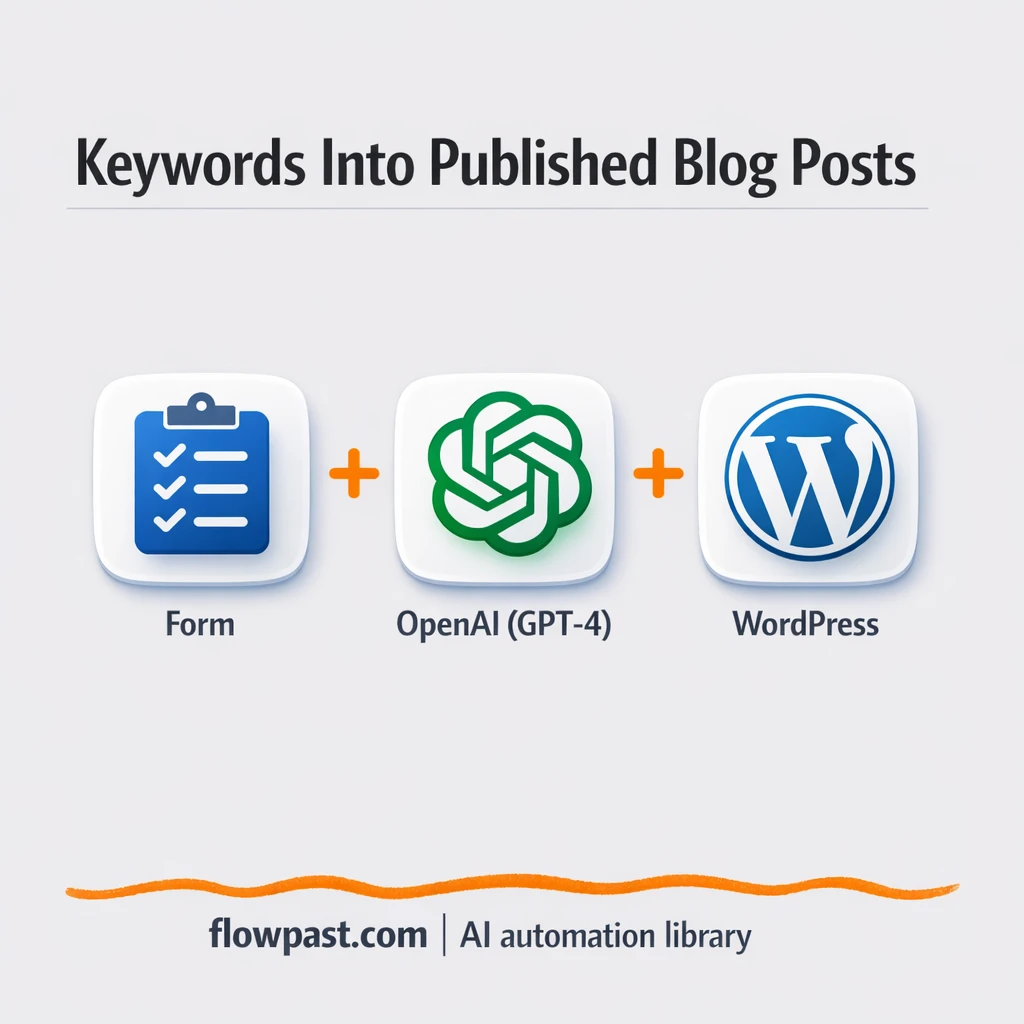

Your content pipeline probably isn’t failing because you can’t write. It stalls because research takes forever, drafts sit “almost done” in someone’s inbox, and WordPress doesn’t get updated until you remember at the worst time.
This is where Gmail WordPress automation hits hard for SEO writers trying to ship more posts, for content leads who need approvals to happen quickly, and for small site owners who just want consistent publishing without living in Google tabs.
This workflow turns one keyword into a researched draft, emails it to you for approval, then publishes to WordPress once you say yes. You’ll see what it solves, how it runs, and what you need to get it live.
How This Automation Works
See how this solves the problem:
n8n Workflow Template: Gmail to WordPress, approve drafts then publish fast
flowchart LR

    subgraph sg0["Trigger: Receive Keyword from Form Flow"]
        direction LR
        n0["<div style='background:#f5f5f5;padding:10px;border-radius:8px;display:inline-block;border:1px solid #e0e0e0'><img src='https://flowpast.com/wp-content/uploads/n8n-workflow-icons/form.svg' width='40' height='40' /></div><br/>Trigger: Receive Keyword fro.."]
        n1["<div style='background:#f5f5f5;padding:10px;border-radius:8px;display:inline-block;border:1px solid #e0e0e0'><img src='https://flowpast.com/wp-content/uploads/n8n-workflow-icons/httprequest.dark.svg' width='40' height='40' /></div><br/>Search Google via Dumpling AI"]
        n2["<div style='background:#f5f5f5;padding:10px;border-radius:8px;display:inline-block;border:1px solid #e0e0e0'><img src='https://flowpast.com/wp-content/uploads/n8n-workflow-icons/code.svg' width='40' height='40' /></div><br/>Extract Top Results, PAA & R.."]
        n3@{ icon: "mdi:swap-horizontal", form: "rounded", label: "Check if People Also Ask Exi..", pos: "b", h: 48 }
        n4@{ icon: "mdi:robot", form: "rounded", label: "Generate Blog Post with GPT-4", pos: "b", h: 48 }
        n5@{ icon: "mdi:message-outline", form: "rounded", label: "Send Blog Post for Review vi..", pos: "b", h: 48 }
        n6@{ icon: "mdi:swap-horizontal", form: "rounded", label: "Check if Approved", pos: "b", h: 48 }
        n7["<div style='background:#f5f5f5;padding:10px;border-radius:8px;display:inline-block;border:1px solid #e0e0e0'><img src='https://flowpast.com/wp-content/uploads/n8n-workflow-icons/wordpress.svg' width='40' height='40' /></div><br/>Publish Blog Post to WordPress"]
        n6 --> n7
        n6 --> n4
        n4 --> n5
        n1 --> n2
        n3 --> n4
        n0 --> n1
        n5 --> n6
        n2 --> n3
    end

    %% Styling
    classDef trigger fill:#e8f5e9,stroke:#388e3c,stroke-width:2px
    classDef ai fill:#e3f2fd,stroke:#1976d2,stroke-width:2px
    classDef aiModel fill:#e8eaf6,stroke:#3f51b5,stroke-width:2px
    classDef decision fill:#fff8e1,stroke:#f9a825,stroke-width:2px
    classDef database fill:#fce4ec,stroke:#c2185b,stroke-width:2px
    classDef api fill:#fff3e0,stroke:#e65100,stroke-width:2px
    classDef code fill:#f3e5f5,stroke:#7b1fa2,stroke-width:2px
    classDef disabled stroke-dasharray: 5 5,opacity: 0.5
    class n0 trigger
    class n4 ai
    class n3,n6 decision
    class n1 api
    class n2 code
    classDef customIcon fill:none,stroke:none
    class n0,n1,n2,n7 customIcon
The Challenge: Drafts Get Stuck Between Research, Review, and Publishing
Writing isn’t usually the slow part. It’s the messy middle: you start with a keyword, open a dozen search results, skim “People Also Ask,” copy notes somewhere, then try to shape it into a post that actually deserves to rank. After that, the draft needs a human look (because quality matters), and that’s where things die. Someone forgets to review it, the draft isn’t in the right format, and publishing becomes “we’ll do it tomorrow,” which turns into next week. Honestly, it’s not one big failure. It’s a lot of small delays that compound.
It adds up fast. Here’s where it breaks down in real life.
- You burn about 1–2 hours per post just collecting and summarizing sources before you even write a line.
- Drafts get reviewed in random places (docs, chat, email threads), which means edits and approvals are easy to miss.
- When the keyword research isn’t structured, the final post often lacks a clear angle and ends up needing a rewrite.
- Publishing becomes a manual “last step,” so posts pile up and consistency disappears.
The Fix: Turn One Keyword Into an Approved WordPress Post
This workflow starts with a single keyword you submit through a simple form. It immediately runs a Google search via Dumpling AI and pulls back the kind of inputs you’d usually gather by hand: top organic results, People Also Ask questions and answers, and related searches. Then it cleans that data up so GPT‑4 can use it properly, checks that the People Also Ask section is actually present, and generates a full blog draft in a structured JSON format (so it’s consistent and publishable). Next, it emails the draft to your Gmail for review. Once you approve, the workflow publishes the final post directly to WordPress. No copy-paste marathon. No “where’s the latest version?” panic.
The workflow begins with keyword intake, then turns search insights into a usable brief. GPT‑4 writes the post based on the strongest People Also Ask question, and Gmail becomes your approval checkpoint. WordPress only receives content you’ve cleared.
What Changes: Before vs. After
| What This Eliminates | Impact You’ll See |
|---|---|
|
|
Real-World Impact
Say you publish 4 SEO posts a week. Manually, research and outlining often takes about 90 minutes per post, then another 20 minutes to move the draft into WordPress and clean it up, so you’re at roughly 7–8 hours weekly before edits. With this workflow, you submit the keyword (a minute), wait for the draft to arrive in Gmail, review it for maybe 15 minutes, then approve and it publishes. That’s roughly 5 hours back most weeks, and your publishing cadence stops depending on someone remembering the “final step.”
Requirements
- n8n instance (try n8n Cloud free)
- Self-hosting option if you prefer (Hostinger works well)
- Dumpling AI for Google search + PAA extraction.
- OpenAI (GPT-4) to generate the draft post.
- Gmail account to receive drafts and approve.
- WordPress to publish posts via API.
- Dumpling AI API key (get it from your Dumpling AI dashboard).
- OpenAI API key (get it from the OpenAI platform).
Skill level: Intermediate. You’ll connect accounts, paste API keys, and confirm your WordPress publishing settings.
Need help implementing this? Talk to an automation expert (free 15-minute consultation).
The Workflow Flow
Keyword intake kicks everything off. You submit one keyword through the built-in form trigger, which means your team can use it without touching the workflow canvas.
Search insights get pulled and cleaned. Dumpling AI runs the Google search and returns top organic results, People Also Ask questions, and related searches. A parsing step then restructures that raw response into something GPT‑4 can reliably follow, instead of giving it a messy blob of text.
Draft creation happens only if the data is usable. The workflow checks for PAA availability first. When it’s there, GPT‑4 selects a strong question to target and writes a full post in JSON so sections, headings, and fields stay predictable.
Gmail becomes your approval gate, then WordPress publishes. You receive the draft by email, review it, and approve. If it’s approved, the WordPress node publishes automatically; if not, it routes back so you can revise the inputs or prompt.
You can easily modify the prompt and question-filtering logic to match your niche, your formatting rules, or your editorial standards. See the full implementation guide below for customization options.
Step-by-Step Implementation Guide
Step 1: Configure the Form Trigger
This workflow begins with a form submission that captures a keyword idea for blog drafting.
- Add the Form Keyword Intake node as your trigger.
- Set Form Title to
ideas. - Add a form field with Field Label set to
search key. - Copy the form URL from Form Keyword Intake for testing submissions.
search key because downstream expressions use {{$json['search key']}}.Step 2: Connect Dumpling Search and Parse Results
This stage sends the keyword to Dumpling AI, parses the search results, and filters for People Also Ask data.
- In Dumpling Search Request, set URL to
https://app.dumplingai.com/api/v1/searchand Method toPOST. - Enable Send Body and Send Headers, and set Authentication to
genericCredentialTypewith Generic Auth TypehttpHeaderAuth. - In Body Parameters, set query to
{{ $json['search key'] }}and scrapeResults totrue. - Credential Required: Connect your httpHeaderAuth credentials in Dumpling Search Request.
- In Parse Search Insights, keep the provided JavaScript Code that extracts top results, PAA questions, and related searches.
- In Validate PAA Presence, set the condition to Left Value
{{ $json.peopleAlsoAskExists }}, Operationequals, Right ValueYes.
The execution path here is Form Keyword Intake → Dumpling Search Request → Parse Search Insights → Validate PAA Presence.
Step 3: Set Up Compose Blog Draft
This AI step creates the blog title and body using search insights and People Also Ask questions.
- Add the Compose Blog Draft node and set Model to
chatgpt-4o-latest. - Enable JSON Output by setting jsonOutput to
true. - Keep the System message that starts with
You are given the following data:to enforce the structured blog output. - In the user message content, keep the expressions that pull data from earlier nodes, including
{{ $('Validate PAA Presence').item.json.query }},{{ $json.topTwoResults[0].title }},{{ $json.topTwoResults[0].scrapeOutput.description }},{{ $json.topTwoResults[1].title }},{{ $json.topTwoResults[1].scrapeOutput.description }}, and{{ JSON.stringify($json.peopleAlsoAskQuestions) }}. - Credential Required: Connect your openAiApi credentials in Compose Blog Draft.
Step 4: Configure Output and Approval Flow
This stage emails the draft for review and publishes to WordPress only after approval.
- In Email Draft for Review, set Send To to
[YOUR_EMAIL], Subject toWorkflow review needed, and Operation tosendAndWait. - Keep the HTML in Message, which inserts
{{ $json.message.content.title }}and{{ $json.message.content.blog_post }}into the email body. - Set Approval Options to
doubleunder approvalType to require explicit confirmation. - Credential Required: Connect your gmailOAuth2 credentials in Email Draft for Review.
- In Approval Gate, set the condition to Left Value
{{ $json.data.approved }}, Operationequals, Right Valuetrue. - In Publish to WordPress, set Title to
{{ $('Compose Blog Draft').item.json.message.content.title }}and Content to{{ $('Compose Blog Draft').item.json.message.content.blog_post }}. - Credential Required: Connect your wordpressApi credentials in Publish to WordPress.
The approval sequence is Compose Blog Draft → Email Draft for Review → Approval Gate → Publish to WordPress. If approval is denied, the secondary output from Approval Gate routes back to Compose Blog Draft for revision.
Step 5: Test and Activate Your Workflow
Validate the full flow end-to-end before enabling the workflow for production use.
- Click Execute Workflow, open the Form Keyword Intake URL, and submit a test keyword.
- Confirm Dumpling Search Request returns results and Parse Search Insights produces
peopleAlsoAskExistsasYes. - Check that Compose Blog Draft returns JSON with
titleandblog_post. - Verify the email from Email Draft for Review arrives and the approval action is available.
- Approve the email and confirm Publish to WordPress creates a post with the expected title and content.
- Once successful, toggle the workflow to Active for production use.
Watch Out For
- Gmail OAuth credentials can expire or require the right scopes. If drafts stop arriving, check the Gmail node’s connection status and re-auth in n8n first.
- If Dumpling AI returns limited results (or no People Also Ask for that keyword), the filter will block drafting. Try a slightly broader keyword or adjust the PAA validation logic.
- WordPress publishing can fail due to missing API permissions or mismatched fields. Confirm your WordPress user role can create posts and that the node is mapping title/content to the right properties.
Common Questions
Usually about an hour once your accounts and API keys are ready.
Yes. No coding is required, but someone does need to connect Gmail and WordPress and test one draft end-to-end.
Yes. n8n has a free self-hosted option and a free trial on n8n Cloud. Cloud plans start at $20/month for higher volume. You’ll also need to factor in Dumpling AI and OpenAI API usage costs.
Two options: n8n Cloud (managed, easiest setup) or self-hosting on a VPS. For self-hosting, Hostinger VPS is affordable and handles n8n well. Self-hosting gives you unlimited executions but requires basic server management.
Yes, and you should. Update the prompt in Compose Blog Draft (GPT‑4) to match your tone, section structure, and SEO rules. If you want different angles, adjust the logic in Parse Search Insights so it favors certain People Also Ask question types (how-to, comparisons, best-of lists). You can also change the recipient in Email Draft for Review, or add a logging step to Google Sheets so every keyword and publish result is tracked.
Usually it’s permissions or a bad credential. Make sure the WordPress user tied to your API credentials can create and publish posts, then re-check the site URL and authentication method in the WordPress node. If it fails only sometimes, you may be hitting security plugins or rate limits, so review your WordPress security logs and allowlist the request if needed.
On self-hosted n8n, capacity is basically your server and API rate limits; for most small sites, dozens of drafts a day is realistic. On n8n Cloud, your monthly execution limit depends on plan, and this workflow typically uses one execution per keyword.
Often, yes, because this flow benefits from conditional logic (approval routing, PAA validation) and structured data handling that gets awkward fast in simpler tools. n8n also lets you self-host for unlimited executions, which matters once you’re generating lots of drafts. That said, if you only want “keyword in, email out” with no branching, Zapier or Make can feel quicker to set up. The real difference is control: prompts, filters, and JSON formatting are easier to manage when you’re not fighting platform constraints. Talk to an automation expert if you want help choosing.
Once this is running, your “drafts” stop being a graveyard and start being a queue. The workflow does the repetitive work so you can focus on quality and strategy.
Need Help Setting This Up?
Our automation experts can build and customize this workflow for your specific needs. Free 15-minute consultation—no commitment required.
