


Google Calendar + OpenAI, scheduling that stays current
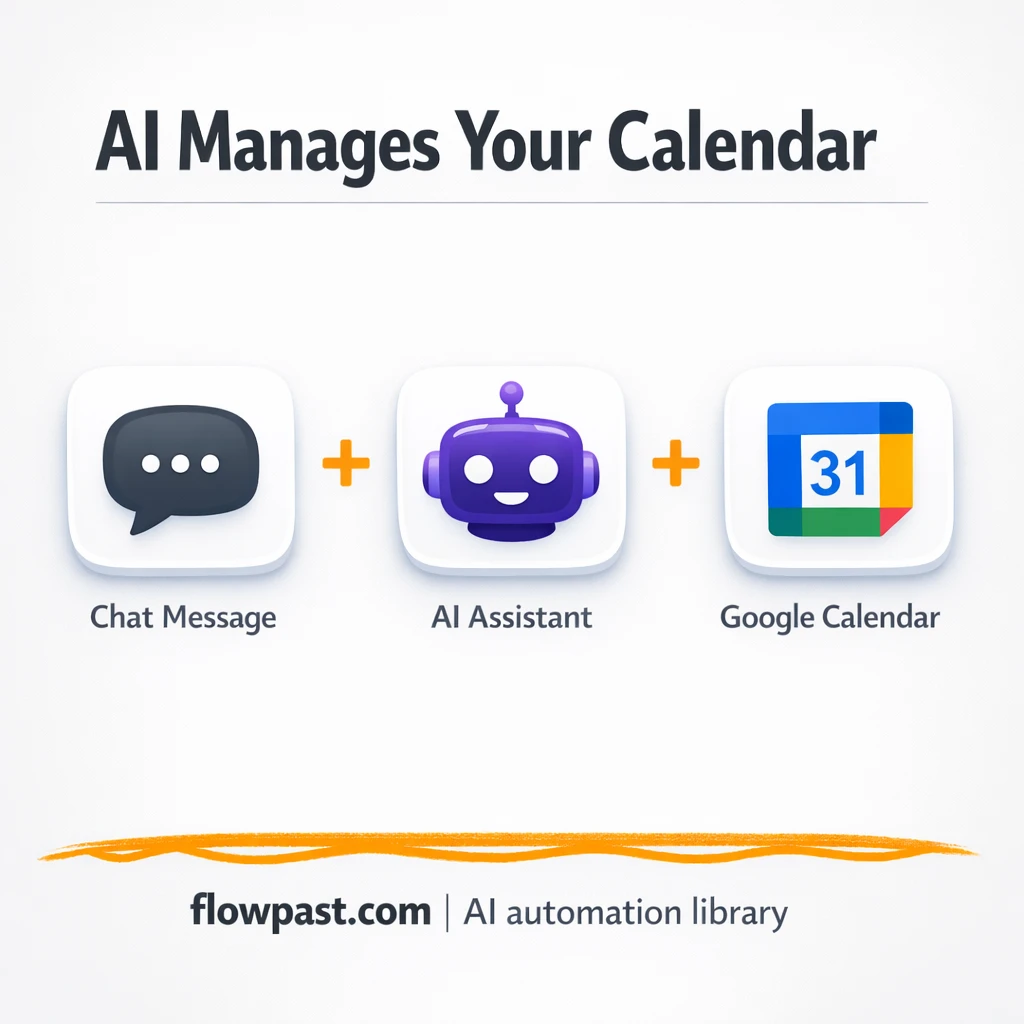

You update your calendar logic once, then two weeks later the assistant starts “forgetting” what it can do. Suddenly scheduling replies go stale, the wrong tool gets called, or nothing happens at all.
This Google Calendar automation hits project managers first (meeting chaos shows up fast). But ops leads and small agency teams feel it too, because they live inside the calendar. The goal is simple: keep scheduling responses reliable even when your tool setup changes.
This workflow keeps your OpenAI-powered chat assistant aligned with your Google Calendar tools via MCP, so changes are recognized automatically. You’ll see how it works, what you need, and where people usually get stuck.
How This Automation Works
The full n8n workflow, from trigger to final output:
n8n Workflow Template: Google Calendar + OpenAI, scheduling that stays current
flowchart LR

    subgraph sg0["When chat message received Flow"]
        direction LR
        n5@{ icon: "mdi:robot", form: "rounded", label: "AI Agent", pos: "b", h: 48 }
        n6@{ icon: "mdi:play-circle", form: "rounded", label: "When chat message received", pos: "b", h: 48 }
        n7@{ icon: "mdi:memory", form: "rounded", label: "Simple Memory", pos: "b", h: 48 }
        n8@{ icon: "mdi:wrench", form: "rounded", label: "Calendar MCP", pos: "b", h: 48 }
        n9@{ icon: "mdi:brain", form: "rounded", label: "gpt-4o", pos: "b", h: 48 }
        n9 -.-> n5
        n8 -.-> n5
        n7 -.-> n5
        n6 --> n5
    end

    subgraph sg1["Google Calendar MCP Flow"]
        direction LR
        n0@{ icon: "mdi:location-exit", form: "rounded", label: "SearchEvent", pos: "b", h: 48 }
        n1@{ icon: "mdi:location-exit", form: "rounded", label: "CreateEvent", pos: "b", h: 48 }
        n2@{ icon: "mdi:location-exit", form: "rounded", label: "UpdateEvent", pos: "b", h: 48 }
        n3@{ icon: "mdi:location-exit", form: "rounded", label: "DeleteEvent", pos: "b", h: 48 }
        n4@{ icon: "mdi:play-circle", form: "rounded", label: "Google Calendar MCP", pos: "b", h: 48 }
        n1 -.-> n4
        n3 -.-> n4
        n0 -.-> n4
        n2 -.-> n4
    end

    %% Styling
    classDef trigger fill:#e8f5e9,stroke:#388e3c,stroke-width:2px
    classDef ai fill:#e3f2fd,stroke:#1976d2,stroke-width:2px
    classDef aiModel fill:#e8eaf6,stroke:#3f51b5,stroke-width:2px
    classDef decision fill:#fff8e1,stroke:#f9a825,stroke-width:2px
    classDef database fill:#fce4ec,stroke:#c2185b,stroke-width:2px
    classDef api fill:#fff3e0,stroke:#e65100,stroke-width:2px
    classDef code fill:#f3e5f5,stroke:#7b1fa2,stroke-width:2px
    classDef disabled stroke-dasharray: 5 5,opacity: 0.5
    class n6,n4 trigger
    class n5 ai
    class n9 aiModel
    class n8 ai
    class n7 ai
The Problem: Scheduling Replies Drift When Tools Change
If you’ve ever wired an AI assistant to Google Calendar, you know the annoying part isn’t the first setup. It’s the second setup. And the third. Every time you add a calendar action, rename a tool, adjust permissions, or change what “create event” should do, the assistant can fall out of sync with reality. Then you’re back to retesting chat flows, patching prompts, and explaining to your team why the assistant “worked yesterday.” The time cost is real, but the trust cost is worse.
The friction compounds. Here’s where it breaks down in practice.
- Calendar operations change over time, but your assistant keeps using an older mental model of the tools.
- You end up running the same manual test chats after every tweak, which quietly eats an hour here and there.
- Small permission issues (OAuth scope, shared calendars) turn into “the AI is unreliable” even when the calendar itself is fine.
- When multiple people touch the workflow, tool names and behaviors drift, so scheduling replies become inconsistent.
The Solution: Keep Your Calendar Tools and Assistant in Sync
This workflow connects an OpenAI-backed conversational agent to Google Calendar actions through an MCP Server/Client setup inside n8n. Instead of hardcoding assumptions about which calendar tools exist (and how they behave), the agent can recognize tool changes automatically. A user sends a scheduling request through a chat trigger, the agent consults the MCP client tool, and then uses the right Google Calendar action to retrieve events, create a new entry, modify an existing one, or remove it. Finally, n8n returns a clean response via webhook output so the same assistant experience stays dependable day after day.
The workflow starts with a chat message trigger that hands the user request to the conversational agent. From there, the MCP client provides the up-to-date “tool map” for Google Calendar actions, and the OpenAI chat model guides which action to run. The result is a scheduling reply that stays accurate even after you adjust calendar tools on the MCP server.
What You Get: Automation vs. Results
| What This Workflow Automates | Results You’ll Get |
|---|---|
|
|
Example: What This Looks Like
Say your team gets 10 scheduling requests a week through chat. Manually, each change to your calendar actions usually triggers a quick retest cycle: maybe 10 minutes to run test messages, another 10 to adjust prompts or tool references, and a few minutes to confirm permissions. That’s about 30 minutes per change, and if you make 4 small tweaks in a month, you’ve lost around 2 hours just keeping things stable. With this workflow, the “tool drift” part largely disappears, because the assistant recognizes updated Google Calendar tools automatically and keeps responding correctly.
What You’ll Need
- n8n instance (try n8n Cloud free)
- Self-hosting option if you prefer (Hostinger works well)
- Google Calendar for reading and updating events
- OpenAI to power the chat assistant’s decisions
- Google OAuth client (create it in Google Cloud Console)
Skill level: Intermediate. You should be comfortable connecting OAuth credentials and editing a couple of agent settings in n8n.
Don’t want to set this up yourself? Talk to an automation expert (free 15-minute consultation).
How It Works
A chat message kicks things off. The Chat Message Trigger receives a scheduling request (for example, “Move Friday’s standup to 2pm” or “Book a 30-minute call next week”).
Context is held briefly. A session memory buffer keeps recent messages available, so the agent can handle follow-ups like “actually make it 3pm” without losing the thread.
The agent chooses the right calendar action. The conversational agent uses the MCP client tool to understand the current Google Calendar tools available, then relies on the OpenAI chat model to decide whether to retrieve events, create one, modify it, or remove it.
The workflow returns a clean reply. n8n responds through the webhook response so your assistant can confirm what happened (“Done, updated the event” or “I found two matches, which one did you mean?”).
You can easily modify which calendar actions are exposed to the agent, or restrict it to specific calendars, based on your needs. See the full implementation guide below for customization options.
Step-by-Step Implementation Guide
Step 1: Configure the Chat Trigger
This workflow starts when a chat message is received and immediately routes that message into the agent.
- Add or open Chat Message Trigger and keep the default options.
- Verify the connection flow: Chat Message Trigger → Conversational Agent.
- Leave Flowpast Branding as-is (it’s a documentation note only and doesn’t execute).
Step 2: Connect Google Calendar
These AI tool nodes provide calendar actions and are attached to Calendar MCP Trigger.
- Open Retrieve Calendar Events and set Operation to
getAll. - Set Calendar to
[YOUR_EMAIL]and keep the expressions for Limit, Before, and After:={{ /*n8n-auto-generated-fromAI-override*/ $fromAI('Limit', ``, 'number') }},={{ /*n8n-auto-generated-fromAI-override*/ $fromAI('Before', ``, 'string') }},={{ /*n8n-auto-generated-fromAI-override*/ $fromAI('After', ``, 'string') }}. - Open Generate Calendar Entry and keep Start and End as
={{ /*n8n-auto-generated-fromAI-override*/ $fromAI('Start', ``, 'string') }}and={{ /*n8n-auto-generated-fromAI-override*/ $fromAI('End', ``, 'string') }}, and keep Summary and Description as={{ $fromAI("event_title", "The event title", "string") }}and={{ $fromAI("event_description", "The event description", "string") }}. - Open Modify Calendar Entry and keep Event ID as
={{ /*n8n-auto-generated-fromAI-override*/ $fromAI('Event_ID', ``, 'string') }}, and keep the update fields for Start, End, Summary, and Description as configured. - Open Remove Calendar Entry and keep Operation set to
deleteand Event ID as={{ /*n8n-auto-generated-fromAI-override*/ $fromAI('Event_ID', ``, 'string') }}. - Credential Required: Connect your googleCalendarOAuth2Api credentials on Retrieve Calendar Events, Generate Calendar Entry, Modify Calendar Entry, and Remove Calendar Entry.
⚠️ Common Pitfall: If the calendar value stays as [YOUR_EMAIL], the nodes won’t know which calendar to use. Replace it with your actual calendar address.
Step 3: Set Up Conversational Agent
The agent orchestrates intent detection and calls the MCP tool or Google Calendar tools as needed.
- Open Conversational Agent and set System Message to
=You are a helpful assistant.
Current datetime is {{ $now.toString() }}
. - Attach OpenAI Chat Model as the language model and set the Model to
gpt-4o-mini. - Attach Session Memory Buffer as the memory node to preserve recent conversation context.
- Attach Calendar MCP Client as the tool the agent can call for MCP interactions.
- Credential Required: Connect your openAiApi credentials in OpenAI Chat Model.
AI sub-nodes like Session Memory Buffer and Calendar MCP Client are attached to Conversational Agent. If credentials are needed later, add them at the parent tool/model level rather than in the memory node.
Step 4: Configure MCP Trigger and Client
This step links your MCP endpoint so the agent can call calendar tools through the MCP server.
- Open Calendar MCP Trigger and set Path to
my-calendar. - Open Calendar MCP Client and set SSE Endpoint to
https://[YOUR_ID].app.n8n.cloud/mcp/my-calendar/sse. - Confirm the Google Calendar tool nodes are attached to Calendar MCP Trigger as AI tools (Retrieve, Generate, Modify, and Remove).
⚠️ Common Pitfall: If the SSE endpoint still contains [YOUR_ID], MCP calls will fail. Replace it with your actual n8n instance ID or domain.
Step 5: Test and Activate Your Workflow
Validate that chat inputs correctly trigger the agent and calendar operations.
- Click Test Workflow and send a chat message like “Create a meeting tomorrow at 3 PM.”
- Confirm Conversational Agent invokes the appropriate tool and that a calendar entry is created or updated.
- Check the execution log for successful runs on Retrieve Calendar Events, Generate Calendar Entry, Modify Calendar Entry, or Remove Calendar Entry.
- When everything works, toggle the workflow to Active for production use.
Common Gotchas
- Google Calendar credentials can expire or need specific permissions. If things break, check your Google OAuth connection in n8n’s Credentials area first.
- If you’re using Wait nodes or external rendering, processing times vary. Bump up the wait duration if downstream nodes fail on empty responses.
- Default prompts in AI nodes are generic. Add your brand voice early or you’ll be editing outputs forever.
Frequently Asked Questions
About 30 minutes if your Google OAuth credentials are ready.
No. You’ll connect accounts and paste credentials into n8n where prompted.
Yes. n8n has a free self-hosted option and a free trial on n8n Cloud. Cloud plans start at $20/month for higher volume. You’ll also need to factor in OpenAI API usage, which is usually small for light scheduling chats.
Two options: n8n Cloud (managed, easiest setup) or self-hosting on a VPS. For self-hosting, Hostinger VPS is affordable and handles n8n well. Self-hosting gives you unlimited executions but requires basic server management.
Yes, but you’ll want to be intentional about it. Limit the Google Calendar nodes (retrieve/create/modify/remove) to one calendar ID, then adjust the MCP tool exposure so the agent can’t “wander” into personal calendars. Many teams also add a simple If condition to block updates unless the requester is an approved email. If you want approvals, route “create/modify” actions into a review step before writing changes.
Most of the time it’s expired or misconfigured OAuth credentials in n8n. Recheck scopes for Google Calendar, confirm you’re authenticating the same Google account that owns (or has access to) the target calendar, and make sure the calendar isn’t restricted by an admin policy. If it fails only during busy periods, you might also be hitting rate limits when multiple requests run at once.
On n8n Cloud, it depends on your plan’s monthly executions; on self-hosted n8n there’s no hard execution cap, and limits are mostly your server resources and Google API quotas.
For this use case, usually yes, because MCP-style tool syncing and agent logic are the whole point. Zapier and Make can move calendar data around, but they’re not built for “my assistant’s toolset changed, keep it consistent” workflows, and advanced branching tends to get expensive. n8n also gives you a self-host option, which is helpful if you expect lots of chat-driven scheduling requests. If you only need a simple “email becomes event” flow, Zapier can be quicker. Talk to an automation expert if you want a second opinion.
Once this is running, your assistant stops “drifting” every time you improve your calendar setup. You keep the reliable scheduling replies, and your week stays a little calmer.
Need Help Setting This Up?
Our automation experts can build and customize this workflow for your specific needs. Free 15-minute consultation—no commitment required.
