


Google Forms to Google Sheets, clean keyword metrics
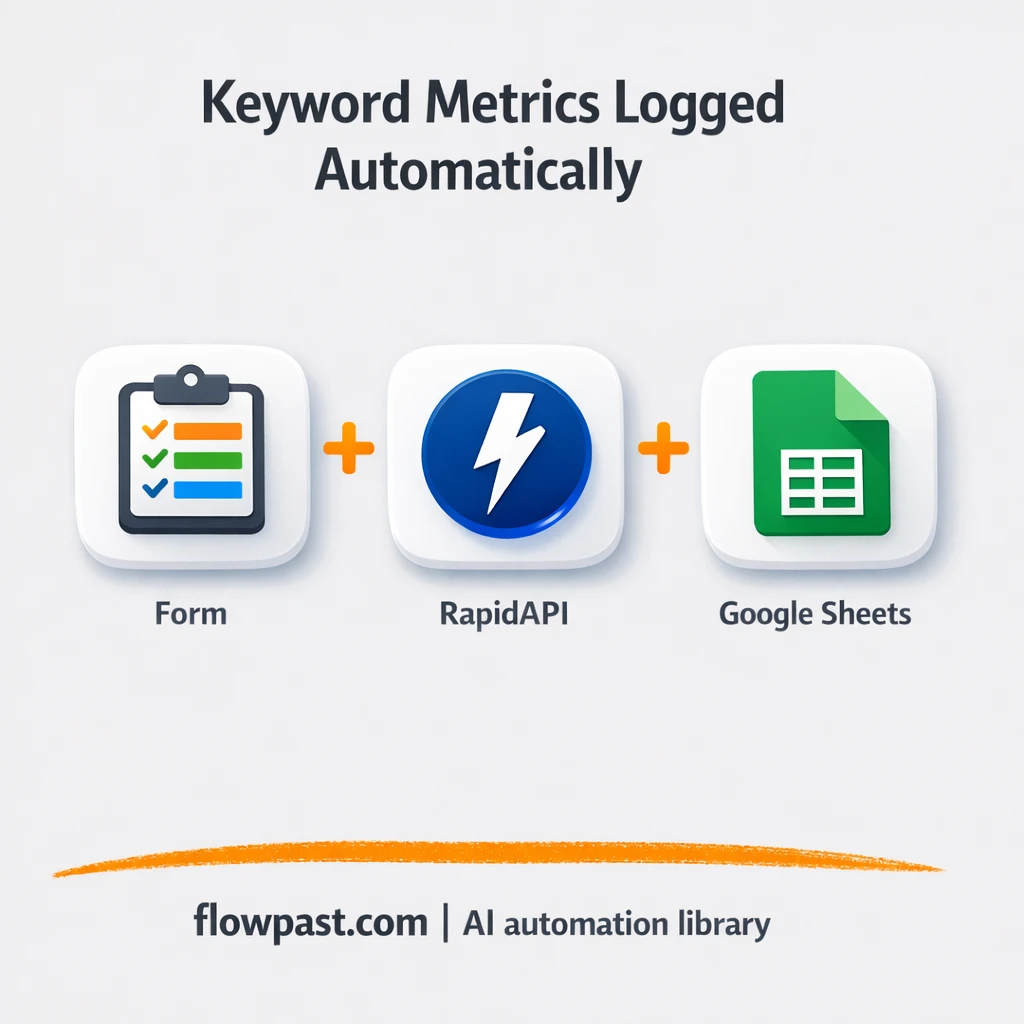

You know the drill. Someone sends a keyword list, you bounce between tabs, copy numbers into a sheet, then later realize the country setting was wrong and the whole thing needs a redo.
This keyword metrics automation hits SEO managers first, but content leads and small agency owners feel it too. The outcome is simple: every keyword request becomes a clean, consistent row in Google Sheets with volume, CPC, trends, and competition data.
Below, you’ll see how the workflow runs, what it replaces in your process, and how to set it up without turning it into a “tool management” project.
How This Automation Works
See how this solves the problem:
n8n Workflow Template: Google Forms to Google Sheets, clean keyword metrics
flowchart LR

    subgraph sg0["Form Submission Flow"]
        direction LR
        n0["<div style='background:#f5f5f5;padding:10px;border-radius:8px;display:inline-block;border:1px solid #e0e0e0'><img src='https://flowpast.com/wp-content/uploads/n8n-workflow-icons/form.svg' width='40' height='40' /></div><br/>Form Submission Trigger"]
        n1["<div style='background:#f5f5f5;padding:10px;border-radius:8px;display:inline-block;border:1px solid #e0e0e0'><img src='https://flowpast.com/wp-content/uploads/n8n-workflow-icons/httprequest.dark.svg' width='40' height='40' /></div><br/>Keyword Insight Request"]
        n2["<div style='background:#f5f5f5;padding:10px;border-radius:8px;display:inline-block;border:1px solid #e0e0e0'><img src='https://flowpast.com/wp-content/uploads/n8n-workflow-icons/code.svg' width='40' height='40' /></div><br/>Normalize Results"]
        n3@{ icon: "mdi:database", form: "rounded", label: "Append to Spreadsheet", pos: "b", h: 48 }
        n1 --> n2
        n2 --> n3
        n0 --> n1
    end

    %% Styling
    classDef trigger fill:#e8f5e9,stroke:#388e3c,stroke-width:2px
    classDef ai fill:#e3f2fd,stroke:#1976d2,stroke-width:2px
    classDef aiModel fill:#e8eaf6,stroke:#3f51b5,stroke-width:2px
    classDef decision fill:#fff8e1,stroke:#f9a825,stroke-width:2px
    classDef database fill:#fce4ec,stroke:#c2185b,stroke-width:2px
    classDef api fill:#fff3e0,stroke:#e65100,stroke-width:2px
    classDef code fill:#f3e5f5,stroke:#7b1fa2,stroke-width:2px
    classDef disabled stroke-dasharray: 5 5,opacity: 0.5
    class n0 trigger
    class n3 database
    class n1 api
    class n2 code
    classDef customIcon fill:none,stroke:none
    class n0,n1,n2 customIcon
The Challenge: Keyword research turns into spreadsheet babysitting
Keyword research should be a quick decision-support task. Instead, it quietly becomes admin work: collecting keywords from teammates, checking which country they meant, running the same query again, then pasting results into “the master sheet” that never stays clean. One missing column, one copy/paste shift, and suddenly CPC is sitting under “trend,” which makes your next meeting… awkward. The real cost isn’t just time. It’s the mental load of double-checking everything because you don’t trust the sheet anymore.
It adds up fast. Here’s where it breaks down.
- Country and keyword targeting gets inconsistent because inputs arrive in Slack, email, and random docs.
- Manual API lookups or tool exports create delays, so your “quick check” turns into tomorrow’s task.
- Copying metrics into Google Sheets invites formatting mistakes, duplicate rows, and mismatched columns.
- There’s no reliable audit trail, which means you can’t tell when (or how) a number was pulled.
The Fix: Google Form in, cleaned metrics out
This workflow turns keyword requests into a repeatable pipeline. A user submits a Google Form with two fields (keyword and country). n8n immediately sends those inputs to a keyword research API via an HTTP Request, pulling back the metrics you actually need for decisions: search volume, CPC, trend signals, and competition-style indicators (often including a difficulty score depending on your provider). Then a short normalization step reformats the response so it matches your spreadsheet columns every time. Finally, the workflow appends a tidy row into Google Sheets, so your log grows automatically as new requests come in.
The workflow starts on form submission. From there, an API call gathers keyword insights for the selected country and returns structured data. n8n cleans it up and appends it to Google Sheets so your team has one consistent source of truth.
What Changes: Before vs. After
| What This Eliminates | Impact You’ll See |
|---|---|
|
|
Real-World Impact
Say your team checks 30 keywords a week across 2 target countries. Manually, you might spend about 5 minutes per keyword pulling metrics and another 2 minutes pasting and cleaning, which is roughly 3–4 hours weekly. With this workflow, each request is a quick form submit (about 1 minute), then the API lookup and logging runs automatically in the background. You still review the sheet, but you stop doing the boring part.
Requirements
- n8n instance (try n8n Cloud free)
- Self-hosting option if you prefer (Hostinger works well)
- Google Forms to collect keyword + country input
- Google Sheets for the ongoing keyword metrics log
- Keyword Research Tool API key (get it from your SEO API provider dashboard)
Skill level: Beginner. You’ll connect accounts, paste an API key, and map a few fields to sheet columns.
Need help implementing this? Talk to an automation expert (free 15-minute consultation).
The Workflow Flow
A keyword request comes in. Someone submits a form entry with a keyword and the country you want metrics for. That keeps requests standardized, even if different people are submitting them.
Metrics are fetched automatically. n8n sends the keyword and country to your keyword research API using an HTTP Request node, then receives volume, CPC, trend data, and competition-style fields.
The response gets cleaned up. A normalization step reformats the API output into a predictable structure so it maps cleanly to Google Sheets. This is where you prevent “random JSON mess” from creeping into your reporting.
Your sheet updates itself. n8n appends a new row in Google Sheets, which means your keyword log grows over time and stays readable for the whole team.
You can easily modify which metrics you store to match your reporting sheet. See the full implementation guide below for customization options.
Step-by-Step Implementation Guide
Step 1: Configure the Form Trigger
Set up the intake form that starts the workflow and collects user inputs for keyword research.
- Add and open Form Submission Trigger.
- Set Form Title to
Keyword Analysis. - Set Form Description to
Keyword Analysis. - In Form Fields, add country and keyword, and set both as required.
Form Submission Trigger outputs directly to Keyword Insight Request.
Step 2: Connect the Keyword Research API
Configure the API request that fetches keyword insights based on the form input.
- Add and open Keyword Insight Request.
- Set URL to
https://keyword-research-tool3.p.rapidapi.com/keyword-tool.php. - Set Method to
POSTand enable Send Body. - Set Content Type to
multipart-form-data. - Under Body Parameters, add country with value
={{ $json.country }}and keyword with value={{ $json.keyword }}. - Under Header Parameters, set x-rapidapi-host to
keyword-research-tool3.p.rapidapi.comand x-rapidapi-key to your RapidAPI key.
⚠️ Common Pitfall: Replace [CONFIGURE_YOUR_API_KEY] with your actual RapidAPI key or the request will fail.
Step 3: Set Up the Processing Node
Normalize the API response so it can be appended to your spreadsheet cleanly.
- Add and open Normalize Results.
- Set JavaScript Code to
return $input.first().json.data.semrushAPI.broadMatchKeywords;.
Keyword Insight Request outputs to Normalize Results, which then outputs to Append to Spreadsheet.
Step 4: Configure the Output to Google Sheets
Append the normalized keyword data into your Google Sheet.
- Add and open Append to Spreadsheet.
- Credential Required: Connect your
googleApicredentials. - Set Authentication to
serviceAccount. - Set Operation to
append. - Choose the target Document and set Sheet Name to
keyword. - Keep Mapping Mode as
autoMapInputDatato map the normalized fields automatically.
Step 5: Test and Activate Your Workflow
Validate the full flow from form submission to Google Sheets before enabling it in production.
- Click Execute Workflow and submit the form in Form Submission Trigger with a sample country and keyword.
- Verify Keyword Insight Request returns data and Normalize Results outputs an array of keyword records.
- Confirm new rows appear in the Append to Spreadsheet target sheet.
- When successful, toggle the workflow to Active for production use.
Watch Out For
- Google Sheets credentials can expire or need specific permissions. If things break, check the n8n credential connection test and the Sheet sharing settings first.
- HTTP Request calls can fail from rate limits or missing headers. If you see intermittent errors, inspect the HTTP node’s last execution and confirm your API plan allows your request volume.
- The “Normalize Results” code step depends on the API’s response shape. If your provider changes field names, you’ll need to update the mapping or you’ll append blank columns.
Common Questions
About 30 minutes if your Google Sheet and API key are ready.
Yes. No coding is required, but someone should be comfortable mapping fields to the right Google Sheets columns.
Yes. n8n has a free self-hosted option and a free trial on n8n Cloud. Cloud plans start at $20/month for higher volume. You’ll also need to factor in your keyword research API costs (many charge per request).
Two options: n8n Cloud (managed, easiest setup) or self-hosting on a VPS. For self-hosting, Hostinger VPS is affordable and handles n8n well. Self-hosting gives you unlimited executions but requires basic server management.
Start with the “Normalize Results” step, because that’s where your sheet format is defined. You can add or remove columns (like keyword difficulty, SERP features, or intent) by adjusting what you extract from the API response and what you append to Google Sheets. If you want approvals, add an If step before the append to route “high CPC” or “high competition” terms for review. You can also swap the keyword API provider by updating the HTTP Request node and keeping the same output schema.
Usually it’s permissions. Make sure the Google account connected in n8n has edit access to the target sheet, and confirm the spreadsheet and tab IDs match what the node expects. If it worked once and stopped, reconnect the Google Sheets credential in n8n and re-test it.
For most small teams, it’s effectively “as many form submissions as your API plan allows.” On n8n Cloud Starter, you can run a healthy volume of executions per month for keyword checks, and higher tiers handle more. If you self-host, there’s no execution cap from n8n; your limits will be server resources and the keyword API’s rate limits.
Often, yes. n8n is easier to extend when you need custom formatting logic, branching rules, or a specific API call that doesn’t fit a prebuilt connector. It also gives you a self-hosted option, which is handy when your keyword requests grow and per-task pricing starts to sting. Zapier or Make can still be fine for a simple “form to sheet” workflow, but this one benefits from normalization and flexibility. If you want a quick recommendation for your situation, Talk to an automation expert.
Once this is running, keyword requests stop being a distraction and start becoming a clean dataset you can actually trust. Set it up once, then get back to the work that moves rankings.
Need Help Setting This Up?
Our automation experts can build and customize this workflow for your specific needs. Free 15-minute consultation—no commitment required.
