


Google Sheets + Email: competitor digests, ready

You bookmark competitor pages, swear you’ll “check them later,” and then a week disappears. By the time you look, you’re piecing together what changed from memory and half-open tabs.
This competitor digest automation hits marketing managers first, but solo founders and content strategists feel it too. You want one calm, weekly snapshot you can skim, then use to plan.
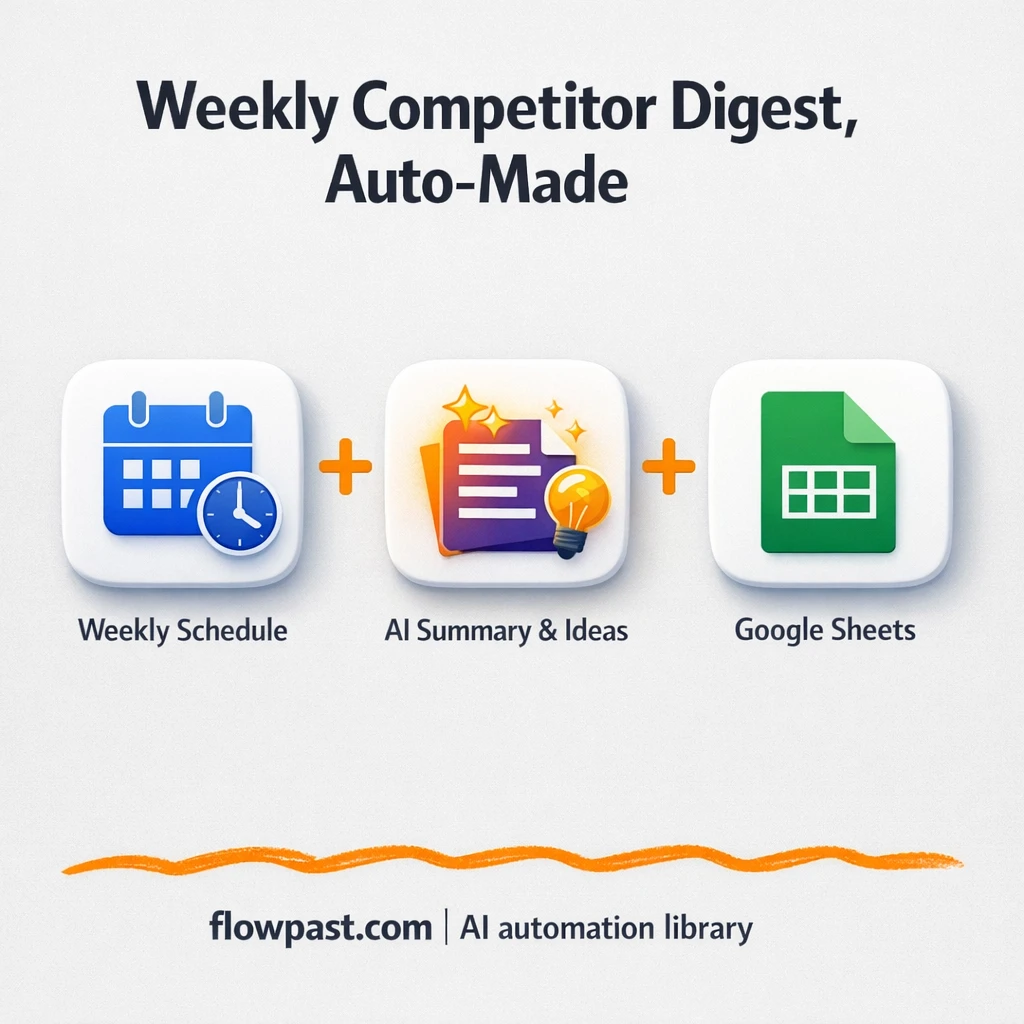
This workflow monitors competitor URLs, summarizes what’s new, logs it in Google Sheets, and emails you a single digest so you can act on it while it’s still relevant.
How This Automation Works
See how this solves the problem:
n8n Workflow Template: Google Sheets + Email: competitor digests, ready
flowchart LR

    subgraph sg0["Flow 1"]
        direction LR
        n0@{ icon: "mdi:cog", form: "rounded", label: "Weekly Schedule Trigger", pos: "b", h: 48 }
        n1@{ icon: "mdi:swap-vertical", form: "rounded", label: "Configure Parameters", pos: "b", h: 48 }
        n2["<div style='background:#f5f5f5;padding:10px;border-radius:8px;display:inline-block;border:1px solid #e0e0e0'><img src='https://flowpast.com/wp-content/uploads/n8n-workflow-icons/code.svg' width='40' height='40' /></div><br/>Assemble URL List"]
        n3["<div style='background:#f5f5f5;padding:10px;border-radius:8px;display:inline-block;border:1px solid #e0e0e0'><img src='https://flowpast.com/wp-content/uploads/n8n-workflow-icons/httprequest.dark.svg' width='40' height='40' /></div><br/>External Scrape Request"]
        n4["<div style='background:#f5f5f5;padding:10px;border-radius:8px;display:inline-block;border:1px solid #e0e0e0'><img src='https://flowpast.com/wp-content/uploads/n8n-workflow-icons/code.svg' width='40' height='40' /></div><br/>Normalize Scrape Data"]
        n5["<div style='background:#f5f5f5;padding:10px;border-radius:8px;display:inline-block;border:1px solid #e0e0e0'><img src='https://flowpast.com/wp-content/uploads/n8n-workflow-icons/httprequest.dark.svg' width='40' height='40' /></div><br/>AI Summary Request"]
        n6["<div style='background:#f5f5f5;padding:10px;border-radius:8px;display:inline-block;border:1px solid #e0e0e0'><img src='https://flowpast.com/wp-content/uploads/n8n-workflow-icons/httprequest.dark.svg' width='40' height='40' /></div><br/>AI Ideas Request"]
        n7["<div style='background:#f5f5f5;padding:10px;border-radius:8px;display:inline-block;border:1px solid #e0e0e0'><img src='https://flowpast.com/wp-content/uploads/n8n-workflow-icons/code.svg' width='40' height='40' /></div><br/>Parse Summary Output"]
        n8["<div style='background:#f5f5f5;padding:10px;border-radius:8px;display:inline-block;border:1px solid #e0e0e0'><img src='https://flowpast.com/wp-content/uploads/n8n-workflow-icons/code.svg' width='40' height='40' /></div><br/>Parse Ideas Output"]
        n9["<div style='background:#f5f5f5;padding:10px;border-radius:8px;display:inline-block;border:1px solid #e0e0e0'><img src='https://flowpast.com/wp-content/uploads/n8n-workflow-icons/merge.svg' width='40' height='40' /></div><br/>Combine Summary Ideas"]
        n10["<div style='background:#f5f5f5;padding:10px;border-radius:8px;display:inline-block;border:1px solid #e0e0e0'><img src='https://flowpast.com/wp-content/uploads/n8n-workflow-icons/code.svg' width='40' height='40' /></div><br/>Compose Sheet Row"]
        n11@{ icon: "mdi:database", form: "rounded", label: "Append to Spreadsheet", pos: "b", h: 48 }
        n12["<div style='background:#f5f5f5;padding:10px;border-radius:8px;display:inline-block;border:1px solid #e0e0e0'><img src='https://flowpast.com/wp-content/uploads/n8n-workflow-icons/code.svg' width='40' height='40' /></div><br/>Construct Email Digest"]
        n13@{ icon: "mdi:message-outline", form: "rounded", label: "Dispatch Digest Email", pos: "b", h: 48 }
        n14@{ icon: "mdi:swap-vertical", form: "rounded", label: "Capture Error Output", pos: "b", h: 48 }
        n15["<div style='background:#f5f5f5;padding:10px;border-radius:8px;display:inline-block;border:1px solid #e0e0e0'><img src='https://flowpast.com/wp-content/uploads/n8n-workflow-icons/code.svg' width='40' height='40' /></div><br/>Format Error Details"]
        n16@{ icon: "mdi:message-outline", form: "rounded", label: "Send Error Email", pos: "b", h: 48 }
        n10 --> n11
        n12 --> n13
        n6 --> n8
        n6 --> n14
        n8 --> n9
        n7 --> n9
        n14 --> n15
        n2 --> n3
        n15 --> n16
        n11 --> n12
        n3 --> n4
        n3 --> n14
        n5 --> n7
        n5 --> n14
        n4 --> n5
        n4 --> n6
        n0 --> n1
        n9 --> n10
        n1 --> n2
    end

    subgraph sg1["Flow 2"]
        direction LR
        n17@{ icon: "mdi:swap-horizontal", form: "rounded", label: "Utility: Check Telegram Toggle", pos: "b", h: 48 }
        n18["<div style='background:#f5f5f5;padding:10px;border-radius:8px;display:inline-block;border:1px solid #e0e0e0'><img src='https://flowpast.com/wp-content/uploads/n8n-workflow-icons/telegram.svg' width='40' height='40' /></div><br/>Utility: Post Telegram Alert"]
        n17 --> n18
    end

    %% Styling
    classDef trigger fill:#e8f5e9,stroke:#388e3c,stroke-width:2px
    classDef ai fill:#e3f2fd,stroke:#1976d2,stroke-width:2px
    classDef aiModel fill:#e8eaf6,stroke:#3f51b5,stroke-width:2px
    classDef decision fill:#fff8e1,stroke:#f9a825,stroke-width:2px
    classDef database fill:#fce4ec,stroke:#c2185b,stroke-width:2px
    classDef api fill:#fff3e0,stroke:#e65100,stroke-width:2px
    classDef code fill:#f3e5f5,stroke:#7b1fa2,stroke-width:2px
    classDef disabled stroke-dasharray: 5 5,opacity: 0.5
    class n17 decision
    class n11 database
    class n3,n5,n6 api
    class n2,n4,n7,n8,n10,n12,n15 code
    classDef customIcon fill:none,stroke:none
    class n2,n3,n4,n5,n6,n7,n8,n9,n10,n12,n15,n18 customIcon
The Challenge: Keeping Up With Competitors Without Living in Tabs
Competitor research sounds simple until you try doing it consistently. One page turns into ten. Then you’re copying headlines into a doc, trying to remember what was “new,” and manually pulling ideas out of a wall of text. It’s not just time. It’s the mental load of tracking changes across different sites, different formats, and different posting rhythms. And when you skip a week (because you’re busy), you don’t just miss one update. You lose context, which makes planning your next content push feel weirdly risky.
It adds up fast. Here’s where it usually breaks down.
- You check competitor pages inconsistently, which means you only notice changes after they’ve already worked.
- Copy-pasting highlights into a document takes long enough that you stop doing it after a few tries.
- Summarizing and brainstorming ideas are mixed together, so the “research” step bleeds into an hour-long writing session.
- No clean log exists, so you can’t answer basic questions like “When did they shift their positioning?” without re-reading everything.
The Fix: A Weekly Competitor Digest Logged in Sheets, Sent by Email
This workflow turns competitor monitoring into a quiet weekly habit that runs without you. On a schedule (weekly by default), n8n takes your list of competitor URLs and scrapes each page via an HTTP request (using Firecrawl behind the scenes). Once the content is pulled in, the workflow normalizes it so the AI steps aren’t chewing on messy markup. Then it asks OpenAI to produce a readable summary of each page and asks Gemini to brainstorm content angles (like carousel or pin ideas) based on what it found. Finally, it appends each result into Google Sheets with a date, URL, title, summary, and idea list, then compiles everything into one email digest you can skim in minutes. Optional Telegram alerts and basic error emails keep you in the loop if something fails.
The workflow starts on a weekly Cron trigger and reads competitors from a simple config node. It scrapes each URL, generates a summary plus fresh post ideas, and then writes a neat row into Google Sheets. After that, it builds one combined digest email and sends it to you (and optionally pings Telegram).
What Changes: Before vs. After
| What This Eliminates | Impact You’ll See |
|---|---|
|
|
Real-World Impact
Say you track 12 competitor URLs each week. Manually, even a “quick check” is maybe 10 minutes per page to scan, grab notes, and write a short summary, so you’re spending about 2 hours. With this workflow, you spend about 5 minutes updating the URL list when needed, then later skim one email digest for about 10 minutes. The scraping and AI processing happens in the background, and the Sheet is already filled out when you open it.
Requirements
- n8n instance (try n8n Cloud free)
- Self-hosting option if you prefer (Hostinger works well)
- Google Sheets for the running competitor log.
- Email account (SMTP in n8n) to send the weekly digest.
- API credentials for Firecrawl, OpenAI, and Gemini (get them from each provider’s dashboard).
Skill level: Beginner. You’ll mostly paste API keys, connect Google Sheets, and edit a configuration node.
Need help implementing this? Talk to an automation expert (free 15-minute consultation).
The Workflow Flow
A weekly schedule kicks it off. The Cron trigger runs on the cadence you choose, then reads your saved settings (URLs, sheet ID, email recipients, and model choices) from a configuration step.
Each competitor URL gets scraped. The workflow assembles your list, requests each page through an HTTP scrape (Firecrawl), and cleans the response so you’re working with consistent text instead of messy page structure.
AI generates two useful outputs. OpenAI produces a summary you can skim, while Gemini generates content angles (carousel/pin ideas) based on what the competitor is emphasizing. Those results are parsed and merged so every URL becomes one clean record.
Everything is logged and sent. n8n appends a new row into Google Sheets (date, URL, title, summary, ideas), compiles the week into a single digest, and emails it to you. If you enable Telegram, you also get a quick alert there.
You can easily modify the competitor list and the columns in Google Sheets based on your needs. See the full implementation guide below for customization options.
Step-by-Step Implementation Guide
Step 1: Configure the Weekly Schedule Trigger
Set the workflow to run on a weekly cadence and pass control into your parameter setup.
- Add and open Weekly Schedule Trigger.
- Configure the schedule to run weekly based on your preferred day/time.
- Connect Weekly Schedule Trigger to Configure Parameters.
Step 2: Connect Google Sheets
Prepare the spreadsheet destination where the insights will be appended.
- Open Append to Spreadsheet.
- Credential Required: Connect your Google Sheets credentials.
- Select the target spreadsheet and worksheet for the appended rows.
- Ensure Compose Sheet Row is connected to Append to Spreadsheet.
Step 3: Set Up Processing & AI Requests
Configure the content extraction, normalization, and AI analysis path, including parallel branches.
- In Configure Parameters, define the variables used by downstream nodes (e.g., date ranges, sources).
- In Assemble URL List, build the list of URLs to scrape.
- In External Scrape Request, configure the HTTP request to your scraping endpoint.
- Ensure External Scrape Request outputs to both Normalize Scrape Data and Capture Error Output in parallel.
- In Normalize Scrape Data, transform raw scrape output into a clean, consistent structure.
- Ensure Normalize Scrape Data outputs to both AI Summary Request and AI Ideas Request in parallel.
- In AI Summary Request and AI Ideas Request, configure the HTTP calls to your AI endpoints.
- Ensure AI Summary Request outputs to both Parse Summary Output and Capture Error Output in parallel, and AI Ideas Request outputs to both Parse Ideas Output and Capture Error Output in parallel.
Step 4: Configure Output & Notifications
Merge AI results, write rows to Sheets, and send digest notifications via email and Telegram.
- In Parse Summary Output and Parse Ideas Output, format AI outputs for merging.
- Ensure Parse Summary Output and Parse Ideas Output flow into Combine Summary Ideas.
- In Compose Sheet Row, map merged fields into a row structure for Sheets.
- In Construct Email Digest, craft the summary email content.
- Open Dispatch Digest Email and configure recipients and message fields.
- Credential Required: Connect your emailSend credentials in Dispatch Digest Email.
- In Utility: Check Telegram Toggle, define the condition to enable Telegram alerts.
- Open Utility: Post Telegram Alert and configure the chat and message.
- Credential Required: Connect your Telegram credentials in Utility: Post Telegram Alert.
Step 5: Add Error Handling
Route failed HTTP or AI requests into the error pipeline and notify via email.
- Ensure Capture Error Output is connected as a parallel branch from External Scrape Request, AI Summary Request, and AI Ideas Request.
- In Format Error Details, structure error output for email reporting.
- Open Send Error Email and configure recipients and message fields.
- Credential Required: Connect your emailSend credentials in Send Error Email.
Step 6: Test and Activate Your Workflow
Run a full test to confirm scraping, AI processing, sheet updates, and notifications before enabling production runs.
- Click Execute Workflow to run a manual test.
- Confirm new rows appear in the target spreadsheet from Append to Spreadsheet.
- Verify the digest email was sent from Dispatch Digest Email and Telegram alerts (if enabled) from Utility: Post Telegram Alert.
- If failures occur, confirm Send Error Email receives formatted error details.
- Once verified, toggle the workflow to Active for weekly production runs.
Watch Out For
- Google Sheets credentials can expire or need specific permissions. If things break, check the Google connection inside n8n’s Credentials list and confirm the spreadsheet is shared with the right Google account.
- If you’re using Wait nodes or external rendering, processing times vary. Bump up the wait duration if downstream nodes fail on empty responses.
- Default prompts in AI nodes are generic. Add your brand voice early or you’ll be editing outputs forever.
Common Questions
About 30 minutes if your API keys and Google Sheet are ready.
Yes. You’ll connect accounts, paste a few API credentials, and edit one configuration node in plain English.
Yes. n8n has a free self-hosted option and a free trial on n8n Cloud. Cloud plans start at $20/month for higher volume. You’ll also need to factor in Firecrawl, OpenAI, and Gemini API usage costs, which depend on how many pages you process and how long they are.
Two options: n8n Cloud (managed, easiest setup) or self-hosting on a VPS. For self-hosting, Hostinger VPS is affordable and handles n8n well. Self-hosting gives you unlimited executions but requires basic server management.
Start in the “Configure Parameters (edit me)” node because it controls your competitor URLs, Google Sheets target, email recipients, and which AI models run. If you want different outputs, adjust the prompts used for the summary and ideas requests so they match your brand voice and content format. Many teams also expand the “Compose Sheet Row” logic to add columns like category, funnel stage, CTA, or “copy swipe” snippets. And if email isn’t your thing, you can swap the digest delivery to Slack or Notion while keeping the same Sheets logging.
Usually it’s an expired Google OAuth token or the workflow is pointing at the wrong spreadsheet ID or range. Reconnect the Google Sheets credential in n8n, then double-check the sheet name and range (for example, “Digest!A:F”) matches your file exactly. If the sheet is owned by a different account, make sure the connected Google user has edit access.
Practically speaking, it’s comfortable for dozens of URLs per run, and you can scale further if you watch API limits and your n8n execution settings.
Often, yes. This workflow benefits from branching, code steps for normalization, and merging multiple AI outputs, and n8n handles that kind of logic cleanly without turning your scenario into a fragile maze. You also have the option to self-host, which is useful if you’re running frequent competitor checks and don’t want to think about task counts. Zapier or Make can still work if you simplify the flow, but you’ll usually end up juggling multiple modules and extra cost for advanced steps. If you want help deciding based on your volume and tools, Talk to an automation expert.
Once this is running, competitor monitoring stops being a chore you dread and turns into a weekly email you actually use. The workflow handles the repeatable parts, so your attention stays on decisions.
Need Help Setting This Up?
Our automation experts can build and customize this workflow for your specific needs. Free 15-minute consultation—no commitment required.
