


Google Sheets + Email: low stock alerts on autopilot
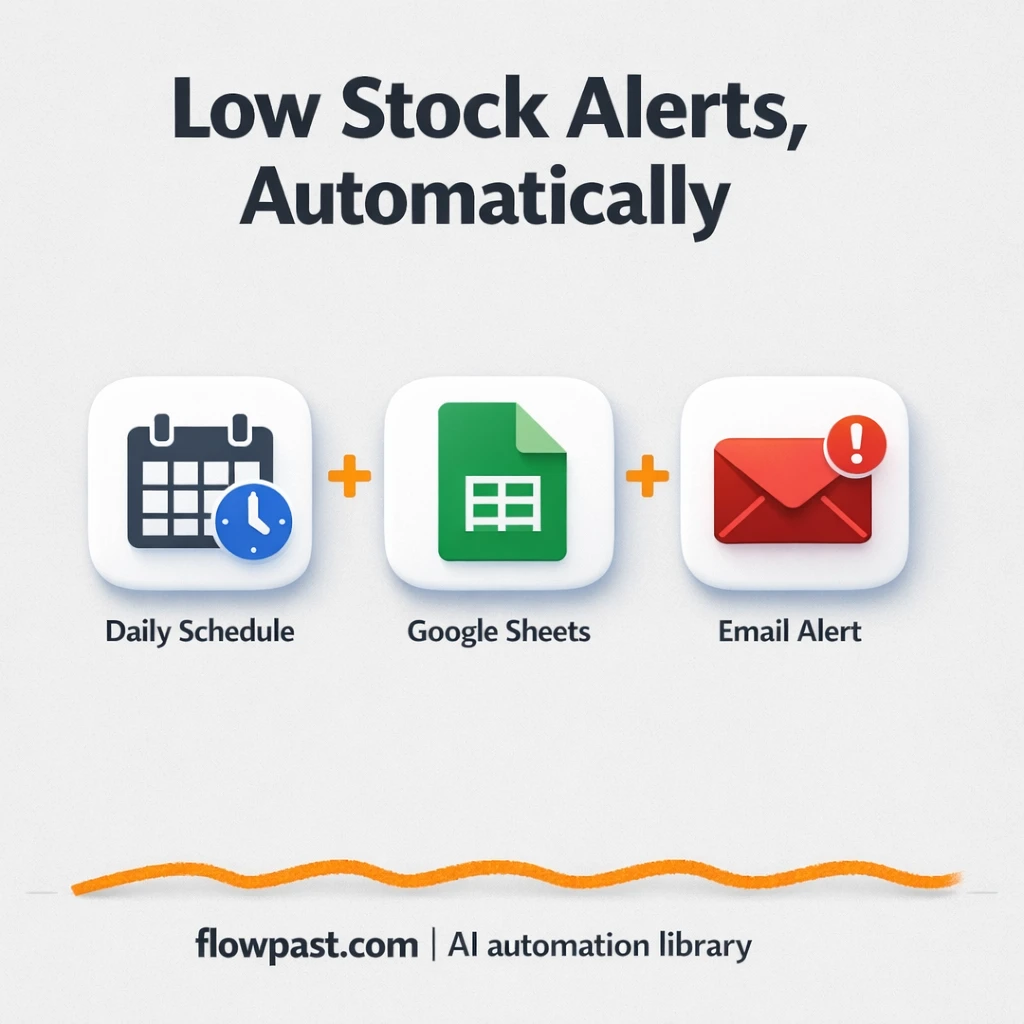

Inventory “management” often means somebody opens a spreadsheet, squints at a few rows, and hopes nothing is about to run out. Then you discover you’re missing a critical item when the job is already in motion. Not ideal.
This hits operations managers first, but office admins and project leads feel it too. With low stock alerts running automatically, you stop doing daily spreadsheet check-ins and start getting a simple email only when something needs attention.
This workflow uses n8n to check your Google Sheet on a schedule, update stock totals, and email you a low-stock list when quantities drop below your thresholds. You’ll see the moving parts, what you need, and where teams usually trip up.
How This Automation Works
The full n8n workflow, from trigger to final output:
n8n Workflow Template: Google Sheets + Email: low stock alerts on autopilot
flowchart LR

    subgraph sg0["Flow 1"]
        direction LR
        n0@{ icon: "mdi:cog", form: "rounded", label: "Daily Stock Check", pos: "b", h: 48 }
        n1@{ icon: "mdi:database", form: "rounded", label: "Fetch Stock Data", pos: "b", h: 48 }
        n2["<div style='background:#f5f5f5;padding:10px;border-radius:8px;display:inline-block;border:1px solid #e0e0e0'><img src='https://flowpast.com/wp-content/uploads/n8n-workflow-icons/code.svg' width='40' height='40' /></div><br/>Update Stock Levels"]
        n3["<div style='background:#f5f5f5;padding:10px;border-radius:8px;display:inline-block;border:1px solid #e0e0e0'><img src='https://flowpast.com/wp-content/uploads/n8n-workflow-icons/code.svg' width='40' height='40' /></div><br/>Check Low Stock"]
        n4@{ icon: "mdi:database", form: "rounded", label: "Update Google Sheet", pos: "b", h: 48 }
        n5@{ icon: "mdi:message-outline", form: "rounded", label: "Send Email Alert", pos: "b", h: 48 }
        n3 --> n4
        n1 --> n2
        n0 --> n1
        n4 --> n5
        n2 --> n3
    end

    %% Styling
    classDef trigger fill:#e8f5e9,stroke:#388e3c,stroke-width:2px
    classDef ai fill:#e3f2fd,stroke:#1976d2,stroke-width:2px
    classDef aiModel fill:#e8eaf6,stroke:#3f51b5,stroke-width:2px
    classDef decision fill:#fff8e1,stroke:#f9a825,stroke-width:2px
    classDef database fill:#fce4ec,stroke:#c2185b,stroke-width:2px
    classDef api fill:#fff3e0,stroke:#e65100,stroke-width:2px
    classDef code fill:#f3e5f5,stroke:#7b1fa2,stroke-width:2px
    classDef disabled stroke-dasharray: 5 5,opacity: 0.5
    class n1,n4 database
    class n2,n3 code
    classDef customIcon fill:none,stroke:none
    class n2,n3 customIcon
The Problem: Low Stock Gets Noticed Too Late
Spreadsheets are great until they become the only “system” you have. Someone forgets to subtract a used item, another person adds a delivery but skips the timestamp, and suddenly the numbers are more of a guess than a count. In real estate and construction supply tracking (or even basic office supplies), that guess turns into delays, rushed orders, and awkward calls asking who last touched the sheet. The worst part is the mental load: you keep checking “just in case,” which steals attention from work that actually moves projects forward.
It adds up fast. Here’s where it breaks down in day-to-day operations.
- People do “quick updates” and forget, so the sheet looks fine right up until it isn’t.
- Low-stock items don’t stand out, which means you only notice shortages when the item is needed.
- Manual checks become a daily habit, and it quietly costs about 2 hours a week.
- No consistent alerting means responsibility is unclear, so reorder decisions get delayed.
The Solution: Google Sheets Monitoring + Automatic Email Alerts
This n8n workflow turns your Google Sheet into a simple inventory brain that checks itself every day. It starts on a schedule (using a daily Cron trigger), pulls your current stock records from a “StockInventory” sheet, and then applies any additions or deductions using a small code step so totals stay consistent. Next, it scans the updated quantities and compares them to each item’s threshold, which is how it decides what counts as “low.” Finally, it writes the updated totals and timestamps back into Google Sheets and sends an email that calls out only the items that need attention. No more hunting through rows. You get a short list, at the right time, with the latest counts.
The workflow starts with a daily inventory check, then recalculates quantities based on the updates you’ve configured (API, form input, or your own logic). After that, it detects items below threshold and emails stakeholders while keeping the sheet up to date for everyone else.
What You Get: Automation vs. Results
| What This Workflow Automates | Results You’ll Get |
|---|---|
|
|
Example: What This Looks Like
Say you track 60 items (cement, screws, printer paper, cleaning supplies) in one Google Sheet. Manually, a “quick” check is still about 2 minutes to open the file, filter, scan thresholds, and message someone, which becomes roughly 2 hours a week if you do it every day. With this workflow: the daily trigger runs automatically, the sheet updates in the background, and you spend about 1 minute reading an email only when something is actually low. The time savings are nice, but the real win is catching shortages before they block work.
What You’ll Need
- n8n instance (try n8n Cloud free)
- Self-hosting option if you prefer (Hostinger works well)
- Google Sheets for storing inventory rows and thresholds
- Email (SMTP) to send low-stock notifications to stakeholders
- Google Sheets credentials (create in Google Cloud Console)
Skill level: Beginner. You’ll connect accounts, paste a Sheet ID, and tweak a threshold column.
Don’t want to set this up yourself? Talk to an automation expert (free 15-minute consultation).
How It Works
Daily schedule kicks it off. A Cron node runs once per day, so the workflow executes even if nobody remembers to check inventory.
Your sheet becomes the “database.” n8n retrieves stock records from Google Sheets (item, quantity, threshold, last_updated, unit), so your team can keep using a familiar format.
Quantities get recalculated consistently. A code step adjusts totals for additions and deductions, then another check identifies which items are below their thresholds. This is where you can bake in your rules (for example, never let quantity go negative, or round up to full units).
Updates and alerts happen together. The workflow writes the updated quantities and timestamps back to the sheet, then sends an email notice listing the low-stock items so the right person can reorder.
You can easily modify the stock update source to accept a form submission or API call instead of relying on scheduled adjustments. See the full implementation guide below for customization options.
Step-by-Step Implementation Guide
Step 1: Configure the Cron Trigger
Set up the schedule that starts the inventory check each day.
- Add the Daily Inventory Trigger node as your trigger.
- In Trigger Times, set the hour to
8to run daily at 8 AM. - Connect Daily Inventory Trigger to Retrieve Stock Records to start the flow.
Step 2: Connect Google Sheets
Pull your inventory data from Google Sheets and prepare it for updates.
- Open Retrieve Stock Records and set Sheet ID to
{{your_google_sheet_id}}. - Set Range to
StockInventory!A:E. - Set Authentication to
serviceAccount. - Credential Required: Connect your googleApi credentials.
- Open Modify Sheet Entries, set Operation to
update, and keep Range atStockInventory!A:Ewith Sheet ID as{{your_google_sheet_id}}. - Credential Required: Connect your googleApi credentials.
{{your_google_sheet_id}} is replaced with the actual ID from your Google Sheet URL.Step 3: Set Up Processing with Code Nodes
Transform inventory records and detect low-stock items using the code logic.
- Open Adjust Inventory Totals and review the JavaScript Code to ensure your stock update rules match your needs.
- Note that the example updates are hardcoded; replace the
stockUpdatesarray with dynamic input from your own source if needed. - Open Detect Low Inventory and confirm the threshold logic uses
stock.threshold || 20as the low-stock cutoff. - Verify the execution flow: Retrieve Stock Records → Adjust Inventory Totals → Detect Low Inventory → Modify Sheet Entries.
stock.threshold logic to respect those values.Step 4: Configure Email Notifications
Send an alert email after low-inventory items are detected and sheet updates are made.
- Open Dispatch Email Notice and set To Email to
[YOUR_EMAIL]and From Email to[YOUR_EMAIL]. - Set Subject to
Low Stock Alert - {{ $now.format('YYYY-MM-DD') }}. - Set Email Format to
textand keep the Text body with the expression{{ $json.lowStockList }}. - Credential Required: Connect your smtp credentials.
- Confirm Modify Sheet Entries is connected to Dispatch Email Notice so alerts go out after updates.
lowStockList or adjust the email text accordingly.Step 5: Test and Activate Your Workflow
Run a manual test to validate data flow and verify alerts before enabling daily runs.
- Click Execute Workflow and confirm Retrieve Stock Records returns rows from
StockInventory!A:E. - Check the output of Detect Low Inventory to ensure low-stock items are captured.
- Confirm Modify Sheet Entries updates the sheet and Dispatch Email Notice sends the alert email.
- When satisfied, toggle the workflow to Active so Daily Inventory Trigger runs automatically.
Common Gotchas
- Google Sheets credentials can expire or need specific permissions. If things break, check the connected Google account in n8n credentials and confirm it can access the Sheet ID you’re using.
- If you’re using Wait nodes or external rendering, processing times vary. Bump up the wait duration if downstream nodes fail on empty responses.
- Email (SMTP) often fails silently when “From” addresses don’t match your provider’s rules. Check your SMTP logs or email provider activity if the workflow runs but no one receives alerts.
Frequently Asked Questions
About 30 minutes if your Google Sheet is already organized.
No. You’ll mostly connect Google Sheets and email, then adjust thresholds in the sheet.
Yes. n8n has a free self-hosted option and a free trial on n8n Cloud. Cloud plans start at $20/month for higher volume. You’ll also need to factor in your email/SMTP provider costs (often free or already included with your email service).
Two options: n8n Cloud (managed, easiest setup) or self-hosting on a VPS. For self-hosting, Hostinger VPS is affordable and handles n8n well. Self-hosting gives you unlimited executions but requires basic server management.
Yes, but you’ll change where the adjustment data comes from. Most teams replace the daily-only update logic by adding a webhook or form submission step, then reuse the same “Adjust Inventory Totals” code and “Detect Low Inventory” check so thresholds and email alerts still work. You can also tweak the email format in “Dispatch Email Notice” to include units, last updated times, or a direct link to the sheet.
Usually it’s an expired Google authorization or the connected account doesn’t have access to the specific spreadsheet. Reconnect the Google Sheets credentials in n8n, confirm the Sheet ID is correct, and make sure the file is shared with the right Google user. If it still fails, check if your Google Cloud project has the Sheets API enabled.
Plenty for small business inventory sheets. A few hundred rows is typically fine, and if you self-host n8n there’s no execution limit (it mainly depends on your server and Google API quotas).
It depends on how picky you are about logic and control. Zapier and Make can absolutely send an email when a row changes, but this workflow is more of a daily inventory routine: fetch rows, calculate adjustments, compare to thresholds, update timestamps, then notify. n8n is better when you want that “mini system” feel, especially with code steps and branching that don’t cost extra per path. If you just want a simple two-step alert, Zapier or Make can be quicker to set up. If you’re unsure, Talk to an automation expert and you’ll get a straight answer for your situation.
Once this is running, inventory becomes quieter. You get the alert, you place the order, and you move on with your day.
Need Help Setting This Up?
Our automation experts can build and customize this workflow for your specific needs. Free 15-minute consultation—no commitment required.
