


Google Sheets + Gmail: invoices chased for you

Chasing invoices is the kind of work that quietly wrecks your week. You send the invoice, then you nudge, then you “just follow up,” and suddenly you’re spending more time collecting money than doing the work you billed for.
Freelancers feel this in their cash flow. Agency owners feel it when payroll is coming up. And a finance lead in a small team feels it because every late payment becomes another messy thread to track. This invoice reminder automation takes the follow-up off your plate and keeps it consistent.
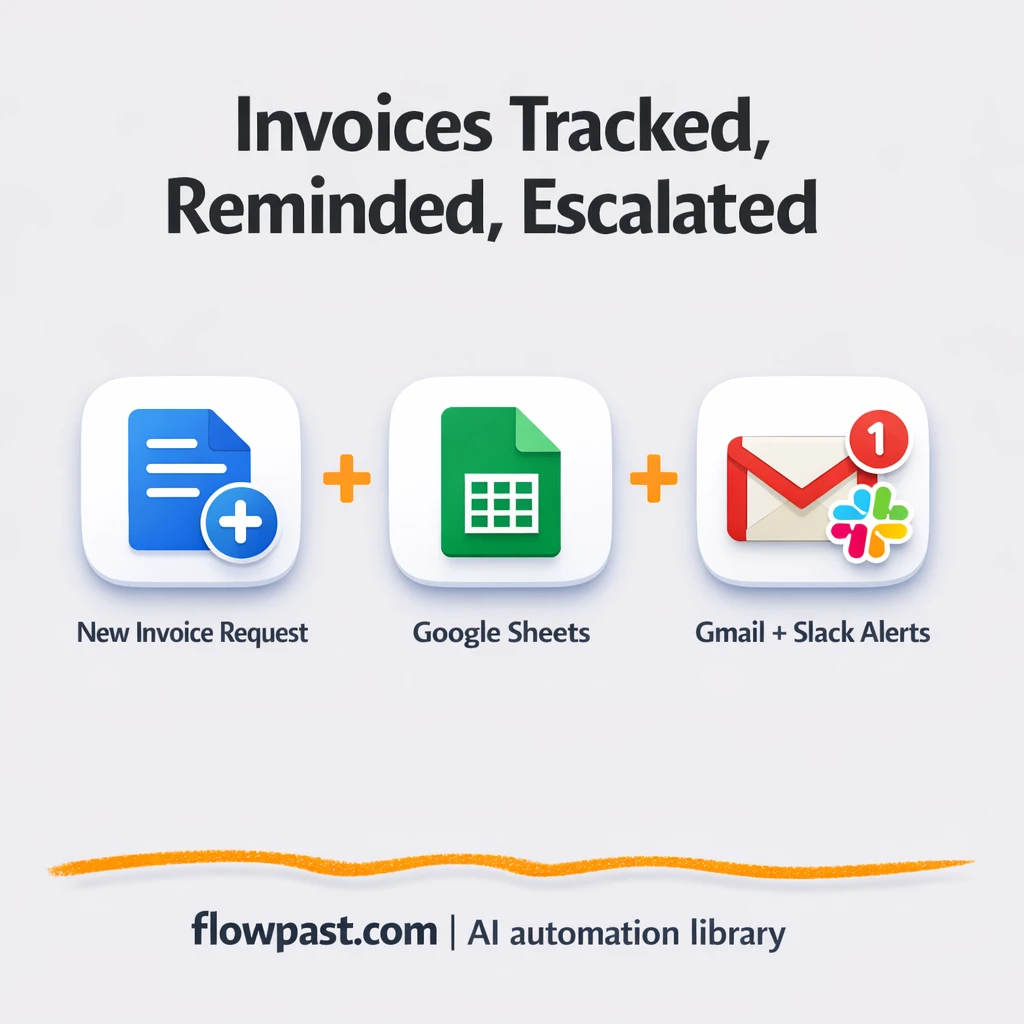
You’ll see how this workflow logs invoices in Google Sheets, emails clients from Gmail, checks overdue status daily, then escalates to Slack only when it’s truly time to get serious.
How This Automation Works
See how this solves the problem:
n8n Workflow Template: Google Sheets + Gmail: invoices chased for you
flowchart LR

    subgraph sg0["Daily Overdue Check Flow"]
        direction LR
        n9@{ icon: "mdi:play-circle", form: "rounded", label: "Daily Overdue Check", pos: "b", h: 48 }
        n10@{ icon: "mdi:database", form: "rounded", label: "Get Unpaid Invoices", pos: "b", h: 48 }
        n11["<div style='background:#f5f5f5;padding:10px;border-radius:8px;display:inline-block;border:1px solid #e0e0e0'><img src='https://flowpast.com/wp-content/uploads/n8n-workflow-icons/code.svg' width='40' height='40' /></div><br/>Calculate Overdue Days"]
        n12@{ icon: "mdi:swap-vertical", form: "rounded", label: "Loop Over Invoices", pos: "b", h: 48 }
        n13@{ icon: "mdi:swap-horizontal", form: "rounded", label: "Route by Reminder Level", pos: "b", h: 48 }
        n14@{ icon: "mdi:message-outline", form: "rounded", label: "First Reminder Email", pos: "b", h: 48 }
        n15@{ icon: "mdi:message-outline", form: "rounded", label: "Second Reminder Email", pos: "b", h: 48 }
        n16@{ icon: "mdi:message-outline", form: "rounded", label: "Urgent Reminder Email", pos: "b", h: 48 }
        n17@{ icon: "mdi:message-outline", form: "rounded", label: "Final Notice Email", pos: "b", h: 48 }
        n18["<div style='background:#f5f5f5;padding:10px;border-radius:8px;display:inline-block;border:1px solid #e0e0e0'><img src='https://flowpast.com/wp-content/uploads/n8n-workflow-icons/slack.svg' width='40' height='40' /></div><br/>Escalate to Collections"]
        n19["<div style='background:#f5f5f5;padding:10px;border-radius:8px;display:inline-block;border:1px solid #e0e0e0'><img src='https://flowpast.com/wp-content/uploads/n8n-workflow-icons/merge.svg' width='40' height='40' /></div><br/>Merge Reminder Paths"]
        n20@{ icon: "mdi:database", form: "rounded", label: "Update Reminder Date", pos: "b", h: 48 }
        n21["<div style='background:#f5f5f5;padding:10px;border-radius:8px;display:inline-block;border:1px solid #e0e0e0'><img src='https://flowpast.com/wp-content/uploads/n8n-workflow-icons/code.svg' width='40' height='40' /></div><br/>Continue Loop"]
        n21 --> n12
        n17 --> n19
        n12 --> n13
        n9 --> n10
        n10 --> n11
        n14 --> n19
        n19 --> n20
        n20 --> n21
        n15 --> n19
        n16 --> n19
        n11 --> n12
        n18 --> n19
        n13 --> n14
        n13 --> n15
        n13 --> n16
        n13 --> n17
        n13 --> n18
    end

    subgraph sg1["Flow 2"]
        direction LR
        n0["<div style='background:#f5f5f5;padding:10px;border-radius:8px;display:inline-block;border:1px solid #e0e0e0'><img src='https://flowpast.com/wp-content/uploads/n8n-workflow-icons/webhook.dark.svg' width='40' height='40' /></div><br/>New Invoice Request"]
        n1@{ icon: "mdi:swap-vertical", form: "rounded", label: "Initialize Invoice", pos: "b", h: 48 }
        n2@{ icon: "mdi:swap-vertical", form: "rounded", label: "Split Line Items", pos: "b", h: 48 }
        n3["<div style='background:#f5f5f5;padding:10px;border-radius:8px;display:inline-block;border:1px solid #e0e0e0'><img src='https://flowpast.com/wp-content/uploads/n8n-workflow-icons/code.svg' width='40' height='40' /></div><br/>Calculate Line Total"]
        n4@{ icon: "mdi:cog", form: "rounded", label: "Aggregate Line Items", pos: "b", h: 48 }
        n5["<div style='background:#f5f5f5;padding:10px;border-radius:8px;display:inline-block;border:1px solid #e0e0e0'><img src='https://flowpast.com/wp-content/uploads/n8n-workflow-icons/code.svg' width='40' height='40' /></div><br/>Build Invoice Object"]
        n6@{ icon: "mdi:database", form: "rounded", label: "Save Invoice to Sheet", pos: "b", h: 48 }
        n7@{ icon: "mdi:message-outline", form: "rounded", label: "Send Invoice Email", pos: "b", h: 48 }
        n8["<div style='background:#f5f5f5;padding:10px;border-radius:8px;display:inline-block;border:1px solid #e0e0e0'><img src='https://flowpast.com/wp-content/uploads/n8n-workflow-icons/webhook.dark.svg' width='40' height='40' /></div><br/>Invoice Created Response"]
        n2 --> n3
        n1 --> n2
        n7 --> n8
        n0 --> n1
        n4 --> n5
        n5 --> n6
        n3 --> n4
        n6 --> n7
    end

    %% Styling
    classDef trigger fill:#e8f5e9,stroke:#388e3c,stroke-width:2px
    classDef ai fill:#e3f2fd,stroke:#1976d2,stroke-width:2px
    classDef aiModel fill:#e8eaf6,stroke:#3f51b5,stroke-width:2px
    classDef decision fill:#fff8e1,stroke:#f9a825,stroke-width:2px
    classDef database fill:#fce4ec,stroke:#c2185b,stroke-width:2px
    classDef api fill:#fff3e0,stroke:#e65100,stroke-width:2px
    classDef code fill:#f3e5f5,stroke:#7b1fa2,stroke-width:2px
    classDef disabled stroke-dasharray: 5 5,opacity: 0.5
    class n9 trigger
    class n13 decision
    class n10,n20,n6 database
    class n0,n8 api
    class n11,n21,n3,n5 code
    classDef customIcon fill:none,stroke:none
    class n11,n18,n19,n21,n0,n3,n5,n8 customIcon
The Challenge: Late invoices turn into daily follow-ups
Most invoice systems don’t fail because they can’t send an email. They fail because the “system” is usually a person remembering what to do next. You create an invoice, mark a due date somewhere, and then the real work starts: checking who paid, deciding who gets a reminder, editing the tone so it’s firm but not awkward, and trying not to miss anyone. If you run multiple projects at once, it’s easy to forget that one client who always pays late, until it’s already been weeks and you’re scrambling.
It adds up fast. Here’s where the process usually breaks down.
- You end up digging through sent emails or a spreadsheet to figure out who is overdue and by how many days.
- Reminder messages get inconsistent, which means some clients get too many nudges and others get none.
- Overdue invoices sit in “I’ll handle it later” limbo because there’s no daily trigger forcing the check.
- Collections handoff happens too late, usually after multiple polite follow-ups have already failed.
The Fix: Google Sheets + Gmail follow-ups with Slack escalation
This workflow handles the invoice lifecycle in two connected loops: create the invoice, then chase it until it’s paid (or it’s clearly time to escalate). New invoice data comes in through a webhook from your order form, CRM, or checkout tool. The workflow calculates line totals, subtotal, tax, and the final amount, then saves the invoice record into Google Sheets so you have a simple “receivables database” that anyone on the team can review. Next, it sends a clean invoice email through Gmail, including a payment link, and responds back to the system that triggered it. After that, a daily schedule runs in the background, checks for unpaid invoices, and sends the right reminder email based on how overdue each invoice is. If it reaches the final tier, Slack gets an internal alert so someone can take over.
The workflow starts with an invoice webhook and ends with a sent invoice plus a logged record in Google Sheets. Every day after, n8n scans for overdue items, routes each invoice into one of five reminder levels, and sends the correct Gmail template automatically. When an invoice crosses into “collections” territory, Slack gets the heads-up and the reminder timestamp is updated so you don’t spam people.
What Changes: Before vs. After
| What This Eliminates | Impact You’ll See |
|---|---|
|
|
Real-World Impact
Say you send 20 invoices a month. Manually, you might spend about 10 minutes logging each invoice and another 10 minutes per reminder cycle, and plenty of invoices take 2–3 nudges. That’s roughly 6 hours a month of admin, not counting the mental load. With this workflow, invoice creation is essentially “submit order data once,” and the daily overdue scan runs by itself. You still step in for exceptions, but you stop living in follow-up mode.
Requirements
- n8n instance (try n8n Cloud free)
- Self-hosting option if you prefer (Hostinger works well)
- Google Sheets to store invoices and reminder timestamps.
- Gmail to send invoices and reminder emails.
- Slack for internal collections escalation alerts.
Skill level: Beginner. You’ll connect accounts, map a few fields, and paste a webhook URL into the tool that creates orders.
Need help implementing this? Talk to an automation expert (free 15-minute consultation).
The Workflow Flow
A new invoice hits your webhook. Your order system sends line items and customer details to n8n (client name, email, items, quantities, due date, and a payment link).
The invoice is calculated and standardized. The workflow splits out each line item, computes amounts, then aggregates everything back into a clean invoice record (subtotal, tax, total) so your tracking stays accurate.
Google Sheets becomes the source of truth. A new row is written to your invoice sheet with status fields like Due Date and Last Reminder, which makes the reminder logic reliable later.
Gmail sends the invoice, then reminders on autopilot. A daily schedule pulls unpaid invoices from Google Sheets, checks how overdue they are, and routes each one to the right reminder email template. If it reaches the last tier, Slack is notified and the sheet is updated so you have an audit trail.
You can easily modify the overdue thresholds to match your terms based on your needs. See the full implementation guide below for customization options.
Step-by-Step Implementation Guide
Step 1: Configure the Webhook Trigger
Set up the inbound invoice creation endpoint that starts the workflow.
- Open Incoming Invoice Hook and set Path to
create-invoice. - Set HTTP Method to
POST. - Set Response Mode to
responseNodeso Return Invoice Response can reply to callers.
Step 2: Connect Google Sheets
Configure the invoice database in Google Sheets for writes and overdue lookups.
- Open Record Invoice in Sheet and select the Document that stores your invoices.
- Set Sheet Name to
Invoicesand keep Operation asappend. - Map columns in Record Invoice in Sheet using expressions like
{{$json.invoiceId}},{{$json.clientName}},{{$json.total}}, and{{$json.dueDate}}. - Open Retrieve Pending Invoices and set Operation to
getManywith a filter where Status equalspending. - Open Update Reminder Timestamp and set Operation to
update, mapping Invoice ID to{{$json.invoiceId}}and Last Reminder to{{$now.toISO()}}. - Credential Required: Connect your Google Sheets credentials in Record Invoice in Sheet, Retrieve Pending Invoices, and Update Reminder Timestamp.
Step 3: Set Up Invoice Processing
Transform incoming line items into a complete invoice payload with totals.
- In Prepare Invoice Fields, keep Mode as
manualand set assignments such as invoiceId to{{ 'INV-' + $now.format('yyyy') + '-' + String(Math.floor(Math.random() * 9000) + 1000) }}. - Set clientName to
{{$json.body.clientName}}and clientEmail to{{$json.body.clientEmail}}. - Set lineItems to
{{$json.body.lineItems}}, paymentTerms to{{$json.body.paymentTerms || 30}}, and taxRate to{{$json.body.taxRate || 0.1}}. - Set dueDate to
{{$now.plus({ days: $json.body.paymentTerms || 30 }).toISODate()}}and createdAt to{{$now.toISO()}}. - In Expand Item Lines, set Field To Split Out to
lineItemsand keep Include asallOtherFields. - Leave Compute Line Amount and Assemble Invoice Payload code blocks unchanged to calculate line totals and invoice totals.
- Ensure the flow is Prepare Invoice Fields → Expand Item Lines → Compute Line Amount → Combine Item Totals → Assemble Invoice Payload.
Step 4: Configure Email and Slack Outputs
Send invoices and reminders through Gmail and escalate severe overdue cases to Slack.
- In Dispatch Invoice Email, keep Send To as
{{$json.clientEmail}}, Subject asInvoice {{ $json.invoiceId }} from Company, and the provided invoice message template. - Review the reminder templates in First Notice Email, Second Notice Email, Urgent Notice Email, and Final Warning Email to match your tone and branding.
- In Collections Slack Alert, set the Channel to your Slack channel and keep the message template that includes invoice and days overdue data.
- Credential Required: Connect your Gmail credentials to all Gmail nodes (5 total): Dispatch Invoice Email, First Notice Email, Second Notice Email, Urgent Notice Email, and Final Warning Email.
- Credential Required: Connect your Slack credentials in Collections Slack Alert.
Step 5: Configure Overdue Scan and Routing
Schedule daily scans for overdue invoices and route each invoice to the correct reminder tier.
- Open Scheduled Overdue Scan and confirm the schedule rule triggers daily at
9hours. - Keep the data flow as Scheduled Overdue Scan → Retrieve Pending Invoices → Assess Overdue Duration → Iterate Invoice Batch.
- In Iterate Invoice Batch, set Batch Size to
1to process one invoice at a time. - In Route Reminder Tier, ensure each rule checks
{{$json.reminderLevel}}againstfirst,second,urgent,final, andcollections. - Keep the merge flow Consolidate Reminder Paths → Update Reminder Timestamp → Resume Batch Loop to return to Iterate Invoice Batch.
Step 6: Test and Activate Your Workflow
Validate the invoice creation flow and the overdue reminder loop before going live.
- Use the Incoming Invoice Hook test URL to POST a sample payload with
clientName,clientEmail,lineItems, andpaymentTerms. - Confirm that Record Invoice in Sheet appends a row and Dispatch Invoice Email sends a message to the client.
- Check the webhook reply from Return Invoice Response shows
{"success":true,"invoiceId":"...","total":...,"dueDate":"..."}. - Manually run Scheduled Overdue Scan to verify that Route Reminder Tier sends the correct reminder and updates Last Reminder in the sheet.
- When satisfied, toggle the workflow to Active so the webhook and schedule run in production.
Watch Out For
- Google Sheets access can fail if the sheet is moved or permissions change. If rows stop writing, check the sheet ID and sharing settings first.
- If you’re using Wait nodes or external rendering, processing times vary. Bump up the wait duration if downstream nodes fail on empty responses.
- Gmail can throttle or block sending if you fire too many reminders at once. If emails suddenly don’t send, review Gmail “Sent” and your n8n execution logs for rate limiting or auth prompts.
Common Questions
About an hour if your Sheet columns are ready.
Yes. No code is required if you keep the default thresholds and templates, and you’ll mostly be mapping fields to your Google Sheet columns.
Yes. n8n has a free self-hosted option and a free trial on n8n Cloud. Cloud plans start at $20/month for higher volume. You’ll also need to factor in any paid tools you connect (Gmail, Google Sheets, and Slack are typically free on most plans).
Two options: n8n Cloud (managed, easiest setup) or self-hosting on a VPS. For self-hosting, Hostinger VPS is affordable and handles n8n well. Self-hosting gives you unlimited executions but requires basic server management.
You can adjust the overdue day thresholds in the “Assess Overdue Duration” code step, then change the tiers in “Route Reminder Tier” to match your payment terms. If you want different messaging, edit the Gmail nodes for First Notice, Second Notice, Urgent, and Final so the language matches your brand. Some teams also add a “Paid” update step from their accounting tool, so reminders stop automatically when payment lands.
Usually it’s expired Google credentials or the spreadsheet was moved and the saved reference no longer matches. Reconnect Google Sheets in n8n, then confirm the exact spreadsheet and worksheet are selected in both “Record Invoice in Sheet” and “Retrieve Pending Invoices.” Also check that the account you connected can edit the file, not just view it.
For most small businesses, it’s plenty. The daily scan can process hundreds of invoices, and batching keeps it from falling over when your sheet grows. On n8n Cloud you’ll be limited by your monthly executions, while self-hosting has no execution cap (your server resources become the limiter). If you’re sending a lot of reminders in one run, Gmail sending limits are often the first bottleneck, so plan around that.
Often, yes, because this workflow uses branching logic (five reminder tiers), batching, and a daily scan pattern that can get expensive or awkward in simpler automation tools. n8n also gives you the option to self-host, which matters when you’re running scheduled checks every day. Zapier or Make can still be fine if you only need “send one reminder after X days” and you don’t care about escalation levels. If your reminder policy is more nuanced, you will feel the difference quickly. Talk to an automation expert if you want a quick recommendation based on your volume.
Late payments shouldn’t require late nights. Set this up once, let the workflow do the nudging, and keep your attention on work that actually pays.
Need Help Setting This Up?
Our automation experts can build and customize this workflow for your specific needs. Free 15-minute consultation—no commitment required.
