


Google Sheets + RapidAPI: flag disposable emails
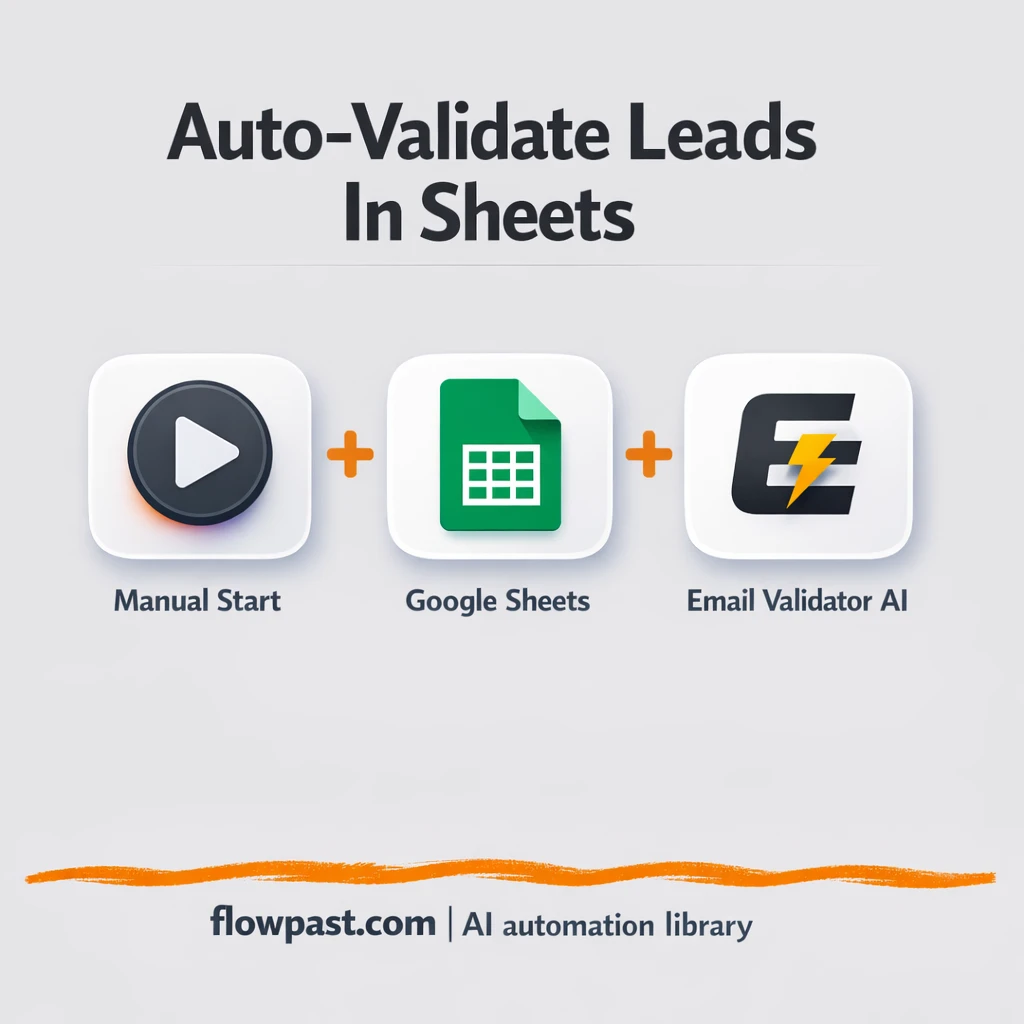

Your Google Sheet is full of leads, but some emails are junk. Disposable domains, throwaway inboxes, “looks real” addresses that bounce later. You only find out after you’ve paid for enrichment, uploaded to your CRM, or fired off a campaign.
This email validation automation hits Marketers first (deliverability pain is real), but Agency owners and Ops managers feel it too when pipelines get polluted. The outcome is simple: every lead row gets checked and flagged directly inside Google Sheets, so you can filter the bad stuff out fast.
Below you’ll see how the workflow runs, what it changes day-to-day, and what you need to set it up in n8n without turning this into a “new tool adoption” project.
How This Automation Works
See how this solves the problem:
n8n Workflow Template: Google Sheets + RapidAPI: flag disposable emails
flowchart LR

    subgraph sg0["Manual Execution Start Flow"]
        direction LR
        n0@{ icon: "mdi:play-circle", form: "rounded", label: "Manual Execution Start", pos: "b", h: 48 }
        n1@{ icon: "mdi:database", form: "rounded", label: "Retrieve Spreadsheet Rows", pos: "b", h: 48 }
        n2@{ icon: "mdi:swap-vertical", form: "rounded", label: "Iterate Records", pos: "b", h: 48 }
        n3["<div style='background:#f5f5f5;padding:10px;border-radius:8px;display:inline-block;border:1px solid #e0e0e0'><img src='https://flowpast.com/wp-content/uploads/n8n-workflow-icons/httprequest.dark.svg' width='40' height='40' /></div><br/>External API Call"]
        n4@{ icon: "mdi:database", form: "rounded", label: "Modify Sheet Row", pos: "b", h: 48 }
        n3 --> n4
        n3 --> n2
        n1 --> n2
        n2 --> n3
        n4 --> n2
        n0 --> n1
    end

    %% Styling
    classDef trigger fill:#e8f5e9,stroke:#388e3c,stroke-width:2px
    classDef ai fill:#e3f2fd,stroke:#1976d2,stroke-width:2px
    classDef aiModel fill:#e8eaf6,stroke:#3f51b5,stroke-width:2px
    classDef decision fill:#fff8e1,stroke:#f9a825,stroke-width:2px
    classDef database fill:#fce4ec,stroke:#c2185b,stroke-width:2px
    classDef api fill:#fff3e0,stroke:#e65100,stroke-width:2px
    classDef code fill:#f3e5f5,stroke:#7b1fa2,stroke-width:2px
    classDef disabled stroke-dasharray: 5 5,opacity: 0.5
    class n0 trigger
    class n1,n4 database
    class n3 api
    classDef customIcon fill:none,stroke:none
    class n3 customIcon
The Challenge: Disposable Emails Pollute Your Leads
Email lists “rot” quietly. You collect leads from forms, partners, cold outreach, directories, and event scans, and everything looks fine in a spreadsheet. Then the cleanup starts. Someone copy-pastes addresses into an online checker, someone else tags rows by hand, and nobody trusts the results. The cost isn’t only bounces. It’s the wasted time reviewing leads, the spend on tools touching bad records, and the uncomfortable moment when a campaign underperforms and you’re not sure if it’s the offer or the list.
It adds up fast. Here’s where it usually breaks down.
- Manual email checking turns into a weekly “spreadsheet chore” that nobody wants to own.
- Disposable emails slip into CRMs and sequences, which means you pay to store and message contacts that will never convert.
- Lists get shared across teams without consistent flags, so the same bad addresses get reviewed more than once.
- When bounces spike, you end up pausing campaigns and scrambling, instead of confidently filtering leads before they move downstream.
The Fix: Validate Each Sheet Row via RapidAPI and Flag It
This workflow takes your existing Google Sheet and turns it into a self-cleaning lead list. You run it from n8n, it reads every row that contains an email address, and then it checks each email using the “Email Validator AI” service through RapidAPI. For every record, the workflow writes the result back to the same row, so your sheet becomes the system of record. No exports. No “version 7 – FINAL CLEANED” files. Just one sheet where is_disposable is always up to date, which makes filtering and routing leads much easier.
The workflow starts with a manual run in n8n, then pulls rows from Google Sheets. It processes them one at a time (so you don’t overwhelm the API), calls RapidAPI for validation, and updates the matching row with the disposable/fake result.
What Changes: Before vs. After
| What This Eliminates | Impact You’ll See |
|---|---|
|
|
Real-World Impact
Say you collect 200 new leads a week in Google Sheets. Manually validating even 1 minute per email is about 3 hours of tedious work, plus the inevitable “I’ll finish it later” delay. With this workflow, you kick it off once, let it loop through the rows, and the sheet updates as it goes. Realistically, you spend about 5 minutes starting it and spot-checking results, then you filter out disposable emails immediately before you upload anywhere.
Requirements
- n8n instance (try n8n Cloud free)
- Self-hosting option if you prefer (Hostinger works well)
- Google Sheets to store leads and flags
- RapidAPI to access Email Validator AI endpoint
- RapidAPI key (get it from your RapidAPI dashboard)
Skill level: Beginner. You’ll connect Google credentials, paste an API key, and map two columns.
Need help implementing this? Talk to an automation expert (free 15-minute consultation).
The Workflow Flow
A manual run kicks things off. You start the workflow from inside n8n (useful for testing, then you can later schedule it).
Your sheet rows are pulled in. n8n reads the target Google Sheet using a Google Service Account, so access is controlled and you’re not tying this to someone’s personal login.
Each email is validated through RapidAPI. The workflow loops through rows one by one, sends the email value to the Email Validator AI endpoint, and receives a result you can act on.
The same row gets updated. The workflow writes back to Google Sheets (for example, filling is_disposable), so your lead list stays clean without any importing or duplicate files.
You can easily modify which rows get processed (only blanks, only new leads) to match your intake process. See the full implementation guide below for customization options.
Step-by-Step Implementation Guide
Step 1: Configure the Manual Trigger
Set up the manual trigger that starts the workflow and initiates the sheet read.
- Add the Manual Execution Start node as the workflow trigger.
- Connect Manual Execution Start to Retrieve Spreadsheet Rows.
Step 2: Connect Google Sheets
Configure the Google Sheets nodes to read email rows and write validation results back.
- Open Retrieve Spreadsheet Rows and set Authentication to
serviceAccount. - Set the Document ID and Sheet Name fields in Retrieve Spreadsheet Rows to your target spreadsheet.
- Credential Required: Connect your googleApi credentials in Retrieve Spreadsheet Rows.
- Open Modify Sheet Row and set Operation to
updateand Authentication toserviceAccount. - Set the Document ID and Sheet Name fields in Modify Sheet Row to the same sheet.
- Credential Required: Connect your googleApi credentials in Modify Sheet Row.
email and is_disposable (note the trailing space in the second column name) to match the update mapping.Step 3: Set Up Batch Processing and API Validation
Iterate through each row and validate emails via the external API.
- Connect Retrieve Spreadsheet Rows to Iterate Records to batch-process rows.
- Connect Iterate Records to External API Call on the second output (batch items).
- In External API Call, set URL to
https://email-validator-ai.p.rapidapi.com/email.phpand Method toPOST. - Enable Send Body and set Content Type to
multipart-form-data. - Under Body Parameters, set email to
{{ $json.email }}. - Under Header Parameters, set x-rapidapi-host to
email-validator-ai.p.rapidapi.comand x-rapidapi-key to your API key.
[CONFIGURE_YOUR_API_KEY] in the workflow. Replace it with your real RapidAPI key before testing.Step 4: Configure the Sheet Update
Write validation results back to the spreadsheet and loop through remaining rows.
- Connect External API Call to Modify Sheet Row.
- In Modify Sheet Row, map email to
{{ $json.email }}and is_disposable to{{ $json.disposable }}. - Ensure Matching Columns includes
emailso the correct row is updated. - Connect Modify Sheet Row back to Iterate Records to continue processing the next batch.
Step 5: Test and Activate Your Workflow
Run a manual test and then activate the workflow for ongoing use.
- Click Execute Workflow to trigger Manual Execution Start.
- Verify that Retrieve Spreadsheet Rows pulls rows and External API Call returns validation data.
- Confirm that Modify Sheet Row updates the
is_disposablecolumn for each matchingemail. - When successful, toggle the workflow to Active for production use.
Watch Out For
- Google Sheets credentials can expire or need specific permissions. If things break, check the Google Service Account sharing settings on the sheet first.
- If you’re using Wait nodes or external rendering, processing times vary. Bump up the wait duration if downstream nodes fail on empty responses.
- Default prompts in AI nodes are generic. Add your brand voice early or you’ll be editing outputs forever.
Common Questions
About 30 minutes if your Google credentials and RapidAPI key are ready.
Yes. No coding required, just account connections and column mapping.
Yes. n8n has a free self-hosted option and a free trial on n8n Cloud. Cloud plans start at $20/month for higher volume. You’ll also need to factor in RapidAPI usage costs for the Email Validator AI endpoint.
Two options: n8n Cloud (managed, easiest setup) or self-hosting on a VPS. For self-hosting, Hostinger VPS is affordable and handles n8n well. Self-hosting gives you unlimited executions but requires basic server management.
You can filter what gets processed before the loop so you only validate new rows (for example, only where is_disposable is blank). If your sheet uses different column names, update the Google Sheets read/update mappings so the “email” field and your flag column match. Many teams also add a second column like status or note to capture “disposable,” “risky,” or “unknown” results for easier sorting later.
Usually it’s an invalid or expired RapidAPI key, or the endpoint host/header isn’t set the way the API expects. Double-check the RapidAPI app you subscribed to (Email Validator AI) and confirm the plan is active. If it works for a few rows and then fails, you might be hitting rate limits, so slow the loop down or process fewer rows per run. Also make sure you are sending the email field value, not the whole row object.
On n8n Cloud, capacity mainly depends on your monthly execution limit and how many rows you validate per run. If you self-host, there’s no platform execution cap, but your server resources and RapidAPI limits still apply. In practice, teams comfortably validate hundreds to a few thousand rows in a run, then schedule it daily or weekly to keep the sheet clean.
Sometimes. n8n is a better fit when you want tight control over looping through rows, writing back to the same sheet, and keeping costs predictable (especially if you self-host). It’s also easier to evolve this into “validate then route” logic, like skipping disposable rows and alerting someone when junk spikes. Zapier or Make can be quicker for simple, small-volume checks, but they get clunky once you’re iterating through lots of spreadsheet rows. If you’re torn, Talk to an automation expert and explain your list size and workflow.
Clean rows in, better results out. Once this is running, your sheet stops being a messy intake bin and starts acting like a reliable lead source.
Need Help Setting This Up?
Our automation experts can build and customize this workflow for your specific needs. Free 15-minute consultation—no commitment required.
