


Google Sheets + Twilio, coach onboarding texts sent
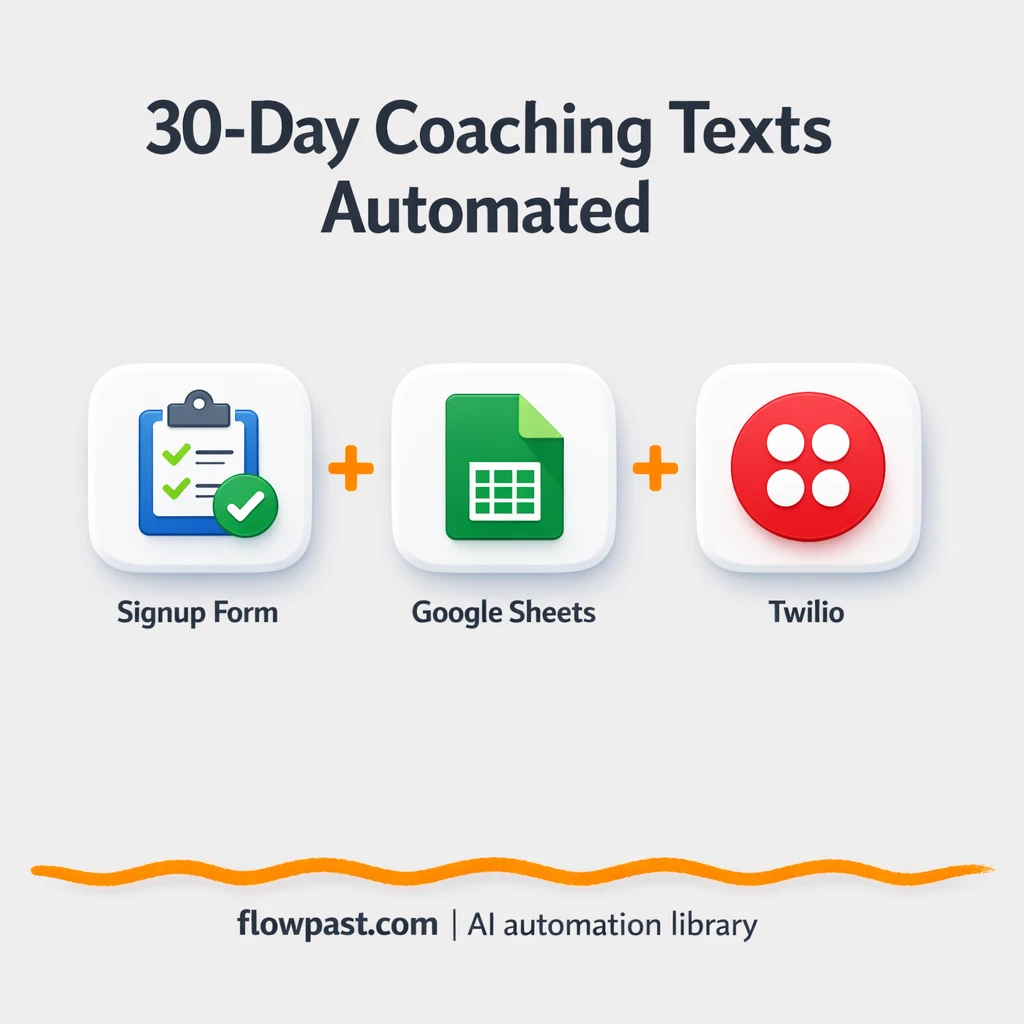

You onboard a new coach, promise a 30-day training plan, and then reality hits. Someone forgets day 3. Another says “I never got the link.” You spend your morning chasing replies instead of building the program.
This Sheets Twilio SMS setup is a lifesaver for coaching program owners who need consistency, and it also helps ops managers keeping rosters clean and client success leads tired of nudging people manually. The outcome is simple: every coach gets the right lesson at the right time, without you hovering over it.
Below you’ll see the exact automation flow, the business results you can expect, and what you need to get it live in n8n with Google Sheets and Twilio.
How This Automation Works
The full n8n workflow, from trigger to final output:
n8n Workflow Template: Google Sheets + Twilio, coach onboarding texts sent
flowchart LR

    subgraph sg0["Flow 1"]
        direction LR
        n1["<div style='background:#f5f5f5;padding:10px;border-radius:8px;display:inline-block;border:1px solid #e0e0e0'><img src='https://flowpast.com/wp-content/uploads/n8n-workflow-icons/webhook.dark.svg' width='40' height='40' /></div><br/>Coach Registration Webhook"]
        n2["<div style='background:#f5f5f5;padding:10px;border-radius:8px;display:inline-block;border:1px solid #e0e0e0'><img src='https://flowpast.com/wp-content/uploads/n8n-workflow-icons/code.svg' width='40' height='40' /></div><br/>Process Coach Registration"]
        n3@{ icon: "mdi:database", form: "rounded", label: "Save Coach to Database", pos: "b", h: 48 }
        n4@{ icon: "mdi:database", form: "rounded", label: "Get Day 1 Training Content", pos: "b", h: 48 }
        n5["<div style='background:#f5f5f5;padding:10px;border-radius:8px;display:inline-block;border:1px solid #e0e0e0'><img src='https://flowpast.com/wp-content/uploads/n8n-workflow-icons/code.svg' width='40' height='40' /></div><br/>Combine Registration Data"]
        n6["<div style='background:#f5f5f5;padding:10px;border-radius:8px;display:inline-block;border:1px solid #e0e0e0'><img src='https://flowpast.com/wp-content/uploads/n8n-workflow-icons/twilio.svg' width='40' height='40' /></div><br/>Send Day 1 Training SMS"]
        n7@{ icon: "mdi:cog", form: "rounded", label: "Wait 2 Minutes", pos: "b", h: 48 }
        n8@{ icon: "mdi:swap-horizontal", form: "rounded", label: "Check Audio Available", pos: "b", h: 48 }
        n9["<div style='background:#f5f5f5;padding:10px;border-radius:8px;display:inline-block;border:1px solid #e0e0e0'><img src='https://flowpast.com/wp-content/uploads/n8n-workflow-icons/twilio.svg' width='40' height='40' /></div><br/>Send Audio SMS"]
        n10@{ icon: "mdi:database", form: "rounded", label: "Update to Day 2", pos: "b", h: 48 }
        n11["<div style='background:#f5f5f5;padding:10px;border-radius:8px;display:inline-block;border:1px solid #e0e0e0'><img src='https://flowpast.com/wp-content/uploads/n8n-workflow-icons/webhook.dark.svg' width='40' height='40' /></div><br/>Registration Response"]
        n9 --> n10
        n7 --> n8
        n10 --> n11
        n8 --> n9
        n8 --> n10
        n3 --> n5
        n6 --> n7
        n5 --> n6
        n1 --> n2
        n4 --> n5
        n2 --> n3
        n2 --> n4
    end

    subgraph sg1["Daily 9AM Scheduler Flow"]
        direction LR
        n12@{ icon: "mdi:play-circle", form: "rounded", label: "Daily 9AM Scheduler", pos: "b", h: 48 }
        n13@{ icon: "mdi:database", form: "rounded", label: "Get Active Coaches", pos: "b", h: 48 }
        n14@{ icon: "mdi:database", form: "rounded", label: "Get All Training Content", pos: "b", h: 48 }
        n15["<div style='background:#f5f5f5;padding:10px;border-radius:8px;display:inline-block;border:1px solid #e0e0e0'><img src='https://flowpast.com/wp-content/uploads/n8n-workflow-icons/code.svg' width='40' height='40' /></div><br/>Process Daily Training"]
        n16["<div style='background:#f5f5f5;padding:10px;border-radius:8px;display:inline-block;border:1px solid #e0e0e0'><img src='https://flowpast.com/wp-content/uploads/n8n-workflow-icons/twilio.svg' width='40' height='40' /></div><br/>Send Daily Training SMS"]
        n17@{ icon: "mdi:database", form: "rounded", label: "Update Coach Progress", pos: "b", h: 48 }
        n13 --> n15
        n12 --> n13
        n12 --> n14
        n15 --> n16
        n16 --> n17
        n14 --> n15
    end

    subgraph sg2["Flow 3"]
        direction LR
        n18["<div style='background:#f5f5f5;padding:10px;border-radius:8px;display:inline-block;border:1px solid #e0e0e0'><img src='https://flowpast.com/wp-content/uploads/n8n-workflow-icons/webhook.dark.svg' width='40' height='40' /></div><br/>Coach Response Webhook"]
        n19["<div style='background:#f5f5f5;padding:10px;border-radius:8px;display:inline-block;border:1px solid #e0e0e0'><img src='https://flowpast.com/wp-content/uploads/n8n-workflow-icons/code.svg' width='40' height='40' /></div><br/>Process Coach Response"]
        n20["<div style='background:#f5f5f5;padding:10px;border-radius:8px;display:inline-block;border:1px solid #e0e0e0'><img src='https://flowpast.com/wp-content/uploads/n8n-workflow-icons/twilio.svg' width='40' height='40' /></div><br/>Send Auto-Reply SMS"]
        n21@{ icon: "mdi:swap-horizontal", form: "rounded", label: "Check If Opt-Out", pos: "b", h: 48 }
        n22@{ icon: "mdi:database", form: "rounded", label: "Mark As Opted Out", pos: "b", h: 48 }
        n23["<div style='background:#f5f5f5;padding:10px;border-radius:8px;display:inline-block;border:1px solid #e0e0e0'><img src='https://flowpast.com/wp-content/uploads/n8n-workflow-icons/webhook.dark.svg' width='40' height='40' /></div><br/>Response Webhook Reply"]
        n21 --> n22
        n21 --> n23
        n22 --> n23
        n20 --> n23
        n18 --> n19
        n19 --> n20
        n19 --> n21
    end

    subgraph sg3["Weekly Motivation Scheduler Flow"]
        direction LR
        n24@{ icon: "mdi:play-circle", form: "rounded", label: "Weekly Motivation Scheduler", pos: "b", h: 48 }
        n25@{ icon: "mdi:database", form: "rounded", label: "Get All Coaches", pos: "b", h: 48 }
        n26["<div style='background:#f5f5f5;padding:10px;border-radius:8px;display:inline-block;border:1px solid #e0e0e0'><img src='https://flowpast.com/wp-content/uploads/n8n-workflow-icons/code.svg' width='40' height='40' /></div><br/>Generate Weekly Messages"]
        n27["<div style='background:#f5f5f5;padding:10px;border-radius:8px;display:inline-block;border:1px solid #e0e0e0'><img src='https://flowpast.com/wp-content/uploads/n8n-workflow-icons/twilio.svg' width='40' height='40' /></div><br/>Send Weekly Motivation SMS"]
        n25 --> n26
        n26 --> n27
        n24 --> n25
    end

    subgraph sg4["Flow 5"]
        direction LR
        n0@{ icon: "mdi:swap-vertical", form: "rounded", label: "Configuration Settings", pos: "b", h: 48 }
    end

    %% Styling
    classDef trigger fill:#e8f5e9,stroke:#388e3c,stroke-width:2px
    classDef ai fill:#e3f2fd,stroke:#1976d2,stroke-width:2px
    classDef aiModel fill:#e8eaf6,stroke:#3f51b5,stroke-width:2px
    classDef decision fill:#fff8e1,stroke:#f9a825,stroke-width:2px
    classDef database fill:#fce4ec,stroke:#c2185b,stroke-width:2px
    classDef api fill:#fff3e0,stroke:#e65100,stroke-width:2px
    classDef code fill:#f3e5f5,stroke:#7b1fa2,stroke-width:2px
    classDef disabled stroke-dasharray: 5 5,opacity: 0.5
    class n12,n24 trigger
    class n8,n21 decision
    class n3,n4,n10,n13,n14,n17,n22,n25 database
    class n1,n11,n18,n23 api
    class n2,n5,n15,n19,n26 code
    classDef customIcon fill:none,stroke:none
    class n1,n2,n5,n6,n9,n11,n15,n16,n18,n19,n20,n23,n26,n27 customIcon
The Problem: Coach onboarding slips through the cracks
Coach onboarding sounds straightforward until you’re running it at scale. A “simple” 30-day plan turns into dozens of tiny tasks: sending day 1, checking if they listened to the audio, following up when someone replies, logging progress, and handling opt-outs correctly. If you do it manually, you’re basically running a mini call center out of your inbox. And the worst part is the mental load. You’re always wondering who missed what, which coaches are active, and whether today’s lesson actually went out.
It adds up fast. Here’s where it usually breaks down.
- Daily lessons rely on someone remembering to send them, and “I’ll do it later” turns into “we missed a day.”
- Replies come in at random times, so you end up context-switching all day just to answer common questions.
- Progress tracking lives in scattered notes, which means you can’t tell who’s on day 7 versus day 19 without digging.
- Opt-outs (like STOP) need to be handled reliably, or you risk upsetting people and creating compliance headaches.
The Solution: Google Sheets-to-Twilio onboarding that runs itself
This n8n workflow turns Google Sheets into your coach onboarding “database” and Twilio into the delivery engine. A coach registers through a webhook (think: a form, a landing page, or an internal tool), and the workflow immediately stores their details in the Coaches sheet, fetches the correct day 1 training content from your Training Content sheet, and sends the first SMS. If you include an audio link, it even waits a moment, checks whether the audio is ready, and then follows up with a second text so the coach actually gets the resource at the right time. From there, a daily 9AM schedule picks up every active coach, pulls the right training message for their current day, sends it via Twilio, and updates progress back in Sheets.
Replies are handled too. When a coach texts back, an incoming SMS webhook routes the message through an AI Agent (OpenAI chat model + memory) for smart keyword-based responses, then updates their record or flags an opt-out when needed. Once a week, a separate schedule trigger sends motivation messages to keep people moving.
What You Get: Automation vs. Results
| What This Workflow Automates | Results You’ll Get |
|---|---|
|
|
Example: What This Looks Like
Say you onboard 20 coaches per month and send a daily lesson for the first 30 days. If you’re sending those manually, assume maybe 3 minutes per coach to find the right lesson, paste it, and update a tracker. That’s about 1 hour a day on weekdays, plus extra time for replies. With this workflow, onboarding is one webhook submission per coach (under a minute), daily lessons go out automatically at 9AM, and replies route themselves. You’ll still jump in for edge cases, but the baseline “texting treadmill” disappears.
What You’ll Need
- n8n instance (try n8n Cloud free)
- Self-hosting option if you prefer (Hostinger works well)
- Google Sheets to store coaches and training content.
- Twilio to send and receive SMS messages.
- OpenAI API key (get it from your OpenAI API dashboard).
Skill level: Intermediate. You’ll connect accounts, edit a few settings (Sheet ID, Twilio number), and test two webhooks.
Don’t want to set this up yourself? Talk to an automation expert (free 15-minute consultation).
How It Works
A coach registers. A webhook receives their name, phone, email, and goals from whatever signup flow you use, then the workflow saves a new row in your “Coaches” tab in Google Sheets.
Training content is matched. n8n pulls day 1 from the “Training Content” tab (day, topic, message, optional audio URL) and merges it with that coach’s details so the first text feels personal.
Texts go out on autopilot. Twilio sends the day 1 message immediately. A daily 9AM schedule then finds every coach marked active, sends the correct lesson for their current day, and increments their progress in Sheets. Short and reliable.
Replies are handled safely. Incoming SMS hits a second webhook, the workflow generates an auto-reply (with an AI agent if you want smarter responses), and then checks for opt-outs like STOP so you’re not texting someone who asked you to quit.
You can easily modify the 9AM send time to match each coach’s timezone based on your needs. See the full implementation guide below for customization options.
Step-by-Step Implementation Guide
Step 1: Configure the Webhook Trigger
Set up the inbound webhooks that start the coach signup and coach reply flows.
- Open Incoming Coach Signup and note the Webhook ID value
coach-registration. - Open Incoming Coach Reply and note the Webhook ID value
coach-response. - In your signup form or app, point the submission endpoint to the Incoming Coach Signup webhook URL.
- In your SMS provider or messaging platform, set replies to hit the Incoming Coach Reply webhook URL.
Step 2: Connect Google Sheets
Multiple steps write and read coach data and training content from Google Sheets. Connect credentials once and apply to all Google Sheets nodes.
- Open Store Coach Record and select a Google Sheets account.
- Apply the same Google Sheets credentials to Fetch Day 1 Content, Advance to Day 2, Retrieve Active Coaches, Retrieve Training Library, Update Progress Log, Flag Opt-Out, and Retrieve All Coaches.
- Confirm each sheet and worksheet is configured to match your data model (coach list, training library, progress log, and opt-outs).
Step 3: Set Up Processing and Logic
Configure the code and logic nodes that merge data, prepare messages, and control branching logic.
- Review Utility: Setup Parameters to ensure any reusable variables are set for your environment.
- Customize Handle Coach Signup to parse incoming signup fields and standardize coach data.
- Update Merge Signup Details to combine results from Store Coach Record and Fetch Day 1 Content.
- Configure Pause Two Minutes and Verify Audio Ready to control the audio follow-up sequence.
- Adjust Prepare Daily Training, Process Coach Reply, and Create Weekly Messages to format daily and weekly SMS content.
- Set decision rules in Check Opt-Out Status to detect and handle opt-out responses.
Step 4: Configure Output and Action Nodes
Set up Twilio messaging and webhook responses to deliver SMS and confirm webhook calls.
- Connect Twilio to Dispatch Day 1 SMS, Send Audio Text, Send Daily SMS, Dispatch Auto Reply, and Dispatch Weekly Motivation.
- Verify message content and phone number mappings in each Twilio node.
- Configure Reply to Signup and Return Reply Webhook to send a clean HTTP response back to the webhook caller.
Step 5: Configure the Schedule Triggers
Set timing for daily and weekly automation flows.
- Open Daily 9AM Trigger and set the schedule to your preferred daily time.
- Open Weekly Motivation Trigger and set the weekly run day and time.
Step 6: Test and Activate Your Workflow
Run end-to-end tests to confirm the workflow behavior before turning it on.
- Click Execute Workflow and send a test payload to Incoming Coach Signup to confirm the Day 1 sequence flows through Dispatch Day 1 SMS, Pause Two Minutes, Verify Audio Ready, and Send Audio Text.
- Send a test reply to Incoming Coach Reply and verify Process Coach Reply routes to both Dispatch Auto Reply and Check Opt-Out Status, then returns via Return Reply Webhook.
- Manually run Daily 9AM Trigger and Weekly Motivation Trigger to validate daily and weekly SMS are sent.
- When everything looks correct, toggle the workflow to Active for production use.
Common Gotchas
- Google Sheets credentials can expire or need specific permissions. If things break, check the Google Sheets OAuth connection inside n8n’s Credentials list first.
- If you’re using Wait nodes or external rendering, processing times vary. Bump up the wait duration if downstream nodes fail on empty responses.
- Twilio can “fail silently” if the phone number format is off or your account has no balance. Check the Twilio Message Logs and confirm your sending number is in +1XXXXXXXXXX format.
Frequently Asked Questions
About 45 minutes if your Sheets and Twilio account are ready.
No. You’ll mostly connect accounts and paste in your Sheet ID and Twilio number.
Yes. n8n has a free self-hosted option and a free trial on n8n Cloud. Cloud plans start at $20/month for higher volume. You’ll also need to factor in OpenAI API usage (often a few dollars a month at typical reply volume) and Twilio SMS fees per message.
Two options: n8n Cloud (managed, easiest setup) or self-hosting on a VPS. For self-hosting, Hostinger VPS is affordable and handles n8n well. Self-hosting gives you unlimited executions but requires basic server management.
Yes, but you’ll want to duplicate the daily schedule path and adjust the send time (or add a second schedule trigger). Many teams also customize the “Training Content” sheet to include a second column like “Message PM,” then swap the message mapping in the “Prepare Daily Training” step. If you want smarter routing, you can use the Switch/If logic to send different lessons based on goals or status.
Most of the time it’s one of three things: the Account SID/Auth Token is wrong, the Twilio number isn’t SMS-enabled, or the phone numbers aren’t formatted correctly (include the +country code). Also check Twilio’s Message Logs, because they’ll usually tell you if you’re blocked by low balance or an unverified destination. If inbound replies aren’t reaching n8n, the issue is often the webhook URL configured in Twilio for incoming SMS.
If you self-host n8n, it can handle a lot, and the real limits are your server size and Twilio throughput.
Often, yes, for multi-step onboarding like this. You’re not just sending a text; you’re storing records, looking up day-based content, updating progress, processing inbound replies, and handling STOP reliably. n8n makes that kind of branching logic straightforward, and self-hosting means you’re not paying extra every time your program scales. Zapier or Make can still work if you only need a very simple “new row in Sheets → send SMS” flow, but the moment you add two webhooks, daily schedules, and AI replies, costs and complexity creep up. Talk to an automation expert if you want help choosing.
Once this is live, onboarding stops being a daily chore and becomes a system. Your coaches get consistency, and you get your calendar back.
Need Help Setting This Up?
Our automation experts can build and customize this workflow for your specific needs. Free 15-minute consultation—no commitment required.
