


Google Sheets email cleanup, domains extracted fast
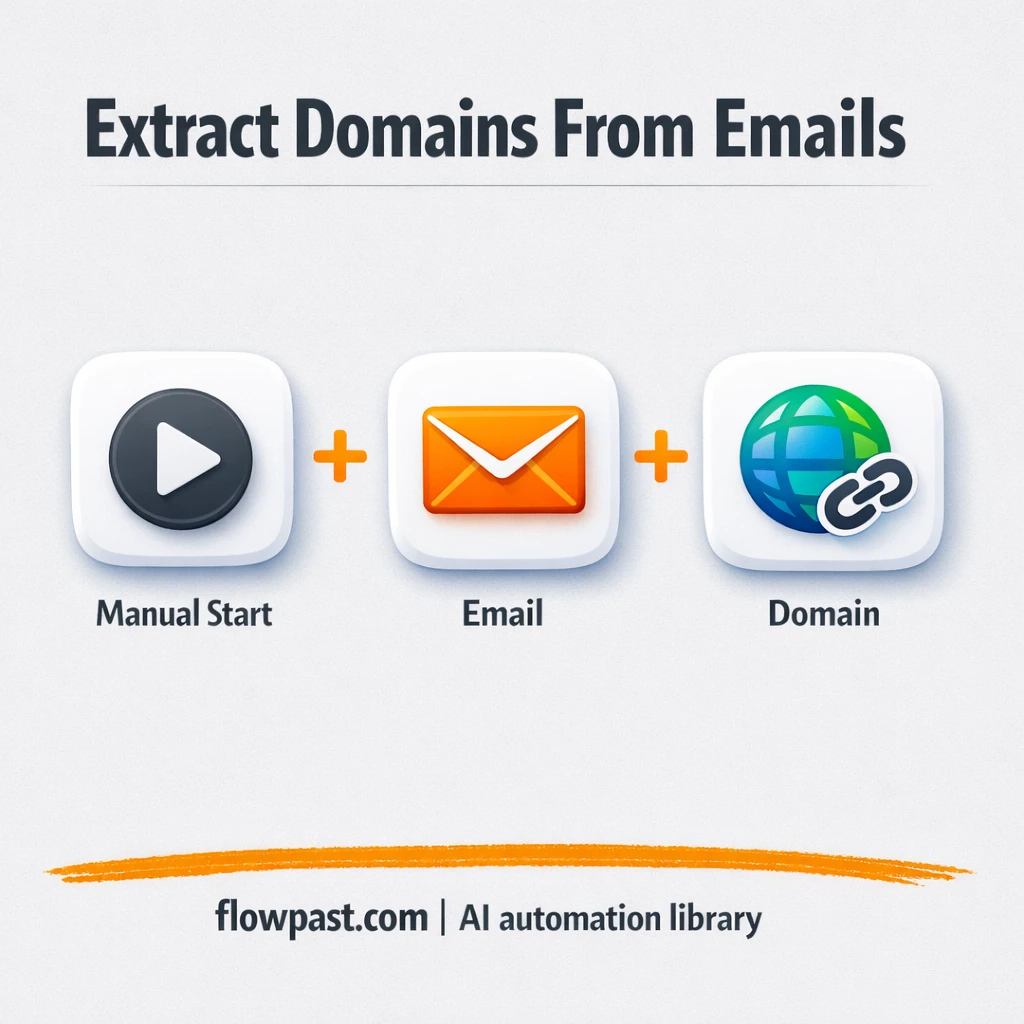

That “quick cleanup” of an email list never stays quick. You copy, paste, split at @, fix weird formatting, and still end up with broken domains like “gmail” or “company.co” with half the rows shifted.
Email domain extraction is the part that slows down marketing ops teams most, but founders running lean and lead gen freelancers feel it too. The win is simple: clean domains written into Google Sheets so you can segment and route without babysitting formulas.
This n8n workflow extracts the domain from an email address and sets you up to push that result into a Sheet. You will see how it runs, what you need, and where people usually get stuck.
How This Automation Works
The full n8n workflow, from trigger to final output:
n8n Workflow Template: Google Sheets email cleanup, domains extracted fast
flowchart LR

    subgraph sg0["Manual Start Flow"]
        direction LR
        n0@{ icon: "mdi:play-circle", form: "rounded", label: "Manual Start Trigger", pos: "b", h: 48 }
        n1@{ icon: "mdi:code-braces", form: "rounded", label: "Derive Email Domain", pos: "b", h: 48 }
        n2@{ icon: "mdi:swap-vertical", form: "rounded", label: "Provide Sample Email", pos: "b", h: 48 }
        n2 --> n1
        n0 --> n2
    end

    %% Styling
    classDef trigger fill:#e8f5e9,stroke:#388e3c,stroke-width:2px
    classDef ai fill:#e3f2fd,stroke:#1976d2,stroke-width:2px
    classDef aiModel fill:#e8eaf6,stroke:#3f51b5,stroke-width:2px
    classDef decision fill:#fff8e1,stroke:#f9a825,stroke-width:2px
    classDef database fill:#fce4ec,stroke:#c2185b,stroke-width:2px
    classDef api fill:#fff3e0,stroke:#e65100,stroke-width:2px
    classDef code fill:#f3e5f5,stroke:#7b1fa2,stroke-width:2px
    classDef disabled stroke-dasharray: 5 5,opacity: 0.5
    class n0 trigger
    class n1 code
The Problem: Email Lists Get Messy Fast
Email lists rarely arrive clean. You get a CSV export with “Name <[email protected]>”, mixed casing, trailing spaces, and the occasional “mailto:” prefix because someone scraped a website. Then you try to segment by company domain for routing (sales territories, partner vs. customer, free vs. paid inboxes), and your spreadsheet turns into a fragile stack of formulas. One small change breaks the whole column. Worse, you don’t notice until an outreach sequence goes to the wrong segment.
The friction compounds. It’s not one big disaster, it’s the little failures that keep showing up.
- Splitting emails manually in Google Sheets turns into a recurring task that eats about an hour whenever a new list lands.
- Formula-based extraction breaks on edge cases like “Name <[email protected]>” or rows with extra punctuation.
- Inconsistent domains ruin segmentation, so your “B2B only” list quietly fills with Gmail and Yahoo addresses.
- People stop trusting the sheet, which means you end up rechecking everything before sending.
The Solution: Extract Domains Automatically and Keep Sheets Clean
This workflow starts with a simple manual trigger in n8n, then passes an email value into a small function that derives the domain. In plain terms, it takes something like “[email protected]” and returns “acme.com”. That domain can then be written into a dedicated column in Google Sheets, which gives you clean segmentation keys without fragile spreadsheet logic. The workflow is intentionally lightweight, so it’s easy to adapt from “one test email” into “process an entire column of 5,000 rows.” And because the logic lives in n8n, you can reuse it anywhere: list cleanup, lead routing, enrichment calls, or QA checks before outreach.
The workflow kicks off when you run it, uses a provided sample email (or your real input), and derives the domain with a function. From there, the natural next step is sending that domain to Google Sheets, so every row gets a consistent, machine-generated value you can filter and group by.
What You Get: Automation vs. Results
| What This Workflow Automates | Results You’ll Get |
|---|---|
|
|
Example: What This Looks Like
Say you get a weekly export of 1,000 new leads and you want domains in a separate column for segmentation. Manually, even at a quick 10 minutes per 100 rows (splitting, checking odd cases, fixing broken cells), that’s about 1.5–2 hours every week. With this workflow, you trigger the run, let n8n extract domains in bulk, and write them back to Google Sheets. The “work” becomes a few minutes of setup and a quick spot-check, not an afternoon lost to spreadsheet babysitting.
What You’ll Need
- n8n instance (try n8n Cloud free)
- Self-hosting option if you prefer (Hostinger works well)
- Google Sheets to store emails and domains.
- n8n Function node for the domain extraction logic.
- Google credentials (set up in n8n “Credentials” for Sheets access).
Skill level: Beginner. You’ll connect Google Sheets and paste in a small bit of workflow logic, then test with a few rows.
Don’t want to set this up yourself? Talk to an automation expert (free 15-minute consultation).
How It Works
Manual run to stay in control. You start the workflow when you’re ready, which is great for list cleanup jobs that arrive in batches, not as a constant stream.
Input is set up in a simple “Provide Sample Email” step. In the template, that’s a single example value so you can test quickly. In a real setup, this is where you’d pull rows from Google Sheets or pass in data from another workflow.
The function derives the domain. It takes the email string, extracts everything after the “@”, and returns a clean domain field you can use everywhere else in your automation.
Send the output where you need it. Most teams write the domain back into Google Sheets (new column), but you can also route based on domain type, call enrichment APIs, or build suppression rules for personal inbox providers.
You can easily modify the input source to read a full spreadsheet column instead of a sample value based on your needs. See the full implementation guide below for customization options.
Step-by-Step Implementation Guide
Step 1: Configure the Manual Trigger
This workflow starts manually so you can test the email domain extraction on demand.
- Add the Manual Start Trigger node to your canvas.
- Leave the default settings as-is since this trigger has no parameters.
- Confirm that Manual Start Trigger connects to Provide Sample Email.
Step 2: Connect Provide Sample Email
Provide a sample email address that the workflow will use to extract the domain.
- Add the Provide Sample Email node.
- Set Keep Only Set to
true. - Under Values → String, add a field named email with the value
[YOUR_EMAIL]. - Ensure Provide Sample Email outputs to Derive Email Domain.
[YOUR_EMAIL] unchanged, the function will not return a real domain. Replace it with a valid email address.Step 3: Set Up Derive Email Domain
This step extracts the domain from the provided email and outputs it as a new JSON field.
- Add the Derive Email Domain node.
- In Function Code, paste the following code:
// Take email and extract the domain name var email = ($json["email"]); var name = email.substring(0, email.lastIndexOf("@")); var domain = email.substring(email.lastIndexOf("@") +1); //To display the final domain name. (result) return [{ json: { domain } }] - Verify the node receives input from Provide Sample Email.
Step 4: Configure Output Review
There are no external output destinations, so you will review the result directly in the node output.
- Open the Derive Email Domain node after execution to view the output.
- Confirm the output JSON includes a domain field with the extracted domain.
Step 5: Test and Activate Your Workflow
Run a manual test to confirm the workflow returns the correct domain.
- Click Execute Workflow to run Manual Start Trigger.
- Check Derive Email Domain output for a domain value matching the email you set.
- When satisfied, toggle the workflow to Active if you plan to expand it with additional triggers or outputs.
Common Gotchas
- Google Sheets credentials can expire or need specific permissions. If things break, check the n8n Credentials entry for Google and re-authenticate first.
- If you’re using Wait nodes or external rendering, processing times vary. Bump up the wait duration if downstream nodes fail on empty responses.
- Default logic in cleanup workflows is often too optimistic. If your emails include “Name <[email protected]>” formats, adjust the Function step early or you’ll be chasing weird outputs later.
Frequently Asked Questions
About 20 minutes if your Google Sheets access is already connected.
No. You’ll mainly connect accounts and edit a small, prebuilt Function step. If you can copy/paste and test a sample row, you’re fine.
Yes. n8n has a free self-hosted option and a free trial on n8n Cloud. Cloud plans start at $20/month for higher volume. You’ll also need to factor in Google usage (usually free for normal Sheets activity).
Two options: n8n Cloud (managed, easiest setup) or self-hosting on a VPS. For self-hosting, Hostinger VPS is affordable and handles n8n well. Self-hosting gives you unlimited executions but requires basic server management.
Yes, and it’s a common upgrade. Replace the “Provide Sample Email” step with a Google Sheets read step, then loop over rows (Split in Batches) and write the derived domain back to the same row. Many teams also add an If check to skip blanks, plus a merge step to keep the output tidy.
Usually it’s expired OAuth permission or the wrong Google account connected in n8n. Reconnect the Google Sheets credential, then confirm the spreadsheet is shared with that account. If you’re running in a workspace, admin restrictions can block access too, honestly.
A few thousand rows per run is normal.
Often, yes, once your “simple cleanup” turns into real logic. n8n makes it easier to handle edge cases (like odd formatting and conditional routing) without stacking paid steps for every little branch. You can also self-host for unlimited executions, which matters when you’re cleaning lists weekly or enriching in bulk. Zapier or Make can still be quicker for a tiny two-step zap, but they get pricey as soon as you add looping and data cleanup. If you’re unsure, Talk to an automation expert and get a straight recommendation.
Once domain extraction runs automatically, your Google Sheets stop being a fragile “do not touch” artifact. Set it up, reuse it, and move on to the work that actually grows revenue.
Need Help Setting This Up?
Our automation experts can build and customize this workflow for your specific needs. Free 15-minute consultation—no commitment required.
