


Google Sheets to Gmail, birthday discounts sent out
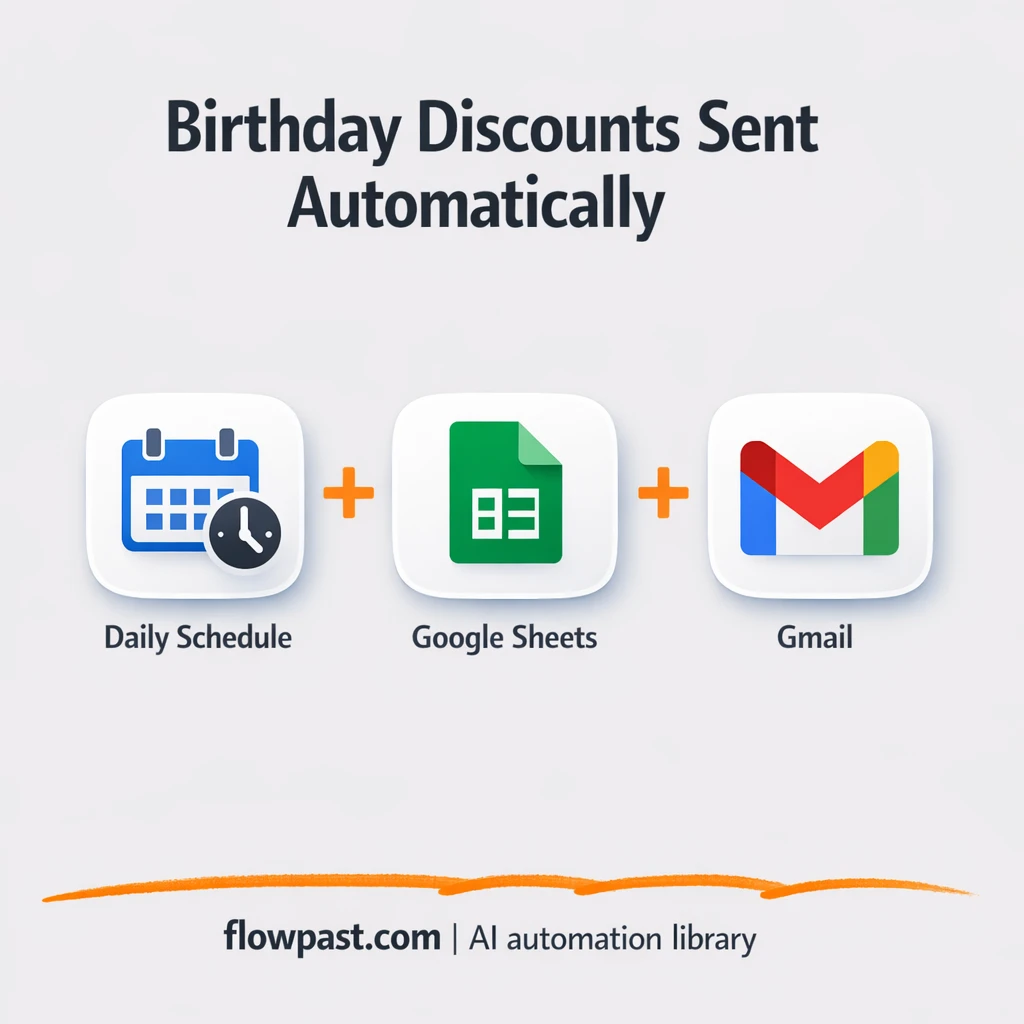

You meant to send birthday discounts. You even built a Google Sheet for it. Then the week gets busy, nobody checks the sheet, and a “happy birthday” email never goes out.
This Sheets Gmail birthdays automation hits ecommerce owners first, but marketing managers and client-handling agency leads feel it too. One missed birthday is one missed “easy win” sale, plus a customer who feels forgotten.
This workflow runs daily, finds today’s birthdays in Google Sheets, creates a unique discount token, and sends a personalized Gmail message automatically. You’ll see exactly how it works, what you need, and where teams usually tweak it.
How This Automation Works
The full n8n workflow, from trigger to final output:
n8n Workflow Template: Google Sheets to Gmail, birthday discounts sent out
flowchart LR

    subgraph sg0["Scheduled Daily Flow"]
        direction LR
        n0@{ icon: "mdi:play-circle", form: "rounded", label: "Scheduled Daily Trigger", pos: "b", h: 48 }
        n1@{ icon: "mdi:database", form: "rounded", label: "Retrieve Customer Records", pos: "b", h: 48 }
        n2@{ icon: "mdi:swap-horizontal", form: "rounded", label: "Verify Birthday Match", pos: "b", h: 48 }
        n3@{ icon: "mdi:code-braces", form: "rounded", label: "Create Discount Token", pos: "b", h: 48 }
        n4@{ icon: "mdi:message-outline", form: "rounded", label: "Dispatch Birthday Email", pos: "b", h: 48 }
        n0 --> n1
        n1 --> n2
        n2 --> n3
        n3 --> n4
    end

    %% Styling
    classDef trigger fill:#e8f5e9,stroke:#388e3c,stroke-width:2px
    classDef ai fill:#e3f2fd,stroke:#1976d2,stroke-width:2px
    classDef aiModel fill:#e8eaf6,stroke:#3f51b5,stroke-width:2px
    classDef decision fill:#fff8e1,stroke:#f9a825,stroke-width:2px
    classDef database fill:#fce4ec,stroke:#c2185b,stroke-width:2px
    classDef api fill:#fff3e0,stroke:#e65100,stroke-width:2px
    classDef code fill:#f3e5f5,stroke:#7b1fa2,stroke-width:2px
    classDef disabled stroke-dasharray: 5 5,opacity: 0.5
    class n0 trigger
    class n2 decision
    class n1 database
    class n3 code
The Problem: Birthday Discounts Get Missed (and That’s Money)
Birthday outreach is the kind of thing everyone agrees is smart, and almost nobody executes consistently. The sheet gets updated, then ignored. Or someone remembers… two days late… and now the message feels awkward. Even when you do send it, copying names, checking dates, and making sure the discount code is unique turns into a small task that still steals focus. Do that across a growing customer list and it becomes a recurring, morale-draining chore that’s easy to “do tomorrow” forever.
It adds up fast. Here’s where it usually breaks down in real life.
- Someone has to manually check birthdays every morning, and it quietly becomes a weekday-only habit.
- Discount codes get reused or copied wrong, which means customer support tickets and annoyed customers.
- Personalization slips, so “Happy birthday, {FirstName}” becomes a real risk.
- There is no reliable record of who received what, making follow-ups and reporting messy.
The Solution: Daily Birthday Checks + Unique Discount Emails
This n8n workflow turns your Google Sheet into a dependable “birthday engine” that runs on autopilot. Every day on your schedule, it pulls your customer records from Google Sheets, compares each birthday to today’s date, and filters to only the matches. When it finds someone with a birthday today, it generates a unique discount token (so you’re not reusing the same code forever) and sends a celebratory email from Gmail with the customer’s name and the code inserted automatically. No spreadsheets open on your laptop. No reminders. It just happens, quietly, and your customers think you are unusually thoughtful.
The workflow starts with a daily schedule trigger. Google Sheets provides the customer list, the “birthday match” step decides who qualifies, and a small function creates a one-off code for that customer. Gmail sends the final message, already personalized and ready to redeem.
What You Get: Automation vs. Results
| What This Workflow Automates | Results You’ll Get |
|---|---|
|
|
Example: What This Looks Like
Say you have 500 customers in your Sheet and you average 3 birthdays a day. Manually, you’re looking at roughly 10 minutes to check the sheet, plus about 5 minutes per email to personalize and make a code, so around 25 minutes most days (and closer to an hour on busy days). With this workflow, the trigger runs automatically and you only spend time if you want to review the email template. Day-to-day effort becomes basically zero, while customers still get that “wow, they remembered” moment.
What You’ll Need
- n8n instance (try n8n Cloud free)
- Self-hosting option if you prefer (Hostinger works well)
- Google Sheets to store names, emails, birthdays.
- Gmail to send the personalized birthday emails.
- Google credentials (OAuth) (connect inside n8n’s credentials screen).
Skill level: Beginner. You’ll connect accounts, paste a Sheet ID, and edit an email template.
Don’t want to set this up yourself? Talk to an automation expert (free 15-minute consultation).
How It Works
A daily schedule kicks things off. You choose the time (many teams pick early morning), and n8n runs the workflow automatically every day.
Google Sheets becomes the source of truth. The workflow reads your customer rows (name, email, and a birthday formatted as MM-dd like 08-27) so it can check each record without you touching the spreadsheet.
Today’s birthdays get filtered. An “is it their birthday?” check compares the birthday column to today’s date and only passes through matches. Everything else is ignored, which keeps Gmail sends clean.
A unique token is created, then Gmail sends the message. The function step generates a simple unique discount code, and the Gmail node sends your branded subject and message with the customer’s name and code inserted.
You can easily modify the discount code logic to generate real coupons in Shopify or WooCommerce based on your needs. See the full implementation guide below for customization options.
Step-by-Step Implementation Guide
Step 1: Configure the Schedule Trigger
Set up the daily schedule that starts the workflow.
- Add the Scheduled Daily Trigger node as the workflow trigger.
- In Scheduled Daily Trigger, open Rule and confirm the interval settings are configured for a daily run.
- Connect Scheduled Daily Trigger to Retrieve Customer Records.
Step 2: Connect Google Sheets
Pull customer records from Google Sheets for birthday matching.
- Open Retrieve Customer Records and set Operation to
getAll. - Select the target spreadsheet in Document (fill the blank documentId selector).
- Credential Required: Connect your
googleSheetsOAuth2Apicredentials. - Ensure the sheet includes at least name, email, and birthday columns that match the fields used later.
MM-dd, the comparison in the next step will fail. Normalize the date format in Google Sheets.Step 3: Set Up the Birthday Check
Filter records to only those matching today’s date.
- Open Verify Birthday Match and confirm the boolean condition uses the expressions
={{ $json.birthday }}and={{ $now.toFormat('MM-dd') }}. - Connect Retrieve Customer Records to Verify Birthday Match.
- Connect the true output of Verify Birthday Match to Create Discount Token.
Step 4: Set Up the Discount Code Generator
Create a unique discount token for each matching customer.
- Open Create Discount Token and add your logic to generate a discountCode field (e.g., random string or API call) for each item.
- Ensure the output JSON includes name and discountCode for the email step.
- Connect Create Discount Token to Dispatch Birthday Email.
Step 5: Configure the Email Action
Send the personalized birthday email with the generated code.
- Open Dispatch Birthday Email and set Subject to
Happy Birthday! Here's a gift from us!. - Set Message to the provided template, ensuring it includes
{{ $json.name }}and{{ $json.discountCode }}. - Credential Required: Connect your
gmailOAuth2credentials.
Step 6: Test and Activate Your Workflow
Validate the full flow before turning it on.
- Click Execute Workflow to run a manual test.
- Confirm that Verify Birthday Match passes only matching records and that Dispatch Birthday Email receives name and discountCode.
- Check your Gmail sent folder to verify the email content is correct.
- When everything looks correct, toggle the workflow to Active for daily production use.
Common Gotchas
- Google Sheets credentials can expire or need specific permissions. If things break, check the n8n Credentials screen and the connected Google account access to the spreadsheet first.
- If you’re processing a large sheet, the run may take longer than you expect. Adjust the schedule time (earlier) if you want emails delivered before business hours.
- The birthday format matters more than people expect. Keep it consistent as MM-dd in the sheet, or the “birthday match” check will quietly skip the people you wanted to email.
Frequently Asked Questions
About 30 minutes if your Google accounts are ready.
No. You will connect Google Sheets and Gmail, then tweak a couple of fields like your Sheet name and email copy.
Yes. n8n has a free self-hosted option and a free trial on n8n Cloud. Cloud plans start at $20/month for higher volume. You’ll also want to account for any e-commerce coupon API costs if you swap the discount generator for Shopify or WooCommerce.
Two options: n8n Cloud (managed, easiest setup) or self-hosting on a VPS. For self-hosting, Hostinger VPS is affordable and handles n8n well. Self-hosting gives you unlimited executions but requires basic server management.
Yes, but you’ll replace the “Create Discount Token” function with a Shopify (or WooCommerce) coupon creation request. Many people do it using an HTTP Request node that calls the platform’s coupon/discount endpoint, then passes the returned code into the Gmail message. Common customizations include setting an expiration date, limiting the discount to a collection, and adding a minimum order value.
Most of the time it’s expired or changed Google permissions. Reconnect your Google Sheets credential in n8n, confirm the spreadsheet is shared with the same Google account, and double-check the Spreadsheet ID and Sheet Name in the “Retrieve Customer Records” step. Also make sure the birthday column header matches what the workflow expects (for example, “birthday”). If the sheet was copied from another file, the ID often changed and nobody noticed.
Thousands, as long as your Google Sheet and n8n instance are healthy.
Often, yes, because n8n handles logic like “check every row, filter matches, generate a value, then send” without turning into an expensive multi-step bill. Self-hosting is a big deal too if you want unlimited runs. Zapier or Make can still be fine if you prefer a simpler UI and you’re okay paying per task when the sheet grows. If you want someone to sanity-check the cheapest setup for your volume, Talk to an automation expert.
Once this is live, birthdays stop being a task on someone’s plate. Set it up once, keep your sheet updated, and let the workflow handle the follow-through.
Need Help Setting This Up?
Our automation experts can build and customize this workflow for your specific needs. Free 15-minute consultation—no commitment required.
