


Google Sheets to Gmail, monthly finance reports done
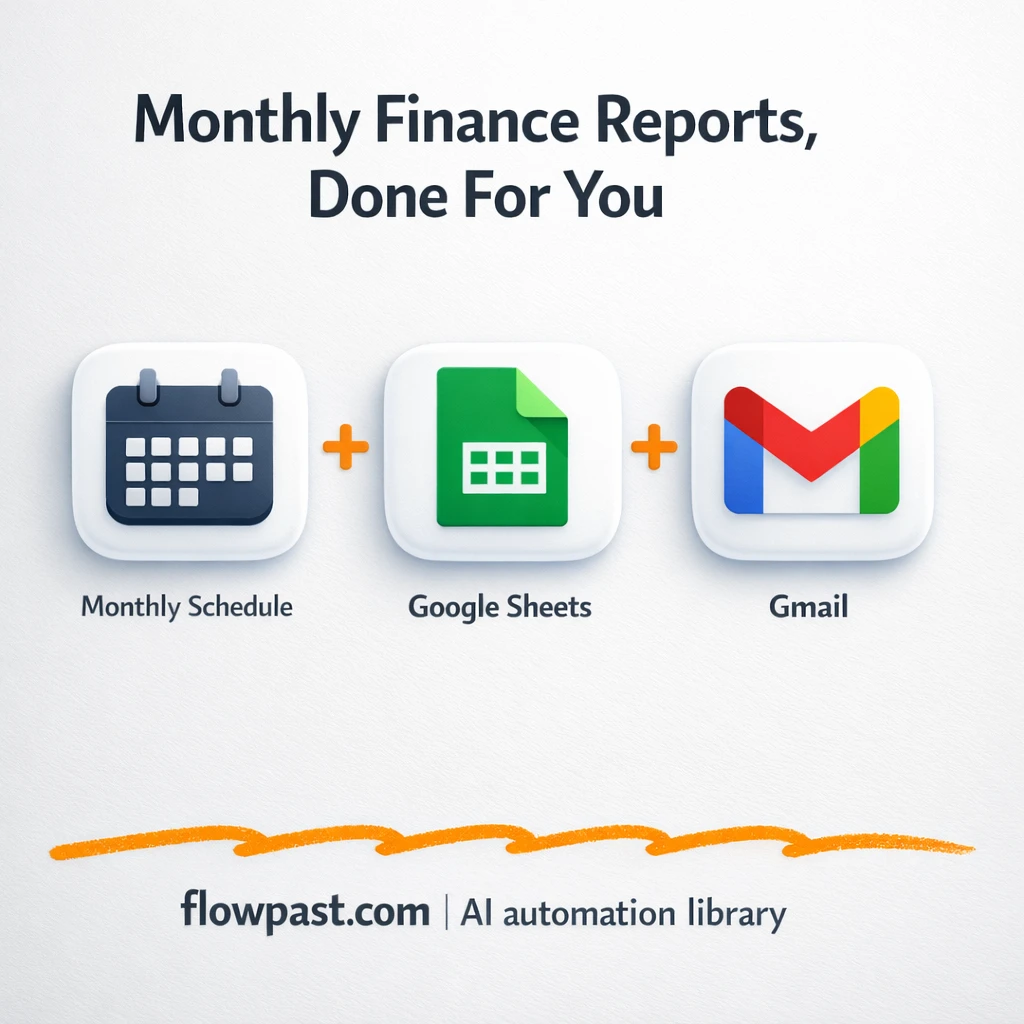

Monthly reporting shouldn’t feel like archaeology. But if your transactions live in Google Sheets, you probably spend the first day of the month sorting dates, fixing totals, and rewriting the same “what changed?” summary.
This hits marketing leads who need a quick budget readout, but business owners and ops folks feel it too. Sheets finance reports automation gives you a clean, ready-to-send monthly email with totals and a few useful insights, without the copy-paste marathon.
Below is the exact n8n workflow that pulls last month’s transactions, has AI summarize what matters, and sends the report via Gmail. You’ll see how it works, what you need, and the common pitfalls to avoid.
How This Automation Works
The full n8n workflow, from trigger to final output:
n8n Workflow Template: Google Sheets to Gmail, monthly finance reports done
flowchart LR

    subgraph sg0["Schedule Flow"]
        direction LR
        n0@{ icon: "mdi:database", form: "rounded", label: "1. Get Finance Transactions ..", pos: "b", h: 48 }
        n1@{ icon: "mdi:code-braces", form: "rounded", label: "2. Filter Previous Month Tra..", pos: "b", h: 48 }
        n2["<div style='background:#f5f5f5;padding:10px;border-radius:8px;display:inline-block;border:1px solid #e0e0e0'><img src='https://flowpast.com/wp-content/uploads/n8n-workflow-icons/openAi.dark.svg' width='40' height='40' /></div><br/>3. Generate AI Financial Ins.."]
        n3@{ icon: "mdi:message-outline", form: "rounded", label: "4. Send Monthly Finance Repo..", pos: "b", h: 48 }
        n4@{ icon: "mdi:play-circle", form: "rounded", label: "Schedule Trigger", pos: "b", h: 48 }
        n4 --> n0
        n2 --> n3
        n1 --> n2
        n0 --> n1
    end

    %% Styling
    classDef trigger fill:#e8f5e9,stroke:#388e3c,stroke-width:2px
    classDef ai fill:#e3f2fd,stroke:#1976d2,stroke-width:2px
    classDef aiModel fill:#e8eaf6,stroke:#3f51b5,stroke-width:2px
    classDef decision fill:#fff8e1,stroke:#f9a825,stroke-width:2px
    classDef database fill:#fce4ec,stroke:#c2185b,stroke-width:2px
    classDef api fill:#fff3e0,stroke:#e65100,stroke-width:2px
    classDef code fill:#f3e5f5,stroke:#7b1fa2,stroke-width:2px
    classDef disabled stroke-dasharray: 5 5,opacity: 0.5
    class n4 trigger
    class n0 database
    class n1 code
    classDef customIcon fill:none,stroke:none
    class n2 customIcon
The Problem: Monthly reporting turns into manual cleanup
If you’ve ever built a “simple” monthly finance email, you know how it goes. You open the sheet, filter to last month, realize a few rows are missing categories, then second-guess the totals because one refund is sitting in the wrong column. After that, you still need to write the narrative part: what drove expenses, what income lines changed, and what you should pay attention to next month. It’s not hard work. It’s repetitive work, and it steals the morning you meant to use for decisions.
The friction compounds. Here’s where it breaks down in real life.
- You spend about 1–2 hours every month filtering and formatting the same report.
- Small data mistakes slip in because you’re moving fast, which means totals don’t match and trust drops.
- The “insights” section becomes vague because you’re already tired by the time you write it.
- Reports go out late when the one person who knows the steps is busy or out.
The Solution: Google Sheets + Gmail reports, generated automatically
This workflow runs on a monthly schedule (typically the first day of the month), pulls your transactions straight from a Google Sheet, and isolates only the entries from the prior month. Then it hands that curated dataset to OpenAI to calculate total income, total expenses, and a short set of practical bullet insights based on what changed. Finally, n8n assembles everything into a formatted Gmail message, including a transaction table and the AI summary, and emails it to the people who need it. No digging through tabs. No last-minute spreadsheet gymnastics.
The workflow starts with a Cron-style schedule trigger. Next, Google Sheets acts as the source of truth, and a small filter step trims the data to the right date window. OpenAI produces the totals and narrative, then Gmail sends the final report as a ready-to-forward email.
What You Get: Automation vs. Results
| What This Workflow Automates | Results You’ll Get |
|---|---|
|
|
Example: What This Looks Like
Say your sheet has around 300 transactions per month and you send a summary to two people. Manually, you might spend 45 minutes filtering and cleaning, 30 minutes double-checking totals, and another 30 minutes writing a decent explanation. Call it about 2 hours. With this workflow, you spend maybe 10 minutes once to set the Sheet range and recipients, then the monthly run is automatic (a few minutes to process, then it arrives in Gmail). That’s your month-end morning back.
What You’ll Need
- n8n instance (try n8n Cloud free)
- Self-hosting option if you prefer (Hostinger works well)
- Google Sheets for your transaction table and categories.
- Gmail to send the report to stakeholders.
- OpenAI API key (get it from your OpenAI dashboard).
Skill level: Beginner. You’ll connect accounts and confirm your sheet columns match the expected format.
Don’t want to set this up yourself? Talk to an automation expert (free 15-minute consultation).
How It Works
A monthly schedule kicks it off. n8n runs on the day you choose (most people pick the 1st), so reporting happens even if nobody remembers.
Your Google Sheet is read as-is. The workflow grabs rows from a defined range (for example, a FinanceSummary tab with columns like date, description, category, income/expense, amount). If your columns are slightly different, you’ll adjust the range and mapping once.
Last month gets isolated. A small Function step filters rows to the complete previous month, which avoids the classic “partial month” confusion when someone runs a report early.
AI produces totals and a short narrative. OpenAI receives only the filtered data, then returns total income, total expense, and three concise insights you can actually skim.
Gmail sends the finished report. The final email includes a transaction table plus the summary, so recipients can glance at the story and still audit details if they want.
You can easily modify the schedule to run weekly instead of monthly based on your needs. See the full implementation guide below for customization options.
Step-by-Step Implementation Guide
Step 1: Configure the Schedule Trigger
Set the workflow to run automatically each month using the built-in schedule trigger.
- Add the Monthly Schedule Trigger node as the trigger.
- Set the schedule rule interval to run every month by configuring rule → interval with field set to
months. - Ensure the connection flows from Monthly Schedule Trigger to Retrieve Finance Sheet Data.
Step 2: Connect Google Sheets
Pull the monthly finance data from your Google Sheet.
- Add the Retrieve Finance Sheet Data node.
- Set Sheet ID to
[YOUR_ID]. - Set Range to
FinanceSummary!A:E. - Credential Required: Connect your googleSheetsOAuth2Api credentials.
- Connect Retrieve Finance Sheet Data to Filter Prior Month Records.
Date column matching the expected format, or the filter step will drop all rows.Step 3: Set Up Data Filtering and AI Insights
Filter the dataset to the prior month and generate a summary with GPT-4.
- Add the Filter Prior Month Records node and keep the provided Function Code to filter by the previous month.
- Add the Create AI Finance Insights node and set Model to
gpt-4. - Set the Prompt to include the transaction payload with the expression
{{JSON.stringify($json, null, 2)}}. - Credential Required: Connect your openAiApi credentials.
- Ensure the flow connects Filter Prior Month Records → Create AI Finance Insights.
Step 4: Configure the Email Output
Send the AI-generated summary to your recipients via Gmail.
- Add the Dispatch Finance Summary Email node.
- Set Subject to
Monthly Finance Summary and AI Insights. - Credential Required: Connect your gmailOAuth2 credentials.
- Connect Create AI Finance Insights to Dispatch Finance Summary Email.
Step 5: Test and Activate Your Workflow
Validate the end-to-end run and then enable the monthly schedule.
- Click Execute Workflow to run the flow manually.
- Confirm that Retrieve Finance Sheet Data outputs rows, Filter Prior Month Records returns only the previous month, and Create AI Finance Insights generates a formatted summary.
- Check your inbox to verify Dispatch Finance Summary Email sends the report successfully.
- Turn on the workflow by toggling Active so Monthly Schedule Trigger runs each month in production.
Common Gotchas
- Google Sheets credentials can expire or need specific permissions. If things break, check the Google connection inside n8n Credentials first, then confirm the Sheet is shared with the right account.
- If you’re using Wait nodes or external rendering, processing times vary. Bump up the wait duration if downstream nodes fail on empty responses.
- Default prompts in AI nodes are generic. Add your brand voice early or you’ll be editing outputs forever.
Frequently Asked Questions
About 30 minutes if your Google accounts are ready.
No coding required. You’ll mostly connect Google Sheets, Gmail, and paste in your OpenAI API key.
Yes. n8n has a free self-hosted option and a free trial on n8n Cloud. Cloud plans start at $20/month for higher volume. You’ll also need to factor in OpenAI API costs (often a few cents per report, depending on how much text you include).
Two options: n8n Cloud (managed, easiest setup) or self-hosting on a VPS. For self-hosting, Hostinger VPS is affordable and handles n8n well. Self-hosting gives you unlimited executions but requires basic server management.
Yes, but you’ll change two parts. Update the Schedule Trigger to run weekly, then adjust the “Filter Prior Month Records” function logic to filter the last 7 days (or last full week) instead of the previous month. Many teams also tweak the OpenAI prompt so the insights focus on category spikes and unusual transactions. If you want, you can add a second Gmail node to send a shorter “weekly pulse” to a wider list.
Usually it’s an expired Google OAuth session or the Sheet isn’t shared with the same Google account used in n8n. Reconnect the Google Sheets credential, then confirm the Sheet ID is correct and the tab/range exists (for example, FinanceSummary!A:E). If the data loads but the AI step fails, check for blank date cells or inconsistent date formats because the filter logic relies on valid dates.
Hundreds per month is fine, and even a few thousand usually works, but very large sheets may require narrowing the range or summarizing before sending to OpenAI.
Often, yes, if you care about control. n8n makes it easier to filter dates reliably, reshape rows, and build a proper “report” payload before the email is sent. Self-hosting is also a big deal when you want unlimited runs without watching task limits. Zapier or Make can still work if your version is very simple, but once you add “only last month,” totals, and AI insights, the logic tends to get messy. If you’re on the fence, Talk to an automation expert and you’ll get a straight recommendation.
Once this is running, your month-end report becomes a non-event. The workflow handles the repetitive parts so you can focus on the decisions the numbers are trying to tell you.
Need Help Setting This Up?
Our automation experts can build and customize this workflow for your specific needs. Free 15-minute consultation—no commitment required.
