


Google Sheets to Shopify, cleaner customer imports
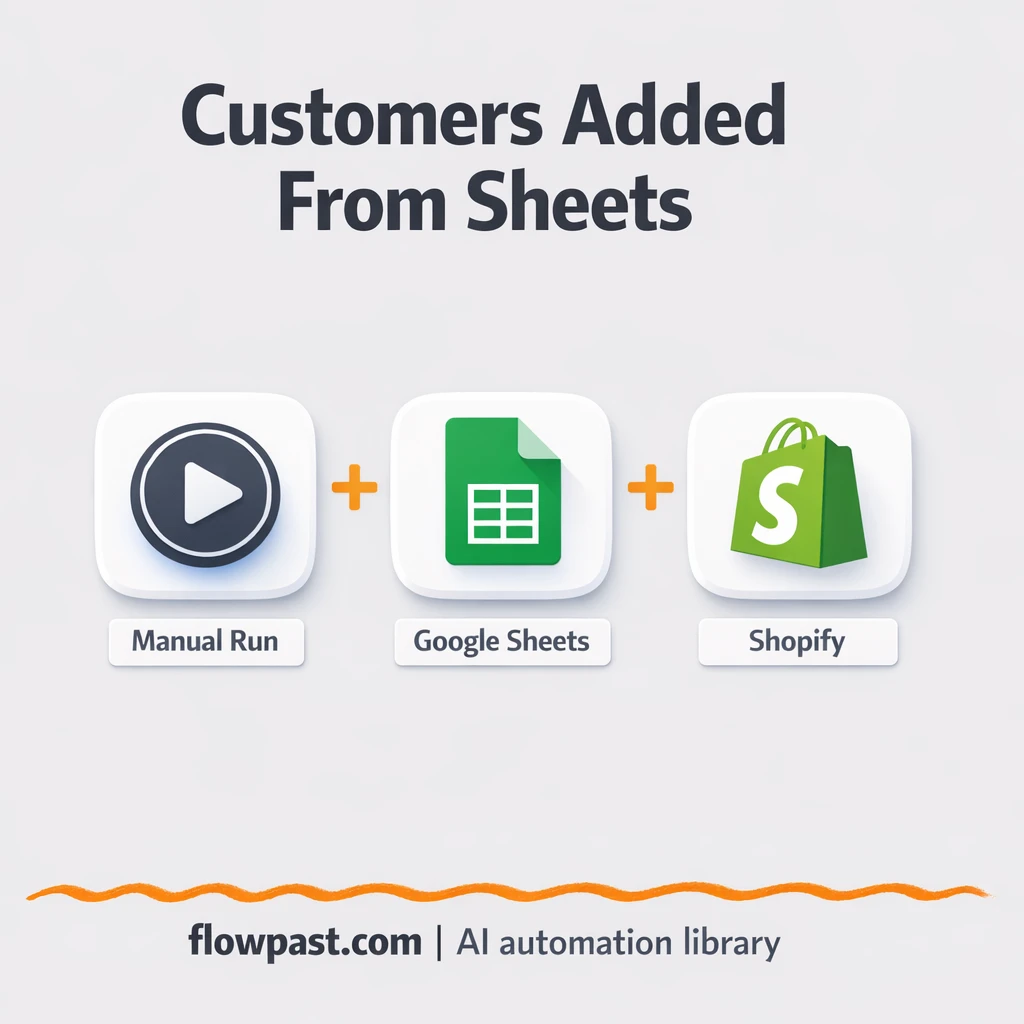

Customer imports look simple until Shopify starts rejecting rows. One bad phone format, one missing field, one “almost valid” email, and suddenly you’re stuck re-exporting, reformatting, and trying again.
This Sheets Shopify import workflow hits store operators and marketers first (especially during a migration), but developers generating test customers feel it too. You move customers from a Google Sheet into Shopify with consistent fields, so errors show up fast and clean rows go through.
Below, you’ll see how the automation runs, what you need to connect, and what results to expect when you stop doing “one more cleanup pass” before every import.
How This Automation Works
Here’s the complete workflow you’ll be setting up:
n8n Workflow Template: Google Sheets to Shopify, cleaner customer imports
flowchart LR

    subgraph sg0["Start Workflow Flow"]
        direction LR
        n0@{ icon: "mdi:play-circle", form: "rounded", label: "Start Workflow", pos: "b", h: 48 }
        n1@{ icon: "mdi:database", form: "rounded", label: "Google Sheet, Fetch Customers", pos: "b", h: 48 }
        n2["<div style='background:#f5f5f5;padding:10px;border-radius:8px;display:inline-block;border:1px solid #e0e0e0'><img src='https://flowpast.com/wp-content/uploads/n8n-workflow-icons/graphql.png' width='40' height='40' /></div><br/>Shopify, CustomerCreate"]
        n0 --> n1
        n1 --> n2
    end

    %% Styling
    classDef trigger fill:#e8f5e9,stroke:#388e3c,stroke-width:2px
    classDef ai fill:#e3f2fd,stroke:#1976d2,stroke-width:2px
    classDef aiModel fill:#e8eaf6,stroke:#3f51b5,stroke-width:2px
    classDef decision fill:#fff8e1,stroke:#f9a825,stroke-width:2px
    classDef database fill:#fce4ec,stroke:#c2185b,stroke-width:2px
    classDef api fill:#fff3e0,stroke:#e65100,stroke-width:2px
    classDef code fill:#f3e5f5,stroke:#7b1fa2,stroke-width:2px
    classDef disabled stroke-dasharray: 5 5,opacity: 0.5
    class n0 trigger
    class n1 database
    classDef customIcon fill:none,stroke:none
    class n2 customIcon
Why This Matters: Shopify Rejects “Almost Correct” Imports
When you’re importing customers, the pain usually isn’t the “big” mistakes. It’s the small stuff you only notice after Shopify refuses to create the record. Phone numbers that aren’t in international format. Emails that look fine until you spot a trailing space. Columns that drift over time because different teammates keep “improving” the sheet. You end up babysitting a process that should have been one click, and every retry costs time, attention, and confidence in your data.
And the frustrating part is how it compounds. Fix one row, rerun the import, find the next issue, repeat.
- Manual CSV imports usually turn into multiple rounds of cleanup and re-upload, especially when the sheet came from another platform.
- Shopify is strict about certain fields (like phone format), so “close enough” data gets rejected instead of auto-corrected.
- If your team uses the sheet for other work, column names and ordering drift, which breaks mapping and creates surprises.
- Retries waste more than time because you start second-guessing what did or didn’t import successfully.
What You’ll Build: A Reliable Google Sheets → Shopify Customer Import
This workflow reads customer rows from a Google Sheet and creates customers in Shopify using Shopify’s Admin API (GraphQL). You start with a sheet where the first row contains column names like first_name, last_name, email, and mobile_phone. When you run the workflow, n8n pulls each row, maps it into the right structure, then sends it to your Shopify store’s GraphQL endpoint. Shopify responds with a success or an error, and you can quickly spot which rows need attention rather than guessing. It’s a clean way to generate test users for dev stores, migrate customers from another system, or just stop fighting brittle CSV imports.
The workflow begins with a manual trigger, so you control when it runs. Next, Google Sheets provides the customer rows. Finally, the GraphQL request creates customers in Shopify using your store’s access token and the required API scopes.
What You’re Building
| What Gets Automated | What You’ll Achieve |
|---|---|
|
|
Expected Results
Say you’re importing 200 customers from a Google Sheet. Manually, you’ll often spend about 40 minutes exporting CSVs, fixing columns, and re-uploading, then another 20 minutes chasing the handful of rows Shopify rejects. With this workflow, you run the import from n8n in a minute or two, then only spend time on exceptions. For most teams, that’s roughly an hour of fiddly work reduced to about 10 minutes of targeted fixes.
Before You Start
- n8n instance (try n8n Cloud free)
- Self-hosting option if you prefer (Hostinger works well)
- Google Sheets for your customer source data.
- Shopify Admin API (GraphQL) to create customers in your store.
- Shopify access token (generate it in Shopify Admin under Develop Apps).
Skill level: Beginner. You’ll connect accounts, paste an API token, and confirm your sheet columns match the expected names.
Want someone to build this for you? Talk to an automation expert (free 15-minute consultation).
Step by Step
You run it on demand. A manual trigger starts the workflow when you’re ready, which is perfect for migrations, test data generation, or periodic backfills.
Customer rows are pulled from Google Sheets. n8n reads the sheet and treats the first row as column names, so each customer becomes a structured record instead of a messy row of cells.
Each record is sent to Shopify via GraphQL. The workflow calls your store’s Admin API endpoint and authenticates using the X-Shopify-Access-Token header, creating the customer in Shopify if the data is valid.
You get clear success and failure feedback. Good rows go through; rejected rows surface quickly so you can fix formatting (phone numbers are the usual culprit) and rerun without drama.
You can easily modify the source sheet and the field mapping to match your data model. See the full implementation guide below for customization options.
Step-by-Step Implementation Guide
Step 1: Configure the Manual Trigger
This workflow starts manually so you can test customer creation on demand.
- Add and place Manual Launch Trigger at the start of the canvas.
- Leave its parameters empty (no configuration required).
Step 2: Connect Google Sheets
Read customer records from your Google Sheet to feed the Shopify customer creation step.
- Add Retrieve Sheet Customers and connect it to Manual Launch Trigger.
- Credential Required: Connect your googleSheetsOAuth2Api credentials.
- Set Document to the spreadsheet ID by selecting the file (value shows as
[YOUR_ID]in the workflow). - Set Sheet Name to the target sheet (value shows as
Customerswith ID[YOUR_ID]).
Step 3: Configure Create Shopify Customers
This node sends each sheet row to Shopify via GraphQL and creates a customer record.
- Add Create Shopify Customers and connect it to Retrieve Sheet Customers.
- Credential Required: Connect your httpHeaderAuth credentials (Shopify Admin API access token in header auth).
- Set Endpoint to
https://[YOUR_ID].myshopify.com/admin/api/2025-04/graphql.json. - Set Authentication to
headerAuth. - Set Query to the mutation provided in the workflow:
=mutation customerCreate($input: CustomerInput!) { customerCreate(input: $input) { userErrors { field message } customer { id email phone taxExempt firstName lastName amountSpent { amount currencyCode } smsMarketingConsent { marketingState marketingOptInLevel consentUpdatedAt } } } } - Set Variables to
={ "input": { "email": "{{ $json.email }}", "phone": "{{ $json.mobile_phone }}", "firstName": "{{ $json.first_name }}", "lastName": "{{ $json.last_name }}", "smsMarketingConsent": { "marketingState": "SUBSCRIBED", "marketingOptInLevel": "SINGLE_OPT_IN" } } }.
Step 4: Test and Activate Your Workflow
Run a manual test to confirm data flows from Sheets into Shopify and then enable the workflow for ongoing use.
- Click Execute Workflow and trigger Manual Launch Trigger.
- Verify Retrieve Sheet Customers outputs rows with fields like
email,mobile_phone,first_name, andlast_name. - Confirm Create Shopify Customers returns a
customerobject and nouserErrors. - When successful, toggle the workflow to Active for production use.
Troubleshooting Tips
- Google Sheets credentials can expire or need specific permissions. If things break, check the Google connection in n8n’s Credentials area and confirm Drive + Sheets access is granted.
- If Shopify calls fail, verify the token header is exactly X-Shopify-Access-Token and the app has at least read_customers and write_customers scopes in Shopify Admin.
- Phone formatting causes a lot of “mystery” rejections. Shopify typically expects international format with no spaces (for example, +61414999999), so normalize that in your sheet before you import.
Quick Answers
About 30 minutes if your Google and Shopify access is ready.
No. You’ll connect Google Sheets and paste a Shopify token, then confirm the GraphQL endpoint matches your store.
Yes. n8n has a free self-hosted option and a free trial on n8n Cloud. Cloud plans start at $20/month for higher volume. Shopify’s Admin API is included with your store, so there’s no separate per-request fee in most cases.
Two options: n8n Cloud (managed, easiest setup) or self-hosting on a VPS. For self-hosting, Hostinger VPS is affordable and handles n8n well. Self-hosting gives you unlimited executions but requires basic server management.
Yes, but keep the “shape” of the flow the same. You can replace the Google Sheets read step with Airtable or Baserow if that’s where your customer list lives, then keep the Shopify GraphQL step as-is. Common tweaks include adding extra customer fields (like tags), validating email formats before sending, and writing failed rows back to a “Fix these” sheet so nothing gets lost.
Most of the time it’s the token or permissions. Regenerate your Shopify access token, confirm the header name is X-Shopify-Access-Token, and make sure the app has read_customers and write_customers scopes. Also check the endpoint URL, because Shopify’s GraphQL path includes your API version (for example, /admin/api/2025-04/graphql.json). If you’re testing in a dev store, verify the app is installed on that specific store, not just created.
Practically, hundreds to thousands of customers per run is normal, as long as your n8n plan and server can handle the executions.
Often, yes. n8n is more comfortable with API-style work (GraphQL calls, custom headers, and handling responses), and you can self-host for unlimited executions, which matters when you’re importing lots of rows. Zapier or Make can work, but you’ll usually end up paying more once you add looping, error handling, or anything beyond a basic two-step sync. The bigger point is control: you can see exactly what gets sent to Shopify and why it failed. If you want a second opinion, Talk to an automation expert and we’ll sanity-check your setup.
Run the import, fix only what’s actually broken, and get back to work. The workflow takes the busywork off your plate, and Shopify gets cleaner customer data.
Need Help Setting This Up?
Our automation experts can build and customize this workflow for your specific needs. Free 15-minute consultation—no commitment required.
