


Google Sheets to WhatsApp, bulk sends with status
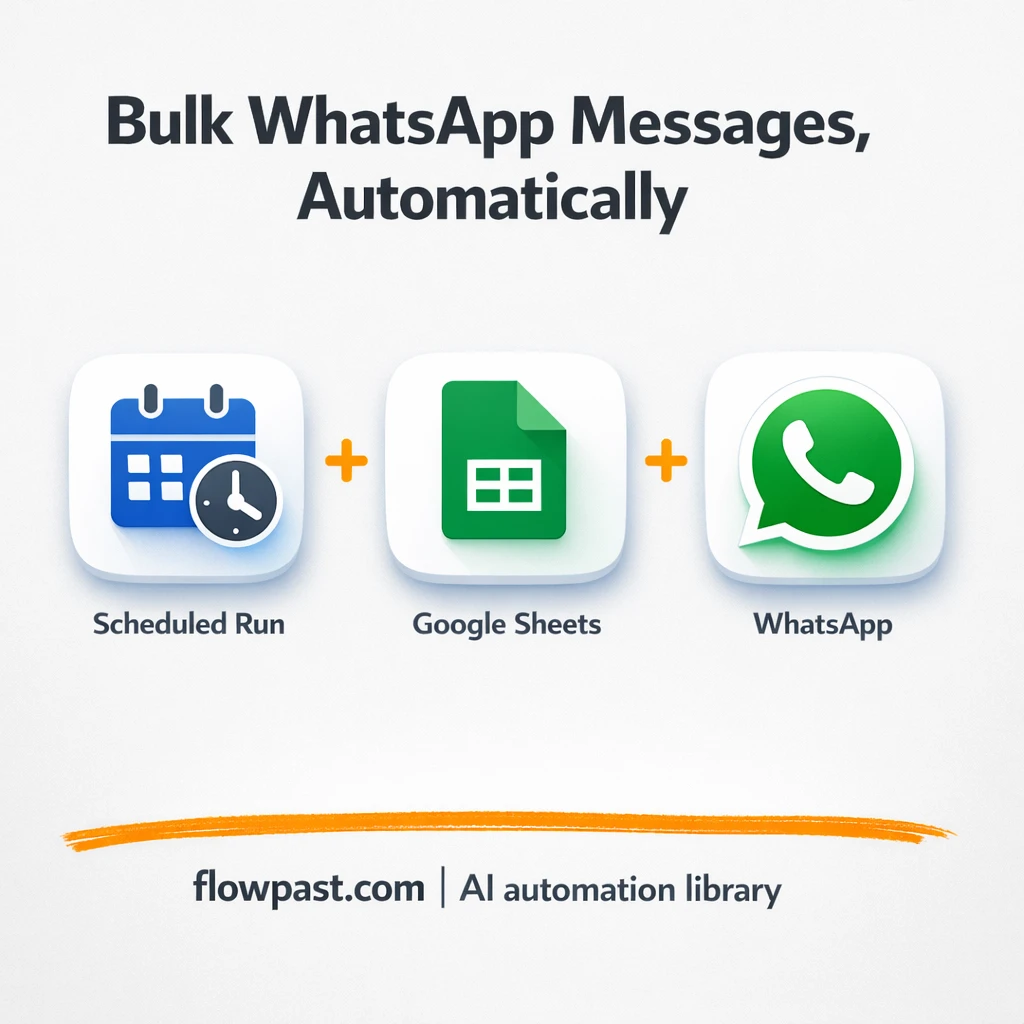

Bulk WhatsApp outreach sounds simple until you’re staring at a sheet, copying messages one-by-one, and losing track of who got what. One missed row turns into an awkward double-send. One “I’ll do it later” becomes a whole afternoon gone.
This WhatsApp bulk sends setup hits marketers first, honestly. But small business owners doing promos and support teams handling follow-ups feel the same pain. The outcome is straightforward: send from Google Sheets, keep a clean status per row, and stop guessing what happened.
You’ll see what the workflow does, what you need to run it, and how to avoid the common mistakes that cause failed sends or messy reporting.
How This Automation Works
See how this solves the problem:
n8n Workflow Template: Google Sheets to WhatsApp, bulk sends with status
flowchart LR

    subgraph sg0["Trigger Every 5 Minute Flow"]
        direction LR
        n0@{ icon: "mdi:database", form: "rounded", label: "Fetch All Pending Queries fo..", pos: "b", h: 48 }
        n1@{ icon: "mdi:database", form: "rounded", label: "Change State of Rows in Sent", pos: "b", h: 48 }
        n2@{ icon: "mdi:swap-vertical", form: "rounded", label: "Loop Over Items", pos: "b", h: 48 }
        n3@{ icon: "mdi:cog", form: "rounded", label: "Wait", pos: "b", h: 48 }
        n4@{ icon: "mdi:cog", form: "rounded", label: "Limit", pos: "b", h: 48 }
        n5@{ icon: "mdi:play-circle", form: "rounded", label: "Trigger Every 5 Minute", pos: "b", h: 48 }
        n6["<div style='background:#f5f5f5;padding:10px;border-radius:8px;display:inline-block;border:1px solid #e0e0e0'><img src='https://flowpast.com/wp-content/uploads/n8n-workflow-icons/httprequest.dark.svg' width='40' height='40' /></div><br/>Send Message Using HTTP Requ.."]
        n3 --> n2
        n4 --> n2
        n2 --> n1
        n2 --> n6
        n5 --> n0
        n6 --> n3
        n0 --> n4
    end

    %% Styling
    classDef trigger fill:#e8f5e9,stroke:#388e3c,stroke-width:2px
    classDef ai fill:#e3f2fd,stroke:#1976d2,stroke-width:2px
    classDef aiModel fill:#e8eaf6,stroke:#3f51b5,stroke-width:2px
    classDef decision fill:#fff8e1,stroke:#f9a825,stroke-width:2px
    classDef database fill:#fce4ec,stroke:#c2185b,stroke-width:2px
    classDef api fill:#fff3e0,stroke:#e65100,stroke-width:2px
    classDef code fill:#f3e5f5,stroke:#7b1fa2,stroke-width:2px
    classDef disabled stroke-dasharray: 5 5,opacity: 0.5
    class n5 trigger
    class n0,n1 database
    class n6 api
    classDef customIcon fill:none,stroke:none
    class n6 customIcon
The Challenge: Bulk WhatsApp Sends Without Losing Control
If you’re running a promo, event reminder, client follow-up, or “just checking in” campaign, the list usually lives in a spreadsheet. That part is fine. The mess starts when you have to move those rows into WhatsApp manually, keep track of what was sent, and avoid hitting rate limits or triggering suspicious activity. You end up managing the process with sticky notes, memory, and a lot of tab switching. And when someone asks, “Did we message these 60 leads already?” you’re back to scanning chat history like it’s evidence.
It adds up fast. Here’s where it breaks down.
- Copying a message into WhatsApp for every row eats up about 2 hours on a 100-contact list.
- Status tracking gets fuzzy, so duplicates happen and you look spammy even when you’re trying to be helpful.
- Team members can’t easily share the workload because “what’s been sent” lives inside one person’s phone.
- Manual sending invites mistakes like wrong names, wrong offers, or skipping high-intent leads by accident.
The Fix: Send WhatsApp Messages From Sheets and Update Status
This workflow turns your Google Sheet into a simple bulk-send console. On a schedule, it checks your sheet for rows where the Status column is set to “pending”. It then sends each message through an HTTP request to an unofficial WhatsApp sending service (WasenderAPI), using the phone number and message fields from that row. After each send, the workflow waits briefly so you don’t hammer the API, then continues through the next batch. Once a message goes out, it updates the same row in Google Sheets to “sent” so you always know what happened without digging through chats.
The workflow starts with a scheduled run, then pulls only the rows you’ve marked as pending. It sends in controlled batches with a built-in pause, and finishes by writing back to Google Sheets so your campaign list stays accurate.
What Changes: Before vs. After
| What This Eliminates | Impact You’ll See |
|---|---|
|
|
Real-World Impact
Say you run weekly promos to 120 customers. Manually, if you spend maybe 1 minute per contact to open the chat, paste the message, and double-check the name, that’s about 2 hours every week. With this workflow, you spend about 10 minutes updating the sheet (numbers, message, status = pending), then let n8n run on a schedule and send with a short wait between messages. The sheet flips each row to “sent”, so your follow-up list is ready the same day.
Requirements
- n8n instance (try n8n Cloud free)
- Self-hosting option if you prefer (Hostinger works well)
- Google Sheets for the contact list and status column.
- WasenderAPI to send WhatsApp messages via HTTP.
- WasenderAPI key (get it from your WasenderAPI account dashboard)
Skill level: Beginner. You’ll connect Google Sheets, paste an API key, and confirm your sheet columns match the workflow.
Need help implementing this? Talk to an automation expert (free 15-minute consultation).
The Workflow Flow
A scheduled run kicks everything off. The workflow triggers automatically (on a timer) so you don’t have to remember to run campaigns manually. Set it and move on.
Google Sheets is treated like your send queue. n8n pulls rows from your sheet where Status equals “pending”, then caps the number of records so you don’t accidentally send a massive batch in one go.
Messages are sent in small batches through an HTTP request. Each row becomes one WhatsApp send via WasenderAPI, using the number and message fields you provided. A short wait follows each send so the workflow stays within a safe rhythm.
The sheet is updated immediately after sending. Once a message is dispatched, the workflow writes back to Google Sheets and marks the row as “sent”, which gives you a clean, searchable campaign log.
You can easily modify the wait time to slow down delivery based on your needs. See the full implementation guide below for customization options.
Step-by-Step Implementation Guide
Step 1: Configure the Scheduled Trigger
This workflow starts on a schedule and then pulls pending WhatsApp messages from Google Sheets.
- Add and open Scheduled Run Trigger.
- Set your desired schedule in Scheduled Run Trigger (e.g., every X minutes/hours).
- Connect Scheduled Run Trigger to Retrieve Pending Messages.
Step 2: Connect Google Sheets
These nodes read pending messages and mark rows as sent after dispatch.
- Open Retrieve Pending Messages and configure the spreadsheet, sheet, and range containing pending WhatsApp messages.
- Credential Required: Connect your Google Sheets credentials in Retrieve Pending Messages.
- Open Mark Rows as Sent and set the spreadsheet and range used to update the sent status.
- Credential Required: Connect your Google Sheets credentials in Mark Rows as Sent.
- Confirm the flow Retrieve Pending Messages → Cap Record Count.
Step 3: Set Up Batching and Throttling
Limit total records and batch them to avoid rate limits.
- Open Cap Record Count and set the maximum number of rows per run.
- Open Iterate Batches and set the batch size for processing messages.
- Ensure Cap Record Count connects to Iterate Batches.
- Note that Iterate Batches outputs to both Mark Rows as Sent and Dispatch WhatsApp Request in parallel.
- Open Pause Before Next Batch and set the wait duration between batches.
- Confirm the loop Dispatch WhatsApp Request → Pause Before Next Batch → Iterate Batches.
Step 4: Configure the WhatsApp Dispatch
This node sends each message to your WhatsApp API endpoint.
- Open Dispatch WhatsApp Request and set the request Method, URL, headers, and body for your WhatsApp provider.
- Map message fields from the incoming items to the request payload as needed.
- Credential Required: Connect your HTTP Request credentials (if your endpoint requires authentication) in Dispatch WhatsApp Request.
Step 5: Test and Activate Your Workflow
Validate the flow end-to-end, then enable scheduled runs.
- Click Execute Workflow to run a manual test from Scheduled Run Trigger.
- Confirm that Retrieve Pending Messages pulls rows, Dispatch WhatsApp Request sends requests, and Mark Rows as Sent updates status.
- If batches loop, verify Pause Before Next Batch delays between cycles and Iterate Batches progresses correctly.
- When satisfied, toggle the workflow to Active to enable scheduled runs.
Watch Out For
- Google Sheets credentials can expire or need specific permissions. If things break, check the Google connection inside n8n’s Credentials page first.
- If you’re using Wait nodes or external sending services, processing times vary. Bump up the wait duration if downstream nodes fail on empty responses.
- WasenderAPI can reject requests if your API key is wrong or your account is paused. Check your WasenderAPI dashboard logs before you rewrite the workflow.
Common Questions
About 30 minutes if your sheet and accounts are ready.
Yes. You won’t write code, but you will need to match the sheet columns and paste an API key into the HTTP request node.
Yes. n8n has a free self-hosted option and a free trial on n8n Cloud. Cloud plans start at $20/month for higher volume. You’ll also need to factor in WasenderAPI costs (about $6/month).
Two options: n8n Cloud (managed, easiest setup) or self-hosting on a VPS. For self-hosting, Hostinger VPS is affordable and handles n8n well. Self-hosting gives you unlimited executions but requires basic server management.
You can tweak the Google Sheets filter so it pulls only a certain campaign tag, not every pending row. If you want slower sending, adjust the “Pause Before Next Batch” wait time (or insert another Wait) and keep your rhythm consistent. To personalize messages, add columns like FirstName or Offer and map them into the “Dispatch WhatsApp Request” body. You can also write back different statuses like “failed” or “needs review” by adding a simple IF after the send.
Most of the time it’s expired authorization or the wrong Google account connected. Reconnect the Google Sheets credential in n8n, then confirm the spreadsheet and worksheet still exist and haven’t been renamed. If the node can read but can’t update, it’s usually permission related (the connected account doesn’t have edit access).
Practically, it’s limited by your sending service rules and your wait time, not the spreadsheet.
Often, yes, if you care about control. n8n makes it easy to batch through rows, pause between requests, and write back a status without paying extra for every branch and loop. It’s also nice to self-host when your volume grows, because you’re not boxed into task pricing. Zapier or Make can still be fine for tiny lists or a one-off campaign. Talk to an automation expert if you want a quick recommendation based on your volume and risk tolerance.
Once your sheet becomes the source of truth, WhatsApp sending stops being a stressful manual ritual. Set it up once, keep your statuses clean, and use that reclaimed time for the work that actually moves revenue.
Need Help Setting This Up?
Our automation experts can build and customize this workflow for your specific needs. Free 15-minute consultation—no commitment required.
