


Instagram to Google Sheets, every lead logged clean
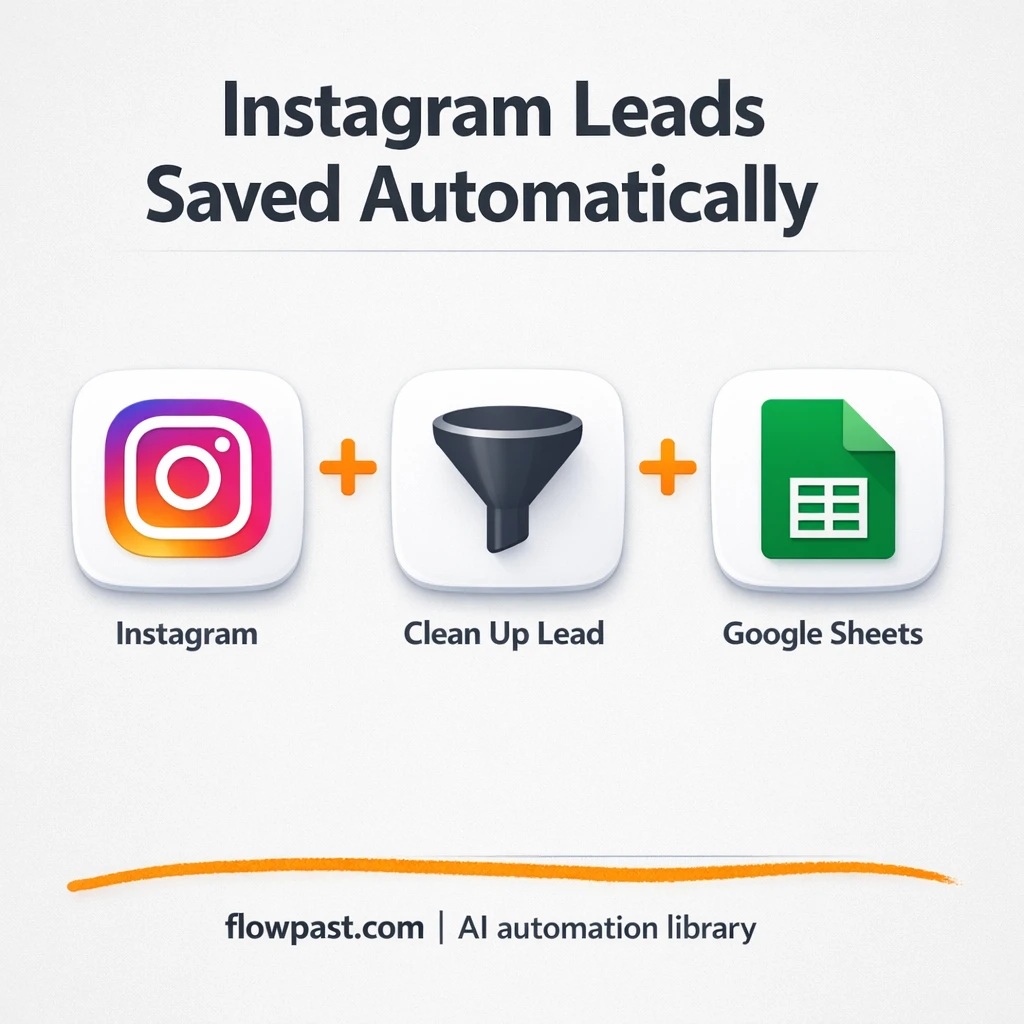

Instagram leads are “easy” until you have to chase them. Someone checks notifications, someone screenshots details, then a half-finished spreadsheet gets updated later (or not at all).
This Instagram Sheets automation hits marketing managers first, but small business owners and agency folks doing lead gen feel it too. You get every lead logged in one Google Sheet, with timestamps and a clear source, so follow-ups stop slipping.
Below is the exact workflow logic, what it fixes, and how teams typically use it day-to-day without turning the process into a new project.
How This Automation Works
See how this solves the problem:
n8n Workflow Template: Instagram to Google Sheets, every lead logged clean
flowchart LR

    subgraph sg0["Flow 1"]
        direction LR
        n0["<div style='background:#f5f5f5;padding:10px;border-radius:8px;display:inline-block;border:1px solid #e0e0e0'><img src='https://flowpast.com/wp-content/uploads/n8n-workflow-icons/webhook.dark.svg' width='40' height='40' /></div><br/>Instagram Lead Webhook"]
        n1["<div style='background:#f5f5f5;padding:10px;border-radius:8px;display:inline-block;border:1px solid #e0e0e0'><img src='https://flowpast.com/wp-content/uploads/n8n-workflow-icons/code.svg' width='40' height='40' /></div><br/>Normalize Lead Data"]
        n2@{ icon: "mdi:database", form: "rounded", label: "Save to Google Sheets", pos: "b", h: 48 }
        n1 --> n2
        n0 --> n1
    end

    %% Styling
    classDef trigger fill:#e8f5e9,stroke:#388e3c,stroke-width:2px
    classDef ai fill:#e3f2fd,stroke:#1976d2,stroke-width:2px
    classDef aiModel fill:#e8eaf6,stroke:#3f51b5,stroke-width:2px
    classDef decision fill:#fff8e1,stroke:#f9a825,stroke-width:2px
    classDef database fill:#fce4ec,stroke:#c2185b,stroke-width:2px
    classDef api fill:#fff3e0,stroke:#e65100,stroke-width:2px
    classDef code fill:#f3e5f5,stroke:#7b1fa2,stroke-width:2px
    classDef disabled stroke-dasharray: 5 5,opacity: 0.5
    class n2 database
    class n0 api
    class n1 code
    classDef customIcon fill:none,stroke:none
    class n0,n1 customIcon
The Challenge: Instagram leads that go missing (or messy)
Instagram lead forms are great at creating demand and terrible at creating order. Leads arrive when you’re in meetings, driving, or running ads for three clients at once. Then the “process” becomes a bunch of manual checks, copy-paste into a sheet, and one more reminder to “update the CRM later.” Honestly, the worst part isn’t the time. It’s the uncertainty: you can’t trust your numbers, and you don’t know which lead never got a reply.
It adds up fast. And the friction compounds in very predictable places:
- Someone has to monitor Instagram lead notifications, which means leads wait hours before anyone even sees them.
- Copying names, emails, and phone numbers by hand creates typos that kill follow-up and attribution.
- Duplicates creep in when two people log the same lead or when a lead submits twice.
- Reporting turns into guesswork because “source” and timestamps are missing or inconsistent.
The Fix: Automatically log every Instagram lead in Google Sheets
This workflow acts like a simple, reliable bridge between your Instagram lead form and a single Google Sheet your team can trust. When a new lead is submitted, n8n receives it instantly through a webhook (a secure “inbox” URL Instagram can send data to). The workflow then cleans up the raw payload so each lead has consistent fields like name, email, and phone, even if Instagram’s formatting changes. It adds a timestamp and a “Source = Instagram” label, which sounds small until you’re trying to understand what actually worked last week. Finally, it appends the lead to Google Sheets, using the email field to detect duplicates so you don’t create junk data as you scale.
The workflow starts with the Instagram lead webhook. Then a normalization step standardizes the fields and adds context. Google Sheets receives one clean row per lead, updating existing entries when the email matches instead of creating another copy.
What Changes: Before vs. After
| What This Eliminates | Impact You’ll See |
|---|---|
|
|
Real-World Impact
Say you get 15 Instagram leads in a week. Manually, it’s easy to spend about 5 minutes per lead opening notifications, copying fields, and cleaning up the sheet, which is roughly an hour weekly (and that assumes no mistakes). With this workflow, the “work” is basically zero after setup: leads arrive via webhook, the code node standardizes them, and Google Sheets logs them automatically. You still follow up, of course. But the logging part disappears.
Requirements
- n8n instance (try n8n Cloud free)
- Self-hosting option if you prefer (Hostinger works well)
- Instagram lead form to collect new submissions.
- Google Sheets to store and share the lead log.
- Google credentials (connect via n8n’s Google Sheets node).
Skill level: Beginner. You’ll paste a webhook URL into Instagram and connect a Google account in n8n.
Need help implementing this? Talk to an automation expert (free 15-minute consultation).
The Workflow Flow
A new Instagram lead hits your webhook. Instagram sends the form submission to a unique webhook URL generated by n8n, so you’re not relying on someone “checking it later.”
The lead data gets standardized. A lightweight code step reshapes the raw payload into consistent columns (name, email, phone, message), adds a timestamp, and stamps “Instagram” as the source.
Google Sheets becomes the system of record. The workflow appends the lead as a new row, and it can also update an existing row when the email already exists, which helps prevent duplicates.
Your team works from one shared list. Sales can filter by date, marketing can pivot by source, and nobody has to wonder if the sheet is current.
You can easily modify the columns to match your sheet layout, or tweak the duplicate logic to key off phone number instead of email based on your needs. See the full implementation guide below for customization options.
Step-by-Step Implementation Guide
Step 1: Configure the Webhook Trigger
This workflow begins when Instagram lead data hits your webhook endpoint.
- Add the Incoming IG Lead Webhook node as your trigger.
- Set Path to
instagram-leads. - Set HTTP Method to
POST. - Copy the generated webhook URL and configure your Instagram lead form to send data to it.
Step 2: Connect Google Sheets
This workflow logs standardized leads into a spreadsheet.
- Add the Append to Sheets Log node.
- Set Operation to
appendOrUpdate. - Enable Use Append in Options.
- Set Sheet Name to
Sheet1. - Set Document ID to your spreadsheet ID, replacing
[YOUR_ID]. - Credential Required: Connect your Google Sheets credentials.
Step 3: Set Up the Processing Node
The workflow standardizes incoming data into a consistent structure.
- Add the Standardize Lead Payload node.
- Paste the JavaScript from the workflow into JS Code to normalize fields like name, email, and phone.
- Confirm the node returns a
jsonobject with keys likename,email,phone,message,source,timestamp, andraw_data.
Step 4: Configure Output Flow
Ensure the execution order matches the lead processing logic.
- Connect Incoming IG Lead Webhook to Standardize Lead Payload.
- Connect Standardize Lead Payload to Append to Sheets Log.
Step 5: Test and Activate Your Workflow
Validate the end-to-end flow before turning it on.
- Click Execute Workflow and send a test payload to the Incoming IG Lead Webhook URL.
- Confirm Standardize Lead Payload outputs a normalized lead object.
- Verify a new row is appended in your Google Sheet by Append to Sheets Log.
- Switch the workflow to Active for production use.
Watch Out For
- Google Sheets credentials can expire or need specific permissions. If things break, check the Google account connection inside n8n’s Credentials page first.
- Webhook testing can be misleading if Instagram sends a different payload than your sample. Submit a real test lead from the live form and confirm the field mapping before you call it “done.”
- Default normalization is rarely perfect for every form. If you collect extra fields (like “budget” or “preferred callback time”), add them in the standardization code now or you will be patching reports later.
Common Questions
Usually about 30 minutes once your sheet is ready.
Yes. No coding is required if you keep the default normalization. You’ll mostly connect Google Sheets and paste a webhook URL into Instagram.
Yes. n8n has a free self-hosted option and a free trial on n8n Cloud. Cloud plans start at $20/month for higher volume. You’ll also need to factor in Google usage (usually free for normal Sheets usage).
Two options: n8n Cloud (managed, easiest setup) or self-hosting on a VPS. For self-hosting, Hostinger VPS is affordable and handles n8n well. Self-hosting gives you unlimited executions but requires basic server management.
You can customize the “Standardize Lead Payload” step to match your exact form fields and sheet headers. Common tweaks include adding extra columns (campaign name, ad set, “Notes”), changing the duplicate check to use phone instead of email, and splitting leads into different sheets based on form name. If you later decide Sheets isn’t your final destination, you can keep the same webhook and normalization and swap the last step to Airtable or your CRM.
Most of the time it’s an expired or disconnected Google credential inside n8n. Reconnect the Google account, then confirm the Sheet ID is correct and that the account has edit access to that file. If the sheet was moved between Google Drives, permissions can quietly change and cause sudden failures.
On a typical n8n setup, it can handle hundreds of leads a day without breaking a sweat.
Often, yes, if you care about control and data cleanliness. n8n makes it easier to standardize fields in the middle (that normalization step is the difference between “logged” and “usable”), and you can self-host for unlimited executions when lead volume grows. You also get more flexible logic for handling duplicates and edge cases without paying extra for every branch. Zapier or Make can still be fine for a simple “send lead to sheet” connection, especially if you never need custom formatting. If you’re unsure, Talk to an automation expert and we’ll help you pick the least painful option.
Once this is live, your lead log updates itself and your reporting finally lines up with reality. The workflow handles the repetitive stuff, so you can focus on follow-up and creative testing.
Need Help Setting This Up?
Our automation experts can build and customize this workflow for your specific needs. Free 15-minute consultation—no commitment required.
