


JotForm + Google Sheets: clean, enriched leads
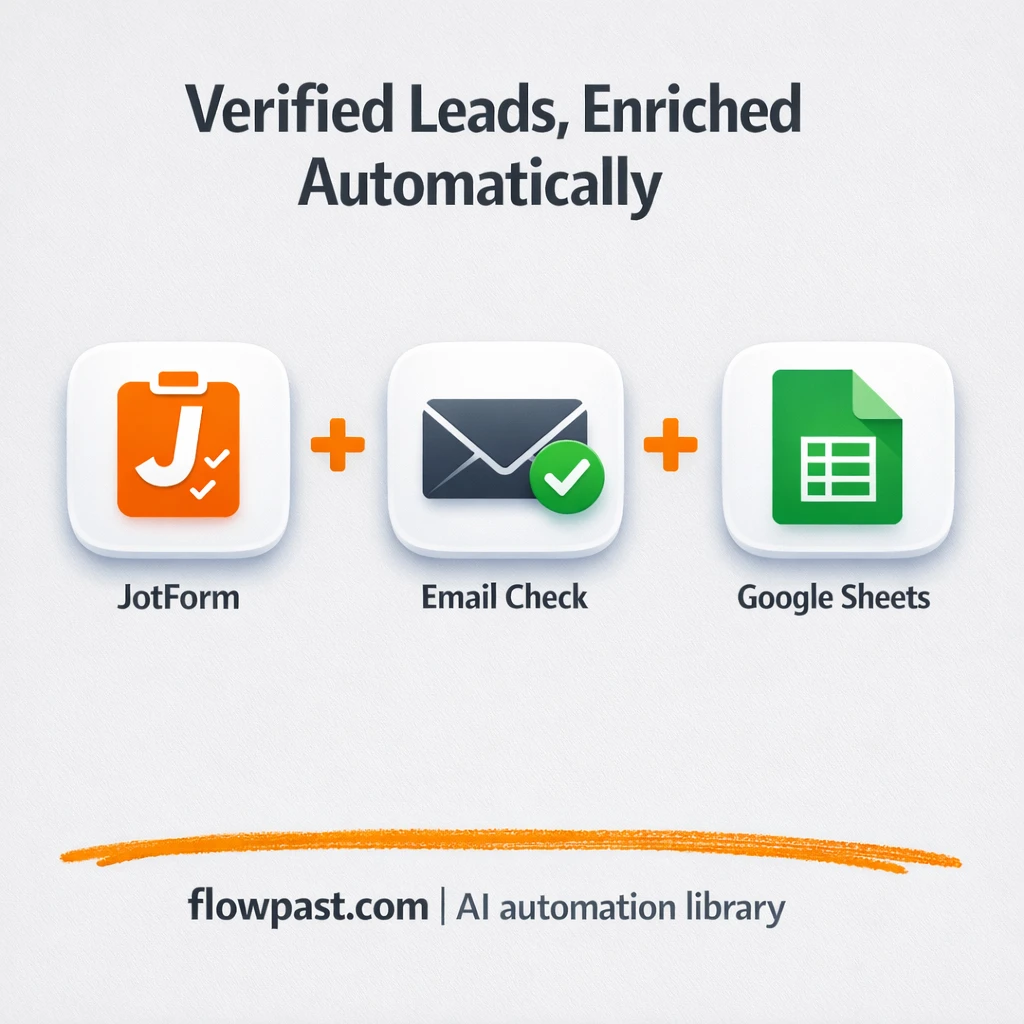

Your form is working. Leads are coming in. Then reality hits: half the emails bounce, names are messy, and you’re staring at a spreadsheet you don’t trust.
Marketing managers feel this when campaign reports get questioned. Sales reps feel it when sequences burn domains. And a business owner feels it when “new leads” turn into a cleanup project. This lead enrichment automation fixes that before bad data spreads.
You’ll set up an n8n workflow that captures every JotForm submission, verifies the email with Reoon, enriches the contact via Apollo, and keeps Google Sheets updated with the version you actually want to follow up with.
How This Automation Works
Here’s the complete workflow you’ll be setting up:
n8n Workflow Template: JotForm + Google Sheets: clean, enriched leads
flowchart LR

    subgraph sg0["Trigger: JotForm Submission Flow"]
        direction LR
        n0["<div style='background:#f5f5f5;padding:10px;border-radius:8px;display:inline-block;border:1px solid #e0e0e0'><img src='https://flowpast.com/wp-content/uploads/n8n-workflow-icons/jotform.dark.svg' width='40' height='40' /></div><br/>Trigger: JotForm Submission"]
        n1@{ icon: "mdi:database", form: "rounded", label: "Sheets: Create Contact Record", pos: "b", h: 48 }
        n2["<div style='background:#f5f5f5;padding:10px;border-radius:8px;display:inline-block;border:1px solid #e0e0e0'><img src='https://flowpast.com/wp-content/uploads/n8n-workflow-icons/httprequest.dark.svg' width='40' height='40' /></div><br/>API: Email Verification (Reo.."]
        n3@{ icon: "mdi:database", form: "rounded", label: "Sheets: Save Verification St..", pos: "b", h: 48 }
        n4@{ icon: "mdi:swap-horizontal", form: "rounded", label: "Filter: Safe Emails Only", pos: "b", h: 48 }
        n5["<div style='background:#f5f5f5;padding:10px;border-radius:8px;display:inline-block;border:1px solid #e0e0e0'><img src='https://flowpast.com/wp-content/uploads/n8n-workflow-icons/httprequest.dark.svg' width='40' height='40' /></div><br/>API: Contact Enrichment (Apo.."]
        n6@{ icon: "mdi:database", form: "rounded", label: "Sheets: Save Enriched Data", pos: "b", h: 48 }
        n4 --> n5
        n0 --> n1
        n1 --> n2
        n2 --> n3
        n5 --> n6
        n3 --> n4
    end

    %% Styling
    classDef trigger fill:#e8f5e9,stroke:#388e3c,stroke-width:2px
    classDef ai fill:#e3f2fd,stroke:#1976d2,stroke-width:2px
    classDef aiModel fill:#e8eaf6,stroke:#3f51b5,stroke-width:2px
    classDef decision fill:#fff8e1,stroke:#f9a825,stroke-width:2px
    classDef database fill:#fce4ec,stroke:#c2185b,stroke-width:2px
    classDef api fill:#fff3e0,stroke:#e65100,stroke-width:2px
    classDef code fill:#f3e5f5,stroke:#7b1fa2,stroke-width:2px
    classDef disabled stroke-dasharray: 5 5,opacity: 0.5
    class n0 trigger
    class n4 decision
    class n1,n3,n6 database
    class n2,n5 api
    classDef customIcon fill:none,stroke:none
    class n0,n2,n5 customIcon
Why This Matters: Form Leads Turn Messy Fast
Leads from forms look clean until you try to use them. One person types “gmial.com”, another uses a disposable email, and somebody pastes a company name that’s basically a shrug. Now your spreadsheet becomes a guessing game, your team wastes time “researching” what should have been captured automatically, and follow-ups get delayed. Worse, bad emails slip into outbound tools, which can hurt deliverability and make every campaign feel less reliable than it should.
It adds up fast. Here’s where it usually breaks down.
- Someone has to manually check emails, and it turns into a daily “just one more list” task.
- You start enriching leads only after they’re in the CRM, which means junk data spreads into sequences, pipelines, and reports.
- Reps lose momentum because they can’t personalize outreach without a company name, title, or LinkedIn URL.
- Even when you catch issues later, you’re still cleaning rows that should never have been added.
What You’ll Build: Verified, Enriched Leads in Google Sheets
This workflow turns raw JotForm submissions into leads you can confidently use. It starts the moment a visitor submits your form: the contact details are captured and written to Google Sheets right away, so nothing gets lost. Next, n8n sends the email to Reoon for verification and receives practical quality signals like deliverability and disposable/spam-trap flags. The workflow writes those verification results back into the same row, then applies a safety filter so only “safe” addresses continue. For leads that pass, it calls Apollo to find professional enrichment data (company, job title, and often a LinkedIn URL). Finally, Google Sheets is updated with those enriched fields, so your list becomes outreach-ready without a human doing lookups.
The workflow begins with JotForm intake, then it records the submission in Sheets as the single source of truth. Reoon verifies the email and the workflow blocks risky addresses. Apollo enrichment runs only for safe leads, and Sheets gets updated with the best-available professional details.
What You’re Building
| What Gets Automated | What You’ll Achieve |
|---|---|
|
|
Expected Results
Say you collect about 25 new form leads a day. Manually verifying and enriching can easily take 5 minutes per lead (copy the email, run a checker, search LinkedIn, paste company details), which is roughly 2 hours of busywork daily. With this workflow, your “manual time” is basically just the form existing; n8n appends the row instantly, verification happens in the background, and enrichment runs only for safe emails. Most teams get about 2 hours back per day, and the list is cleaner at the same time.
Before You Start
- n8n instance (try n8n Cloud free)
- Self-hosting option if you prefer (Hostinger works well)
- JotForm to collect new lead submissions.
- Google Sheets to store and review leads.
- Reoon API key (get it from your Reoon dashboard)
- Apollo API key (get it from Apollo account settings)
Skill level: Beginner. You’ll mostly be connecting accounts and mapping a few fields into your sheet.
Want someone to build this for you? Talk to an automation expert (free 15-minute consultation).
Step by Step
A JotForm submission triggers everything. When a visitor fills your form, n8n receives the submission immediately, including first name, last name, email, phone, and message.
The lead is written to Google Sheets first. This gives you a reliable log of every submission, even if verification or enrichment APIs have a temporary hiccup.
Reoon checks email quality and the workflow filters the risky ones. n8n calls Reoon, stores deliverability and safety signals back in the sheet, then an “allow safe addresses” decision step blocks disposable or dangerous emails from moving forward.
Apollo enrichment runs only for safe leads. For validated emails, Apollo is queried for professional context, and your Google Sheet row gets updated with fields like company name, job title, and a LinkedIn URL when available.
You can easily modify the safety rules and which Apollo fields you save based on your needs. See the full implementation guide below for customization options.
Step-by-Step Implementation Guide
Step 1: Configure the JotForm Trigger
Set up the workflow to start when a new JotForm submission arrives.
- Add and open JotForm Intake Trigger.
- Set Form to
[YOUR_ID]to match your JotForm form ID. - Credential Required: Connect your jotFormApi credentials.
Step 2: Connect Google Sheets for Intake Logging
Log each form submission into your Google Sheet before validation begins.
- Add and open Append Contact Entry.
- Set Operation to
append. - Select Document as
[YOUR_ID]and Sheet Name asContact Form(gid=0). - Map columns using expressions: email
{{ $json['E-mail'] }}, phone{{ $json.Phone }}, message{{ $json.Message }}, last_name{{ $json['Last Name'] }}, first_name{{ $json['First Name'] }}. - Credential Required: Connect your googleSheetsOAuth2Api credentials.
Step 3: Set Up Email Verification
Validate the submitted email address using Reoon and write verification details back to the sheet.
- Open Verify Email via Reoon and set URL to
https://emailverifier.reoon.com/api/v1/verify. - Enable Send Query, then set query parameters: email to
{{ $json.email }}and mode topower. - Credential Required: Connect your httpQueryAuth credentials.
- Open Update Verification Results and set Operation to
update. - Match rows by email and map fields like status
{{ $json.status }}, overall_score{{ $json.overall_score }}, is_deliverable{{ $json.is_deliverable }}, and is_safe_to_send{{ $json.is_safe_to_send }}. - Keep processed_at set to
=if you plan to populate it with a sheet formula. - Credential Required: Connect your googleSheetsOAuth2Api credentials.
is_safe_to_send), the update will silently fail. Align column names in Google Sheets first.Step 4: Configure Safe Address Filtering and Enrichment
Only safe emails should be enriched with Apollo data before updating your sheet.
- Open Allow Safe Addresses and set the condition to equals with Left Value
{{ $json.status }}and Right Valuesafe. - Open Apollo Contact Match and set URL to
https://api.apollo.io/api/v1/people/match. - Set Method to
POST, enable Send Query and Send Headers. - Set query parameters: email
{{ $json.email }}, reveal_personal_emailsfalse, reveal_phone_numberfalse. - Set header parameters: Cache-Control
no-cacheand acceptapplication/json. - Credential Required: Connect your httpHeaderAuth credentials.
Step 5: Store Enriched Contact Details
Write Apollo enrichment data back into the same Google Sheet.
- Open Store Enriched Details and set Operation to
update. - Match rows by email and map fields like enriched_firstname
{{ $json.person.first_name }}, enriched_lastname{{ $json.person.last_name }}, enriched_title{{ $json.person.title }}, enriched_linkedin_url{{ $json.person.linkedin_url }}, and enriched_organization_name{{ $json.person.organization.name }}. - Set processed_at to
{{ $now.toFormat('yyyy-MM-dd') }}for an audit timestamp. - Credential Required: Connect your googleSheetsOAuth2Api credentials.
Step 6: Test and Activate Your Workflow
Validate the full execution path from JotForm intake through enrichment.
- Click Execute Workflow and submit a test form to JotForm Intake Trigger.
- Confirm a new row is appended by Append Contact Entry.
- Verify the validation results update in the sheet after Update Verification Results completes.
- If Allow Safe Addresses passes, check that Apollo enrichment appears and Store Enriched Details updates the row.
- Turn on the workflow using the Active toggle for production use.
Troubleshooting Tips
- Google Sheets credentials can expire or lack file access. If rows stop appending, check the Google connection in n8n and confirm the target spreadsheet is shared with the connected account.
- If Reoon or Apollo returns empty data, it’s often rate limits or a temporary API delay. Retrying the HTTP request (or adding a short wait) usually fixes those “blank response” updates.
- Default AI-style field handling can be too generic if you add an AI Agent later. Define your brand rules early (company naming, capitalization, allowed substitutions) or you will be cleaning “almost right” rows forever.
Quick Answers
About 30 minutes if your API keys are ready.
No coding required. You’ll connect JotForm, Google Sheets, and paste in your Reoon and Apollo API keys.
Yes. n8n has a free self-hosted option and a free trial on n8n Cloud. Cloud plans start at $20/month for higher volume. You’ll also need to factor in Reoon and Apollo API usage costs, which depend on how many leads you process.
Two options: n8n Cloud (managed, easiest setup) or self-hosting on a VPS. For self-hosting, Hostinger VPS is affordable and handles n8n well. Self-hosting gives you unlimited executions but requires basic server management.
Yes, and you should. You can change the filtering logic in the “Allow Safe Addresses” step to be stricter (only high deliverability) or looser (allow “risky” but not disposable). If you want deeper data, expand what you map from the “Apollo Contact Match” response into “Store Enriched Details”. A common tweak is adding a notification after enrichment (email or Slack) so reps only see leads that passed verification.
Usually it’s permissions. Confirm the connected Google account has access to the exact spreadsheet and worksheet tab, then re-check the selected document in each Sheets step. If it still fails, reconnect the Google Sheets credential in n8n because token refresh issues do happen. Also watch for renamed columns; if your sheet headers change, updates can silently target the wrong fields.
On a typical n8n Cloud starter plan you can handle a steady stream of daily submissions, and self-hosting removes execution caps (your server becomes the limit). Practically, the bottleneck is API rate limits from Reoon and Apollo, so very high volume teams usually add batching or retries.
Often, yes. This workflow has conditional filtering (“safe only”), multiple sheet updates, and two HTTP API calls; that’s the kind of logic that gets awkward or expensive in simpler automation tools. n8n also gives you more control over retries and data mapping, which matters when you care about lead quality. If you only need “form submission → add row”, Zapier or Make is fine. If you’re building a real qualification pipeline, n8n is a better fit. Talk to an automation expert if you’re not sure which fits.
Clean leads change everything: outreach feels easier, reporting makes sense, and you stop second-guessing your own pipeline. Set this up once, then let the workflow keep your spreadsheet honest.
Need Help Setting This Up?
Our automation experts can build and customize this workflow for your specific needs. Free 15-minute consultation—no commitment required.
