


LinkedIn + Google Sheets: posts polished and logged
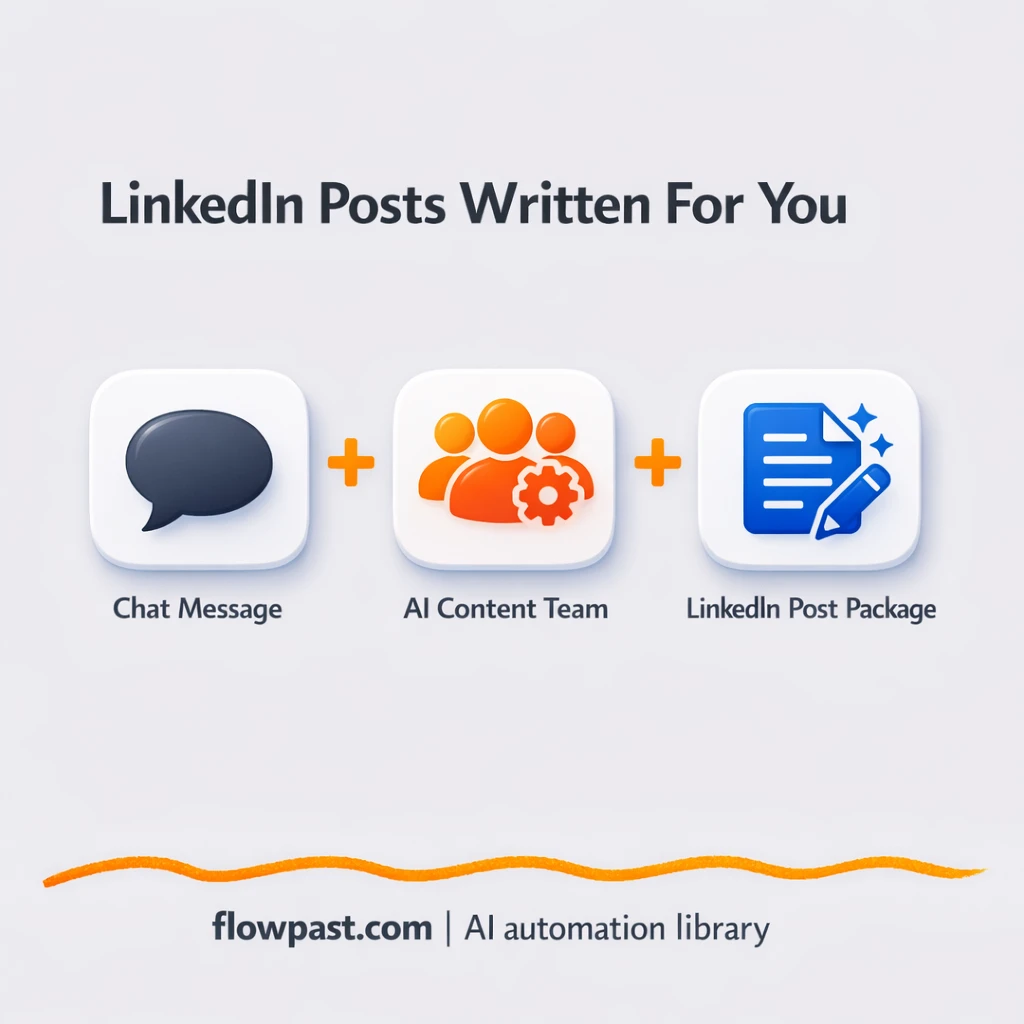

That “quick LinkedIn post” turns into a mini project. You start with a rough idea, rewrite it three times, second-guess the hook, then lose the final version somewhere in Slack or Notes.
This hits content managers hardest, honestly. But founders writing between meetings and agency leads shipping posts for clients feel the same drag. With this LinkedIn post automation, you go from messy prompt to a polished post kit you can publish and reuse.
You’ll see how the workflow turns a chat message into strategy, writing, optimization, and a clean Google Sheets log so your best ideas don’t disappear.
How This Automation Works
Here’s the complete workflow you’ll be setting up:
n8n Workflow Template: LinkedIn + Google Sheets: posts polished and logged
flowchart LR

    subgraph sg0["When chat message received Flow"]
        direction LR
        n0@{ icon: "mdi:play-circle", form: "rounded", label: "When chat message received", pos: "b", h: 48 }
        n1@{ icon: "mdi:robot", form: "rounded", label: "Content Director Agent", pos: "b", h: 48 }
        n2@{ icon: "mdi:wrench", form: "rounded", label: "Think", pos: "b", h: 48 }
        n3@{ icon: "mdi:wrench", form: "rounded", label: "LinkedIn Copywriter", pos: "b", h: 48 }
        n4@{ icon: "mdi:wrench", form: "rounded", label: "Domain Expert", pos: "b", h: 48 }
        n5@{ icon: "mdi:wrench", form: "rounded", label: "Proofreader & Editor", pos: "b", h: 48 }
        n6@{ icon: "mdi:wrench", form: "rounded", label: "Engagement Strategist", pos: "b", h: 48 }
        n7@{ icon: "mdi:wrench", form: "rounded", label: "Visual Content Strategist", pos: "b", h: 48 }
        n8@{ icon: "mdi:wrench", form: "rounded", label: "Content Performance Analyst", pos: "b", h: 48 }
        n9@{ icon: "mdi:brain", form: "rounded", label: "OpenAI Chat Model Director", pos: "b", h: 48 }
        n10@{ icon: "mdi:brain", form: "rounded", label: "OpenAI Chat Model1", pos: "b", h: 48 }
        n11@{ icon: "mdi:brain", form: "rounded", label: "OpenAI Chat Model2", pos: "b", h: 48 }
        n12@{ icon: "mdi:brain", form: "rounded", label: "OpenAI Chat Model3", pos: "b", h: 48 }
        n13@{ icon: "mdi:brain", form: "rounded", label: "OpenAI Chat Model4", pos: "b", h: 48 }
        n14@{ icon: "mdi:brain", form: "rounded", label: "OpenAI Chat Model5", pos: "b", h: 48 }
        n15@{ icon: "mdi:brain", form: "rounded", label: "OpenAI Chat Model6", pos: "b", h: 48 }
        n2 -.-> n1
        n4 -.-> n1
        n10 -.-> n3
        n11 -.-> n4
        n12 -.-> n5
        n13 -.-> n6
        n14 -.-> n7
        n15 -.-> n8
        n3 -.-> n1
        n5 -.-> n1
        n6 -.-> n1
        n7 -.-> n1
        n9 -.-> n1
        n0 --> n1
        n8 -.-> n1
    end

    %% Styling
    classDef trigger fill:#e8f5e9,stroke:#388e3c,stroke-width:2px
    classDef ai fill:#e3f2fd,stroke:#1976d2,stroke-width:2px
    classDef aiModel fill:#e8eaf6,stroke:#3f51b5,stroke-width:2px
    classDef decision fill:#fff8e1,stroke:#f9a825,stroke-width:2px
    classDef database fill:#fce4ec,stroke:#c2185b,stroke-width:2px
    classDef api fill:#fff3e0,stroke:#e65100,stroke-width:2px
    classDef code fill:#f3e5f5,stroke:#7b1fa2,stroke-width:2px
    classDef disabled stroke-dasharray: 5 5,opacity: 0.5
    class n0 trigger
    class n1 ai
    class n9,n10,n11,n12,n13,n14,n15 aiModel
    class n2,n3,n4,n5,n6,n7,n8 ai
Why This Matters: LinkedIn drafts get rewritten to death
LinkedIn is one of the few channels where a single post can still create real inbound. The problem is the process is messy. You write an idea, then you try to “make it sound like you,” then you add a little expertise, then you tack on hashtags, then you remember you wanted a carousel, then you can’t find the version you liked yesterday. It’s not hard work. It’s repetitive work. And it quietly steals the time you should be spending on thinking, selling, or actually engaging with comments.
The friction compounds. Here’s where it usually breaks down.
- You end up rewriting the same idea multiple times because there’s no consistent post structure or voice “default.”
- Great hooks get lost, so your next post starts from scratch instead of building on what already worked.
- Hashtags, posting notes, and visual ideas live in different places, which means they don’t actually get used.
- If more than one person touches the draft, feedback becomes a thread, not a clean, shippable post kit.
What You’ll Build: an AI “post team” that outputs a complete LinkedIn kit
This workflow acts like a small content department you can message on demand. You send a rough LinkedIn request through a chat trigger (an idea, a bullet outline, even a half-baked draft). An “Content Director” agent using the O3 model reads what you sent, decides what kind of post it should be, and creates a plan before any writing happens. Then the specialists kick in: a copywriter drafts the post, a subject-matter agent tightens accuracy and authority, and an editorial agent polishes tone and clarity. Finally, engagement and performance specialists add practical extras like hashtags, posting suggestions, and improvement notes, so you’re not guessing at the finish line.
The workflow starts with your chat message and turns it into coordinated outputs from multiple AI agents. Those outputs are merged into a single “post kit,” then logged into Google Sheets so you have a searchable library of ready-to-publish drafts and supporting assets.
What You’re Building
| What Gets Automated | What You’ll Achieve |
|---|---|
|
|
Expected Results
Say you publish 4 LinkedIn posts a week. Manually, it’s common to spend about 45 minutes per post between rewriting, polishing, and pulling together hashtags plus a visual angle, so you’re losing roughly 3 hours weekly. With this workflow, you spend maybe 5 minutes sending the idea and skimming the output, then the “wait time” is just AI processing. You still review before posting, but most teams get those 3 hours back and ship more consistently.
Before You Start
- n8n instance (try n8n Cloud free)
- Self-hosting option if you prefer (Hostinger works well)
- OpenAI for O3 strategy plus GPT-4.1-mini specialists
- Google Sheets to log post kits and outputs
- OpenAI API key (get it from your OpenAI dashboard)
Skill level: Beginner. You’ll connect accounts, paste prompts, and map a few fields into Google Sheets.
Want someone to build this for you? Talk to an automation expert (free 15-minute consultation).
Step by Step
A chat message kicks things off. You send a rough idea or draft through the workflow’s chat trigger. Think: “Turn this into a contrarian post,” or “Write a post about onboarding mistakes in B2B.”
The Content Director creates a plan first. The O3 agent reads your input, decides the angle, structure, and what “specialists” should contribute. This is the part that stops the endless rewrites later because the direction is set upfront.
Specialists generate the post kit in parallel. GPT-4.1-mini agents handle the writing, domain accuracy, and editorial polish. Separate agents also produce hashtags, suggested posting notes, and visual concepts (like carousel or infographic ideas).
Everything is merged and logged to Google Sheets. The final output lands as a single, organized record, so you can search, filter, and reuse your best hooks and formats instead of reinventing them.
You can easily modify the post format to match your brand voice or switch the logging destination based on your needs. See the full implementation guide below for customization options.
Step-by-Step Implementation Guide
Step 1: Configure the Chat Trigger
This workflow begins when a chat message arrives, so you need to configure the trigger that accepts incoming chat requests.
- Add the Incoming Chat Trigger node as your starting node.
- Keep the default Options settings, as the workflow uses standard chat trigger behavior.
- Verify the connection from Incoming Chat Trigger to Content Orchestrator is present to match the execution flow.
Step 2: Connect OpenAI for the Primary Model
The main AI orchestration relies on the OpenAI chat model connected to the orchestrator.
- Open O3 Strategy Model and set the Model to
o3. - Credential Required: Connect your OpenAI credentials in O3 Strategy Model.
- Ensure O3 Strategy Model is connected as the ai_languageModel input for Content Orchestrator.
Step 3: Set Up the Orchestration Logic
The orchestrator coordinates specialized tools and a reasoning step to build the final LinkedIn content.
- Open Content Orchestrator and keep Options as default.
- Attach Reasoning Step as an ai_tool to Content Orchestrator for structured thinking.
- Confirm the execution flow: Incoming Chat Trigger → Content Orchestrator.
All AI tool nodes are invoked by Content Orchestrator to build the final output.
Step 4: Configure the AI Agent Tools and Mini Models
Multiple AI agent tools specialize in copywriting, subject expertise, editing, engagement, visuals, and analytics. Each uses a lightweight model.
- In LinkedIn Copywriting Agent, set Text to
{{ $fromAI('Prompt__User_Message_', ``, 'string') }}and Tool Description tocall this AI Agent that specializes in LinkedIn copywriting, engagement hooks, viral content, and platform-specific messaging. - In Subject Matter Specialist, set Text to
{{ $fromAI('Prompt__User_Message_', ``, 'string') }}and Tool Description tocall this AI Agent that specializes in industry expertise, thought leadership content, and technical accuracy across various domains. - In Editorial Polisher, set Text to
{{ $fromAI('Prompt__User_Message_', ``, 'string') }}and Tool Description tocall this AI Agent that specializes in grammar checking, style editing, clarity improvement, and professional tone refinement. - In Engagement Planner, set Text to
{{ $fromAI('Prompt__User_Message_', ``, 'string') }}and Tool Description tocall this AI Agent that specializes in LinkedIn engagement tactics, hashtag strategies, posting optimization, and audience growth. - In Visual Strategy Advisor, set Text to
{{ $fromAI('Prompt__User_Message_', ``, 'string') }}and Tool Description tocall this AI Agent that specializes in visual content planning, carousel designs, infographic concepts, and LinkedIn visual best practices. - In Performance Insights Analyst, set Text to
{{ $fromAI('Prompt__User_Message_', ``, 'string') }}and Tool Description tocall this AI Agent that specializes in LinkedIn analytics, content performance tracking, audience insights, and optimization recommendations. - Set each mini model to
gpt-4.1-miniin Mini Model - Copy, Mini Model - Domain, Mini Model - Edit, Mini Model - Engage, Mini Model - Visual, and Mini Model - Analytics. - Credential Required: Connect your OpenAI credentials in each mini model node.
Step 5: Review Non-Operational Nodes
This workflow includes a visual banner note that does not affect execution but helps with documentation.
- Keep Flowpast Branding as-is for reference. It has no operational impact.
Step 6: Test and Activate Your Workflow
Validate the AI orchestration by sending a sample chat message and confirming the content output.
- Click Execute Workflow and send a test message to Incoming Chat Trigger.
- Confirm that Content Orchestrator runs and calls the AI tools for copy, editing, engagement, visual strategy, and analytics.
- Successful execution should return structured LinkedIn content informed by all AI agents.
- Toggle the workflow to Active to start receiving live chat requests.
Troubleshooting Tips
- OpenAI credentials can expire or hit project-level restrictions. If things break, check your OpenAI dashboard API key status and usage limits first.
- If you’re using Wait nodes or external rendering, processing times vary. Bump up the wait duration if downstream nodes fail on empty responses.
- Default prompts in AI nodes are generic. Add your brand voice early or you’ll be editing outputs forever.
Quick Answers
About 30 minutes if your OpenAI and Google Sheets access is ready.
No. You’ll mostly connect accounts and edit prompts or mapped fields.
Yes. n8n has a free self-hosted option and a free trial on n8n Cloud. Cloud plans start at $20/month for higher volume. You’ll also need to factor in OpenAI API costs (often a few cents per post kit, depending on length).
Two options: n8n Cloud (managed, easiest setup) or self-hosting on a VPS. For self-hosting, Hostinger VPS is affordable and handles n8n well. Self-hosting gives you unlimited executions but requires basic server management.
Yes, and you should. The fastest wins come from changing the “Content Orchestrator” instructions and each specialist agent’s prompt (copywriter, domain expert, editor, engagement, visuals, analytics) to match your brand voice and preferred formats. You can also swap Google Sheets logging for a different destination by replacing the final mapping step that writes the post kit fields. Common tweaks include making it “founder voice,” enforcing a strict word count, and outputting carousel slide text instead of a single post.
Usually it’s an expired or wrong API key in your OpenAI credentials inside n8n. Update the key, then re-run a single test execution to confirm the agent nodes can reach the model. If it still fails, check your OpenAI project limits and billing status because rate limits can look like random errors when multiple agents run close together.
Plenty for most teams: think dozens of post kits per day if your OpenAI limits allow it.
Often, yes, because this is more than a simple “AI writes a post” step. You’re orchestrating multiple agents (strategy, copy, domain, editing, engagement, visuals, analytics), which is easier to manage in n8n without paying extra for every branch and iteration. n8n also gives you the self-hosting option if you want to run lots of executions without per-task pricing headaches. Zapier or Make can still be fine if you only need one prompt and one destination, and you don’t care about a full post kit. If you’re unsure, Talk to an automation expert and describe your publishing cadence and review process.
You stop treating LinkedIn content like a constant restart button. Set this up once, then keep shipping posts that sound like you and stay organized in Google Sheets.
Need Help Setting This Up?
Our automation experts can build and customize this workflow for your specific needs. Free 15-minute consultation—no commitment required.
