


LinkedIn to Google Sheets, engaged audience tracked
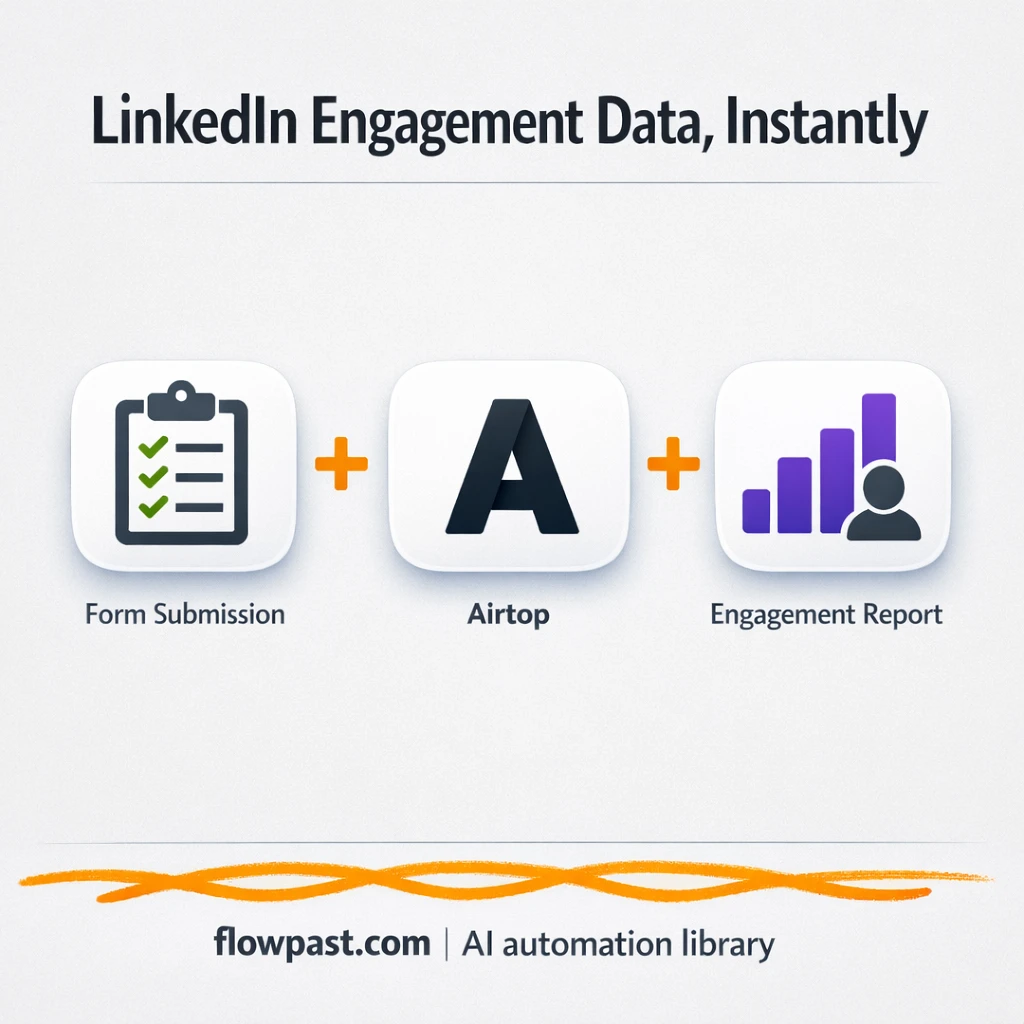

You published a LinkedIn post, it did well, and now the real work starts. You’re staring at reactions and comments, trying to pull names, titles, and profile links into something you can actually use. Copy, paste, scroll, lose your place. Repeat.
This LinkedIn Sheets automation hits hardest for marketing managers doing weekly reporting, but founders and client-facing consultants feel it too. When you can turn engagement into a clean list, follow-up gets faster and reporting stops being a time sink.
This workflow extracts reactions, comments, repost counts, and the people behind them, then structures the output so it can land in Google Sheets. You’ll see how it works, what you need, and the places teams usually get stuck.
How This Automation Works
The full n8n workflow, from trigger to final output:
n8n Workflow Template: LinkedIn to Google Sheets, engaged audience tracked
flowchart LR

    subgraph sg0["When Executed by Another Workflow Flow"]
        direction LR
        n0["<div style='background:#f5f5f5;padding:10px;border-radius:8px;display:inline-block;border:1px solid #e0e0e0'><img src='https://flowpast.com/wp-content/uploads/n8n-workflow-icons/airtop.svg' width='40' height='40' /></div><br/>Airtop"]
        n1["<div style='background:#f5f5f5;padding:10px;border-radius:8px;display:inline-block;border:1px solid #e0e0e0'><img src='https://flowpast.com/wp-content/uploads/n8n-workflow-icons/code.svg' width='40' height='40' /></div><br/>Parse engagement analysis re.."]
        n2@{ icon: "mdi:play-circle", form: "rounded", label: "When Executed by Another Wor..", pos: "b", h: 48 }
        n3["<div style='background:#f5f5f5;padding:10px;border-radius:8px;display:inline-block;border:1px solid #e0e0e0'><img src='https://flowpast.com/wp-content/uploads/n8n-workflow-icons/form.svg' width='40' height='40' /></div><br/>On form submission"]
        n4@{ icon: "mdi:swap-vertical", form: "rounded", label: "Map fields", pos: "b", h: 48 }
        n0 --> n1
        n4 --> n0
        n3 --> n4
        n2 --> n4
    end

    %% Styling
    classDef trigger fill:#e8f5e9,stroke:#388e3c,stroke-width:2px
    classDef ai fill:#e3f2fd,stroke:#1976d2,stroke-width:2px
    classDef aiModel fill:#e8eaf6,stroke:#3f51b5,stroke-width:2px
    classDef decision fill:#fff8e1,stroke:#f9a825,stroke-width:2px
    classDef database fill:#fce4ec,stroke:#c2185b,stroke-width:2px
    classDef api fill:#fff3e0,stroke:#e65100,stroke-width:2px
    classDef code fill:#f3e5f5,stroke:#7b1fa2,stroke-width:2px
    classDef disabled stroke-dasharray: 5 5,opacity: 0.5
    class n2,n3 trigger
    class n1 code
    classDef customIcon fill:none,stroke:none
    class n0,n1,n3 customIcon
The Problem: Turning LinkedIn Engagement Into Usable Data
LinkedIn shows you who reacted and what they said, but it doesn’t give you a clean, reusable list. So you end up doing it manually: opening profiles, copying names, grabbing job titles that change depending on where you look, and trying not to paste the wrong link into the wrong row. It’s not just slow. It’s mentally exhausting, because one interruption (a Slack ping, a call, lunch) and you lose your spot. Then reporting day shows up and you’re rebuilding the same spreadsheet again.
The friction compounds. Here’s where it breaks down in real life.
- You spend about 2 hours per post if you collect commenters and reactors by hand.
- Job titles get inconsistent, which means your lead notes and segments become messy fast.
- Someone inevitably gets missed, so follow-up looks random instead of intentional.
- There’s no repeatable process, so scaling from “one post” to “every week” is painful.
The Solution: Extract Engagement, Then Send It to Sheets
This workflow takes a LinkedIn post URL and an Airtop profile that’s already logged into LinkedIn, then collects the engagement data for you. It opens the post in a controlled browser session, asks an AI agent to identify the counts (reactions, comments, reposts) and pull the people who interacted, and then parses the response into a structured format. From there, it’s ready to write into Google Sheets (or feed into the next workflow you already use for outreach, scoring, or reporting). The end result is simple: a clean list of engaged people with names, job titles, and profile URLs you can filter and act on.
The workflow starts with a form trigger or a sub-workflow trigger, so you can run it manually or plug it into a larger system. Airtop loads the post, the AI agent extracts the data, and a code step turns that output into tidy fields. After that, you push it to Sheets and move on.
What You Get: Automation vs. Results
| What This Workflow Automates | Results You’ll Get |
|---|---|
|
|
Example: What This Looks Like
Let’s say you publish 3 LinkedIn posts a week and you want a list of everyone who reacted or commented for follow-up and reporting. Manually, if you spend about 2 minutes per person and you capture 40 people per post, that’s roughly 80 minutes per post, or about 4 hours a week. With this workflow, you submit the post URL (about 1 minute), wait for extraction and parsing (often under 10 minutes), then write the results to Google Sheets. That’s most of your afternoon back.
What You’ll Need
- n8n instance (try n8n Cloud free)
- Self-hosting option if you prefer (Hostinger works well)
- Airtop for a logged-in LinkedIn browser session
- Google Sheets to store and share the output list
- OpenAI API key (get it from your OpenAI dashboard)
Skill level: Intermediate. You’ll connect accounts, paste a post URL, and adjust one or two fields to match your sheet.
Don’t want to set this up yourself? Talk to an automation expert (free 15-minute consultation).
How It Works
A link (and profile) kicks it off. A form submission trigger or a sub-workflow trigger starts the run when you provide your Airtop profile name and the LinkedIn post URL.
The workflow prepares clean inputs. An “assign fields” step maps your inputs into the exact format the extractor expects, which avoids the annoying “it ran but returned nothing” situation.
Airtop opens the post and the AI extracts engagement. Airtop loads the LinkedIn post in a browser session that’s already authenticated, then an AI agent reads the page and pulls reactions, comments, reposts, and the interactor list (name, title, profile link).
Structured output is ready for Sheets. A parsing step turns the AI response into tidy JSON fields so Google Sheets (or Excel 365) can store each person as a row, plus the totals for reporting.
You can easily modify where the data lands (Google Sheets, Excel, or even Gmail alerts) based on your needs. See the full implementation guide below for customization options.
Step-by-Step Implementation Guide
Step 1: Configure the Trigger
This workflow can be started by a form submission or by another workflow. Configure both triggers so they feed into the same input mapping.
- Open Form Submission Trigger and set Form Title to
LinkedIn Post Engagement Data Extractor. - In Form Submission Trigger, add two required fields with labels
Airtop Profile (Logged into Linkedin)andPost URL. - Open Sub-Workflow Trigger and ensure inputs include
airtop_profileandlinkedin_post_url. - Verify the execution flow routes Form Submission Trigger → Assign Input Fields and Sub-Workflow Trigger → Assign Input Fields.
Step 2: Connect Airtop Data Extractor
Configure the Airtop extraction to use the inputs from the trigger and to query LinkedIn post engagement data.
- Open Airtop Data Extractor and set URL to
={{ $json.post_url }}. - Set Profile Name to
={{ $json.airtop_profile }}and keep Session Mode asnew. - Keep Resource as
extractionand Operation asquery. - Confirm the Prompt instructs the extractor to return interactors and total reactions, comments, and reposts.
Step 3: Set Up Input Mapping
Normalize inputs so both trigger sources provide consistent fields to the extractor.
- Open Assign Input Fields and add an assignment for airtop_profile with value
={{ $json.airtop_profile || $json["Airtop Profile (Logged into Linkedin)"] }}. - Add an assignment for post_url with value
={{ $json.linkedin_post_url || $json["Post URL"] }}. - Confirm the execution flow routes Assign Input Fields → Airtop Data Extractor.
Step 4: Configure Output Parsing
Parse the Airtop model response into structured JSON for downstream use.
- Open Parse Engagement Output and set JavaScript Code to
const result = JSON.parse($input.first().json.data.modelResponse)
return [{json: {...result}}]
. - Confirm the execution flow routes Airtop Data Extractor → Parse Engagement Output.
Step 5: Test and Activate Your Workflow
Validate the workflow end-to-end and enable it for production use.
- Click Execute Workflow and submit the form in Form Submission Trigger with a valid LinkedIn post URL and Airtop profile.
- Verify Parse Engagement Output returns fields like
interactors,reactions_count,comments_count, andreposts_count. - Save the workflow and toggle Active to enable it for real-time use.
Common Gotchas
- Airtop credentials can expire or need specific permissions. If things break, check your Airtop profile session and authentication status first.
- If you’re using Wait nodes or external rendering, processing times vary. Bump up the wait duration if downstream nodes fail on empty responses.
- Default prompts in AI nodes are generic. Add your brand voice early or you’ll be editing outputs forever.
Frequently Asked Questions
About 30 minutes if you already have Airtop and Sheets ready.
No. You’ll mostly connect accounts and paste in the LinkedIn post URL. The only “technical” part is mapping columns to your sheet, and it’s click-based.
Yes. n8n has a free self-hosted option and a free trial on n8n Cloud. Cloud plans start at $20/month for higher volume. You’ll also need to factor in OpenAI API costs (usually a few cents per run, depending on output size).
Two options: n8n Cloud (managed, easiest setup) or self-hosting on a VPS. For self-hosting, Hostinger VPS is affordable and handles n8n well. Self-hosting gives you unlimited executions but requires basic server management.
Yes, but you’ll want to wrap this workflow in a parent workflow that loops through a list of post URLs. Common customizations include adding a Google Sheet tab per campaign, tagging each row with the post URL, and filtering interactors by keyword in their job title. If you already use Excel 365, you can also swap the destination to Microsoft Excel without changing the extraction logic.
Most of the time it’s an authentication issue: the Airtop profile isn’t logged into LinkedIn anymore, or the session expired. Re-open the Airtop profile, confirm LinkedIn loads normally, then run the workflow again. If it still fails, check whether LinkedIn is prompting for extra verification (which can block automation) and slow the workflow down with a longer Wait so the page fully loads before extraction.
On self-hosted n8n, there’s no execution cap, so it mostly depends on your server and how long Airtop takes per post. On n8n Cloud, your monthly execution limit depends on the plan, and this workflow typically uses one execution per post. Practically, many teams run dozens of posts a week without trouble, but you should pace runs to avoid LinkedIn rate limits and keep results consistent.
For this workflow, n8n is usually the better fit because it can handle custom parsing and more complex branching without turning into a pile of paid “tasks.” Zapier and Make also struggle when the job is “read a LinkedIn page, extract structured data,” because that’s not a standard connector action. The Airtop plus AI-agent approach is the point here, and n8n is comfortable orchestrating it. If you only need a simple “new lead form → add row to sheet,” Zapier is fine. If you’re unsure, Talk to an automation expert and get a straight recommendation.
Once this is running, LinkedIn engagement stops being “nice to see” and becomes data you can actually use. Set it up, run it after each post, and keep your follow-up tight.
Need Help Setting This Up?
Our automation experts can build and customize this workflow for your specific needs. Free 15-minute consultation—no commitment required.
