


LinkedIn to Google Sheets, ready to send sequences
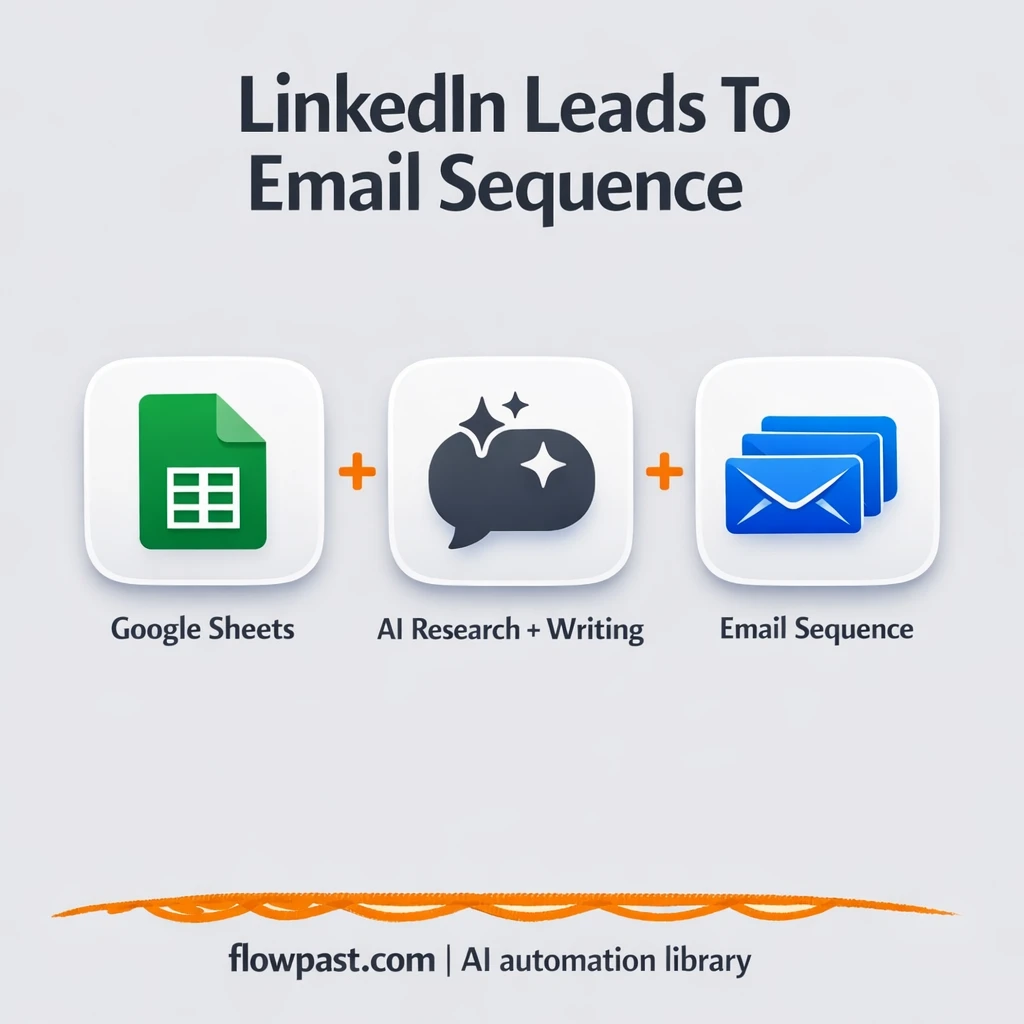

You found the right LinkedIn profiles. Then the messy part starts: hunt for an email, copy details into a sheet, write a decent first email, then try to remember four follow-ups.
SDRs feel it when the queue backs up. A founder feels it when outreach becomes a nightly chore. And an agency team gets stuck doing “admin” instead of booking meetings. This LinkedIn outreach automation turns a profile URL into a verified email and a ready-to-send 5-email sequence, logged cleanly in Google Sheets.
Below, you’ll see exactly what the workflow does, what you get at the end, and where teams usually trip up when they set it up the first time.
How This Automation Works
The full n8n workflow, from trigger to final output:
n8n Workflow Template: LinkedIn to Google Sheets, ready to send sequences
flowchart LR

    subgraph sg0["Manual Launch Flow"]
        direction LR
        n0@{ icon: "mdi:play-circle", form: "rounded", label: "Manual Launch Trigger", pos: "b", h: 48 }
        n1@{ icon: "mdi:database", form: "rounded", label: "Retrieve Sheet Rows", pos: "b", h: 48 }
        n2@{ icon: "mdi:swap-vertical", form: "rounded", label: "Map Input Fields", pos: "b", h: 48 }
        n3@{ icon: "mdi:swap-vertical", form: "rounded", label: "Assign Access Details", pos: "b", h: 48 }
        n4@{ icon: "mdi:swap-vertical", form: "rounded", label: "Configure Email Template", pos: "b", h: 48 }
        n5@{ icon: "mdi:cog", form: "rounded", label: "Limit Record Count", pos: "b", h: 48 }
        n6@{ icon: "mdi:swap-vertical", form: "rounded", label: "Iterate Through Batches", pos: "b", h: 48 }
        n7@{ icon: "mdi:cog", form: "rounded", label: "Delay Processing", pos: "b", h: 48 }
        n8["<div style='background:#f5f5f5;padding:10px;border-radius:8px;display:inline-block;border:1px solid #e0e0e0'><img src='https://flowpast.com/wp-content/uploads/n8n-workflow-icons/httprequest.dark.svg' width='40' height='40' /></div><br/>External API Request"]
        n9@{ icon: "mdi:swap-horizontal", form: "rounded", label: "Branch Logic Check", pos: "b", h: 48 }
        n10["<div style='background:#f5f5f5;padding:10px;border-radius:8px;display:inline-block;border:1px solid #e0e0e0'><img src='https://flowpast.com/wp-content/uploads/n8n-workflow-icons/perplexity.dark.svg' width='40' height='40' /></div><br/>Query Language Model"]
        n11["<div style='background:#f5f5f5;padding:10px;border-radius:8px;display:inline-block;border:1px solid #e0e0e0'><img src='https://flowpast.com/wp-content/uploads/n8n-workflow-icons/httprequest.dark.svg' width='40' height='40' /></div><br/>LinkedIn Profile Request"]
        n12["<div style='background:#f5f5f5;padding:10px;border-radius:8px;display:inline-block;border:1px solid #e0e0e0'><img src='https://flowpast.com/wp-content/uploads/n8n-workflow-icons/code.svg' width='40' height='40' /></div><br/>Transform Script"]
        n13@{ icon: "mdi:robot", form: "rounded", label: "Compose Email Chain", pos: "b", h: 48 }
        n14@{ icon: "mdi:database", form: "rounded", label: "Update Final Sheet", pos: "b", h: 48 }
        n15@{ icon: "mdi:database", form: "rounded", label: "Update Missing Email", pos: "b", h: 48 }
        n16@{ icon: "mdi:brain", form: "rounded", label: "Primary Chat Model", pos: "b", h: 48 }
        n17@{ icon: "mdi:robot", form: "rounded", label: "Parse Structured Output", pos: "b", h: 48 }
        n18@{ icon: "mdi:brain", form: "rounded", label: "Secondary Chat Model", pos: "b", h: 48 }
        n9 --> n10
        n9 --> n15
        n12 --> n13
        n7 --> n8
        n13 --> n14
        n5 --> n6
        n2 --> n3
        n8 --> n9
        n14 --> n6
        n10 --> n11
        n3 --> n4
        n6 --> n7
        n16 -.-> n17
        n18 -.-> n13
        n4 --> n5
        n1 --> n2
        n15 --> n6
        n17 -.-> n13
        n11 --> n12
        n0 --> n1
    end

    %% Styling
    classDef trigger fill:#e8f5e9,stroke:#388e3c,stroke-width:2px
    classDef ai fill:#e3f2fd,stroke:#1976d2,stroke-width:2px
    classDef aiModel fill:#e8eaf6,stroke:#3f51b5,stroke-width:2px
    classDef decision fill:#fff8e1,stroke:#f9a825,stroke-width:2px
    classDef database fill:#fce4ec,stroke:#c2185b,stroke-width:2px
    classDef api fill:#fff3e0,stroke:#e65100,stroke-width:2px
    classDef code fill:#f3e5f5,stroke:#7b1fa2,stroke-width:2px
    classDef disabled stroke-dasharray: 5 5,opacity: 0.5
    class n0 trigger
    class n13,n17 ai
    class n16,n18 aiModel
    class n9 decision
    class n1,n14,n15 database
    class n8,n11 api
    class n12 code
    classDef customIcon fill:none,stroke:none
    class n8,n10,n11,n12 customIcon
The Problem: LinkedIn Leads Die in the Gaps
LinkedIn prospecting is rarely the hard part. The drain is everything after you grab the URL: finding an email that actually works, pulling a few details for personalization, and writing follow-ups that don’t sound like templates from 2017. Do it manually and you’ll “save time” by skipping steps, which means you send weaker emails, forget follow-ups, or lose track of what was sent. And once your sheet gets messy, you stop trusting it. That’s when outreach becomes a half-finished system that burns hours and quietly kills reply rates.
It adds up fast. Here’s where it breaks down in the real world.
- Copy-pasting profile info into Google Sheets creates duplicates, typos, and missing fields you discover too late.
- Email finding becomes a tab-hopping exercise, and “catch-all” addresses sneak into sends that hurt deliverability.
- Writing five emails per lead sounds manageable until you have 30 leads, then quality drops and everything looks the same.
- Follow-ups slip because the sequence lives in someone’s head, not in a system you can review and improve.
The Solution: LinkedIn URL → Verified Email + 5-Email Sequence in Sheets
This workflow starts with a list of LinkedIn profile URLs in Google Sheets and turns each row into a complete outreach-ready record. It reads leads where the email status is missing, looks up a professional email via AnyMailFinder, and saves the status (verified, catch-all, or missing) so you’re not guessing. Then it enriches the lead with quick research: company context from Perplexity and profile details scraped through Apify. That context is condensed into a clean summary, and OpenAI uses it to write a personalized intro email plus four follow-ups, each with subject lines, in a strict structured format so your sheet stays tidy. Finally, everything is written back to Google Sheets with an append-or-update approach, which helps prevent duplicates when you re-run batches.
The workflow kicks off from n8n (manual trigger) and immediately pulls rows from your sheet. It processes leads in batches with optional delays to respect API limits. When it’s done, your sheet becomes a usable mini-CRM: verified email, enrichment, five email bodies, and status fields ready for sequencing.
What You Get: Automation vs. Results
| What This Workflow Automates | Results You’ll Get |
|---|---|
|
|
Example: What This Looks Like
Say you add 30 LinkedIn profile URLs to a Google Sheet each week. Manually, it’s usually about 10 minutes per lead to find an email and validate it, then another 15 minutes to write an intro plus follow-ups, which is roughly 12 hours total. With this workflow, you mark the rows, run it, and let it process in batches with a short delay; the “human time” is closer to 15 minutes to set your template and review the output. Even if processing takes another 30–60 minutes in the background, you still get your afternoon back.
What You’ll Need
- n8n instance (try n8n Cloud free)
- Self-hosting option if you prefer (Hostinger works well)
- Google Sheets to store leads and outputs
- AnyMailFinder for email discovery and status
- OpenAI API key (get it from your OpenAI dashboard)
- Apify to scrape LinkedIn profile details
- Perplexity API key (get it from the Perplexity API settings)
Skill level: Intermediate. You’ll connect a few APIs, map fields to your sheet columns, and test with a small batch first.
Don’t want to set this up yourself? Talk to an automation expert (free 15-minute consultation).
How It Works
Lead intake from Google Sheets. You run the workflow and it pulls rows where the “Email status” field is empty, so it only works on leads that still need enrichment.
Email discovery and validation. For each LinkedIn URL, AnyMailFinder is called via an HTTP request, and the workflow branches based on what comes back (verified, catch-all, or no email found).
Context gathering for personalization. Perplexity generates quick company insights, Apify pulls key profile details, and a transformation step cleans everything into a short, usable summary for the AI prompt.
Sequence generation and structured write-back. OpenAI produces one intro email plus four follow-ups with subject lines in a strict JSON format, then the workflow updates your Google Sheet row with email, status, and the full sequence.
You can easily modify the base email template to match your offer and tone based on your needs. See the full implementation guide below for customization options.
Step-by-Step Implementation Guide
Step 1: Configure the Manual Trigger
Start the workflow with a manual trigger so you can test the pipeline end-to-end.
- Add and verify the Manual Launch Trigger node is at the start of the workflow.
- Connect Manual Launch Trigger to Retrieve Sheet Rows to begin pulling lead data.
Step 2: Connect Google Sheets
Configure the Google Sheets nodes that read and write lead records.
- Open Retrieve Sheet Rows and select the spreadsheet and worksheet that contain your lead list.
- Open Update Final Sheet and set the target spreadsheet/worksheet to store composed emails and lead updates.
- Open Update Missing Email and set the target spreadsheet/worksheet for missing email outcomes.
- Credential Required: Connect your Google Sheets credentials on Retrieve Sheet Rows, Update Final Sheet, and Update Missing Email.
Step 3: Set Up Data Mapping and Batch Control
Prepare input fields and control how many records are processed per run.
- In Map Input Fields, map the incoming columns from Retrieve Sheet Rows to consistent field names used downstream.
- In Assign Access Details, set any static values needed for authentication, account access, or organization metadata.
- In Configure Email Template, define the email template fields you want passed into the AI chain.
- In Limit Record Count, set the maximum number of records to process per run.
- In Iterate Through Batches, define batch size and ensure it loops back after Update Final Sheet and Update Missing Email.
Step 4: Configure External Enrichment and Branching
Enrich lead data and route records based on results.
- Configure Delay Processing to space out API calls before External API Request.
- Set up External API Request with your enrichment endpoint and required headers/body.
- In Branch Logic Check, define conditions that determine whether leads move to enrichment and email composition or get sent to Update Missing Email.
- Credential Required: Add any required API credentials or headers in External API Request and LinkedIn Profile Request.
Step 5: Set Up AI Enrichment and Email Composition
Use AI to enrich profiles and generate email copy.
- Configure Query Language Model to generate research prompts for lead enrichment.
- Set up LinkedIn Profile Request to fetch profile data using details from Query Language Model.
- Use Transform Script to normalize API responses into a consistent structure for the email chain.
- Configure Compose Email Chain to combine the transformed lead data with your template fields.
- Connect Secondary Chat Model as the language model for Compose Email Chain.
- Connect Primary Chat Model as the language model for Parse Structured Output, and ensure Parse Structured Output is wired into Compose Email Chain as the output parser.
- Credential Required: Connect your OpenAI Chat credentials on Primary Chat Model and Secondary Chat Model.
- Credential Required: Connect your Perplexity credentials on Query Language Model.
Step 6: Configure Output Updates
Write the final composed emails and outcomes back to your spreadsheet.
- In Update Final Sheet, map the email output fields from Compose Email Chain to your sheet columns.
- In Update Missing Email, map the failure/skip reasons from Branch Logic Check to your tracking columns.
- Confirm the loop from Update Final Sheet and Update Missing Email goes back to Iterate Through Batches.
Step 7: Test and Activate Your Workflow
Run a manual test to verify the data flow and AI output, then activate the workflow for production use.
- Click Execute Workflow from Manual Launch Trigger to test with a small batch.
- Verify that Retrieve Sheet Rows pulls records and that Update Final Sheet or Update Missing Email updates the correct rows.
- Confirm AI outputs are written correctly and the loop through Iterate Through Batches processes the expected number of records.
- When satisfied, toggle the workflow to Active to use it in production runs.
Common Gotchas
- Google Sheets credentials can expire or need specific permissions. If things break, check the connected Google account and the sheet sharing settings first.
- If you’re using Wait nodes or external rendering, processing times vary. Bump up the wait duration if downstream nodes fail on empty responses.
- Default prompts in AI nodes are generic. Add your brand voice early or you’ll be editing outputs forever.
Frequently Asked Questions
About 45 minutes if your API keys are ready.
No. You’ll mostly connect accounts and map a few fields in Google Sheets. The workflow already handles the logic, including branching for missing or catch-all emails.
Yes. n8n has a free self-hosted option and a free trial on n8n Cloud. Cloud plans start at $20/month for higher volume. You’ll also need to factor in OpenAI, Apify, Perplexity, and AnyMailFinder API costs (usually a few cents per lead, depending on usage).
Two options: n8n Cloud (managed, easiest setup) or self-hosting on a VPS. For self-hosting, Hostinger VPS is affordable and handles n8n well. Self-hosting gives you unlimited executions but requires basic server management.
Yes, but you’ll want to update both the AI prompt and the sheet mapping. In the workflow, adjust the “Configure Email Template” values and the “Compose Email Chain” prompt so it outputs the exact number of emails you want. Then confirm “Parse Structured Output” still matches the JSON structure, and that “Update Final Sheet” writes to the right columns. Common tweaks include changing to 3 follow-ups, adding a breakup email, or swapping in a different base offer.
Usually it’s the wrong Google account, missing access to the sheet, or a changed spreadsheet/tab name after you connected it. Re-check the credential in n8n, then confirm the sheet is shared with that Google user. If the workflow can read rows but can’t update them, the range or column names may no longer match what the “Update Final Sheet” node expects.
Practically, most teams run batches of 25–200 leads at a time to stay friendly with API limits, then schedule another run later.
For multi-step enrichment and AI writing, n8n is usually the better fit. You can do branching logic (verified vs. catch-all vs. missing), batching, and structured parsing without paying extra for every “path.” Self-hosting is another big deal if you want to run lots of leads without watching task counts. Zapier and Make can still work, honestly, but the moment you add “scrape profile,” “research company,” and “generate a 5-email sequence,” those builds get fragile and expensive. If you’re unsure, Talk to an automation expert and get a recommendation based on your lead volume.
Once this is set up, your LinkedIn list stops being “research” and starts being pipeline. The workflow handles the repetitive parts so you can focus on the offers, targeting, and replies that actually move revenue.
Need Help Setting This Up?
Our automation experts can build and customize this workflow for your specific needs. Free 15-minute consultation—no commitment required.
