


Mattermost onboarding, channels ready with email prompts
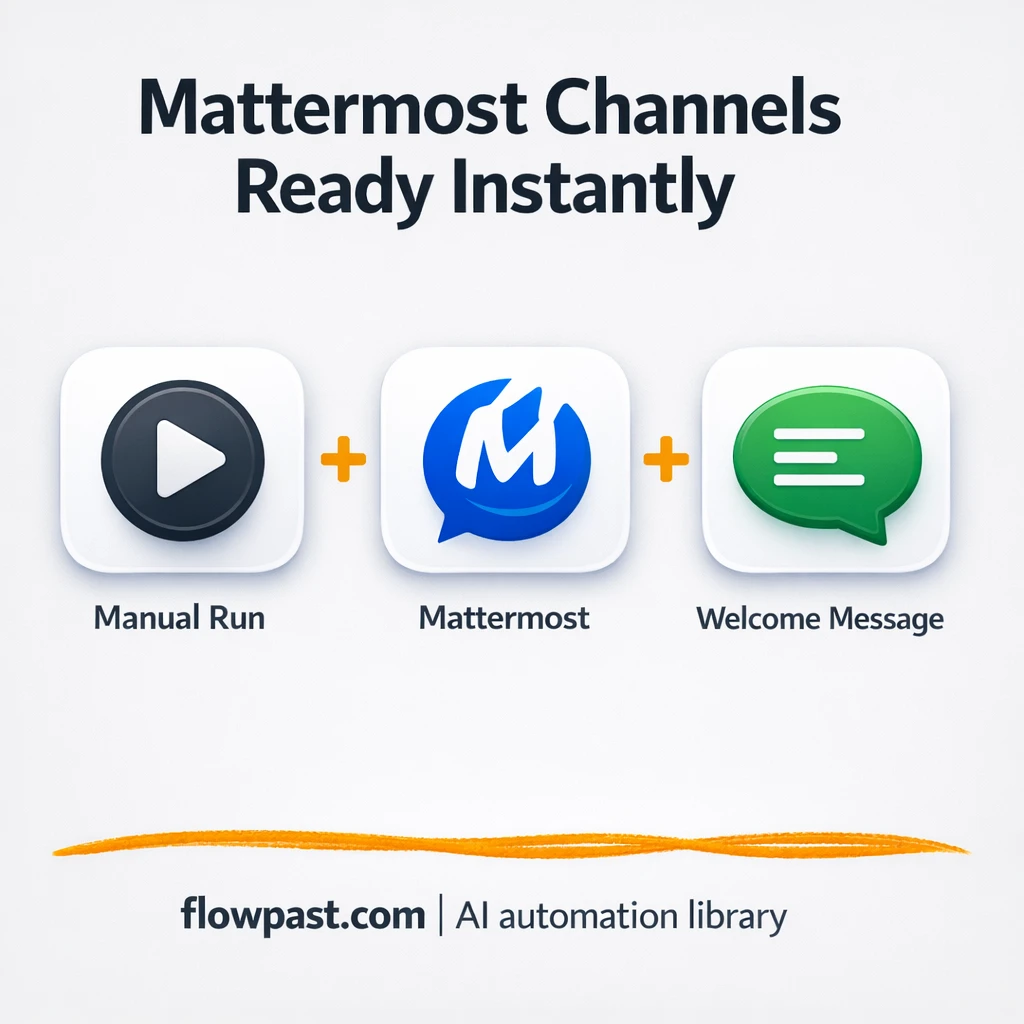

Onboarding in chat tools sounds simple until you do it five times in one week. Someone asks for a channel, you create it, you add people, you post the “welcome” message, and you still forget one step because you got pulled into something else.
Ops managers feel it first because they’re the ones cleaning up access and structure. Team leads also end up doing it “just this once.” And if you run an agency, you’ve probably repeated the same Mattermost setup for every client. This Mattermost onboarding automation turns those repeat clicks into a single, consistent workflow.
You’ll set up an n8n workflow that creates a Mattermost channel, adds the right member, and posts a standardized welcome note. Same outcome every time, with a lot less friction.
How This Automation Works
Here’s the complete workflow you’ll be setting up:
n8n Workflow Template: Mattermost onboarding, channels ready with email prompts
flowchart LR

    subgraph sg0["On clicking 'execute' Flow"]
        direction LR
        n0@{ icon: "mdi:play-circle", form: "rounded", label: "On clicking 'execute'", pos: "b", h: 48 }
        n1["<div style='background:#f5f5f5;padding:10px;border-radius:8px;display:inline-block;border:1px solid #e0e0e0'><img src='https://flowpast.com/wp-content/uploads/n8n-workflow-icons/mattermost.svg' width='40' height='40' /></div><br/>Mattermost"]
        n2["<div style='background:#f5f5f5;padding:10px;border-radius:8px;display:inline-block;border:1px solid #e0e0e0'><img src='https://flowpast.com/wp-content/uploads/n8n-workflow-icons/mattermost.svg' width='40' height='40' /></div><br/>Mattermost1"]
        n3["<div style='background:#f5f5f5;padding:10px;border-radius:8px;display:inline-block;border:1px solid #e0e0e0'><img src='https://flowpast.com/wp-content/uploads/n8n-workflow-icons/mattermost.svg' width='40' height='40' /></div><br/>Mattermost2"]
        n1 --> n2
        n2 --> n3
        n0 --> n1
    end

    %% Styling
    classDef trigger fill:#e8f5e9,stroke:#388e3c,stroke-width:2px
    classDef ai fill:#e3f2fd,stroke:#1976d2,stroke-width:2px
    classDef aiModel fill:#e8eaf6,stroke:#3f51b5,stroke-width:2px
    classDef decision fill:#fff8e1,stroke:#f9a825,stroke-width:2px
    classDef database fill:#fce4ec,stroke:#c2185b,stroke-width:2px
    classDef api fill:#fff3e0,stroke:#e65100,stroke-width:2px
    classDef code fill:#f3e5f5,stroke:#7b1fa2,stroke-width:2px
    classDef disabled stroke-dasharray: 5 5,opacity: 0.5
    class n0 trigger
    classDef customIcon fill:none,stroke:none
    class n1,n2,n3 customIcon
Why This Matters: Inconsistent Channel Setup Slows Onboarding
The first week on a team is supposed to feel welcoming and clear. Instead, it often turns into “Where do I post this?” and “Who can add me to that channel?” because the chat workspace isn’t set up the same way every time. The annoying part is that the work isn’t hard, it’s just repetitive. Create the channel. Add the person. Post the message. Then do it again next time, slightly differently, because you’re rushing. Multiply that across new hires, contractors, clients, and internal projects, and you end up spending hours on admin while people wait around.
It adds up fast. Here’s where it usually breaks down in real teams.
- Channel names drift over time, so people create duplicates and conversations split.
- Membership gets missed, which means new hires can’t see key context on day one.
- Welcome messages vary (or don’t exist), so expectations and links aren’t consistent.
- Every “quick setup” interrupts someone senior, which is a pricey way to do admin.
What You’ll Build: Email-to-Mattermost Onboarding Setup
This workflow gives you a repeatable channel setup process in Mattermost that runs the same way every time. In n8n, you start the automation (in the template workflow it’s manual, which is great for testing). Then the workflow creates a new channel in Mattermost using your naming rules, immediately adds the right teammate to that channel, and posts a consistent welcome note so the channel has structure from the first message. The end result is that a channel request can be handled in one run, instead of several back-and-forth pings plus a handful of clicks inside Mattermost.
The flow is simple on purpose. The workflow kicks off, generates the team channel in Mattermost, appends the member you specify, then posts your standard onboarding message. Once you’re happy with it, you can swap the trigger so it starts from an email request or a form submission instead of a manual click.
What You’re Building
| What Gets Automated | What You’ll Achieve |
|---|---|
|
|
Expected Results
Say you onboard three people in a week and each one needs two new channels (a team channel and a project channel). Manually, creating a channel, adding a member, and writing a welcome message takes maybe 10 minutes per channel, so you’re at about 60 minutes weekly. With this workflow, you run it once per channel: about a minute to submit the details, then Mattermost does the rest. That’s roughly an hour back, and onboarding feels less chaotic.
Before You Start
- n8n instance (try n8n Cloud free)
- Self-hosting option if you prefer (Hostinger works well)
- Mattermost for creating channels, adding members, posting messages.
- Email source (Emelia or ConvertKit) to trigger requests from email.
- Mattermost access token (create it in Mattermost user settings/integrations).
Skill level: Beginner. You’ll connect Mattermost credentials and edit a few fields like channel name, user ID, and the welcome message.
Want someone to build this for you? Talk to an automation expert (free 15-minute consultation).
Step by Step
A request triggers the workflow. In the provided template, you start it manually so you can test safely. In a real setup, you’d usually replace that with an email trigger (for example, a “New channel request” inbox or a ConvertKit form-to-email flow).
The channel gets generated in Mattermost. n8n sends the channel details to Mattermost, including the name and any settings you’ve decided on. This is where you bake in your naming conventions, so you stop reinventing them.
The workflow appends the right member. After the channel exists, n8n adds the teammate you specify. That can be the requestor, a channel owner, a default “onboarding buddy,” or a whole group if you expand the workflow later.
A welcome notice posts automatically. Finally, n8n posts your standardized message in the channel. This is the part that makes onboarding feel polished: expectations, links, next steps, and “where to ask questions” are all right there.
You can easily modify the channel naming and the welcome message content to match your team’s structure. See the full implementation guide below for customization options.
Step-by-Step Implementation Guide
Step 1: Configure the Manual Trigger
Set up the manual trigger that starts the workflow and kicks off channel creation.
- Add and open Manual Execution Start.
- Leave all fields as default since this trigger runs manually.
- Connect Manual Execution Start to Generate Team Channel.
Step 2: Connect Mattermost
All Mattermost actions in this workflow require valid API credentials.
- Open Generate Team Channel and set Credential Required: Connect your mattermostApi credentials.
- Open Append Channel Member and set Credential Required: Connect your mattermostApi credentials.
- Open Post Welcome Notice and set Credential Required: Connect your mattermostApi credentials.
Step 3: Configure Channel Creation
Create the team channel that subsequent steps will use.
- Open Generate Team Channel.
- Set Resource to
channel. - Set Team ID to
[YOUR_ID]. - Set Channel to
docs. - Set Display Name to
Docs.
Step 4: Configure Member Addition and Welcome Notice
Use the new channel ID to add a user and send a welcome message in sequence.
- Open Append Channel Member and set Resource to
channel. - Set Operation to
addUserand User ID to[YOUR_ID]. - Set Channel ID to
{{$node["Generate Team Channel"].json["id"]}}. - Open Post Welcome Notice and set Message to
Hey! Welcome to the channel!. - Set Channel ID to
{{$node["Generate Team Channel"].json["id"]}}. - Confirm the flow: Generate Team Channel → Append Channel Member → Post Welcome Notice.
Step 5: Test and Activate Your Workflow
Run the workflow manually to verify channel creation, member addition, and the welcome post.
- Click Execute Workflow to trigger Manual Execution Start.
- Verify that a channel named
docsis created with the display nameDocs. - Confirm the specified user is added to the channel.
- Check the channel for the message
Hey! Welcome to the channel!. - After a successful test, toggle the workflow to Active to enable production use.
Troubleshooting Tips
- Mattermost credentials can expire or need specific permissions. If things break, check your Mattermost personal access token settings (and the token’s scopes) first.
- If you’re using Wait nodes or external rendering, processing times vary. Bump up the wait duration if downstream nodes fail on empty responses.
- Default prompts in AI nodes are generic. Add your brand voice early or you’ll be editing outputs forever.
Quick Answers
About 20 minutes if you already have your Mattermost token ready.
No coding required. You’ll mostly paste credentials, then edit channel and message fields.
Yes. n8n has a free self-hosted option and a free trial on n8n Cloud. Cloud plans start at $20/month for higher volume. You’ll also need to factor in Mattermost hosting costs (if you self-host Mattermost) but the workflow itself doesn’t require paid API calls.
Two options: n8n Cloud (managed, easiest setup) or self-hosting on a VPS. For self-hosting, Hostinger VPS is affordable and handles n8n well. Self-hosting gives you unlimited executions but requires basic server management.
Yes, and you probably should. You can change the “Generate Team Channel” step to apply your naming convention, swap “Append Channel Member” to add a different default user, and rewrite “Post Welcome Notice” to include links to SOPs, onboarding docs, or a kickoff checklist. Some teams also add a second “Post Welcome Notice” style message a day later with “here’s what to do next,” which is easy once the base workflow works.
Usually it’s the token. Regenerate your Mattermost personal access token, then update the credential in n8n and re-run the manual test. If the channel creates but the user doesn’t get added, check that the user ID is correct and that your token has permission to manage memberships. Also check the Mattermost base URL, because “wrong server” looks exactly like “bad auth” when you’re moving fast.
Quite a lot for a small team: dozens of channel setups per day is realistic if your Mattermost server is healthy. On n8n Cloud, your limit is mainly your monthly executions (Starter is fine for light onboarding; higher plans handle more). If you self-host n8n, there’s no fixed execution cap, so it mostly comes down to your VPS resources and Mattermost rate limits.
Often, yes, because this is a multi-step workflow that benefits from being explicit and testable. n8n handles branching, retries, and “do this, then that” logic cleanly without pushing you into higher tiers just to add steps. You can also self-host it, which matters if you want predictable costs. Zapier or Make can still work if your process is just “email in, channel out,” but once you add membership rules and standardized messages, n8n feels less cramped. Talk to an automation expert if you’re not sure which fits.
Once this is live, channel setup stops being a background chore that quietly steals time. The workflow handles the repetitive parts so your team can actually onboard people, not just provision chat rooms.
Need Help Setting This Up?
Our automation experts can build and customize this workflow for your specific needs. Free 15-minute consultation—no commitment required.
