


Mistral OCR + Google Sheets: contacts, no typing
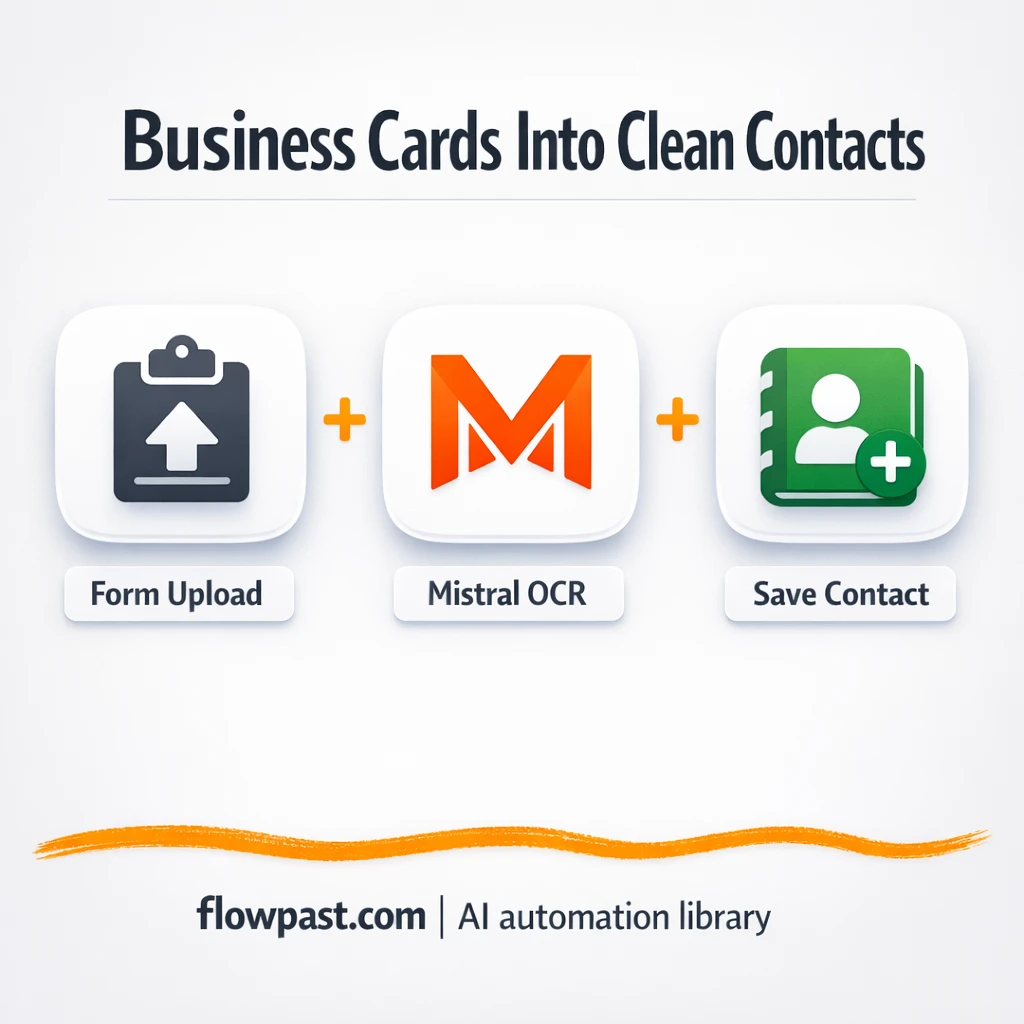

Business cards pile up fast. Then you “deal with them later,” which usually means retyping names, guessing emails, and losing half the details in the process.
Mistral OCR automation hits hardest after events for marketing managers and sales teams, but office admins and founders feel it too. You want clean, searchable contacts in Google Sheets without spending your Friday afternoon doing data entry.
This workflow takes a card upload (PDF or image), extracts the text with Mistral OCR, has OpenAI structure it, then writes it into a table you can sync to Sheets. You’ll see how it works, what you need, and where people trip up.
How This Automation Works
The full n8n workflow, from trigger to final output:
n8n Workflow Template: Mistral OCR + Google Sheets: contacts, no typing
flowchart LR

    subgraph sg0["On form submission Flow"]
        direction LR
        n0["<div style='background:#f5f5f5;padding:10px;border-radius:8px;display:inline-block;border:1px solid #e0e0e0'><img src='https://flowpast.com/wp-content/uploads/n8n-workflow-icons/httprequest.dark.svg' width='40' height='40' /></div><br/>Mistral OCR API"]
        n1@{ icon: "mdi:robot", form: "rounded", label: "AI Agent", pos: "b", h: 48 }
        n2@{ icon: "mdi:brain", form: "rounded", label: "OpenAI Chat Model", pos: "b", h: 48 }
        n3@{ icon: "mdi:robot", form: "rounded", label: "Structured Output Parser", pos: "b", h: 48 }
        n4@{ icon: "mdi:memory", form: "rounded", label: "Simple Memory", pos: "b", h: 48 }
        n5@{ icon: "mdi:cog", form: "rounded", label: "Upsert row(s)", pos: "b", h: 48 }
        n6["<div style='background:#f5f5f5;padding:10px;border-radius:8px;display:inline-block;border:1px solid #e0e0e0'><img src='https://flowpast.com/wp-content/uploads/n8n-workflow-icons/form.svg' width='40' height='40' /></div><br/>On form submission"]
        n7@{ icon: "mdi:cog", form: "rounded", label: "Data to base64", pos: "b", h: 48 }
        n8@{ icon: "mdi:cog", form: "rounded", label: "JSON Parser", pos: "b", h: 48 }
        n1 --> n5
        n8 --> n1
        n4 -.-> n1
        n7 --> n0
        n0 --> n8
        n2 -.-> n1
        n6 --> n7
        n3 -.-> n1
    end

    %% Styling
    classDef trigger fill:#e8f5e9,stroke:#388e3c,stroke-width:2px
    classDef ai fill:#e3f2fd,stroke:#1976d2,stroke-width:2px
    classDef aiModel fill:#e8eaf6,stroke:#3f51b5,stroke-width:2px
    classDef decision fill:#fff8e1,stroke:#f9a825,stroke-width:2px
    classDef database fill:#fce4ec,stroke:#c2185b,stroke-width:2px
    classDef api fill:#fff3e0,stroke:#e65100,stroke-width:2px
    classDef code fill:#f3e5f5,stroke:#7b1fa2,stroke-width:2px
    classDef disabled stroke-dasharray: 5 5,opacity: 0.5
    class n6 trigger
    class n1,n3 ai
    class n2 aiModel
    class n4 ai
    class n0 api
    classDef customIcon fill:none,stroke:none
    class n0,n6 customIcon
The Problem: Business cards turn into bad data
Typing contact info from business cards sounds simple until you do it at scale. A card has tiny fonts, odd layouts, and “creative” spacing that makes phone numbers and job titles easy to misread. You might enter the name correctly, but miss the mobile number, or you’ll dump everything into one “Notes” field because you’re rushing. Then, weeks later, you can’t filter by company, can’t search reliably, and you end up asking, “Who was this again?” Honestly, the real cost is the lost follow-up.
It adds up fast. Here’s where it breaks down.
- Each card turns into a 5–10 minute task once you include checking spelling, formatting phone numbers, and finding missing fields.
- Cards come in different languages and layouts, so the “quick copy-paste” approach fails constantly.
- Manual entry creates duplicates because “[email protected]” and “[email protected]” get treated differently depending on who typed it.
- Your CRM import becomes a cleanup project, which means the list never gets used.
The Solution: Scan once, store structured contacts
This n8n workflow turns business cards into structured contact rows automatically. It starts with a simple upload form where you drop a PDF or image of a card. n8n converts the file into Base64 (basically, a format an API can accept), then sends it to the Mistral OCR API to extract the text. Next, an AI Agent powered by OpenAI (gpt-4o-mini) interprets the messy OCR text and maps it into a clean schema: first name, last name, company, job title, phone, mobile, email, address, website, and more. Finally, the workflow upserts the contact record, using the email address as the unique identifier so duplicates don’t quietly multiply.
The workflow begins when a card is uploaded through the form trigger. Mistral OCR pulls the raw text, and OpenAI converts it into consistent fields you can actually filter and search. Then n8n writes it into your contacts table (and from there, into Google Sheets if that’s where your team lives).
What You Get: Automation vs. Results
| What This Workflow Automates | Results You’ll Get |
|---|---|
|
|
Example: What This Looks Like
Say you come back from a conference with 40 business cards. Manually, even at 7 minutes per card, that’s about 5 hours of copy-paste, spellcheck, and cleanup. With this workflow, you upload each card in under a minute (so roughly 40 minutes total), then let OCR + AI process in the background while you do other work. You still spot-check a few rows, but you’re not stuck typing phone numbers all day.
What You’ll Need
- n8n instance (try n8n Cloud free)
- Self-hosting option if you prefer (Hostinger works well)
- Mistral OCR API to extract text from card images.
- OpenAI API to structure OCR text into clean fields.
- Google Sheets to keep contacts searchable for your team.
Skill level: Intermediate. You’ll connect API credentials, create a table/sheet schema, and run a few test uploads.
Don’t want to set this up yourself? Talk to an automation expert (free 15-minute consultation).
How It Works
Upload triggers the workflow. A form submission in n8n collects a PDF or image of the business card and kicks off the run immediately.
The file gets prepared for OCR. n8n converts the uploaded card into Base64 so it can be sent cleanly to the Mistral OCR API without you converting formats by hand.
OCR text becomes structured contact fields. Mistral returns extracted text, it’s parsed into JSON, and then the OpenAI-powered agent maps it into your schema (firstname, name, company, jobdescription, phone, mobil, email, address, web).
Contacts get saved and de-duplicated. The workflow upserts the record into your contacts table using email as the unique key, so repeat scans update the same contact instead of creating a mess.
You can easily modify the schema fields to match your CRM, or adjust the unique identifier from email to phone based on your needs. See the full implementation guide below for customization options.
Step-by-Step Implementation Guide
Step 1: Configure the Form Submission Trigger
This workflow starts when a user submits a business card through an n8n form.
- Add the Form Submission Trigger node and set Form Title to
Business card scanner. - Set Form Description to
Upload a business card (PDF or image). - In Form Fields, add a file field labeled
business_cardand ensure Required is enabled. - Connect Form Submission Trigger to Convert File to Base64.
Step 2: Connect Mistral OCR
This stage converts the uploaded file to Base64 and sends it to Mistral OCR for extraction.
- In Convert File to Base64, set Operation to
binaryToProperyand Binary Property Name tobusiness_card. - Open Mistral OCR Request and set URL to
https://api.mistral.ai/v1/ocrwith Method set toPOST. - Set Specify Body to
jsonand JSON Body to{ "model": "mistral-ocr-latest", "document": { "type": "document_url", "document_url": "data:application/pdf;base64,{{ $json.data }}" }, "include_image_base64": true }. - Enable file response output and set the Output Property Name to
ocr_output.json. - Credential Required: Connect your
httpBearerAuthcredentials in Mistral OCR Request.
⚠️ Common Pitfall: If the OCR response is not saved as a file, Parse OCR JSON will fail because it expects ocr_output.json.
Step 3: Set Up the OCR Parsing and AI Extraction
These nodes parse the OCR response and use AI to extract structured contact data.
- In Parse OCR JSON, set Operation to
fromJsonand Binary Property Name toocr_output.json. - Open Contact Extraction Agent and set Text to
=Business Card: {{ $json.data.pages[0].markdown }}. - Keep Prompt Type set to
defineand ensure Has Output Parser is enabled. - In Structured Result Parser, set JSON Schema Example to the provided schema string so output fields match the data table schema.
- In Session Memory Buffer, set Session ID Type to
customKeyand Session Key to{{ $('Convert File to Base64').item.json.submittedAt }}. - Credential Required: Connect your
openAiApicredentials in OpenAI Chat Engine. - Confirm OpenAI Chat Engine is connected as the language model for Contact Extraction Agent and uses the model
gpt-4o-mini.
AI tool nodes like Session Memory Buffer and Structured Result Parser do not store credentials—ensure the credentials are added to the parent OpenAI Chat Engine node.
Step 4: Configure the Contact Database Upsert
This step saves extracted contact data into your n8n data table.
- Open Upsert Contact Records and set Operation to
upsert. - Select your Data Table ID and replace the placeholder
[YOUR_ID]with your actual table ID. - Map columns to the output fields, for example name →
{{ $json.output.name }}and email →{{ $json.output.email }}. - Set the upsert filter to match email using
{{ $json.output.email }}to prevent duplicates.
⚠️ Common Pitfall: Ensure the jobdescription field is mapped to {{ $json.output.jobdescrition }} exactly as defined in the workflow, even though the spelling differs.
Step 5: Test and Activate Your Workflow
Run a full test to confirm OCR, AI extraction, and upsert work end-to-end.
- Click Execute Workflow and upload a sample business card in the Form Submission Trigger test form.
- Verify that Mistral OCR Request returns a file named
ocr_output.jsonand that Parse OCR JSON producesdata.pages[0].markdown. - Check Contact Extraction Agent output to confirm structured fields are produced by Structured Result Parser.
- Confirm a new or updated row appears in your data table from Upsert Contact Records.
- Toggle the workflow to Active so the form can be used in production.
Common Gotchas
- Mistral OCR credentials can expire or need specific permissions. If things break, check your n8n credential settings and the Mistral API key scope first.
- If you’re using Wait nodes or external rendering, processing times vary. Bump up the wait duration if downstream nodes fail on empty responses.
- Default prompts in AI nodes are generic. Add your brand voice early or you’ll be editing outputs forever.
Frequently Asked Questions
About an hour if your API keys are ready.
No. You’ll mostly paste API keys and map fields once. After that, it’s just testing with a few real cards.
Yes. n8n has a free self-hosted option and a free trial on n8n Cloud. Cloud plans start at $20/month for higher volume. You’ll also need to factor in Mistral OCR and OpenAI API usage costs (usually pennies per card for typical volumes).
Two options: n8n Cloud (managed, easiest setup) or self-hosting on a VPS. For self-hosting, Hostinger VPS is affordable and handles n8n well. Self-hosting gives you unlimited executions but requires basic server management.
Yes, and you should. You can change the structured schema in the Structured Result Parser to match your CRM (for example, splitting “jobdescription” into department + title). Many teams also tweak the AI Agent prompt to prefer a specific phone format, and to always return a best-guess company domain for cleaner enrichment later.
Most of the time it’s an expired or incorrect API key in n8n credentials. It can also be a request format issue if the OCR endpoint expects Base64 in a specific field, so compare the HTTP Request node body to the latest Mistral docs. If failures happen only on bigger PDFs, file size limits are a common culprit. Finally, watch for rate limits if you batch-upload a lot of cards at once; spacing runs out with a short delay usually fixes it.
Plenty for a small team: hundreds of cards per month is normal on n8n Cloud, and self-hosting can go higher if your server is sized well.
Often, yes, because OCR + AI parsing usually needs more than a simple two-step Zap. n8n makes it easier to handle multi-step processing, validation, and upserts without paying extra for every branch. Self-hosting is also a big deal if you want to run lots of scans without watching task counts. Zapier or Make can still be fine for a lightweight “upload → add row” flow, especially if you never need dedupe logic. Talk to an automation expert if you want help choosing.
Once this is running, business cards stop being a “later” problem. The workflow handles the repetitive cleanup so your contacts are ready to use when follow-up actually matters.
Need Help Setting This Up?
Our automation experts can build and customize this workflow for your specific needs. Free 15-minute consultation—no commitment required.
