


OpenAI + Gmail: personalized joke replies, sent fast
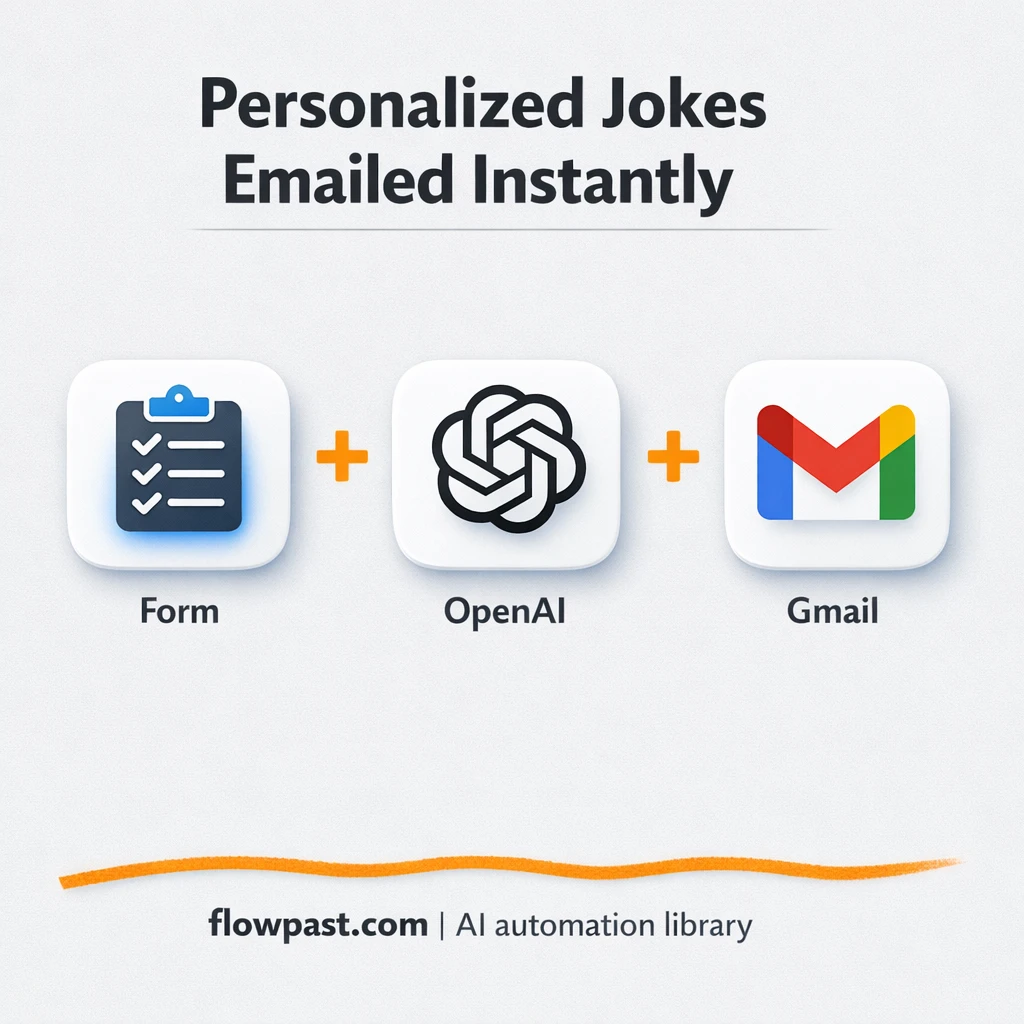

Your inbox fills up, leads come in, and “I’ll reply in a minute” turns into tomorrow. Then the moment is gone. The first reply was supposed to be quick, friendly, and human. Instead, it’s late. Or worse, forgotten.
This is where OpenAI Gmail replies help. Marketing managers use it to keep inbound interest warm, founders use it to avoid being the bottleneck, and agency teams use it to make every lead feel noticed without writing the same email all day.
This workflow generates a short, personalized joke from the form details, in the language you choose, then sends it via Gmail automatically. You’ll see how it works, what it fixes, and what to watch out for before you put it into production.
How This Automation Works
See how this solves the problem:
n8n Workflow Template: OpenAI + Gmail: personalized joke replies, sent fast
flowchart LR

    subgraph sg0["Form Intake Flow"]
        direction LR
        n0["<div style='background:#f5f5f5;padding:10px;border-radius:8px;display:inline-block;border:1px solid #e0e0e0'><img src='https://flowpast.com/wp-content/uploads/n8n-workflow-icons/form.svg' width='40' height='40' /></div><br/>Form Intake Trigger"]
        n1@{ icon: "mdi:swap-vertical", form: "rounded", label: "Set Language Value", pos: "b", h: 48 }
        n2@{ icon: "mdi:robot", form: "rounded", label: "AI Joke Generator", pos: "b", h: 48 }
        n3@{ icon: "mdi:message-outline", form: "rounded", label: "Email Dispatch", pos: "b", h: 48 }
        n1 --> n2
        n2 --> n3
        n0 --> n1
    end

    %% Styling
    classDef trigger fill:#e8f5e9,stroke:#388e3c,stroke-width:2px
    classDef ai fill:#e3f2fd,stroke:#1976d2,stroke-width:2px
    classDef aiModel fill:#e8eaf6,stroke:#3f51b5,stroke-width:2px
    classDef decision fill:#fff8e1,stroke:#f9a825,stroke-width:2px
    classDef database fill:#fce4ec,stroke:#c2185b,stroke-width:2px
    classDef api fill:#fff3e0,stroke:#e65100,stroke-width:2px
    classDef code fill:#f3e5f5,stroke:#7b1fa2,stroke-width:2px
    classDef disabled stroke-dasharray: 5 5,opacity: 0.5
    class n0 trigger
    class n2 ai
    classDef customIcon fill:none,stroke:none
    class n0 customIcon
The Challenge: replying fast without sounding robotic
Form submissions feel “easy” until you’re the person responsible for following up. You open a notification, copy the lead’s name, skim what they wrote, and try to respond in a way that doesn’t sound like a template. Then you do it again. And again. On busy days, you’ll let a few sit because you want to “reply properly,” which is a polite way of saying you need time you don’t have. Even when you reply, the tone can drift, the message can feel bland, and you lose the tiny window where the lead is still paying attention.
It adds up fast. Here’s where it breaks down in real life.
- Leads expect a quick response, but manual replying slips when meetings stack up.
- You end up rewriting the same opening lines, which gets old and invites mistakes.
- Generic “Thanks for reaching out” emails don’t build rapport, so more leads go cold.
- When multiple people handle inbox follow-up, the brand voice becomes inconsistent week to week.
The Fix: generate a personalized joke, then send it instantly
This workflow turns every form submission into a fast, on-brand email reply that feels tailored. When someone submits your form, the workflow grabs the key details (like their name or the “object” they entered), then sets the language you want the joke written in. Next, OpenAI generates a short joke based on your prompt, kept intentionally brief (around 200 tokens) so it’s quick to read and doesn’t ramble. Finally, Gmail sends the message to the target inbox automatically. No copy-paste. No “I’ll get to it later.” Just a timely, friendly first touch that keeps the conversation warm.
The workflow begins with the form trigger, then routes the submission through a simple language-setting step. OpenAI produces the joke from your instructions, and Gmail dispatches it as the finished email.
What Changes: Before vs. After
| What This Eliminates | Impact You’ll See |
|---|---|
|
|
Real-World Impact
Say you get 20 form submissions a day. Manually, even a “quick” reply takes about 10 minutes when you include reading, writing, proofreading, and sending, so that’s roughly 3 hours daily. With this workflow, you spend maybe 5 minutes setting your prompt and language once, and each new submission triggers an email automatically. The lead hears from you right away, and you get those 3 hours back for real work.
Requirements
- n8n instance (try n8n Cloud free)
- Self-hosting option if you prefer (Hostinger works well)
- OpenAI for generating the personalized joke text
- Gmail to send the email automatically
- OpenAI API key (get it from your OpenAI API dashboard)
Skill level: Beginner. You’ll connect accounts, edit a prompt, and test one submission.
Need help implementing this? Talk to an automation expert (free 15-minute consultation).
The Workflow Flow
A form submission triggers everything. As soon as someone completes your form, n8n captures the fields you care about, like the person’s name or the object you want the joke to reference.
The language is set once, on purpose. A simple “Set” step defines the output language so you don’t have to guess per lead, and you can keep it consistent for a campaign.
OpenAI generates the joke. The prompt combines the submitted details with your instructions (tone, style, and constraints), then returns a short response designed to fit neatly inside an email.
Gmail sends the message. The workflow drops the generated text into an email and dispatches it immediately, so the lead gets something timely and personal.
You can easily modify the language setting and the prompt style to match your brand and audience. See the full implementation guide below for customization options.
Step-by-Step Implementation Guide
Step 1: Configure the Form Trigger
This workflow starts when a user submits the intake form built in Form Intake Trigger.
- Add and open Form Intake Trigger.
- Set Form Title to
Chistes generator. - Set Form Description to
Generador de chistes, introduce tres nombres o objetos que quieras que aparezcan en su chiste y a continuación se generará un chiste en base a ellos.. - Under Form Fields, add three fields with labels
Nombre 1,Nombre 2, andNombre 3, and placeholdersJuan,laptop, andMaria.
Nombre 1, Nombre 2, and Nombre 3.Step 2: Connect the Primary Service
The joke is generated and emailed, so you need credentials for the AI model and Gmail delivery.
- Open AI Joke Generator and connect credentials. Credential Required: Connect your openAiApi credentials.
- Open Email Dispatch and connect credentials. Credential Required: Connect your gmailOAuth2 credentials.
Step 3: Set Up the Processing Node
Set the language and prompt content that powers the joke generation.
- Open Set Language Value and add an assignment: set language (type string) to
spanish / español. - Open AI Joke Generator and select the model
gpt-4o-mini. - In Messages, set the content to
=Tu tarea es generar un chiste que contenga estas palabras:
{{ $('Form Intake Trigger').item.json['Nombre 1'] }}
{{ $('Form Intake Trigger').item.json['Nombre 2'] }}
y {{ $('Form Intake Trigger').item.json['Nombre 3'] }}
Haz el chiste ne este idioma:  {{ $json.language }}
.
Step 4: Configure Output Delivery
Send the AI-generated joke via Gmail.
- Open Email Dispatch and set Send To to
[YOUR_EMAIL]. - Set Subject to
Joke generator. - Set Message to
={{ $json.message.content }}to use the AI output. - Ensure Append Attribution is disabled if you want a clean message body.
Final Step: Test and Activate Your Workflow
Validate the form intake, AI generation, and email delivery before going live.
- Click Execute Workflow and submit the Form Intake Trigger form with test values for the three names.
- Confirm that AI Joke Generator returns a joke and that Email Dispatch sends an email to
[YOUR_EMAIL]. - If successful, toggle the workflow to Active so the form works in production.
Watch Out For
- Gmail credentials can expire or need specific permissions. If things break, check the connected Google account status in n8n credentials first.
- If you’re using Wait nodes or external rendering, processing times vary. Bump up the wait duration if downstream nodes fail on empty responses.
- Default prompts in AI nodes are generic. Add your brand voice early or you’ll be editing outputs forever.
Common Questions
About 30 minutes if your Gmail and OpenAI accounts are ready.
Yes, but you’ll want someone comfortable with connecting accounts. No coding is required, and most of the work is editing the prompt and testing a sample submission.
Yes. n8n has a free self-hosted option and a free trial on n8n Cloud. Cloud plans start at $20/month for higher volume. You’ll also need to factor in OpenAI API costs (often just a few cents per day at low volume).
Two options: n8n Cloud (managed, easiest setup) or self-hosting on a VPS. For self-hosting, Hostinger VPS is affordable and handles n8n well. Self-hosting gives you unlimited executions but requires basic server management.
You can change the “Set Language Value” step to switch languages per campaign, or even map language from a form field. The “AI Joke Generator” prompt is where you add brand voice, banned topics, and formatting (like a subject line plus body). If you want approvals, route the output to Telegram first, then only send via Gmail when you confirm.
Usually it’s expired Google OAuth access or the wrong Google account connected. Reconnect the Gmail credential in n8n, then resend a test submission. It can also fail if your workspace admin blocks third-party access, or if you’re hitting sending limits on a new Gmail account.
In practice, it handles typical SMB volume easily. On n8n Cloud Starter you can run plenty of executions for daily inbound leads, and if you self-host there’s no hard execution cap beyond your server. OpenAI responses are short here (around 200 tokens), so throughput is mostly limited by email sending limits and how many submissions you receive at once. If you expect big spikes, add batching or queueing so you don’t trip rate limits.
Often, yes. n8n is easier to customize when you want tighter control over prompts, branching logic, and data cleanup, and self-hosting can keep costs predictable as volume grows. Zapier or Make can be quicker for a simple two-step “form to email” setup, but the moment you want guardrails (tone rules, fallback behavior, testing, richer formatting), it gets messy. Also, you’ll usually want to store logs or route edge cases somewhere, and n8n handles that cleanly. If you’re unsure, Talk to an automation expert and get a recommendation based on your volume and risk tolerance.
Fast follow-up is a revenue lever that most teams treat like an afterthought. Set this up once, and your inbox stops being the place good leads go to die.
Need Help Setting This Up?
Our automation experts can build and customize this workflow for your specific needs. Free 15-minute consultation—no commitment required.
