


OpenAI to Gmail, client proposals sent instantly
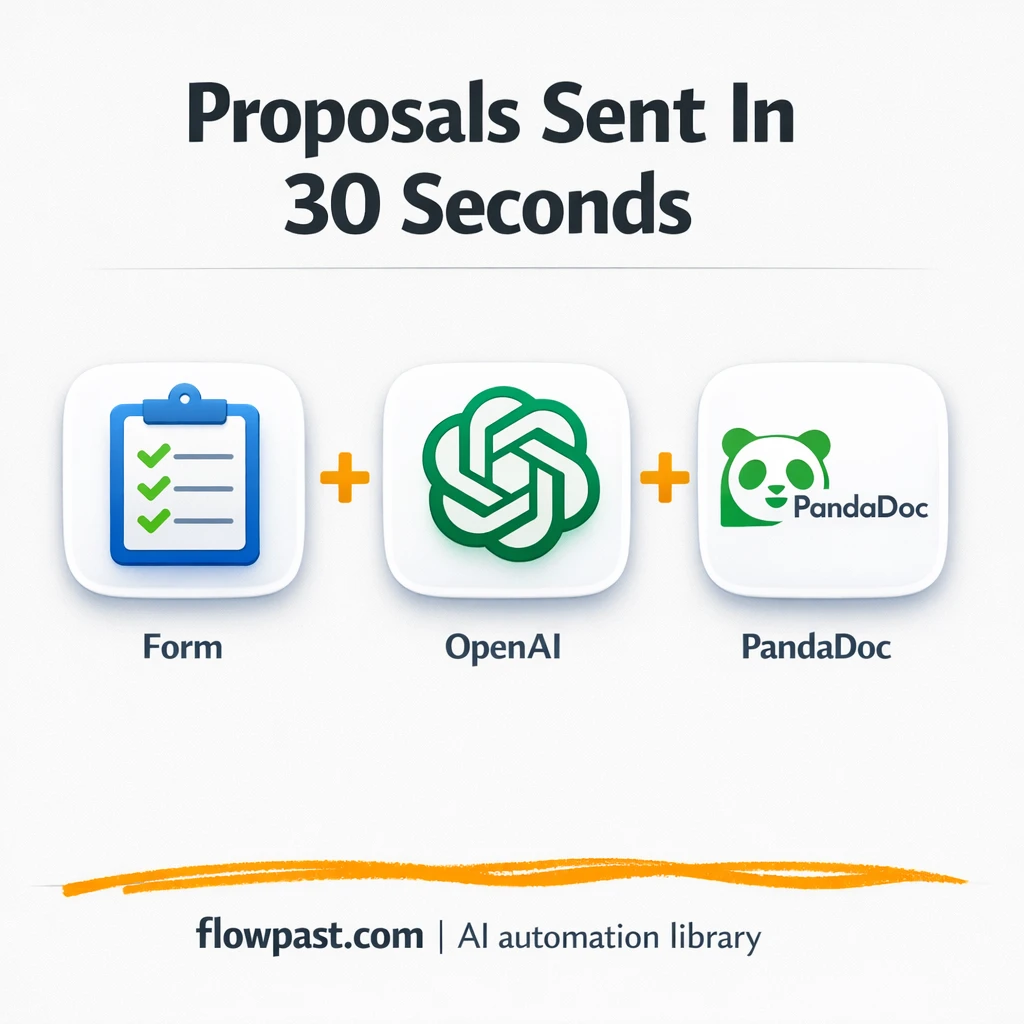

You finish a great sales call, and then the slow part starts. Notes in one place, a proposal template in another, and that awkward “I’ll send something later today” email that kills momentum.
This OpenAI proposal automation hits agency owners hardest, honestly. But consultants and sales leads inside small teams feel it too, because they’re usually the ones writing the proposal and chasing the follow-up.
This workflow turns quick form inputs into a polished proposal document and emails it via Gmail with a share link. You’ll see what it automates, what you need, and how the moving parts fit together.
How This Automation Works
The full n8n workflow, from trigger to final output:
n8n Workflow Template: OpenAI to Gmail, client proposals sent instantly
flowchart LR

    subgraph sg0["OpenAI Flow"]
        direction LR
        n0@{ icon: "mdi:cog", form: "rounded", label: "Replace Text", pos: "b", h: 48 }
        n1@{ icon: "mdi:robot", form: "rounded", label: "OpenAI", pos: "b", h: 48 }
        n2@{ icon: "mdi:cog", form: "rounded", label: "Google Drive", pos: "b", h: 48 }
        n3@{ icon: "mdi:message-outline", form: "rounded", label: "Gmail", pos: "b", h: 48 }
        n1 --> n2
        n2 --> n0
        n0 --> n3
    end

    subgraph sg1["On form submission1 Flow"]
        direction LR
        n5@{ icon: "mdi:robot", form: "rounded", label: "OpenAI1", pos: "b", h: 48 }
        n6@{ icon: "mdi:message-outline", form: "rounded", label: "Gmail1", pos: "b", h: 48 }
        n7["<div style='background:#f5f5f5;padding:10px;border-radius:8px;display:inline-block;border:1px solid #e0e0e0'><img src='https://flowpast.com/wp-content/uploads/n8n-workflow-icons/form.svg' width='40' height='40' /></div><br/>On form submission1"]
        n8["<div style='background:#f5f5f5;padding:10px;border-radius:8px;display:inline-block;border:1px solid #e0e0e0'><img src='https://flowpast.com/wp-content/uploads/n8n-workflow-icons/httprequest.dark.svg' width='40' height='40' /></div><br/>HTTP Request"]
        n5 --> n8
        n8 --> n6
        n7 --> n5
    end

    subgraph sg2["On form submission Flow"]
        direction LR
        n4["<div style='background:#f5f5f5;padding:10px;border-radius:8px;display:inline-block;border:1px solid #e0e0e0'><img src='https://flowpast.com/wp-content/uploads/n8n-workflow-icons/form.svg' width='40' height='40' /></div><br/>On form submission"]
    end

    %% Styling
    classDef trigger fill:#e8f5e9,stroke:#388e3c,stroke-width:2px
    classDef ai fill:#e3f2fd,stroke:#1976d2,stroke-width:2px
    classDef aiModel fill:#e8eaf6,stroke:#3f51b5,stroke-width:2px
    classDef decision fill:#fff8e1,stroke:#f9a825,stroke-width:2px
    classDef database fill:#fce4ec,stroke:#c2185b,stroke-width:2px
    classDef api fill:#fff3e0,stroke:#e65100,stroke-width:2px
    classDef code fill:#f3e5f5,stroke:#7b1fa2,stroke-width:2px
    classDef disabled stroke-dasharray: 5 5,opacity: 0.5
    class n7,n4 trigger
    class n1,n5 ai
    class n8 api
    classDef customIcon fill:none,stroke:none
    class n7,n8,n4 customIcon
The Problem: Proposals slow down the sale
Most proposals don’t fail because your offer is weak. They fail because the process is messy. After a call, you’re rewriting the same sections, hunting for the latest pricing line, and trying to make a template feel “custom” without breaking formatting. Then you send it late, or you send a rough draft, and the client’s excitement cools off. Even worse, small mistakes sneak in: the wrong company name, a stale scope line, or a timeline you forgot to adjust. It’s stressful, and it steals hours you should spend selling or delivering.
The friction compounds fast. Here’s where it usually breaks down.
- You spend about 1–2 hours reworking a “template” into something client-ready.
- Follow-ups slip because you don’t want to send something that looks rushed.
- Copy-paste errors happen at the worst possible time, right before you hit send.
- Every proposal is a one-off effort, so scaling your sales process feels impossible.
The Solution: Generate a proposal and email it automatically
This workflow gives you a full proposal pipeline inside n8n. It starts with a simple form you can fill in during a live call (name, company, problem, solution, scope, cost, timeline). OpenAI then expands those raw inputs into professional proposal sections using a structured prompt, so your tone and formatting stay consistent. Next, the workflow duplicates your proposal template in Google Drive and maps the AI-generated content into the right placeholders inside Google Slides (or routes to PandaDoc via an API call if you’re using the premium path). Finally, Gmail sends a clean email to the prospect with a share link to the finished proposal, which means you can follow up while the conversation is still warm.
The workflow starts when you submit the intake form in n8n. From there, OpenAI writes the proposal copy and n8n generates a fresh document from your template. Gmail sends the link immediately, so you’re not stuck doing “proposal admin” after the call.
What You Get: Automation vs. Results
| What This Workflow Automates | Results You’ll Get |
|---|---|
|
|
Example: What This Looks Like
Say you run 10 sales calls a week and you typically spend about 90 minutes per proposal between writing, formatting, exporting, and emailing. That’s roughly 15 hours of work, plus the mental load of keeping everything consistent. With this workflow, you fill out the form in about 2 minutes during the call, wait under 30 seconds for the proposal to generate, and Gmail sends the link right away. You still review when needed, but the “blank page” work basically disappears.
What You’ll Need
- n8n instance (try n8n Cloud free)
- Self-hosting option if you prefer (Hostinger works well)
- OpenAI for drafting proposal sections from inputs
- Google Drive + Google Slides to duplicate and fill a template
- Gmail to send the proposal link instantly
Skill level: Intermediate. You’ll connect accounts, set template placeholders, and do light troubleshooting if an API permission is off.
Don’t want to set this up yourself? Talk to an automation expert (free 15-minute consultation).
How It Works
A form submission kicks things off. You (or a sales rep) fills out a short intake form inside n8n while talking to the prospect. It captures the essentials: who they are, what they want, what it costs, and when they need it.
OpenAI turns rough inputs into proposal-ready writing. The AI agent takes your “messy but real” notes and drafts structured sections like problem summary, solution headings, scope bullets, and a timeline. The prompt is designed to keep tone consistent so proposals don’t feel random from one lead to the next.
A fresh document is created from your template. n8n duplicates your proposal template in Google Drive, then maps the generated content into the correct placeholders in Google Slides. If you choose the premium route, the workflow can also prepare a PandaDoc document via an HTTP API call.
Gmail sends the finished proposal link. The prospect receives a clean email with the share link and clear next steps, which is the part that keeps deals moving. No downloading, renaming, attaching, or “oops wrong version.”
You can easily modify the form fields to match your service packages based on your needs. See the full implementation guide below for customization options.
Step-by-Step Implementation Guide
Step 1: Configure the Form Trigger
Set up both form triggers so the workflow can capture sales call details and initiate proposal generation.
- Open Form Intake Trigger and confirm Form Title is set to
Sales Call Logging Form. - Verify Form Description is set to
This form logs a sales call & automatically generates a proposal.. - Ensure required fields include First Name, Last Name, Company Name, Email, Problem, Solution, Scope, Cost, and How soon?.
- Repeat the same configuration in Secondary Form Trigger with matching fields and labels.
Tip: Keep field labels identical between Form Intake Trigger and Secondary Form Trigger to avoid broken expressions later.
Step 2: Connect Google Drive and Slides
Copy a proposal template and map AI-generated text into the new Google Slides file.
- Open Drive Template Copier and set Operation to
copy. - Set Name to
={{ $json.message.content.proposalTitle }}and select your template ID in File ID. - Credential Required: Connect your googleDriveOAuth2Api credentials.
- Open Slide Text Mapper and set Operation to
replaceText. - Set Presentation ID to
={{ $json.id }}. - Confirm the text replacement mappings use expressions like
={{ $('AI Proposal Writer').item.json.message.content.proposalTitle }}and other AI fields. - Credential Required: Connect your googleSlidesOAuth2Api credentials.
⚠️ Common Pitfall: If your Slides template placeholders don’t match the tokens like {{proposalTitle}}, Slide Text Mapper will replace nothing.
Step 3: Set Up the AI Proposal Writers
Configure both AI nodes to generate structured JSON for proposals and PandaDoc data.
- Open AI Proposal Writer and set the model to
gpt-4o. - Ensure JSON Output is enabled (
true) to produce structured fields for the Slides template. - Credential Required: Connect your openAiApi credentials.
- Open Proposal Drafting AI and set the model to
gpt-4o. - Ensure JSON Output is enabled (
true) for PandaDoc tokens and pricing data. - Credential Required: Connect your openAiApi credentials.
Tip: The AI nodes rely on inputs like {{ $json['Company Name'] }}, {{ $json.Problem }}, and {{ $json.Cost }} coming from the form triggers.
Step 4: Configure PandaDoc and Email Delivery
Send AI-generated content to PandaDoc and email the proposal links to the client.
- Open PandaDoc API Call and set URL to
https://api.pandadoc.com/public/v1/documents/with MethodPOST. - Set Specify Body to
jsonand ensure the JSON Body is the full template using expressions like{{ $json.message.content.proposalTitle }}and{{ $('Secondary Form Trigger').item.json.Email }}. - In Header Parameters, set Authorization to
API-Key [CONFIGURE_YOUR_API_KEY]and accept toapplication/json. - Open Proposal Emailer and set Send To to
={{ $('Secondary Form Trigger').item.json.Email }}. - Set Subject to
Re: Proposal Detailsand confirm the message uses{{ $json.presentationId }}for the Google Slides link. - Credential Required: Connect your gmailOAuth2 credentials for Proposal Emailer.
- Open Email Dispatch and set Send To to
={{ $('Form Intake Trigger').item.json.Email }}with the same subject and message. - Credential Required: Connect your gmailOAuth2 credentials for Email Dispatch.
⚠️ Common Pitfall: PandaDoc API Call has no built-in credentials. You must supply a valid API key in the Authorization header or the request will fail.
Step 5: Confirm Execution Flow
Verify that the nodes connect in the intended order across both branches.
- Confirm AI Proposal Writer outputs to Drive Template Copier, which outputs to Slide Text Mapper, then to Email Dispatch.
- Confirm Secondary Form Trigger outputs to Proposal Drafting AI, which outputs to PandaDoc API Call, then to Proposal Emailer.
Flowpast Branding is a visual note for documentation and does not affect execution.
Step 6: Test & Activate Your Workflow
Run an end-to-end test for both triggers, then activate for production use.
- Use the Form Intake Trigger test form to submit a sample entry and run the workflow.
- Verify that a Google Slides file is copied, text is replaced, and Email Dispatch sends a message with a valid link.
- Submit a test via Secondary Form Trigger and confirm PandaDoc API Call returns a success response.
- Check that Proposal Emailer sends the follow-up email to the correct address.
- When both paths succeed, toggle the workflow to Active for production use.
Common Gotchas
- Google Drive and Google Slides credentials can expire or need specific permissions. If things break, check the Google connection inside n8n’s Credentials and confirm the account has access to the template file first.
- If you’re using Wait nodes or external rendering, processing times vary. Bump up the wait duration if downstream nodes fail on empty responses.
- Default prompts in AI nodes are generic. Add your brand voice early or you’ll be editing outputs forever.
Frequently Asked Questions
Plan on about 2–3 hours the first time, mostly for template setup and permissions.
No coding required. You’ll mostly connect accounts, paste prompts, and map a few fields into your template.
Yes. n8n has a free self-hosted option and a free trial on n8n Cloud. Cloud plans start at $20/month for higher volume. You’ll also need to factor in OpenAI API usage, which is usually a few cents per proposal.
Two options: n8n Cloud (managed, easiest setup) or self-hosting on a VPS. For self-hosting, Hostinger VPS is affordable and handles n8n well. Self-hosting gives you unlimited executions but requires basic server management.
Yes, but you’ll adjust the document generation path. In this workflow, you can route from the AI drafting node into the PandaDoc API Call (HTTP Request) and then use the dedicated Gmail node (Proposal Emailer) to send the PandaDoc link. Common customizations include adding signature fields, inserting a pricing table, and attaching an invoice step for immediate payment.
Most of the time it’s an authorization issue in Google, not “Gmail is down.” Reconnect the Gmail credential in n8n, confirm the correct Google account is selected, and check that the integration still has permission to send email. If you’re sending from a shared inbox, verify delegation settings too. Occasionally you’ll hit Google rate limits if you blast a lot of emails at once, so spacing sends can help.
A lot.
For proposal generation, n8n is usually a better fit because you can control the logic, handle more complex branching, and self-host for unlimited executions. It also makes it easier to manage multi-step document generation (template copy, text mapping, link sharing, then email) without turning your automation into a fragile chain of single-purpose zaps. Zapier or Make can still work if you only need a simple “form → email” flow, and you’re fine doing the document part manually. The moment you want Google Slides variable mapping or a PandaDoc API step, n8n pulls ahead. Talk to an automation expert if you want help picking the fastest path.
You don’t need more hustle to send better proposals. Set this up once, and the workflow handles the repeatable parts while you stay focused on the conversation.
Need Help Setting This Up?
Our automation experts can build and customize this workflow for your specific needs. Free 15-minute consultation—no commitment required.
