


OpenRouter + Facebook, on-brand posts published fast
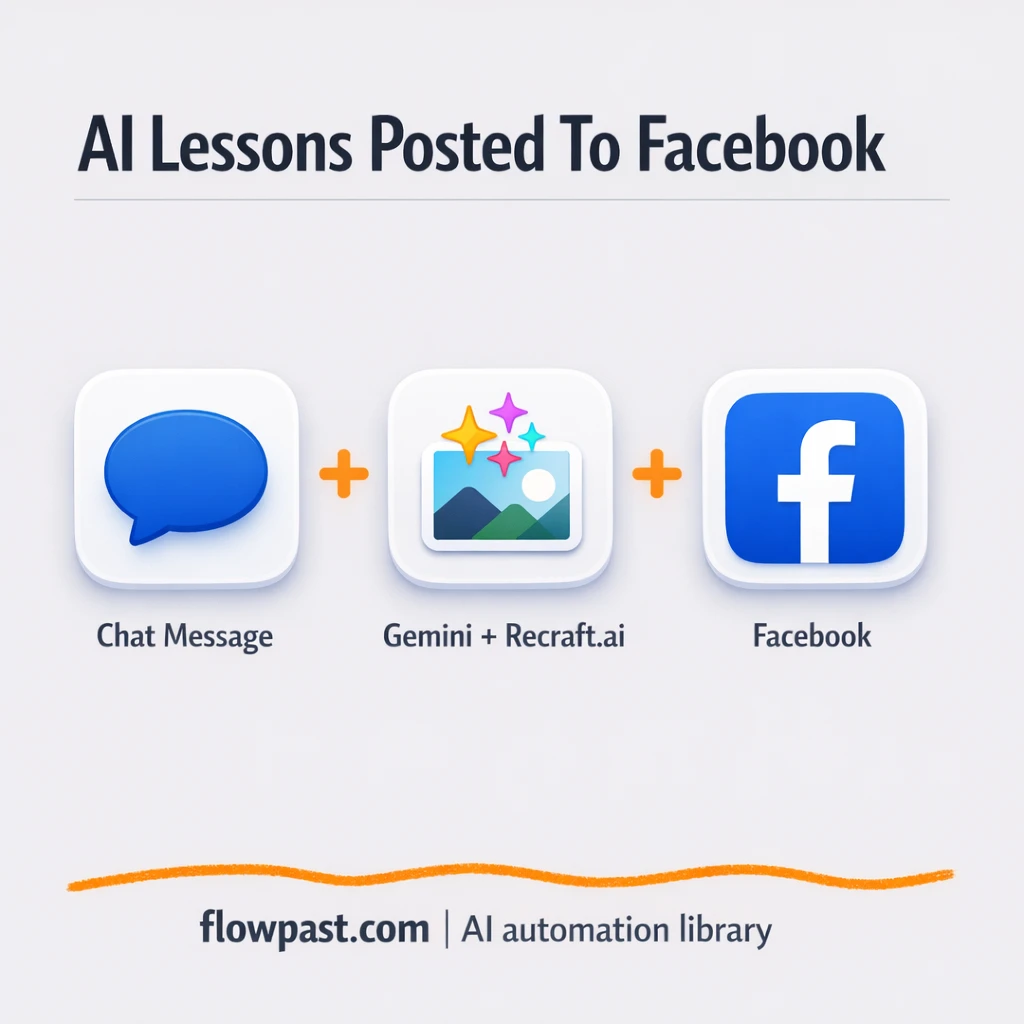

You sit down to “just post something,” and suddenly you’re juggling captions, translations, hashtags, and an image that doesn’t match your page style. Then you rewrite it twice because the tone feels off. Again.
This OpenRouter Facebook posts automation hits social media managers hardest, but course creators and small team owners feel it too. You will turn a single vocab word into a ready-to-publish lesson post (text plus visuals) without starting from a blank page every time.
Below, you’ll see how the workflow runs in n8n, what it outputs, and what you need to publish consistently on Facebook without babysitting the process.
How This Automation Works
The full n8n workflow, from trigger to final output:
n8n Workflow Template: OpenRouter + Facebook, on-brand posts published fast
flowchart LR

    subgraph sg0["When chat message received Flow"]
        direction LR
        n0["<div style='background:#f5f5f5;padding:10px;border-radius:8px;display:inline-block;border:1px solid #e0e0e0'><img src='https://flowpast.com/wp-content/uploads/n8n-workflow-icons/httprequest.dark.svg' width='40' height='40' /></div><br/>Generate Image (Recraft.ai)"]
        n1@{ icon: "mdi:robot", form: "rounded", label: "Create FB Post Content", pos: "b", h: 48 }
        n2@{ icon: "mdi:robot", form: "rounded", label: "Structured Output Parser2", pos: "b", h: 48 }
        n3@{ icon: "mdi:robot", form: "rounded", label: "Create Image Prompt", pos: "b", h: 48 }
        n5@{ icon: "mdi:brain", form: "rounded", label: "OpenRouter Chat Model", pos: "b", h: 48 }
        n6@{ icon: "mdi:brain", form: "rounded", label: "OpenRouter Chat Model1", pos: "b", h: 48 }
        n7["<div style='background:#f5f5f5;padding:10px;border-radius:8px;display:inline-block;border:1px solid #e0e0e0'><img src='https://flowpast.com/wp-content/uploads/n8n-workflow-icons/facebook.svg' width='40' height='40' /></div><br/>Facebook Graph API"]
        n8@{ icon: "mdi:play-circle", form: "rounded", label: "When chat message received", pos: "b", h: 48 }
        n9["<div style='background:#f5f5f5;padding:10px;border-radius:8px;display:inline-block;border:1px solid #e0e0e0'><img src='https://flowpast.com/wp-content/uploads/n8n-workflow-icons/code.svg' width='40' height='40' /></div><br/>Code"]
        n9 --> n1
        n3 --> n0
        n5 -.-> n1
        n1 --> n3
        n6 -.-> n3
        n2 -.-> n3
        n8 --> n9
        n0 --> n7
    end

    subgraph sg1["Flow 2"]
        direction LR
        n4["<div style='background:#f5f5f5;padding:10px;border-radius:8px;display:inline-block;border:1px solid #e0e0e0'><img src='https://flowpast.com/wp-content/uploads/n8n-workflow-icons/httprequest.dark.svg' width='40' height='40' /></div><br/>Text Over Image"]
    end

    %% Styling
    classDef trigger fill:#e8f5e9,stroke:#388e3c,stroke-width:2px
    classDef ai fill:#e3f2fd,stroke:#1976d2,stroke-width:2px
    classDef aiModel fill:#e8eaf6,stroke:#3f51b5,stroke-width:2px
    classDef decision fill:#fff8e1,stroke:#f9a825,stroke-width:2px
    classDef database fill:#fce4ec,stroke:#c2185b,stroke-width:2px
    classDef api fill:#fff3e0,stroke:#e65100,stroke-width:2px
    classDef code fill:#f3e5f5,stroke:#7b1fa2,stroke-width:2px
    classDef disabled stroke-dasharray: 5 5,opacity: 0.5
    class n8 trigger
    class n1,n2,n3 ai
    class n5,n6 aiModel
    class n0,n7,n4 api
    class n9 code
    class n4 disabled
    classDef customIcon fill:none,stroke:none
    class n0,n7,n9,n4 customIcon
The Problem: Facebook posts take forever to make consistent
Educational posts look simple from the outside, but the “simple” part is what drains you. One vocab word becomes a hook, a structured mini-lesson, examples, a pro-tip, a call-to-action, and hashtags. Then you need a matching visual that doesn’t feel like random clipart. If you’re teaching Chinese words to a Thai-speaking audience, you also have to keep the formatting tight (Chinese characters, Pinyin, Thai meaning) or the post becomes confusing fast. And frankly, consistency is what’s hardest to maintain when you’re rushing.
The friction compounds. Here’s where it breaks down most weeks.
- It’s easy to burn about 45 minutes on one “quick” lesson post once you include writing, formatting, and image hunting.
- The voice changes from post to post, so the page feels less professional even when the content is good.
- Visuals don’t match your theme, which means you end up redesigning or skipping images altogether.
- Publishing is another manual step, so posts slip when you’re busy with real work.
The Solution: Generate a lesson post + image, then publish automatically
This n8n workflow turns a single input word into a polished Facebook post that follows a repeatable structure and stays on-brand. It starts when you submit a vocab word through a chat trigger (you can also swap in Google Sheets later). OpenRouter generates the Thai-language lesson caption with the pieces you actually need: hook, the Chinese word with Pinyin, Thai meaning, usage examples, a quick pro-tip, and a call-to-action plus hashtags. Then a second OpenRouter prompt creates a clean image concept that fits the lesson. Recraft.ai generates the artwork in a consistent illustration style, and the workflow optionally applies a text overlay so your visuals look like a series, not a one-off. Finally, n8n publishes the caption and image to your Facebook Page using the Graph API.
The workflow begins with a word you provide. AI writes the caption and the image brief, Recraft renders the visual, and Facebook Graph API posts it to your page. One input, one finished post, live on Facebook.
What You Get: Automation vs. Results
| What This Workflow Automates | Results You’ll Get |
|---|---|
|
|
Example: What This Looks Like
Say you publish 5 vocab posts per week. Manually, you might spend about 30 minutes writing and formatting the Thai lesson, plus another 15 minutes finding or making an image, plus 5 minutes posting and checking it, which is roughly 50 minutes per post (around 4 hours a week). With this workflow, you drop in the word in under a minute, wait about 2 minutes for AI text plus image generation, and the post is published automatically. You’re mainly reviewing, not building from scratch, so you get back about 3 hours most weeks.
What You’ll Need
- n8n instance (try n8n Cloud free)
- Self-hosting option if you prefer (Hostinger works well)
- OpenRouter for generating the caption and image concept.
- Recraft.ai to generate consistent lesson artwork.
- Facebook Graph API access (get it from Meta for Developers and your Page settings).
Skill level: Intermediate. You’ll connect APIs, paste keys, and confirm Facebook Page permissions in Meta.
Don’t want to set this up yourself? Talk to an automation expert (free 15-minute consultation).
How It Works
You send a word to the workflow. The automation starts from an Incoming Chat Trigger, then a parsing step saves the vocab word in a clean format so it doesn’t get lost later.
AI drafts the lesson caption. OpenRouter generates a structured Thai post that includes the hook, the Chinese word plus Pinyin, Thai meaning, examples, and engagement prompts. This is where you lock in your “series” format, so every post feels familiar.
AI describes the visual, then an image gets rendered. A second OpenRouter prompt creates a short image concept, then an HTTP request calls Recraft.ai to generate the artwork in your predefined style. If you want the post to look even more consistent, the workflow can apply a simple overlay to the image too.
The final post gets published to Facebook. n8n sends the caption and the generated image to Facebook using the Pages API, so it lands on your Page without manual uploading.
You can easily modify the input source to use Google Sheets instead of chat based on your needs. See the full implementation guide below for customization options.
Step-by-Step Implementation Guide
Step 1: Configure the Chat Trigger
This workflow starts when a chat message is received, so you’ll configure the trigger that captures incoming chat input.
- Add and open Incoming Chat Trigger.
- Keep the default settings in Incoming Chat Trigger (no parameters are required).
- Connect Incoming Chat Trigger to Parse Chat Input to pass the chat payload downstream.
Step 2: Parse the Incoming Message
The workflow uses a code node to standardize the input for downstream AI and rendering steps.
- Open Parse Chat Input and set JavaScript Code to the provided snippet that maps
$json.chatInputintowordandinput. - Ensure the output JSON includes
wordandinputas shown in the node’s code. - Connect Parse Chat Input to Draft Social Post.
Step 3: Set Up the Social Post Generation
Draft Social Post uses a chat model to generate the Facebook post content based on the parsed input.
- Open Draft Social Post and set Text to
=the word: {{ $json.word }}. - Keep Prompt Type as
defineand leave Has Output Parser enabled. - Open Primary Chat Model and set Model to
google/gemini-2.5-pro. - Credential Required: Connect your openRouterApi credentials in Primary Chat Model.
- Ensure Primary Chat Model is connected as the language model for Draft Social Post.
Step 4: Build the Image Prompt with Structured Output
This step transforms the social post into a short image prompt and parses it into structured JSON.
- Open Compose Image Prompt and set Text to
={{ $('Parse Chat Input').item.json.input }}. - Keep Prompt Type as
defineand leave Has Output Parser enabled. - Open Parse Prompt JSON and keep the JSON Schema Example as
{ "image_prompt_brief": "YOUR_GENERATED_SENTENCE_HERE" }. - Open Secondary Chat Model and set Model to
google/gemini-flash-1.5. - Credential Required: Connect your openRouterApi credentials in Secondary Chat Model.
- Ensure Secondary Chat Model is connected as the language model for Compose Image Prompt, and Parse Prompt JSON is connected as its output parser.
Step 5: Render the Artwork and Publish to Facebook
The prompt is sent to an image API, and the resulting image URL plus the post copy are published to Facebook.
- Open Render Artwork and set URL to
https://external.api.recraft.ai/v1/images/generations. - Set Method to
POSTand keep Specify Body asjson. - Set JSON Body to
{ "prompt": "{{ $json.output.image_prompt_brief }}", "style": "digital_illustration", "substyle": "young_adult_book_2", "size": "1024x1024" }. - Credential Required: Connect your httpHeaderAuth credentials in Render Artwork.
- Open Publish to Facebook and set Edge to
photosand Node to[YOUR_ID]. - Set Host URL to
=graph.facebook.comand Graph API Version tov22.0. - In Query Parameters, set message to
={{ $('Draft Social Post').item.json.output }}and url to={{ $json.data[0].url }}. - Credential Required: Connect your facebookGraphApi credentials in Publish to Facebook.
[YOUR_ID] with your Facebook Page ID, or the post will fail.Step 6: Review Optional Utilities and Notes
The workflow includes a disabled overlay utility and a branding note for documentation.
- Review Flowpast Branding as a documentation-only node; it does not affect execution.
- If you plan to enable Utility: Image Text Overlay, configure the body parameters and image/text expressions as provided.
- Credential Required: If you enable Utility: Image Text Overlay, connect your httpHeaderAuth credentials.
Step 7: Test and Activate Your Workflow
Validate the workflow end-to-end before turning it on for production use.
- Click Execute Workflow and send a sample chat message through Incoming Chat Trigger.
- Confirm Draft Social Post outputs formatted content and Compose Image Prompt returns
image_prompt_brief. - Verify Render Artwork returns an image URL in
$json.data[0].url. - Check Facebook to ensure Publish to Facebook posts the image with the generated message.
- When everything works, toggle the workflow Active to enable production execution.
Common Gotchas
- Facebook Graph API credentials can expire or need specific permissions. If things break, check your Page token validity and permissions in Meta for Developers first.
- If you’re using Wait nodes or external rendering, processing times vary. Bump up the wait duration if downstream nodes fail on empty responses.
- Default prompts in AI nodes are generic. Add your brand voice early or you’ll be editing outputs forever.
Frequently Asked Questions
About 30 minutes if you already have your API keys and Facebook Page access.
No. You’ll connect accounts, add API keys, and paste your Facebook Page details into the right fields.
Yes. n8n has a free self-hosted option and a free trial on n8n Cloud. Cloud plans start at $20/month for higher volume. You’ll also need to factor in OpenRouter and Recraft.ai API costs.
Two options: n8n Cloud (managed, easiest setup) or self-hosting on a VPS. For self-hosting, Hostinger VPS is affordable and handles n8n well. Self-hosting gives you unlimited executions but requires basic server management.
Yes, and it’s a common tweak. Replace the Incoming Chat Trigger with a Google Sheets trigger (new row or scheduled fetch), then map the “word” field into the same place the workflow currently uses after “Parse Chat Input.” Most people also add a simple “status” column in Sheets (Queued, Posted, Error) so nothing gets double-published. If you want approvals, route drafts to Slack first, then publish only when approved.
Usually it’s a token or permission issue. Make sure your app and Page token include permissions like pages_manage_posts and the Page you’re targeting is the one tied to that token. Also confirm the page_id and Graph API version match what your Facebook node is sending. If it worked once and stopped, your token may have expired and needs to be regenerated.
A lot, as long as your API limits and n8n plan match your volume.
For this kind of workflow, n8n is usually the better fit because it handles multi-step AI generation, branching, and HTTP calls without getting awkward or expensive as the logic grows. You also get the option to self-host, which matters when you’re posting frequently. Zapier or Make can be fine for simpler “one prompt, one post” setups, but you’ll feel the limits once you add structured parsing, image generation, and retries. If you’re unsure, Talk to an automation expert and describe your posting volume and review process.
Once this is running, you’re no longer “making a post.” You’re feeding a system that publishes clean, consistent lessons on command.
Need Help Setting This Up?
Our automation experts can build and customize this workflow for your specific needs. Free 15-minute consultation—no commitment required.
