


QuickBooks to Google Sheets, invoices stay accurate
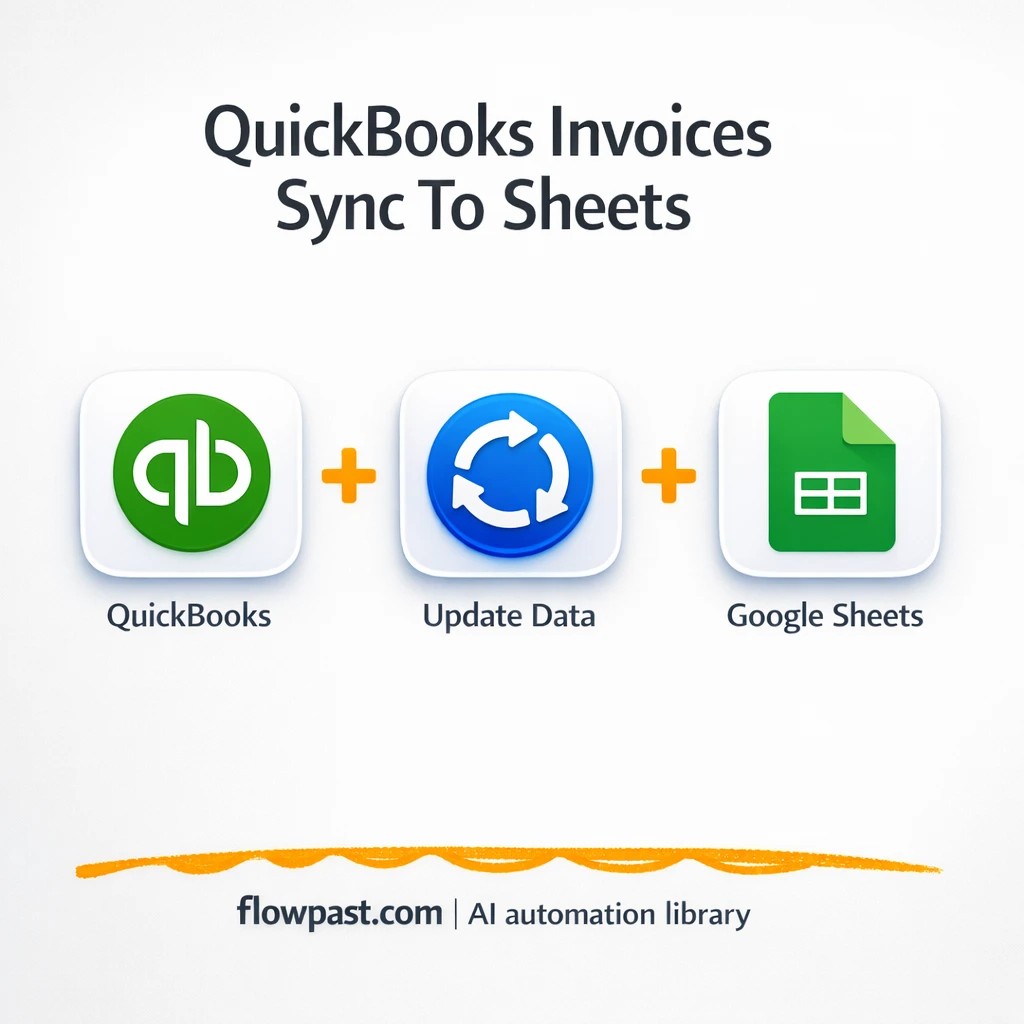

Your invoice list should be boring. Instead, it’s scattered across QuickBooks tabs, emails, and someone’s “latest” spreadsheet that’s already out of date.
QuickBooks Sheets sync hits hardest when you’re the person answering “is this paid?” all day. Finance leads feel it at month-end. Ops managers feel it when a customer says “we never got that invoice” and nobody can find the current due date.
This workflow keeps Google Sheets matched to QuickBooks invoices in real time. You’ll learn what it automates, what you need to connect, and how to avoid the usual setup traps.
How This Automation Works
Here’s the complete workflow you’ll be setting up:
n8n Workflow Template: QuickBooks to Google Sheets, invoices stay accurate
flowchart LR

    subgraph sg0["Flow 1"]
        direction LR
        n0["<div style='background:#f5f5f5;padding:10px;border-radius:8px;display:inline-block;border:1px solid #e0e0e0'><img src='https://flowpast.com/wp-content/uploads/n8n-workflow-icons/webhook.dark.svg' width='40' height='40' /></div><br/>QuickBooks Webhook"]
        n1["<div style='background:#f5f5f5;padding:10px;border-radius:8px;display:inline-block;border:1px solid #e0e0e0'><img src='https://flowpast.com/wp-content/uploads/n8n-workflow-icons/code.svg' width='40' height='40' /></div><br/>Code"]
        n2["<div style='background:#f5f5f5;padding:10px;border-radius:8px;display:inline-block;border:1px solid #e0e0e0'><img src='https://flowpast.com/wp-content/uploads/n8n-workflow-icons/quickbooks.svg' width='40' height='40' /></div><br/>Get an invoice"]
        n3@{ icon: "mdi:database", form: "rounded", label: "Append or update row in sheet", pos: "b", h: 48 }
        n1 --> n3
        n2 --> n1
        n0 --> n2
    end

    %% Styling
    classDef trigger fill:#e8f5e9,stroke:#388e3c,stroke-width:2px
    classDef ai fill:#e3f2fd,stroke:#1976d2,stroke-width:2px
    classDef aiModel fill:#e8eaf6,stroke:#3f51b5,stroke-width:2px
    classDef decision fill:#fff8e1,stroke:#f9a825,stroke-width:2px
    classDef database fill:#fce4ec,stroke:#c2185b,stroke-width:2px
    classDef api fill:#fff3e0,stroke:#e65100,stroke-width:2px
    classDef code fill:#f3e5f5,stroke:#7b1fa2,stroke-width:2px
    classDef disabled stroke-dasharray: 5 5,opacity: 0.5
    class n3 database
    class n0 api
    class n1 code
    classDef customIcon fill:none,stroke:none
    class n0,n1,n2 customIcon
Why This Matters: Your invoice list keeps drifting out of sync
QuickBooks is the source of truth, but your team doesn’t live inside QuickBooks all day. So invoices get copied into a sheet for reporting, status tracking, or sharing with people who shouldn’t have full accounting access. Then reality happens: an invoice is edited, a due date changes, the customer name is corrected, or a draft becomes sent. If you’re updating the sheet manually, you’ll miss changes. And if you’re exporting CSVs, you’re basically taking snapshots of a moving target. It’s stressful, and it turns simple questions into little investigations.
The friction compounds. Here’s where it breaks down.
- Manual copy-paste and CSV exports create stale “versions” of the same invoice list within a week.
- One missed edit (like a due date update) can cause late follow-ups or awkward customer conversations.
- Team members without QuickBooks access keep pinging you, because the sheet is the only thing they can see.
- Duplicates creep in when you re-export, which makes reporting and aging views unreliable.
What You’ll Build: A real-time QuickBooks invoice mirror in Google Sheets
This automation listens for invoice events in QuickBooks and keeps a Google Sheet updated automatically. When an invoice is created or updated, QuickBooks triggers a webhook to n8n, which starts the workflow immediately. Because webhook notifications usually include only an invoice ID, the workflow then fetches the full invoice record from QuickBooks so you can work with real fields like customer name and due date. Next, it cleans and formats the data into a simple structure that matches your sheet columns. Finally, it uses an “append or update” action in Google Sheets: new invoice ID means a new row, existing ID means the row gets updated. No duplicates. No manual reconciliation.
The workflow begins with a QuickBooks webhook and turns that event into a full invoice lookup. Then it reshapes the data into the exact columns your team wants to see. Google Sheets is the final destination, updated in place so the sheet stays trustworthy.
What You’re Building
| What Gets Automated | What You’ll Achieve |
|---|---|
|
|
Expected Results
Say you handle about 40 invoices a week, and roughly half get edited at least once (due date tweaks, customer name fixes, status changes). If updating a shared spreadsheet takes maybe 5 minutes per invoice event, that’s about 3–4 hours a week of repetitive work, plus the occasional “wait, which row is correct?” cleanup. With this workflow, the “work” becomes a quick webhook trigger and an automatic update in the sheet, usually within a minute. The time you get back is real, but the bigger win is fewer mistakes.
Before You Start
- n8n instance (try n8n Cloud free)
- Self-hosting option if you prefer (Hostinger works well)
- QuickBooks Online as the invoice source system.
- Google Sheets to store and share the invoice mirror.
- Intuit Developer app + webhook (configure webhooks in the Intuit Developer Portal).
Skill level: Intermediate. You’ll be connecting OAuth credentials and configuring a QuickBooks webhook endpoint.
Want someone to build this for you? Talk to an automation expert (free 15-minute consultation).
Step by Step
A QuickBooks invoice event triggers the workflow. When an invoice is created or updated, QuickBooks sends a webhook notification to n8n. That single ping is what keeps everything “live” instead of relying on scheduled exports.
The workflow fetches the full invoice details. The webhook usually includes an invoice ID, not the full record. n8n uses that ID to pull the complete invoice from QuickBooks Online so you have the customer name, due date, and whatever fields you choose to store.
The invoice payload gets cleaned and shaped for reporting. A small transform step extracts the key fields (like ID, domain, customer name, due date) and formats them to match your sheet headers. This is where you keep the sheet readable for humans.
Google Sheets is updated without duplicates. The final step uses an upsert-style action, which means it adds a row when the invoice ID is new, and updates the existing row when the invoice already exists.
You can easily modify which invoice fields get stored to match your reporting needs. See the full implementation guide below for customization options.
Step-by-Step Implementation Guide
Step 1: Configure the Webhook Trigger
Set up the inbound webhook that QuickBooks will call when an invoice event occurs.
- Add the QuickBooks Event Hook node as your trigger.
- Set HTTP Method to
POST. - Set Path to
quickbooks-invoice. - Copy the generated webhook URL from QuickBooks Event Hook for use in your QuickBooks webhook configuration.
Tip: Ensure the QuickBooks webhook is configured to send invoice event notifications to the URL generated by QuickBooks Event Hook.
Step 2: Connect QuickBooks
Retrieve full invoice details from QuickBooks based on the webhook payload.
- Add the Retrieve Invoice Details node and connect it to QuickBooks Event Hook.
- Set Resource to
invoice. - Set Invoice ID to
{{ $json.body.eventNotifications[0].dataChangeEvent.entities[0].id }}. - Credential Required: Connect your QuickBooks credentials.
⚠️ Common Pitfall: This node will fail without QuickBooks credentials. Add them before testing.
Step 3: Set Up Processing in Transform Invoice Payload
Map the retrieved invoice fields into a simplified JSON structure for Google Sheets.
- Add the Transform Invoice Payload node and connect it to Retrieve Invoice Details.
- Paste the provided JavaScript into Code to map
ID,Domain,Customer Name, andDue Date.
Step 4: Configure Google Sheets Output
Upsert invoice records into your Google Sheet using the invoice ID as the matching key.
- Add the Upsert Sheet Row node and connect it to Transform Invoice Payload.
- Set Operation to
appendOrUpdate. - Set Document to
{YOUR_GOOGLE_DOCUMENT_ID}. - Set Sheet to
{YOUR_SHEET_ID}(cached name:quickbooks). - Ensure Matching Columns includes
IDand Mapping Mode isautoMapInputData. - Credential Required: Connect your Google Sheets credentials.
Step 5: Test and Activate Your Workflow
Validate the workflow end-to-end and enable it for live invoice syncing.
- Click Execute Workflow and send a test invoice event from QuickBooks to the webhook URL.
- Confirm Retrieve Invoice Details returns invoice data and Transform Invoice Payload outputs fields like
IDandCustomer Name. - Verify Upsert Sheet Row creates or updates a row in your Google Sheet based on the
IDmatch. - Toggle the workflow to Active to enable production syncing.
Troubleshooting Tips
- QuickBooks credentials and app permissions can be picky. If invoices stop syncing, check your Intuit Developer app settings and the connected QuickBooks credential in n8n first.
- Webhook configuration is the silent killer here. If nothing triggers, confirm the Production URL from the n8n Webhook node is the same URL subscribed to Invoice events in the Intuit Developer Portal.
- Google Sheets “Append or Update” depends on headers and a stable key. Make sure your sheet has the exact headers (ID, Domain, Customer Name, Due Date) and that the ID column is mapped correctly, or you will see duplicates.
Quick Answers
About 30–60 minutes once your accounts are ready.
No. You’ll connect accounts, paste a webhook URL into Intuit, and map a few fields.
Yes. n8n has a free self-hosted option and a free trial on n8n Cloud. Cloud plans start at $20/month for higher volume. You’ll also need to factor in any costs tied to your QuickBooks Online plan and Google Workspace, if applicable.
Two options: n8n Cloud (managed, easiest setup) or self-hosting on a VPS. For self-hosting, Hostinger VPS is affordable and handles n8n well. Self-hosting gives you unlimited executions but requires basic server management.
Yes, and you should. The easiest tweak is in the Transform Invoice Payload step, where you choose which fields get extracted (like invoice total, status, or invoice number), then map them into new Google Sheets columns. Some teams also add an extra branch after the QuickBooks lookup to filter by keywords or customer domain before writing to the sheet. If you want a second destination, you can duplicate the final “Upsert Sheet Row” pattern and write to Airtable as well.
Usually it’s an expired or disconnected QuickBooks authorization in n8n. Reconnect the QuickBooks credential, then re-test the “Retrieve Invoice Details” step. Also check that your Intuit app is still subscribed to the right webhook events and that you’re using the current Production URL from the Webhook node. If you’re processing a burst of updates, QuickBooks API rate limits can show up too, so retries may help.
In practice, it can handle typical small business volume easily (dozens to hundreds of invoice updates a day). On n8n Cloud, your limit is mainly plan executions per month. If you self-host, there’s no fixed execution cap, but performance depends on your server and QuickBooks API limits, so extremely high-volume accounts may need batching or retry logic.
Sometimes. If you need true upsert behavior, field cleanup, and room to add filters later, n8n tends to be more flexible and less “pay per step.” Zapier or Make can be fine for simple pushes, but webhook + lookup + transform + upsert is where workflows often get fiddly. The self-hosted option is a big deal if you want lots of runs without watching a task counter. The honest answer: pick the tool you’ll maintain. Talk to an automation expert if you want help choosing.
Once this is running, your invoice sheet becomes something you can actually trust. Set it up once, then let QuickBooks updates flow through while you focus on decisions, not data cleanup.
Need Help Setting This Up?
Our automation experts can build and customize this workflow for your specific needs. Free 15-minute consultation—no commitment required.
