


RSS to Google Sheets, skim-worthy AI summaries

Your feeds don’t feel like “research.” They feel like a second inbox. You open ten tabs, skim fast, lose the good bits, and then you still have to turn all of that into something usable.
This is where RSS summary automation helps most. Content marketers trying to stay current, founders doing competitive scans, and researchers building weekly digests all get stuck in the same loop: read, copy, paste, forget.
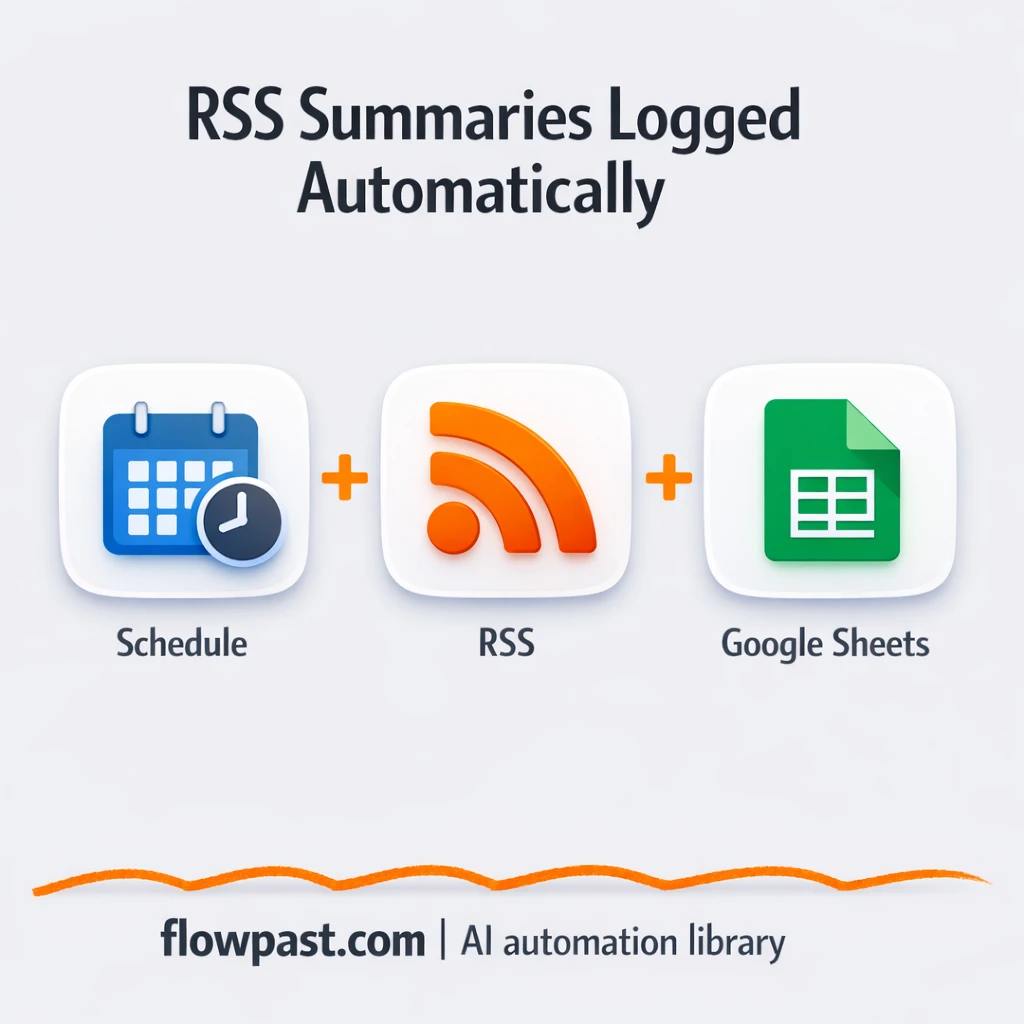
This workflow pulls new articles from multiple RSS feeds, summarizes them consistently with AI, and logs everything into Google Sheets so you can scan, filter, and share without the chaos.
How This Automation Works
The full n8n workflow, from trigger to final output:
n8n Workflow Template: RSS to Google Sheets, skim-worthy AI summaries
flowchart LR

    subgraph sg0["When clicking ‘Execute workflow’ Flow"]
        direction LR
        n0@{ icon: "mdi:play-circle", form: "rounded", label: "When clicking ‘Execute workf..", pos: "b", h: 48 }
        n1@{ icon: "mdi:database", form: "rounded", label: "Get RSS Feed List", pos: "b", h: 48 }
        n2@{ icon: "mdi:cog", form: "rounded", label: "Read RSS", pos: "b", h: 48 }
        n3@{ icon: "mdi:swap-vertical", form: "rounded", label: "Loop Over Rss Elements", pos: "b", h: 48 }
        n4@{ icon: "mdi:database", form: "rounded", label: "Get Row for URL is in Sheets", pos: "b", h: 48 }
        n5["<div style='background:#f5f5f5;padding:10px;border-radius:8px;display:inline-block;border:1px solid #e0e0e0'><img src='https://flowpast.com/wp-content/uploads/n8n-workflow-icons/markdown.dark.svg' width='40' height='40' /></div><br/>Convert HTML to Markdown"]
        n6@{ icon: "mdi:database", form: "rounded", label: "Append Aummary to Google She..", pos: "b", h: 48 }
        n7@{ icon: "mdi:swap-vertical", form: "rounded", label: "Combine Rss with source name", pos: "b", h: 48 }
        n8@{ icon: "mdi:swap-horizontal", form: "rounded", label: "Check If Article Exists", pos: "b", h: 48 }
        n9@{ icon: "mdi:robot", form: "rounded", label: "Summarize Content", pos: "b", h: 48 }
        n10@{ icon: "mdi:swap-vertical", form: "rounded", label: "Format Output", pos: "b", h: 48 }
        n11@{ icon: "mdi:play-circle", form: "rounded", label: "Schedule Trigger", pos: "b", h: 48 }
        n12@{ icon: "mdi:swap-vertical", form: "rounded", label: "Loop Over Items", pos: "b", h: 48 }
        n13@{ icon: "mdi:swap-horizontal", form: "rounded", label: "Filter Last X Days", pos: "b", h: 48 }
        n14@{ icon: "mdi:swap-vertical", form: "rounded", label: "Settings", pos: "b", h: 48 }
        n15@{ icon: "mdi:brain", form: "rounded", label: "LLM Chat Model", pos: "b", h: 48 }
        n16@{ icon: "mdi:cog", form: "rounded", label: "End of worfklow", pos: "b", h: 48 }
        n17["<div style='background:#f5f5f5;padding:10px;border-radius:8px;display:inline-block;border:1px solid #e0e0e0'><img src='https://flowpast.com/wp-content/uploads/n8n-workflow-icons/httprequest.dark.svg' width='40' height='40' /></div><br/>Get Webpage HTML Content"]
        n18["<div style='background:#f5f5f5;padding:10px;border-radius:8px;display:inline-block;border:1px solid #e0e0e0'><img src='https://flowpast.com/wp-content/uploads/n8n-workflow-icons/html.dark.svg' width='40' height='40' /></div><br/>Extract Body Content in HTML"]
        n2 --> n7
        n14 --> n1
        n10 --> n6
        n15 -.-> n9
        n12 --> n13
        n12 --> n2
        n11 --> n14
        n1 --> n12
        n9 --> n10
        n13 --> n3
        n3 --> n16
        n3 --> n4
        n8 --> n17
        n8 --> n3
        n5 --> n9
        n17 --> n18
        n7 --> n12
        n18 --> n5
        n4 --> n8
        n6 --> n3
        n0 --> n14
    end

    %% Styling
    classDef trigger fill:#e8f5e9,stroke:#388e3c,stroke-width:2px
    classDef ai fill:#e3f2fd,stroke:#1976d2,stroke-width:2px
    classDef aiModel fill:#e8eaf6,stroke:#3f51b5,stroke-width:2px
    classDef decision fill:#fff8e1,stroke:#f9a825,stroke-width:2px
    classDef database fill:#fce4ec,stroke:#c2185b,stroke-width:2px
    classDef api fill:#fff3e0,stroke:#e65100,stroke-width:2px
    classDef code fill:#f3e5f5,stroke:#7b1fa2,stroke-width:2px
    classDef disabled stroke-dasharray: 5 5,opacity: 0.5
    class n0,n11 trigger
    class n9 ai
    class n15 aiModel
    class n8,n13 decision
    class n1,n4,n6 database
    class n17 api
    classDef customIcon fill:none,stroke:none
    class n5,n17,n18 customIcon
The Problem: RSS reading turns into duplicate work
Keeping up with multiple RSS feeds sounds simple until you actually do it for a week. You skim an article in the morning, then re-open the same tab later because you can’t remember the key point. You take notes in a doc, then copy a few lines into Slack, then realize you still need a clean summary for your content brief. Meanwhile, feeds keep publishing. The result is predictable: too many half-read items, messy notes, and a “system” that only works when you have spare time (which you don’t).
The friction compounds. Here’s where it breaks down in real life.
- You re-read the same articles because there’s no single place to capture takeaways.
- Manual notes are inconsistent, so scanning later becomes slow and frustrating.
- Duplicates slip in when feeds republish, change URLs, or get syndicated.
- Sharing “insights” turns into another task because your summaries aren’t ready to paste.
The Solution: AI summaries sent to Google Sheets automatically
This workflow watches your RSS feeds on a schedule (or runs manually when you want). It pulls in fresh posts from the last X days, checks your Google Sheet to confirm you haven’t already processed the same URL, then fetches the full article content when it’s genuinely new. After that, it extracts the useful body text, converts messy HTML into clean markdown, and sends it to an AI model (via OpenRouter) to generate a structured summary. Finally, the workflow cleans the summary text and appends a neat row to Google Sheets, including the source label and the article URL, so your “reading” becomes a searchable database instead of scattered tabs.
The workflow starts with a scheduled trigger that loads your feed list from a “RSS FEEDS” tab in Google Sheets. It processes feeds in batches, filters to recent items, and only generates summaries when the URL is not already logged. Everything ends where it should: one consistent sheet your team can scan in minutes.
What You Get: Automation vs. Results
| What This Workflow Automates | Results You’ll Get |
|---|---|
|
|
Example: What This Looks Like
Say you monitor 12 RSS feeds and you typically skim 5 new articles per day. Manually, even “fast reading” plus copying notes into a doc is maybe 10 minutes per article, so that’s about 50 minutes a day, and you still end up re-checking links later. With this workflow, you spend about 5 minutes once setting your feeds and the “last X days” filter, then new items land in Google Sheets automatically with consistent summaries. You review the sheet in one pass, which is usually under 10 minutes. That’s roughly 40 minutes back per day, without trying harder.
What You’ll Need
- n8n instance (try n8n Cloud free)
- Self-hosting option if you prefer (Hostinger works well)
- Google Sheets to store feed list and summaries.
- OpenRouter to run a Gemini model for summaries.
- OpenRouter API key (get it from your OpenRouter dashboard).
Skill level: Intermediate. You’ll connect accounts, paste an API key, and tweak one or two filtering settings.
Don’t want to set this up yourself? Talk to an automation expert (free 15-minute consultation).
How It Works
A scheduled run kicks things off. The workflow starts on an hourly schedule (or you can run it manually), then loads your RSS feed directory from Google Sheets so your feed list stays editable by non-technical teammates.
Recent items get filtered and processed in batches. n8n reads each feed, limits items to the last X days, and iterates entries in a controlled way so you don’t flood your sheet or your AI provider with a sudden backlog.
Duplicates are blocked before any AI cost happens. For every article, it looks up the URL in your existing Google Sheet. If the URL is already there, the workflow skips it and moves on. Simple. Effective.
Full content is fetched, cleaned, then summarized. When an article is new, the workflow retrieves the page HTML, extracts the main body markup, converts it to markdown, and sends it to the AI agent (OpenRouter/Gemini) to produce a structured summary with takeaways and practical insights.
The final output lands in Google Sheets. The cleaned summary and metadata (source label, URL, and other fields you choose) get appended as a new row, giving you a living research database you can sort, filter, and share.
You can easily modify the time window (last X days) to match your reading cadence, or change the summary format for different teams. See the full implementation guide below for customization options.
Step-by-Step Implementation Guide
Step 1: Configure the Trigger Type
Set up how the workflow starts, either manually or on a schedule, and pass initial configuration values.
- Open Manual Execution Start if you want to run the workflow on demand; no fields are required.
- Open Scheduled Automation Trigger and set the schedule rule interval to
hoursif you want automatic runs. - In Configuration Set, set Document to
https://docs.google.com/spreadsheets/d/[YOUR_ID]. - Set Articles Sheet to
https://docs.google.com/spreadsheets/d/[YOUR_ID]and Rss Feeds tohttps://docs.google.com/spreadsheets/d/[YOUR_ID]. - Keep Current Time as the expression
{{
$workflow.trigger === 'Scheduled Automation Trigger' ?
$('Scheduled Automation Trigger').item.json.timestamp :
$now
}}
to support both manual and scheduled runs. - Set Last X Days to
31to control the lookback window for new items.
Step 2: Connect Google Sheets
Connect your spreadsheets for feed sources, lookup, and output storage.
- Open Fetch Feed Directory and confirm Sheet Name is
{{ $json["Rss Feeds"] }}and Document ID is{{ $json.Document }}. - Credential Required: Connect your googleSheetsOAuth2Api credentials in Fetch Feed Directory.
- Open Lookup URL in Sheet and confirm the filter uses lookupColumn
linkwith lookupValue{{ $json.link }}. - Set Sheet Name to
{{ $('Configuration Set').item.json["Articles Sheet"] }}and Document ID to{{ $('Configuration Set').item.json.Document }}in Lookup URL in Sheet. - Credential Required: Connect your googleSheetsOAuth2Api credentials in Lookup URL in Sheet.
- Open Append Summary to Sheets and keep Operation set to
appendOrUpdatewith useAppend enabled. - Credential Required: Connect your googleSheetsOAuth2Api credentials in Append Summary to Sheets.
link, title, source, pubDate, ai summary, and categories to match the mapping in Append Summary to Sheets.Step 3: Configure RSS Source Parsing and Filtering
Read the feed directory, parse RSS items, and filter for recent entries before processing.
- In Iterate Feed List, leave batch settings as-is to cycle through feed rows from Fetch Feed Directory.
- Open Parse RSS Sources and set URL to
{{ $json["RSS URL"] }}. - In Attach Source Label, keep Include Other Fields enabled and set RSS NAME to
{{ $('Iterate Feed List').item.json["RSS NAME"] }}. - Open Filter Recent Items and ensure the condition compares leftValue
{{ $json.pubDate }}to the expression{{ $('Configuration Set').item.json['Current Time'].toDateTime().minus($('Configuration Set').item.json['Last X Days'],'days').startOf('day') }}. - Confirm Iterate Feed Entries follows Filter Recent Items to batch individual articles.
Step 4: Set Up Content Retrieval and AI Summarization
Fetch article HTML, extract readable content, convert it to Markdown, and generate an AI summary.
- In Lookup URL in Sheet, keep alwaysOutputData enabled so Verify Article Presence can detect duplicates.
- Open Verify Article Presence and keep the condition
{{ $item("0").$node["Lookup URL in Sheet"].json }}set to check if the lookup result is empty. - In Retrieve Page HTML, set URL to
{{ $('Iterate Feed Entries').item.json.link }}and keep the response format astext. - In Extract Body Markup, keep operation set to
extractHtmlContentand the selectorbodyreturninghtml. - In HTML to Markdown Transform, set HTML to
{{ $json.data }}and keep ignore set toimg,form. - Open Generate Summary and verify the Text prompt uses the expression with item fields like
{{ $('Iterate Feed Entries').item.json.title }}and content{{ $json.data }}. - Open LLM Chat Provider and set Model to
google/gemini-2.5-flash. - Credential Required: Connect your openRouterApi credentials in LLM Chat Provider.
Step 5: Configure Output Storage and Looping
Clean the AI output and append results to your article log, then loop to the next entry.
- In Clean Summary Text, set text to
{{ $json.text.replace(/<think>[\s\S]*?<\/think>/g, '') }}to remove model reasoning artifacts. - In Append Summary to Sheets, confirm column mappings:
link,title,source,pubDate,ai summary, andcategoriesfrom the expressions shown in the node. - Ensure the connection path Append Summary to Sheets → Iterate Feed Entries is intact to continue processing batches.
- Confirm Iterate Feed Entries ends at Workflow Terminus when no more items remain.
Step 6: Test and Activate Your Workflow
Validate that items are filtered, summarized, and stored correctly before enabling the schedule.
- Click Execute Workflow starting from Manual Execution Start to test the flow end-to-end.
- Check that Lookup URL in Sheet prevents duplicates and that new rows appear in Append Summary to Sheets with
ai summarypopulated. - Verify that Filter Recent Items only passes entries within the last
31days. - When successful, activate the workflow and rely on Scheduled Automation Trigger for ongoing runs.
Common Gotchas
- Google Sheets credentials can expire or need specific permissions. If things break, check the connected Google account in n8n’s Credentials screen first.
- If you’re using Wait nodes or external rendering, processing times vary. Bump up the wait duration if downstream nodes fail on empty responses.
- OpenRouter (Gemini) keys can be valid but still fail due to model access or rate limits. Confirm your API key, selected model in the LLM Chat Provider node, and your OpenRouter usage limits.
Frequently Asked Questions
About 30 minutes if your Google Sheet and API key are ready.
No. You will connect accounts and paste an API key. Most of the work is just mapping the fields you want saved to Google Sheets.
Yes. n8n has a free self-hosted option and a free trial on n8n Cloud. Cloud plans start at $20/month for higher volume. You’ll also need to factor in OpenRouter API usage, which is usually a few cents per batch of summaries depending on article length.
Two options: n8n Cloud (managed, easiest setup) or self-hosting on a VPS. For self-hosting, Hostinger VPS is affordable and handles n8n well. Self-hosting gives you unlimited executions but requires basic server management.
Yes, and you should. Update the prompt in the Generate Summary step so the output matches how you actually read, like shorter bullets, a “why it matters” line, or a section for quotes. You can also change the fields created in the Clean Summary Text and Edit Fields (Set) steps to store extra columns such as category, audience, or content angle. If you want a different model, swap it in the LLM Chat Provider (OpenRouter) configuration without changing the rest of the flow.
Usually it’s expired Google authorization or the wrong Google account. Reconnect the Google Sheets credential in n8n, then confirm the target spreadsheet is shared with that account. Also check that the sheet tabs (like your feed directory tab) still match the names used in the workflow, because renaming a tab can break lookups.
A lot, as long as you batch it. On n8n Cloud, your monthly execution limit depends on your plan, and each article typically counts as its own execution chain. If you self-host, there’s no execution cap, but you’re limited by server resources and your OpenRouter rate limits. In practice, processing a few hundred articles a day is realistic if you keep batching on and avoid pulling huge backlogs in a single run.
Often, yes. n8n is better when you need branching logic (skip duplicates, fetch HTML only when needed, clean text, then summarize) because the workflow stays readable and you’re not paying extra for every conditional path. It’s also easier to control batching, which matters when a feed spits out 50 items at once. Zapier or Make can still work, but you’ll usually end up with multiple scenarios and more “glue” steps. If you want help choosing, Talk to an automation expert and we’ll sanity-check your setup.
Once this is running, your “reading list” becomes a clean stream of decisions and ideas, not open tabs. Set it up once, then review your sheet when it suits you.
Need Help Setting This Up?
Our automation experts can build and customize this workflow for your specific needs. Free 15-minute consultation—no commitment required.
