


ScreenshotMachine + Google Sheets: consistent captures
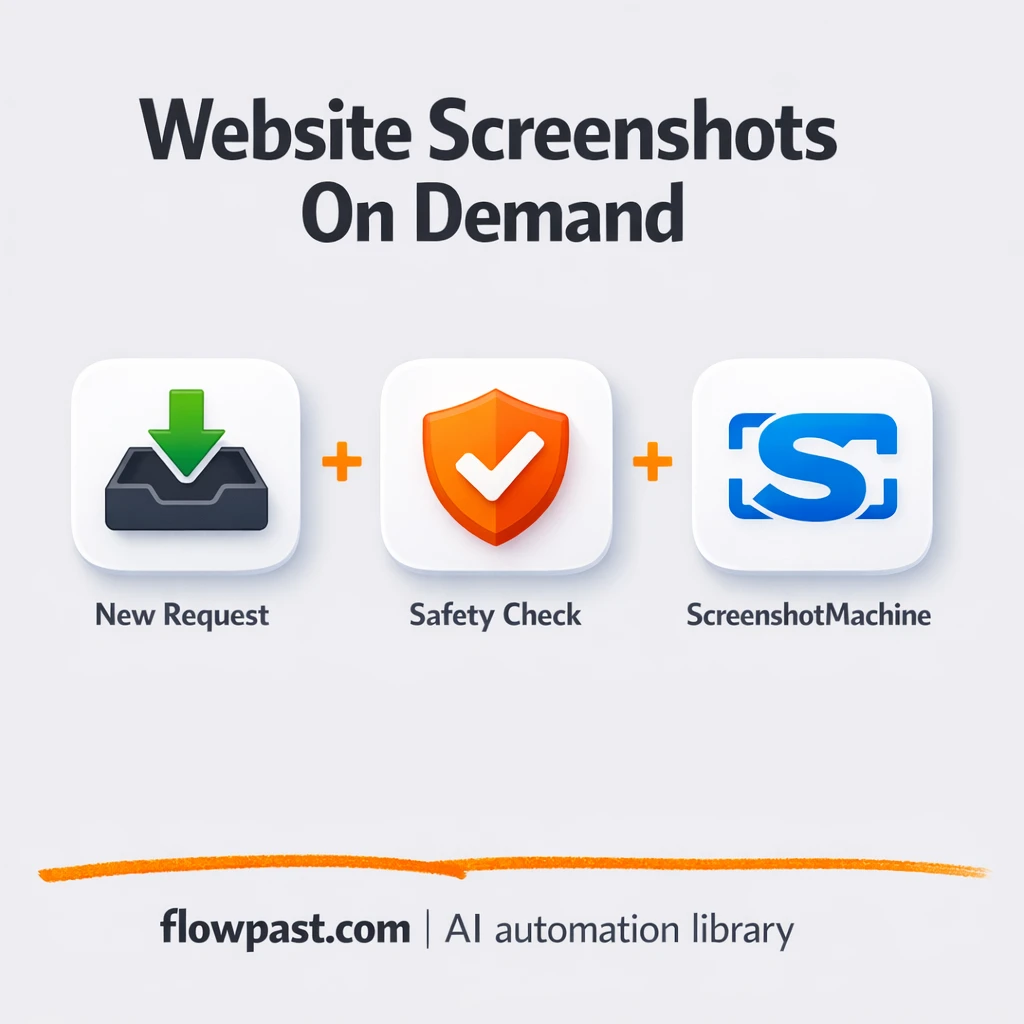

Taking “just a quick screenshot” of a page sounds simple until you do it 20 times, rename files, lose track of what’s current, and wonder if you captured the right URL.
Sheets screenshot automation hits hardest when you’re juggling deliverables. A marketer building a weekly report feels it. A product lead collecting QA proofs does too. Same story for an agency owner trying to keep client evidence organized.
This workflow turns a URL into a clean, consistent screenshot response (with a shareable capture link) and blocks unsafe URLs along the way. You’ll see what it does, what you need, and how to adapt it for your own reporting or proof collection.
How This Automation Works
The full n8n workflow, from trigger to final output:
n8n Workflow Template: ScreenshotMachine + Google Sheets: consistent captures
flowchart LR

    subgraph sg0["Flow 1"]
        direction LR
        n0["<div style='background:#f5f5f5;padding:10px;border-radius:8px;display:inline-block;border:1px solid #e0e0e0'><img src='https://flowpast.com/wp-content/uploads/n8n-workflow-icons/webhook.dark.svg' width='40' height='40' /></div><br/>Receive URL Webhook"]
        n1["<div style='background:#f5f5f5;padding:10px;border-radius:8px;display:inline-block;border:1px solid #e0e0e0'><img src='https://flowpast.com/wp-content/uploads/n8n-workflow-icons/httprequest.dark.svg' width='40' height='40' /></div><br/>Resolve URL (HEAD Request)"]
        n2["<div style='background:#f5f5f5;padding:10px;border-radius:8px;display:inline-block;border:1px solid #e0e0e0'><img src='https://flowpast.com/wp-content/uploads/n8n-workflow-icons/code.svg' width='40' height='40' /></div><br/>Validate URL for SSRF"]
        n3@{ icon: "mdi:swap-horizontal", form: "rounded", label: "IF URL Valid", pos: "b", h: 48 }
        n4["<div style='background:#f5f5f5;padding:10px;border-radius:8px;display:inline-block;border:1px solid #e0e0e0'><img src='https://flowpast.com/wp-content/uploads/n8n-workflow-icons/httprequest.dark.svg' width='40' height='40' /></div><br/>Take Screenshot"]
        n5["<div style='background:#f5f5f5;padding:10px;border-radius:8px;display:inline-block;border:1px solid #e0e0e0'><img src='https://flowpast.com/wp-content/uploads/n8n-workflow-icons/webhook.dark.svg' width='40' height='40' /></div><br/>Respond with Screenshot Data"]
        n6["<div style='background:#f5f5f5;padding:10px;border-radius:8px;display:inline-block;border:1px solid #e0e0e0'><img src='https://flowpast.com/wp-content/uploads/n8n-workflow-icons/webhook.dark.svg' width='40' height='40' /></div><br/>Respond with Validation Error"]
        n3 --> n4
        n3 --> n6
        n4 --> n5
        n0 --> n1
        n2 --> n3
        n1 --> n2
        n1 --> n3
    end

    %% Styling
    classDef trigger fill:#e8f5e9,stroke:#388e3c,stroke-width:2px
    classDef ai fill:#e3f2fd,stroke:#1976d2,stroke-width:2px
    classDef aiModel fill:#e8eaf6,stroke:#3f51b5,stroke-width:2px
    classDef decision fill:#fff8e1,stroke:#f9a825,stroke-width:2px
    classDef database fill:#fce4ec,stroke:#c2185b,stroke-width:2px
    classDef api fill:#fff3e0,stroke:#e65100,stroke-width:2px
    classDef code fill:#f3e5f5,stroke:#7b1fa2,stroke-width:2px
    classDef disabled stroke-dasharray: 5 5,opacity: 0.5
    class n3 decision
    class n0,n1,n4,n5,n6 api
    class n2 code
    classDef customIcon fill:none,stroke:none
    class n0,n1,n2,n4,n5,n6 customIcon
The Problem: Website screenshots turn into messy busywork
Website screenshots are one of those “small” tasks that quietly eat your week. Someone drops a list of links in a doc or a sheet, then you open each one, wait for it to load, capture the right state, and try to name the file in a way you can find later. Miss one detail (wrong URL, wrong page version, cookie banner covering the hero section) and you’re redoing it. And if you’re doing this for clients or internal stakeholders, you also need proof that’s consistent, shareable, and easy to audit later. Manual screenshots are rarely any of those.
It’s not one big failure. It’s the accumulation.
- Copying and pasting URLs all day pulls you out of real work and makes reporting feel like admin.
- File naming and folder chaos means you waste time hunting for “the latest one” later.
- Teams end up with inconsistent captures because each person screenshots a slightly different state.
- Letting random URLs run through your tools can create security risk, especially if you ever automate this without validation.
The Solution: Send a URL, get a consistent screenshot link back
This n8n workflow gives you a simple “screenshot on demand” service. It starts when a webhook receives a URL (the same kind of request many tools can send, including scripts, forms, or a Sheets-driven process). Before it screenshots anything, it does a quick link check and then validates the URL to block common SSRF abuse (like localhost or private IP ranges). If the URL passes, n8n calls ScreenshotMachine to generate the capture and then responds immediately with the ScreenshotMachine payload, which typically includes a shareable image URL and metadata. If it fails validation, it returns a clear error message, so you don’t get silent failures or weird outputs.
The workflow begins with a URL request, verifies it’s safe and reachable, then generates the screenshot through ScreenshotMachine. Finally, it returns a clean JSON response you can store, forward, or attach to your process in Google Sheets.
What You Get: Automation vs. Results
| What This Workflow Automates | Results You’ll Get |
|---|---|
|
|
Example: What This Looks Like
Say you run a weekly “proof” sheet with 30 URLs (landing pages, ads, competitor pages). Manually, you might spend about 3 minutes per URL between loading, capturing, saving, and naming, which is roughly 90 minutes. With this workflow, you submit the list via an automated webhook call and let ScreenshotMachine generate captures while you keep working; your hands-on time drops to about 10 minutes to send the batch and paste returned links into Google Sheets. That’s over an hour back, every week, and the output is uniform.
What You’ll Need
- n8n instance (try n8n Cloud free)
- Self-hosting option if you prefer (Hostinger works well)
- ScreenshotMachine for generating consistent website screenshots
- Google Sheets to store URLs and screenshot links
- ScreenshotMachine API key (get it from your ScreenshotMachine dashboard)
Skill level: Beginner. You’ll paste an API key, set a webhook path, and test with a sample URL.
Don’t want to set this up yourself? Talk to an automation expert (free 15-minute consultation).
How It Works
A webhook receives the URL. Any tool that can send an HTTP POST can trigger it (including a Sheets-driven automation). The incoming JSON just needs a url field.
The workflow checks if the link is reachable. A quick “head check” helps catch broken pages or blocked responses early, so you don’t generate junk outputs or waste screenshot credits.
Unsafe URLs get rejected. The workflow validates protocol and blocks private/internal address ranges to reduce SSRF risk. If it’s not safe, n8n responds with a clear validation error.
ScreenshotMachine generates the capture and returns the payload. You get back the image URL plus metadata (status, hash, file size, mimetype), which makes it easy to log results back into Google Sheets.
You can easily modify the returned payload to also write directly into Google Sheets based on your needs. See the full implementation guide below for customization options.
Step-by-Step Implementation Guide
Step 1: Configure the Webhook Trigger
Set up the inbound webhook that receives the URL payload for screenshot capture.
- Add the Incoming URL Webhook node as your trigger.
- Set HTTP Method to
POST. - Set Path to
caf8f5dc-4834-45bb-96b0-d4b508f93e1b. - Set Response Mode to
responseNodeso downstream response nodes can reply.
Step 2: Connect Link Resolution and Validation
Resolve the incoming URL and validate it to prevent SSRF and invalid targets.
- Add the Resolve Link Head Check node and set Method to
HEAD. - Set URL to
={{$json.body.url}}to read the posted URL. - Add the SSRF URL Validation node and paste the provided JavaScript from the workflow into JS Code exactly as-is.
- Confirm the execution flow: Incoming URL Webhook → Resolve Link Head Check → SSRF URL Validation.
⚠️ Common Pitfall: If your incoming JSON doesn’t include body.url, the HEAD request will fail. Ensure your POST payload looks like {"url":"https://example.com"}.
Step 3: Configure the Validation Gate
Route valid URLs to the screenshot service and invalid URLs to the error response.
- Add the URL Validation Gate node and keep Loose Type Validation enabled.
- Set the condition Left Value to
={{ $json.errorMessage ?? $json.error}}with the operatornotExists. - Connect the true output of URL Validation Gate to Capture Site Image.
- Connect the false output of URL Validation Gate to Return Validation Error.
⚠️ Common Pitfall: The condition checks for the absence of an error. If your validation code changes field names, update the expression accordingly.
Step 4: Configure Screenshot Capture and Response
Call the screenshot API and return the image payload when validation passes.
- Add the Capture Site Image node and set URL to
=https://api.screenshotmachine.com?key=[CONFIGURE_YOUR_API_KEY]&url={{$json.validatedUrl}}. - Replace
[CONFIGURE_YOUR_API_KEY]with your real ScreenshotMachine API key. - Add the Return Screenshot Payload node and set Respond With to
allIncomingItems. - Connect Capture Site Image → Return Screenshot Payload to complete the success path.
⚠️ Common Pitfall: Leaving the placeholder API key will cause the screenshot request to fail. Make sure the URL includes your real key.
Step 5: Configure Validation Error Response
Return a clear error message when validation fails.
- Add the Return Validation Error node and set Respond With to
text. - Set Response Body to
={{ $json.error. }}(match the workflow as-is). - Ensure the false output from URL Validation Gate connects to Return Validation Error.
⚠️ Common Pitfall: The response body expression has trailing spaces and a dot. If you want a cleaner error, update it to ={{ $json.errorMessage }} or your preferred field.
Step 6: Test and Activate Your Workflow
Verify the workflow end-to-end and enable it for production use.
- Click Execute Workflow and send a POST request to the Incoming URL Webhook with a JSON body containing
url. - Successful execution should flow through Resolve Link Head Check → SSRF URL Validation → URL Validation Gate → Capture Site Image → Return Screenshot Payload with the screenshot payload returned.
- Test an invalid URL (e.g.,
http://localhost) to confirm the Return Validation Error response is triggered. - When testing is complete, toggle the workflow to Active for production use.
Common Gotchas
- ScreenshotMachine credentials can expire or you might hit account limits. If calls fail, check the API key in the “Capture Site Image” HTTP Request node first.
- If you add Wait nodes (or you batch lots of URLs), screenshot processing times vary. Increase the wait duration if the next node runs before ScreenshotMachine has a usable response.
- Default capture settings are generic, honestly. If you need consistent “proof” screenshots, lock in your preferred width, full-page behavior, and delay early or you’ll keep re-taking images.
Frequently Asked Questions
About 20 minutes once you have your ScreenshotMachine API key.
No. You’ll mainly connect accounts, paste an API key, and test the webhook with a sample URL.
Yes. n8n has a free self-hosted option and a free trial on n8n Cloud. Cloud plans start at $20/month for higher volume. You’ll also need to factor in ScreenshotMachine API usage based on how many screenshots you generate.
Two options: n8n Cloud (managed, easiest setup) or self-hosting on a VPS. For self-hosting, Hostinger VPS is affordable and handles n8n well. Self-hosting gives you unlimited executions but requires basic server management.
Yes, but you’ll do it by extending the “Capture Site Image” HTTP Request URL to pass ScreenshotMachine parameters like fullpage, viewport width, quality, or delay. Common customizations include adding a delay for cookie banners, setting a fixed width for consistent proofs, and returning extra fields so Google Sheets can store status plus the image link. If you want those options coming from Sheets, you can also accept them in the webhook body (for example: {"url":"...","fullpage":true,"width":1200}) and map them into the request.
Usually it’s the API key still set to YOUR_API_KEY or an expired key. Update it in the “Capture Site Image” node, then run a single test execution with a simple public URL. If it works sometimes but not always, you may be hitting rate limits or trying to screenshot a page that blocks bots, which can cause inconsistent responses.
A lot, as long as your n8n plan and ScreenshotMachine limits support it. On n8n Cloud, your monthly execution cap depends on the plan, and a “batch” can multiply executions quickly if you process rows one-by-one. If you self-host, there’s no execution limit, but your server resources and ScreenshotMachine usage limits become the bottleneck. In practice, most small teams run this for tens to hundreds of URLs per week without issues, then scale up by adding batching and retries.
Often, yes, because n8n makes it easier to keep the security validation (SSRF checks) and branching logic in the same workflow without paying extra for every path. It also gives you a self-hosting option, which matters if you’re generating lots of screenshots and don’t want per-task pricing to spiral. Zapier or Make can still be fine for a simple “URL in, screenshot out” flow, but you’ll likely need extra steps to match the same safety checks. Talk to an automation expert if you want help choosing the simplest option for your exact setup.
Once this is running, screenshots stop being a recurring chore and become a reliable input you can use anywhere. Set it up once, then let the workflow do the repetitive part.
Need Help Setting This Up?
Our automation experts can build and customize this workflow for your specific needs. Free 15-minute consultation—no commitment required.
