


Semrush to Google Sheets, backlink reports without exports

Backlink reporting gets messy fast. One day you export a CSV, the next day you can’t find it, and by the time you paste numbers into a sheet, they’re already outdated.
SEO managers feel this during audits. Agency owners feel it when clients ask “can you resend that report?” And marketing generalists just trying to keep up end up doing backlink report automation by hand. This workflow turns a domain submission into a clean, logged report in Google Sheets.
You’ll see what the automation does, what you need to run it, and where the real time savings show up once you’re tracking multiple sites.
How This Automation Works
See how this solves the problem:
n8n Workflow Template: Semrush to Google Sheets, backlink reports without exports
flowchart LR

    subgraph sg0["On form submission Flow"]
        direction LR
        n0["<div style='background:#f5f5f5;padding:10px;border-radius:8px;display:inline-block;border:1px solid #e0e0e0'><img src='https://flowpast.com/wp-content/uploads/n8n-workflow-icons/form.svg' width='40' height='40' /></div><br/>On form submission"]
        n1["<div style='background:#f5f5f5;padding:10px;border-radius:8px;display:inline-block;border:1px solid #e0e0e0'><img src='https://flowpast.com/wp-content/uploads/n8n-workflow-icons/httprequest.dark.svg' width='40' height='40' /></div><br/>HTTP Request"]
        n2["<div style='background:#f5f5f5;padding:10px;border-radius:8px;display:inline-block;border:1px solid #e0e0e0'><img src='https://flowpast.com/wp-content/uploads/n8n-workflow-icons/code.svg' width='40' height='40' /></div><br/>Reformat 1"]
        n3["<div style='background:#f5f5f5;padding:10px;border-radius:8px;display:inline-block;border:1px solid #e0e0e0'><img src='https://flowpast.com/wp-content/uploads/n8n-workflow-icons/code.svg' width='40' height='40' /></div><br/>Reformat 2"]
        n4@{ icon: "mdi:database", form: "rounded", label: "Backlink overview", pos: "b", h: 48 }
        n5@{ icon: "mdi:database", form: "rounded", label: "Backlinks ", pos: "b", h: 48 }
        n2 --> n4
        n3 --> n5
        n1 --> n2
        n1 --> n3
        n0 --> n1
    end

    %% Styling
    classDef trigger fill:#e8f5e9,stroke:#388e3c,stroke-width:2px
    classDef ai fill:#e3f2fd,stroke:#1976d2,stroke-width:2px
    classDef aiModel fill:#e8eaf6,stroke:#3f51b5,stroke-width:2px
    classDef decision fill:#fff8e1,stroke:#f9a825,stroke-width:2px
    classDef database fill:#fce4ec,stroke:#c2185b,stroke-width:2px
    classDef api fill:#fff3e0,stroke:#e65100,stroke-width:2px
    classDef code fill:#f3e5f5,stroke:#7b1fa2,stroke-width:2px
    classDef disabled stroke-dasharray: 5 5,opacity: 0.5
    class n0 trigger
    class n4,n5 database
    class n1 api
    class n2,n3 code
    classDef customIcon fill:none,stroke:none
    class n0,n1,n2,n3 customIcon
The Challenge: Backlink Reporting Without Spreadsheet Chaos
Backlink checks sound quick until you’re doing them for five client domains, every week, with the same steps: log into a tool, run a report, export, reformat, paste into a “master” sheet, then explain why the numbers don’t match last time. It’s not just time. It’s the mental load of remembering which export is newest, which tab is “the one,” and whether you grabbed overview metrics or the detailed backlink rows. Small inconsistencies become big client conversations. Frankly, that’s the worst part.
The friction compounds. Here’s where it usually breaks down.
- You end up with duplicated exports and slightly different date stamps, which makes comparisons unreliable.
- Manual copy-paste introduces tiny errors (one wrong column, one missed row) that throw off totals.
- Overview metrics live in one place and detailed backlink entries live somewhere else, so you can’t audit quickly.
- Sharing becomes a chore because the “latest version” is always sitting on someone’s laptop.
The Fix: Semrush API to Google Sheets Logging
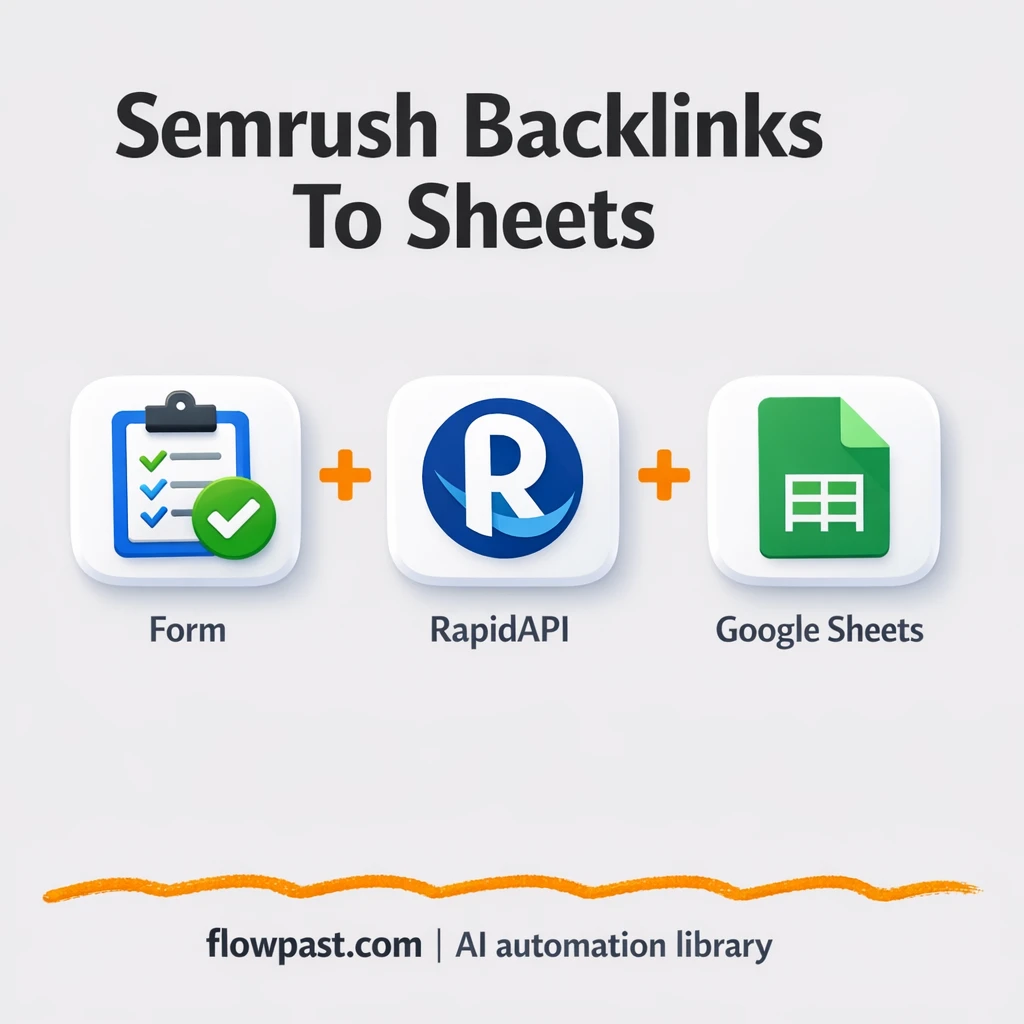
This workflow automates the entire backlink capture loop using the Semrush Backlink Checker API (via RapidAPI) and Google Sheets. You submit a domain through a simple form, and n8n sends that domain to Semrush in the background. The response comes back as structured data, then the workflow splits it into two useful layers: a high-level overview (think totals and referring domains) and a detailed list of individual backlinks (source URLs, anchors, and related metrics). Finally, it appends both layers into the right tabs in one Google Sheet, which means every run becomes a timestamped entry you can filter, chart, and share.
The workflow starts with a form submission. Then it calls the Semrush Backlink Checker endpoint through an HTTP request and reshapes the data into spreadsheet-friendly fields. Google Sheets receives the overview in one tab and the detailed backlink rows in another, so you get context and evidence in the same place.
What Changes: Before vs. After
| What This Eliminates | Impact You’ll See |
|---|---|
|
|
Real-World Impact
Say you track 6 domains each week. Manually, a typical cycle is about 10 minutes to run a report, 10 minutes to export and clean it up, and another 10 minutes to paste and sanity-check totals, so roughly 30 minutes per domain (about 3 hours weekly). With this workflow, you submit each domain through the form in about a minute, then wait for the API call and sheet append to finish. You’re down to roughly 10 minutes of hands-on time total, and the sheet is already organized.
Requirements
- n8n instance (try n8n Cloud free)
- Self-hosting option if you prefer (Hostinger works well)
- RapidAPI to access the Semrush Backlink Checker API.
- Google Sheets to store overview and backlink rows.
- RapidAPI key (get it from RapidAPI “Endpoints” header).
Skill level: Beginner. You’ll connect accounts, paste an API key, and choose the target spreadsheet tabs.
Need help implementing this? Talk to an automation expert (free 15-minute consultation).
The Workflow Flow
A form submission kicks it off. Someone enters a website/domain in the n8n form trigger, which means your team can run checks without opening Semrush.
The workflow calls Semrush through RapidAPI. n8n sends an HTTP request with your RapidAPI headers and the submitted domain, then waits for the backlink response.
The data gets reshaped into two clean datasets. One part extracts overview metrics like total backlinks and referring domains, while another prepares the detailed backlink rows (URLs, anchor text, and related fields) so they land cleanly in columns.
Google Sheets becomes your living report. The workflow appends overview metrics into an “overview” tab and appends backlink entries into a “backlinks” tab, so history stays intact and reporting becomes consistent.
You can easily modify the form fields to include client name or campaign label based on your needs. See the full implementation guide below for customization options.
Step-by-Step Implementation Guide
Step 1: Configure the Form Trigger
Set up the form that collects the target website for backlink analysis.
- Add and open Form Intake Trigger.
- Set Form Title to
Semrush Backlink Checker. - Set Form Description to
Semrush Backlink Checker. - In Form Fields, add a required field labeled
website.
Step 2: Configure the External API Call
Send the submitted website to the Semrush Backlink Checker endpoint on RapidAPI.
- Add and open External API Call.
- Set URL to
https://semrush-backlink-checker.p.rapidapi.com/backlink.php. - Set Method to
POSTand enable Send Body. - Set Content Type to
multipart-form-data. - In Body Parameters, add website with value
={{ $json.website }}. - Enable Send Headers and add the following header parameters:
- x-rapidapi-host =
semrush-backlink-checker.p.rapidapi.com - x-rapidapi-key =
[CONFIGURE_YOUR_API_KEY]
[CONFIGURE_YOUR_API_KEY] with your actual RapidAPI key, or the API call will fail.Step 3: Set Up Parallel Data Shaping
Split the API response into overview metrics and detailed backlink rows. These nodes run in parallel after External API Call.
- Add Shape Overview Data and set JavaScript Code to
return $input.first().json.data.semrushAPI.backlinksOverview;. - Add Shape Detail List and set JavaScript Code to
return $input.first().json.data.semrushAPI.backlinks;. - Connect External API Call to both Shape Overview Data and Shape Detail List in parallel.
Step 4: Configure Google Sheets Outputs
Append the shaped overview and detail data to two tabs in Google Sheets.
- Open Append Overview Sheet and set Operation to
append. - Set Authentication to
serviceAccount. - Select the target spreadsheet in Document (cached name shows
backlinks) and set the Sheet Name tobacklink overflow. - Credential Required: Connect your googleApi credentials.
- Open Append Backlink Rows and set Operation to
append. - Set Authentication to
serviceAccountand choose the same spreadsheet (cached namebacklinks) with Sheet Name set tobacklinks. - Credential Required: Connect your googleApi credentials.
- Ensure the column schema includes fields like
targetUrl,sourceUrl,sourceTitle,pageAscore,lastSeen,firstSeen,anchor, andnofollowfor auto-mapping.
Step 5: Test and Activate Your Workflow
Run a full test to confirm data flows through both parallel paths and into Google Sheets.
- Click Test Workflow and submit the form in Form Intake Trigger with a valid website URL.
- Verify External API Call returns a successful response.
- Confirm Shape Overview Data and Shape Detail List both execute in parallel.
- Check your Google Sheets tabs to confirm a new row in Append Overview Sheet and multiple rows in Append Backlink Rows.
- Once validated, toggle the workflow to Active for production use.
Watch Out For
- RapidAPI credentials can expire or you may be on the wrong plan tier. If things break, check your RapidAPI dashboard and the “x-rapidapi-key” header value first.
- If you’re using Wait nodes or external rendering, processing times vary. Bump up the wait duration if downstream nodes fail on empty responses.
- Google Sheets appends can silently “work” while putting data in the wrong tab. Double-check the spreadsheet ID and the exact sheet/tab names in both append steps before you run this for clients.
Common Questions
About 30 minutes if your RapidAPI key and Google Sheet are ready.
Yes. No coding required, but you do need to be comfortable pasting an API key and selecting the right Google Sheets tabs.
Yes. n8n has a free self-hosted option and a free trial on n8n Cloud. Cloud plans start at $20/month for higher volume. You’ll also need to factor in RapidAPI/Semrush Backlink Checker API costs (there’s usually a free tier for testing, then paid usage).
Two options: n8n Cloud (managed, easiest setup) or self-hosting on a VPS. For self-hosting, Hostinger VPS is affordable and handles n8n well. Self-hosting gives you unlimited executions but requires basic server management.
You can add fields to the Form Intake Trigger (like client name, campaign, or account manager) and pass them through to both Google Sheets append steps. If you want a different data destination, you can replace the Append Overview Sheet and Append Backlink Rows steps with Microsoft Excel 365, Google Docs tables, or even an email summary. Common tweaks include filtering for “new backlinks only,” tagging runs by date range, and alerting your team when referring domains drop.
Usually it’s an invalid or expired “x-rapidapi-key” value, so regenerate the key and update the HTTP Request headers in n8n. It can also be plan limits or a blocked endpoint on your RapidAPI subscription. If the domain format is inconsistent (with protocols, paths, or spaces), normalize it in the form input before sending it.
On self-hosted n8n, capacity mostly depends on your server and RapidAPI rate limits. Practically, many teams run dozens of domains per day without issues as long as they don’t hammer the API all at once. If you expect high volume, add a short delay between runs and keep your Google Sheet tidy to avoid slow append operations.
Often, yes, especially if you want to control how the Semrush API response gets split into “overview” vs “detailed rows.” n8n makes it easier to reshape data, handle conditional logic, and keep everything in one workflow without paying extra for every branch. Zapier and Make can still work, but you may spend more time fighting formatting and multi-step data mapping. Also, self-hosting n8n means you’re not paying per task when you scale up to lots of domains. If you’re unsure, Talk to an automation expert and we’ll sanity-check your use case.
Once this is running, backlink reporting becomes a system instead of a scramble. Your sheet stays current, your audits stay consistent, and you stop exporting files just to feel “caught up.”
Need Help Setting This Up?
Our automation experts can build and customize this workflow for your specific needs. Free 15-minute consultation—no commitment required.
