


SerpAPI + OpenAI: instant market answers in Slack

Market questions never arrive neatly. They hit mid-meeting, mid-campaign review, mid-everything. You end up tab-hopping, second-guessing data freshness, and rewriting the same “here’s what happened today” message in Slack.
This kind of market answer automation hits marketing leads who need fast context for launch decisions. But founders and ops managers feel it too, because every interruption turns into a small project.
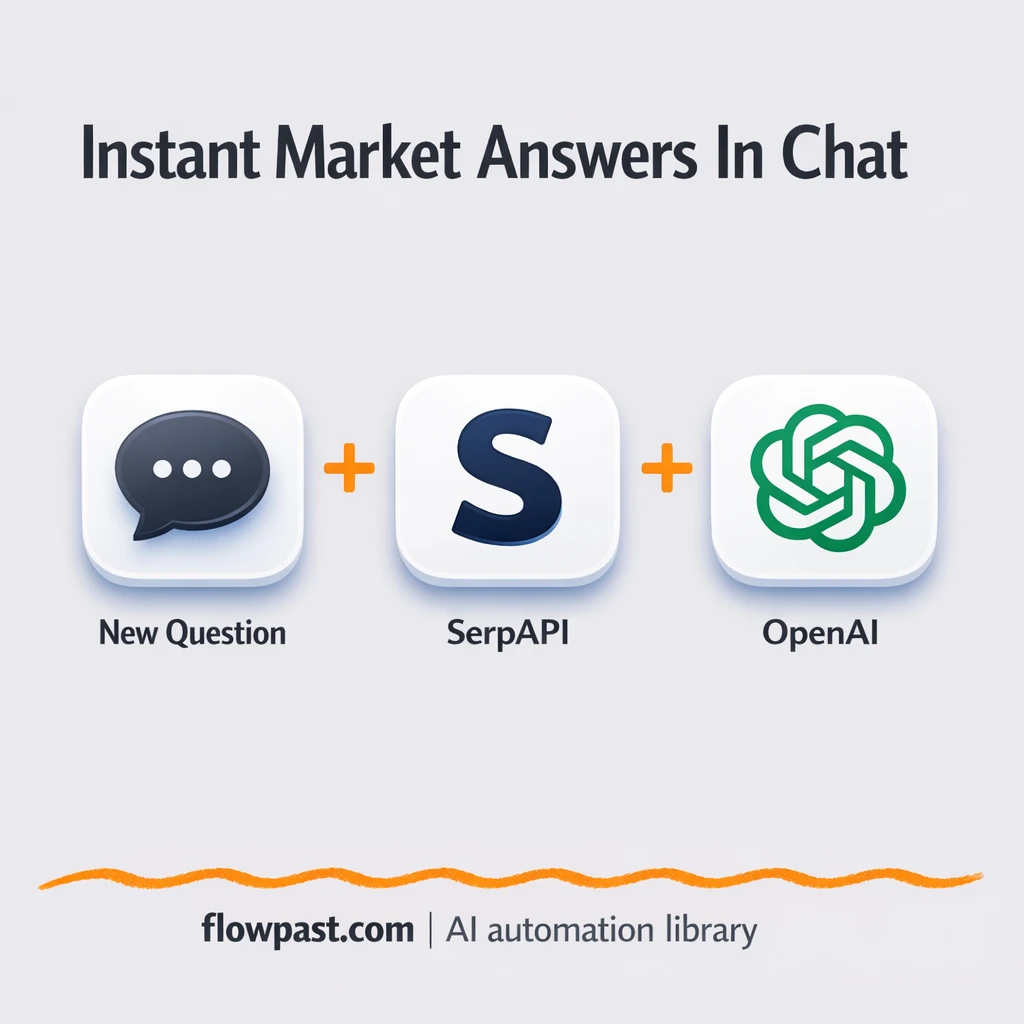
This workflow takes a plain-English question, pulls live finance data via SerpAPI, uses OpenAI to turn it into a clear explanation, then posts the response to Slack. You’ll see how it works, what you need, and where teams typically customize it.
How This Automation Works
The full n8n workflow, from trigger to final output:
n8n Workflow Template: SerpAPI + OpenAI: instant market answers in Slack
flowchart LR

    subgraph sg0["Simple Memory1 Flow"]
        direction LR
        n0@{ icon: "mdi:brain", form: "rounded", label: "OpenAI Chat Model5", pos: "b", h: 48 }
        n1@{ icon: "mdi:memory", form: "rounded", label: "Simple Memory1", pos: "b", h: 48 }
        n2@{ icon: "mdi:swap-vertical", form: "rounded", label: "Turn Objects to Text1", pos: "b", h: 48 }
        n3["<div style='background:#f5f5f5;padding:10px;border-radius:8px;display:inline-block;border:1px solid #e0e0e0'><img src='https://flowpast.com/wp-content/uploads/n8n-workflow-icons/httprequest.dark.svg' width='40' height='40' /></div><br/>SerpAPI Finance Search1"]
        n4@{ icon: "mdi:robot", form: "rounded", label: "Chat with Google Finance", pos: "b", h: 48 }
        n1 -.-> n4
        n0 -.-> n4
        n2 --> n4
        n3 --> n2
    end

    %% Styling
    classDef trigger fill:#e8f5e9,stroke:#388e3c,stroke-width:2px
    classDef ai fill:#e3f2fd,stroke:#1976d2,stroke-width:2px
    classDef aiModel fill:#e8eaf6,stroke:#3f51b5,stroke-width:2px
    classDef decision fill:#fff8e1,stroke:#f9a825,stroke-width:2px
    classDef database fill:#fce4ec,stroke:#c2185b,stroke-width:2px
    classDef api fill:#fff3e0,stroke:#e65100,stroke-width:2px
    classDef code fill:#f3e5f5,stroke:#7b1fa2,stroke-width:2px
    classDef disabled stroke-dasharray: 5 5,opacity: 0.5
    class n4 ai
    class n0 aiModel
    class n1 ai
    class n3 api
    classDef customIcon fill:none,stroke:none
    class n3 customIcon
The Problem: Live market questions derail your day
“What’s Tesla at right now?” sounds quick until it isn’t. Someone posts it in Slack, you open a finance site, you check if it’s delayed, you grab the number, then you get asked “up or down today?” so you go back for the change. Then comes the real time-sink: translating raw numbers into something decision-ready. After a few of these in a day, you’re not just answering questions. You’re context-switching, interrupting deep work, and still worrying you shared something outdated.
It adds up fast. Here’s where it breaks down.
- People ask in chat because it’s convenient, which means you feel pressure to respond immediately.
- Copy-pasting from market sites leads to inconsistent formatting and vague “looks up” summaries.
- You end up answering the same tickers repeatedly, especially during launches, earnings, or big news cycles.
- Even small errors (wrong symbol, old price, missing percent move) create back-and-forth that wastes another 10 minutes.
The Solution: Live finance answers, generated and posted automatically
This n8n workflow turns Slack-style questions into a consistent market answer in seconds. It starts when a user asks a finance question in chat (for example, “What’s the current price of the S&P 500?”). n8n sends that query to SerpAPI’s finance search via an HTTP request, so you’re pulling fresh market data instead of guessing what’s current. Then OpenAI takes the raw fields (price, daily change, symbol details) and rewrites them into a natural, readable response. Finally, the answer is returned to the chat destination you choose, which is perfect for Slack updates that don’t feel robotic.
The workflow begins with a question and a live data pull from SerpAPI. Next, n8n converts the response into clean text for the AI agent to interpret. OpenAI produces the final message so your Slack channel gets a clear “what it is” plus “what it means,” not just a number.
What You Get: Automation vs. Results
| What This Workflow Automates | Results You’ll Get |
|---|---|
|
|
Example: What This Looks Like
Say your team gets 12 market questions a day in Slack across a few channels. If each one takes “just” 5 minutes to look up, verify, and write clearly, that’s about 1 hour daily. With this workflow, the human effort becomes the question itself (maybe 30 seconds) while n8n pulls SerpAPI data and OpenAI drafts the response. Even if processing takes a minute, you’re still getting most of that hour back, and the answers stop depending on who’s online.
What You’ll Need
- n8n instance (try n8n Cloud free)
- Self-hosting option if you prefer (Hostinger works well)
- SerpAPI for live finance search results
- OpenAI to turn raw data into answers
- SerpAPI API key (get it from your SerpAPI dashboard)
Skill level: Beginner. You’ll paste API keys, connect accounts, and tweak a prompt.
Don’t want to set this up yourself? Talk to an automation expert (free 15-minute consultation).
How It Works
A chat question triggers the run. Someone asks a finance question (ticker, index, “market recap”) and that message kicks off the workflow in n8n.
SerpAPI pulls the freshest market data. n8n sends the query via HTTP Request to SerpAPI’s finance search so the workflow gets structured data back, not scraped text you can’t trust.
The workflow cleans the response for AI. A Set step converts the returned fields into readable text, which makes the AI agent far less likely to miss details like the day’s change or the correct symbol.
OpenAI writes the final Slack-ready answer. The AI agent uses the OpenAI chat model plus short session memory, so it can handle follow-ups like “and what about Apple?” without starting from zero.
You can easily modify the SerpAPI query to support multiple tickers or add a daily recap based on your needs. See the full implementation guide below for customization options.
Step-by-Step Implementation Guide
Step 1: Configure the Trigger (Add a Trigger Node)
This workflow has no trigger configured, so you must add one to start the automation.
- Add a trigger node of your choice (for example, a webhook or chat trigger) and place it before Finance Data API Call.
- If using a chat trigger, ensure it outputs
chatInputandsessionIdfields because Market Chat Assistant and Session Memory Buffer reference{{ $('Sample Chatbot').item.json.chatInput }}and{{ $('Sample Chatbot').item.json.sessionId }}.
⚠️ Common Pitfall: The workflow references a node named Sample Chatbot, but it is not present in the workflow. Replace those references with your actual trigger node name or add a node named Sample Chatbot that outputs chatInput and sessionId.
Step 2: Connect Market Data Source
Configure the HTTP request that retrieves market data from SerpAPI.
- Select Finance Data API Call and set URL to
https://serpapi.com/search.json?engine=google_finance&q=^GSPC&api_key=[CONFIGURE_YOUR_API_KEY]. - Replace
[CONFIGURE_YOUR_API_KEY]with your SerpAPI key so the request returns valid market data. - Keep the connection order so Finance Data API Call outputs to Convert Records to Text.
Tip: If SerpAPI returns errors, verify the API key and that your account allows Google Finance queries.
Step 3: Set Up Data Transformation
Convert the API response into a text field for the AI assistant.
- Open Convert Records to Text and add an assignment for data as a string.
- Set the value to the expression
{{ $json.markets }}so the markets array is passed forward as text. - Confirm the node connects from Finance Data API Call and outputs to Market Chat Assistant.
Step 4: Configure the AI Assistant and Memory
Set the language model and memory, then configure how the AI agent consumes the market data.
- Open OpenAI Conversation Model and select model
gpt-5-nano. - Credential Required: Connect your openAiApi credentials in OpenAI Conversation Model.
- Open Session Memory Buffer and set Session Key to
{{ $('Sample Chatbot').item.json.sessionId }}with Session ID Type set tocustomKey. - Open Market Chat Assistant and set Text to
=question: {{ $('Sample Chatbot').item.json.chatInput }} market data: {{ $json.data }}. - In Market Chat Assistant, set System Message to
You are a helpful assistant. Take questions from the user and answer based on the market data.. - Ensure OpenAI Conversation Model is connected to Market Chat Assistant as the language model, and Session Memory Buffer is connected as AI memory.
Tip: OpenAI Conversation Model is the language model for Market Chat Assistant—ensure credentials are added to OpenAI Conversation Model, not the agent node.
Step 5: Test and Activate Your Workflow
Validate the end-to-end execution from API call to AI response.
- Click Execute Workflow to run a manual test.
- Confirm that Finance Data API Call returns JSON and that Convert Records to Text outputs a
datafield. - Verify Market Chat Assistant produces a response using the market data and your chat input.
- Once successful, turn the workflow Active to use it in production.
Common Gotchas
- SerpAPI credentials can expire or be restricted by plan limits. If things break, check your SerpAPI dashboard usage and API key status first.
- If you’re using Wait nodes or external rendering, processing times vary. Bump up the wait duration if downstream nodes fail on empty responses.
- OpenAI prompts default to generic “helpful assistant” behavior. Add your brand voice and required output format early or you’ll be editing answers forever.
Frequently Asked Questions
About 30 minutes if you already have your API keys.
No. You’ll connect SerpAPI and OpenAI, then paste in your keys. Most of the work is wording the prompt the way you want.
Yes. n8n has a free self-hosted option and a free trial on n8n Cloud. Cloud plans start at $20/month for higher volume. You’ll also need to factor in SerpAPI and OpenAI usage costs, which are usually small for simple Q&A.
Two options: n8n Cloud (managed, easiest setup) or self-hosting on a VPS. For self-hosting, Hostinger VPS is affordable and handles n8n well. Self-hosting gives you unlimited executions but requires basic server management.
Yes, and it’s a common upgrade. Swap the chat trigger for a Schedule Trigger, then adjust the SerpAPI request to pull the tickers or indices you care about. In the Market Chat Assistant, update the instructions so it outputs a short “recap” format (top movers, big declines, one-line context). Many teams also log the recap to Google Sheets so you have a searchable history.
Usually it’s an invalid or expired API key, or you’ve hit your SerpAPI plan limit for the day. Regenerate the key in SerpAPI, then update the HTTP Request credentials in n8n. Also double-check the query you’re sending because small formatting issues can return empty results. If you’re testing rapidly, slow down a bit because rate limits can look like random failures.
A lot. On n8n Cloud, capacity depends on your plan’s monthly executions, and on self-hosting it mostly comes down to your server resources and API rate limits from SerpAPI/OpenAI.
Often, yes. This workflow benefits from an AI agent plus session memory, and n8n handles that style of logic cleanly without you fighting platform limitations. You can also self-host, which matters when volume grows and you don’t want every extra question to feel “metered.” Zapier or Make can still work if you only need a simple one-off lookup and a single response message. If you’re unsure, Talk to an automation expert and describe your Slack channels, question volume, and the format you want.
Once this is running, “what’s the market doing?” stops being a distraction and becomes a fast, reliable answer in Slack. Set it up once, then let the workflow handle the repeat questions.
Need Help Setting This Up?
Our automation experts can build and customize this workflow for your specific needs. Free 15-minute consultation—no commitment required.
