


Slack to Google Docs, on-brand drafts ready to edit
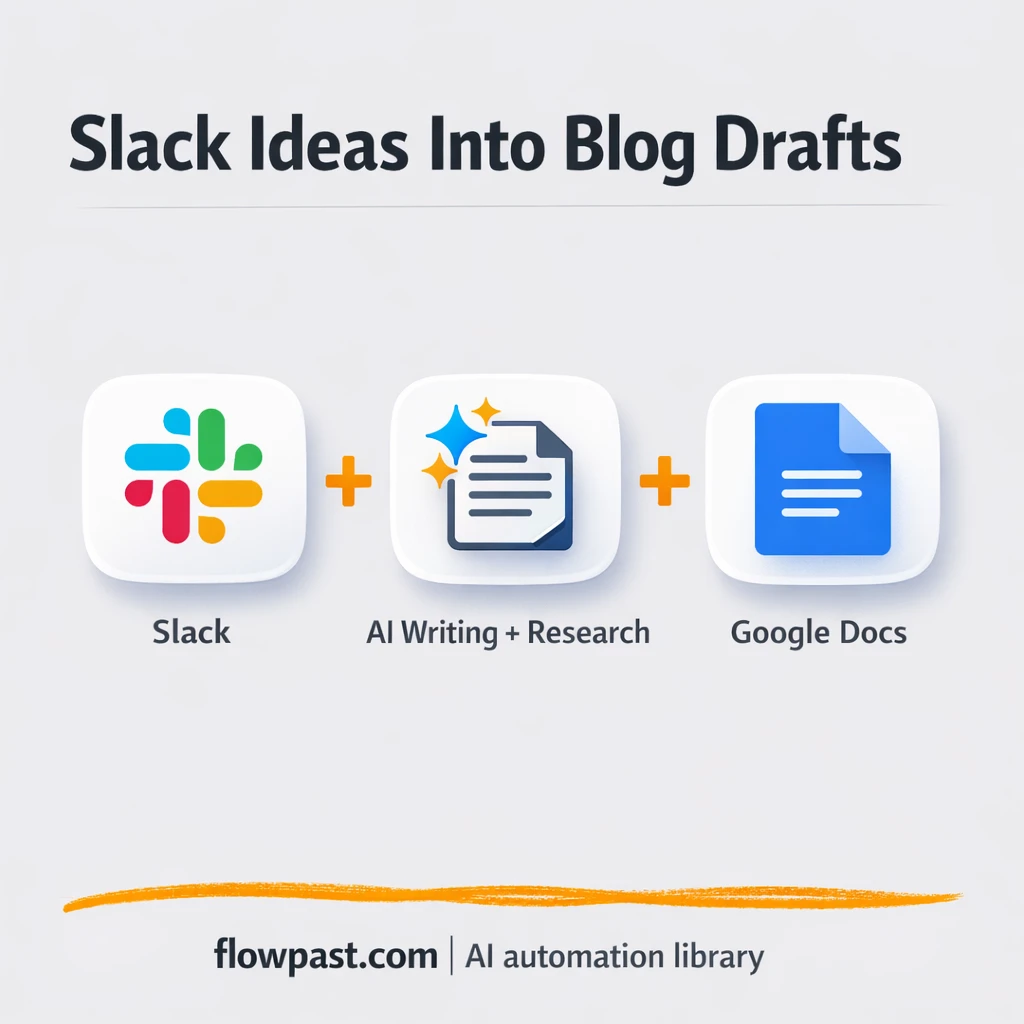

Your team has good ideas. They just get lost in Slack threads, half-written notes, and “I’ll get back to this later” messages that never turn into a real draft.
This Slack Docs automation hits marketing managers first, because they’re the ones chasing drafts. But agency leads and solo founders feel it too when content output depends on someone remembering to do the boring parts. The outcome is simple: a clean, on-brand Google Doc draft created from a single Slack mention.
You’ll see how the workflow turns a Slack idea into a research-backed article draft, pulls in your brand rules from Pinecone, and drops the finished content into Google Docs ready to edit.
How This Automation Works
The full n8n workflow, from trigger to final output:
n8n Workflow Template: Slack to Google Docs, on-brand drafts ready to edit
flowchart LR

    subgraph sg0["Slack Flow"]
        direction LR
        n0@{ icon: "mdi:brain", form: "rounded", label: "Anthropic Chat Model", pos: "b", h: 48 }
        n1@{ icon: "mdi:cube-outline", form: "rounded", label: "Pinecone Vector Store", pos: "b", h: 48 }
        n2@{ icon: "mdi:vector-polygon", form: "rounded", label: "Embeddings OpenAI", pos: "b", h: 48 }
        n3@{ icon: "mdi:robot", form: "rounded", label: "Blogpost AI Agent", pos: "b", h: 48 }
        n4@{ icon: "mdi:cog", form: "rounded", label: "Create a document", pos: "b", h: 48 }
        n5@{ icon: "mdi:cog", form: "rounded", label: "Update a document", pos: "b", h: 48 }
        n6["<div style='background:#f5f5f5;padding:10px;border-radius:8px;display:inline-block;border:1px solid #e0e0e0'><img src='https://flowpast.com/wp-content/uploads/n8n-workflow-icons/slack.svg' width='40' height='40' /></div><br/>Slack Trigger"]
        n7@{ icon: "mdi:memory", form: "rounded", label: "Simple Memory", pos: "b", h: 48 }
        n8@{ icon: "mdi:cog", form: "rounded", label: "Message a model in Perplexity", pos: "b", h: 48 }
        n7 -.-> n3
        n6 --> n3
        n3 --> n4
        n4 --> n5
        n2 -.-> n1
        n0 -.-> n3
        n1 -.-> n3
        n8 -.-> n3
    end

    %% Styling
    classDef trigger fill:#e8f5e9,stroke:#388e3c,stroke-width:2px
    classDef ai fill:#e3f2fd,stroke:#1976d2,stroke-width:2px
    classDef aiModel fill:#e8eaf6,stroke:#3f51b5,stroke-width:2px
    classDef decision fill:#fff8e1,stroke:#f9a825,stroke-width:2px
    classDef database fill:#fce4ec,stroke:#c2185b,stroke-width:2px
    classDef api fill:#fff3e0,stroke:#e65100,stroke-width:2px
    classDef code fill:#f3e5f5,stroke:#7b1fa2,stroke-width:2px
    classDef disabled stroke-dasharray: 5 5,opacity: 0.5
    class n6 trigger
    class n3 ai
    class n0 aiModel
    class n7 ai
    class n1 ai
    class n2 ai
    classDef customIcon fill:none,stroke:none
    class n6 customIcon
The Problem: Slack Ideas Don’t Become Real Drafts
Most content teams don’t struggle with creativity. They struggle with follow-through. Someone drops a great idea in Slack, a few people react with emojis, and then it sinks under a hundred other messages. Later, you’re hunting for the original context, asking for links again, and stitching together “research” from five tabs that may already be outdated. Even when a draft finally appears, it’s often off-tone, missing structure, and full of claims no one can verify. That’s when editing becomes a second writing job.
The friction compounds. Here’s where it usually breaks down.
- Ideas live in chat, so the person writing starts from scratch instead of from usable inputs.
- Research gets repeated because nobody can find the “final” links or sources later.
- Brand voice drifts over time, and editors end up rewriting intros, headers, and CTAs by hand.
- Publishing slows down because drafts arrive late, uneven, and hard to trust.
The Solution: Slack → Research → On-Brand Google Doc Draft
This workflow turns a Slack mention into a complete Google Docs draft your team can review and polish. A teammate simply @mentions your Slack bot with a blog idea, and the automation takes it from there. Perplexity pulls current research and relevant insights so you’re not relying on old bookmarks or vague memory. Pinecone then injects your stored brand guidelines, tone, and style rules into the writing context, which keeps output consistent even when different people submit ideas. An AI writing agent blends the research with your brand voice, produces a structured article draft, and creates a Google Doc that’s ready for editing and approval. You end up with a single source of truth, not a scattered trail of messages.
The workflow starts in Slack with a mention and a topic. It then uses Perplexity for research, Pinecone for brand alignment, and an AI agent to write. Finally, it creates a Google Doc and inserts the full article content so your editor can jump straight into reviewing.
What You Get: Automation vs. Results
| What This Workflow Automates | Results You’ll Get |
|---|---|
|
|
Example: What This Looks Like
Say your team publishes 3 blog posts a week. Manually, a “quick first draft” often means about 2 hours of research plus another 2 hours to assemble a structured draft in Google Docs, so you’re looking at roughly 12 hours weekly before editing even starts. With this workflow, submitting the idea in Slack takes maybe 2 minutes, then you wait around 10 minutes for research and drafting, and the finished draft shows up as a Google Doc. That’s about 10 hours back most weeks, and your editor is reviewing instead of rebuilding.
What You’ll Need
- n8n instance (try n8n Cloud free)
- Self-hosting option if you prefer (Hostinger works well)
- Slack to capture ideas via @mentions.
- Google Docs to create drafts your team can edit.
- Perplexity API key (get it from your Perplexity account settings).
- Pinecone to store and retrieve brand guidelines.
- OpenAI or Anthropic API key (get it from your provider dashboard).
Skill level: Intermediate. You’ll connect a few accounts, add API keys, and do light prompt tuning for brand voice.
Don’t want to set this up yourself? Talk to an automation expert (free 15-minute consultation).
How It Works
A Slack mention kicks it off. A team member @mentions your bot and includes a topic (and optionally a couple of angles or keywords). That single message becomes the “brief” for the draft.
Research gets pulled in automatically. The workflow calls Perplexity to gather current information and useful source material, so the draft starts grounded in something real instead of opinions and guesses.
Your brand rules get injected before writing. Pinecone is used as a vector database for your tone, style guidelines, do’s and don’ts, and formatting preferences. The AI agent also uses memory to stay consistent across requests, which helps when several people are submitting ideas over time.
A Google Doc is created and filled. n8n generates the document, then inserts the finished article content so it lands in the same place every time, ready for review.
You can easily modify the brand guidelines and article structure to match your editorial process. See the full implementation guide below for customization options.
Step-by-Step Implementation Guide
Step 1: Configure the Slack Mention Trigger
This workflow starts when your Slack workspace mentions your bot in a specific channel.
- Add the Slack Mention Trigger node and set Trigger to
app_mention. - Set Channel ID to
[YOUR_ID]to listen in the desired channel. - Credential Required: Connect your Slack API credentials.
Step 2: Connect Google Docs
Google Docs is used to create and populate the blog post document.
- In Generate Doc File, set Title to
Blogpostand Folder ID to[YOUR_ID]. - In Insert Article Content, set Operation to
updateand Document URL to[YOUR_ID]. - For the insert action, set Text to
{{ $('Blog Article Agent').item.json.output }}. - Credential Required: Connect your Google Docs OAuth2 credentials to both Generate Doc File and Insert Article Content.
Step 3: Set Up Blog Article Generation
The AI agent turns the Slack prompt into a full blog post using memory, research, and vector retrieval tools.
- In Blog Article Agent, set Text to
{{ $json['Blogpost Idea'] }}. - Confirm the System Message defines the 800+ word blog post output and tool usage requirements as provided.
- Ensure Anthropic Chat Engine is connected as the language model for Blog Article Agent and select
claude-sonnet-4-20250514. - Connect Context Memory Buffer to Blog Article Agent with Context Window Length set to
15. - Attach tools: Perplexity Research Tool (model
sonar-pro) and Pinecone Vector Lookup (moderetrieve-as-tool, Tool Description set toRefer to Pinecone Vector Database for similar style Blogs). - Connect OpenAI Embedding Builder to Pinecone Vector Lookup via the AI embedding connection.
Credential Required: Connect your Anthropic API credentials in Anthropic Chat Engine.
Credential Required: Connect your Pinecone credentials in Pinecone Vector Lookup.
Credential Required: Connect your OpenAI credentials in OpenAI Embedding Builder.
Credential Required: Connect your Perplexity credentials in Perplexity Research Tool.
⚠️ Common Pitfall: The AI tool nodes (Context Memory Buffer, Perplexity Research Tool, and OpenAI Embedding Builder) are attached to Blog Article Agent. Make sure credentials are configured on their respective parent nodes (language model, tool, and embedding nodes), not on the agent itself.
Step 4: Configure Output Actions
The workflow creates a Google Doc and inserts the generated content.
- Confirm Blog Article Agent connects to Generate Doc File, and Generate Doc File connects to Insert Article Content.
- Verify Insert Article Content uses the AI output expression
{{ $('Blog Article Agent').item.json.output }}in the insert action.
Step 5: Test and Activate Your Workflow
Validate the end-to-end flow before enabling it for production use.
- Click Execute Workflow and trigger a Slack mention with a
Blogpost Ideafield in the payload. - Confirm Blog Article Agent outputs a complete blog post and Generate Doc File creates a new document.
- Verify Insert Article Content inserts the AI-generated text into the specified Google Doc.
- Once successful, toggle the workflow to Active for production use.
Common Gotchas
- Slack credentials can expire or need specific permissions. If things break, check your Slack app scopes (especially app_mentions:read and chat:write) and reinstall the app to the workspace first.
- If you’re using Wait nodes or external rendering, processing times vary. Bump up the wait duration if downstream nodes fail on empty responses.
- Default prompts in AI nodes are generic. Add your brand voice early or you’ll be editing outputs forever.
Frequently Asked Questions
About 30 minutes if you already have your API keys.
No. You’ll mostly connect accounts and paste API keys into n8n.
Yes. n8n has a free self-hosted option and a free trial on n8n Cloud. Cloud plans start at $20/month for higher volume. You’ll also need to factor in Perplexity plus OpenAI/Anthropic API usage, which varies with draft length.
Two options: n8n Cloud (managed, easiest setup) or self-hosting on a VPS. For self-hosting, Hostinger VPS is affordable and handles n8n well. Self-hosting gives you unlimited executions but requires basic server management.
Yes, and it’s honestly the best part. You can adjust the AI Blogpost Agent instructions to output a newsletter, a landing page draft, or a LinkedIn carousel script instead of a blog post. If your brand rules are stored in Pinecone, you can swap or add guideline “collections” (for different products or clients) and query the right one before writing. You can also tweak the Google Docs step to create one doc per request, or update a single “Content Inbox” doc if your team prefers one running file.
Usually it’s permissions. Confirm the Slack app has app_mentions:read and chat:write, then make sure the bot is actually in the channel you’re testing. If you recently rotated tokens or reinstalled the app, update the Slack credentials inside n8n so the trigger can listen again.
On a typical n8n Cloud plan, you can run thousands of executions a month, and self-hosting removes the hard cap (your server becomes the limit). Practically, most teams start with a few drafts per day and scale up once they’re happy with prompt quality and Pinecone retrieval.
Often, yes, because this is more than a two-step “send text here” automation. n8n handles the agent logic, memory, and Pinecone retrieval in one place, and self-hosting can be cheaper when volume grows. Zapier and Make are still fine if you just want a simple Slack-to-Doc copy and paste. The moment you care about brand consistency and research quality, you’ll want the extra control. Talk to an automation expert if you want help choosing.
Once this is running, Slack stops being a graveyard for “someday” ideas. Your workflow produces drafts consistently, and your team gets to spend their time improving content instead of chasing it.
Need Help Setting This Up?
Our automation experts can build and customize this workflow for your specific needs. Free 15-minute consultation—no commitment required.
