


Stripe to Google Sheets, clean sales logs every time
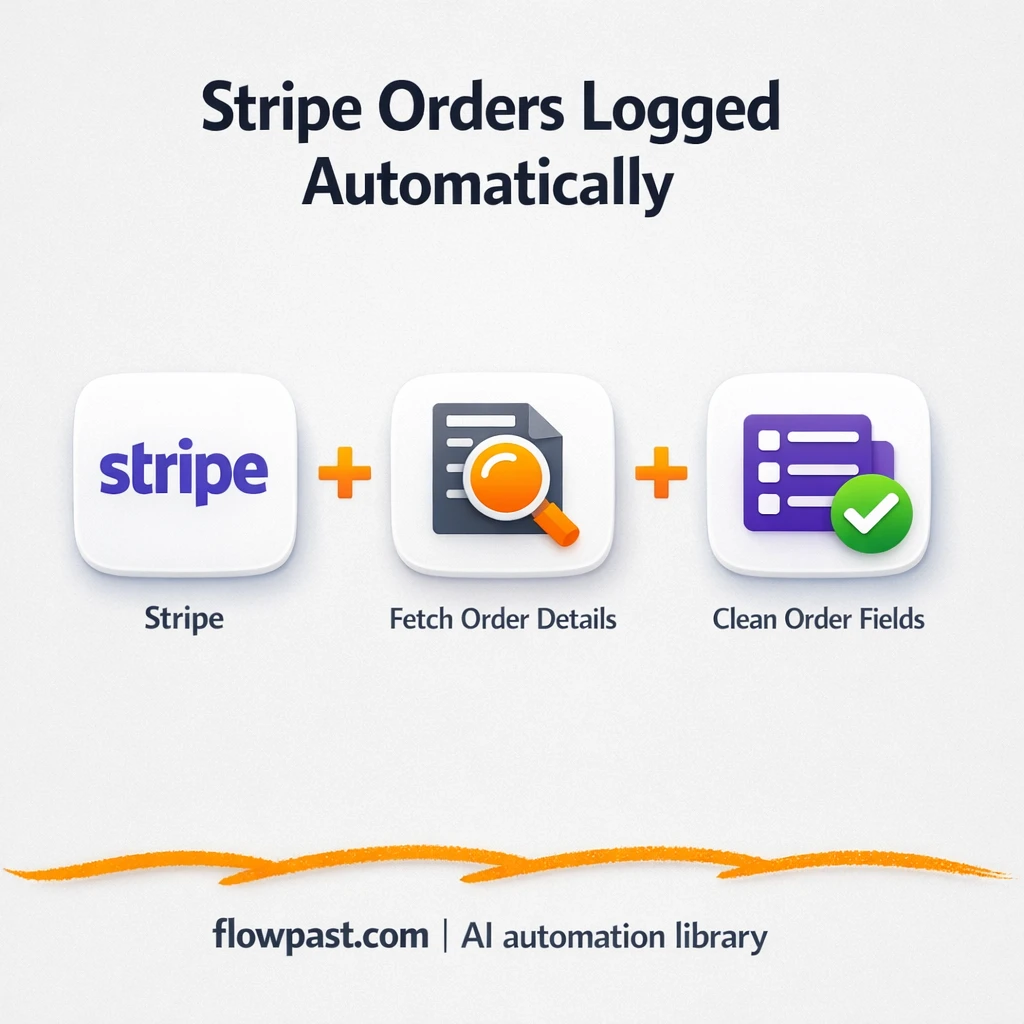

Copying Stripe payments into a spreadsheet sounds simple until you’re doing it every day. Then it turns into a repeating mess: missed rows, mismatched emails, and “Which product was this for?” follow-up searches.
Marketing ops teams feel it when campaign revenue needs clean attribution. A small business owner sees it at month-end when totals don’t match Stripe. And bookkeepers get stuck cleaning exports instead of reconciling. This Stripe Sheets logging automation keeps your sales log consistent without babysitting it.
You’ll set up an n8n workflow that triggers on successful Stripe payments, pulls the full session details, extracts the exact fields you care about, and prepares the data for clean logging in Google Sheets (and other systems later if you want).
How This Automation Works
Here’s the complete workflow you’ll be setting up:
n8n Workflow Template: Stripe to Google Sheets, clean sales logs every time
flowchart LR

    subgraph sg0["Stripe Payment Event Flow"]
        direction LR
        n0["<div style='background:#f5f5f5;padding:10px;border-radius:8px;display:inline-block;border:1px solid #e0e0e0'><img src='https://flowpast.com/wp-content/uploads/n8n-workflow-icons/stripe.svg' width='40' height='40' /></div><br/>Stripe Payment Event Trigger"]
        n1["<div style='background:#f5f5f5;padding:10px;border-radius:8px;display:inline-block;border:1px solid #e0e0e0'><img src='https://flowpast.com/wp-content/uploads/n8n-workflow-icons/httprequest.dark.svg' width='40' height='40' /></div><br/>Fetch Session Details"]
        n2@{ icon: "mdi:swap-vertical", form: "rounded", label: "Map Customer Fields", pos: "b", h: 48 }
        n1 --> n2
        n0 --> n1
    end

    %% Styling
    classDef trigger fill:#e8f5e9,stroke:#388e3c,stroke-width:2px
    classDef ai fill:#e3f2fd,stroke:#1976d2,stroke-width:2px
    classDef aiModel fill:#e8eaf6,stroke:#3f51b5,stroke-width:2px
    classDef decision fill:#fff8e1,stroke:#f9a825,stroke-width:2px
    classDef database fill:#fce4ec,stroke:#c2185b,stroke-width:2px
    classDef api fill:#fff3e0,stroke:#e65100,stroke-width:2px
    classDef code fill:#f3e5f5,stroke:#7b1fa2,stroke-width:2px
    classDef disabled stroke-dasharray: 5 5,opacity: 0.5
    class n0 trigger
    class n1 api
    classDef customIcon fill:none,stroke:none
    class n0,n1 customIcon
Why This Matters: Clean sales logs without manual cleanup
Stripe is great at collecting payments. It’s not great at giving you a “ready for the team” sales log in the exact format you want, inside the tools you actually run the business on. So you export, filter, copy, paste, and hope nothing breaks. Then a refund hits, a customer uses a different email, or the product name comes through in a way your sheet doesn’t expect. Now your “simple spreadsheet” becomes a weekly cleanup project that quietly steals focus and creates arguments over whose numbers are correct.
It adds up fast. Here’s where it breaks down in real life:
- A single missed payment row can throw off your daily totals and make your dashboard look “wrong” for hours.
- Stripe exports change depending on what you select, so columns drift and formulas start failing.
- Customer and product details often live one click deeper, which means extra lookups for every order.
- When you need the same data in multiple places, you end up duplicating the same manual work in different tabs.
What You’ll Build: Stripe payment logging to Google Sheets with clean fields
This workflow starts the moment Stripe confirms a successful payment. n8n catches that payment event, then immediately calls Stripe’s API to retrieve the full checkout session details (so you’re not stuck with only partial event data). Next, it narrows everything down to the fields that are actually useful in a sales log: customer name, customer email, and the purchased product details. Finally, it outputs that cleaned, mapped data in a consistent structure so it can be written into Google Sheets as a tidy row every time. No manual exports. No “let me check Stripe quickly.”
In practice, you get a simple flow: Stripe triggers the automation, the workflow fetches the complete session, and a mapping step standardizes the values. From there, it’s ready to log into Google Sheets (and it’s easy to extend to tools like Odoo if your ops stack needs it).
What You’re Building
| What Gets Automated | What You’ll Achieve |
|---|---|
|
|
Expected Results
Say you get about 15 Stripe payments a day. Manually logging each one (open Stripe, find the session, copy name/email/product, paste into Google Sheets) is easily 3 minutes per payment, so roughly 45 minutes daily. With this workflow, the “work” is basically zero after setup: Stripe triggers instantly, n8n fetches the session in seconds, and the mapped fields are ready to be logged as a clean row. That’s about 4 hours back each week, plus far fewer “wait, who was this customer?” moments.
Before You Start
- n8n instance (try n8n Cloud free)
- Self-hosting option if you prefer (Hostinger works well)
- Stripe for payment events and session data
- Google Sheets to store a clean sales log
- Stripe API keys (get them from Stripe Dashboard → Developers → API keys)
Skill level: Beginner. You will connect Stripe, then map a few fields into the format you want.
Want someone to build this for you? Talk to an automation expert (free 15-minute consultation).
Step by Step
A Stripe payment succeeds. The workflow is triggered by a Stripe payment event, so you’re not polling or exporting. It reacts when money actually lands.
The workflow requests the full checkout session. n8n uses an HTTP request to ask Stripe for complete session details, which is where customer identity and product info are easiest to trust and reuse.
Fields are cleaned and mapped. The “set” step (Edit Fields) picks out customer name, customer email, and product details, then puts them into a consistent structure you can depend on.
The cleaned data is ready to log. In many setups, the next node writes a new row to Google Sheets. You can also merge in extra columns, or route the same clean payload to Odoo, QuickBooks, or a CRM.
You can easily modify which Stripe fields are captured (like payment amount, currency, coupon codes, or UTM data) so your sheet matches how you report revenue. See the full implementation guide below for customization options.
Step-by-Step Implementation Guide
Step 1: Configure the Stripe Trigger
This workflow begins when Stripe sends a completed checkout session event.
- Add the Stripe Payment Event Trigger node to your canvas.
- Set Events to
checkout.session.completed. - Credential Required: Connect your stripeApi credentials in Stripe Payment Event Trigger.
Step 2: Connect Stripe and Fetch Session Details
Retrieve full checkout session data (including line items) using Stripe’s API.
- Add the Fetch Session Details node and connect it from Stripe Payment Event Trigger.
- Set URL to
=https://api.stripe.com/v1/checkout/sessions/{{ $json.data.object.id }}. - Enable Send Query and add a query parameter: name
expand[]with valueline_items. - Set Authentication to
predefinedCredentialTypeand Credential Type tostripeApi. - Credential Required: Connect your stripeApi credentials in Fetch Session Details.
- Credential Required: Connect your httpHeaderAuth credentials in Fetch Session Details.
{{$json.data.object.id}} or the request will fail.Step 3: Set Up Field Mapping
Map key customer and product details into clean, reusable fields.
- Add the Map Customer Fields node and connect it after Fetch Session Details.
- Create an assignment with Name
Customer Nameand Value={{ $json.customer_details.name }}. - Create an assignment with Name
Customer Emailand Value={{ $json.customer_details.email }}. - Create an assignment with Name
Product Purchasedand Value={{ $json.line_items.data[0].description }}.
Step 4: Configure Output Usage
Use the mapped fields for downstream actions such as CRM updates, notifications, or database writes.
- Confirm that Map Customer Fields outputs the fields
Customer Name,Customer Email, andProduct Purchased. - Attach additional action nodes after Map Customer Fields if you want to send emails or store data.
Step 5: Test and Activate Your Workflow
Validate the end-to-end flow before turning it on in production.
- Click Test Workflow and trigger a Stripe
checkout.session.completedevent. - Verify Fetch Session Details returns session data with
line_items. - Confirm Map Customer Fields outputs the mapped fields and values.
- Toggle the workflow to Active to enable live processing.
Troubleshooting Tips
- Stripe credentials can expire or be restricted. If events stop triggering, check your Stripe Dashboard webhook/event settings and confirm the API key in n8n is still valid.
- If you extend this workflow with batching or waits (common when you process line items), processing times can vary. Increase the wait time if a downstream step runs before Stripe has everything available.
- Google Sheets failures are often permission-related. Confirm the Google account connected in n8n can edit the target spreadsheet, and double-check that your mapped fields match the sheet columns.
Quick Answers
About 30 minutes if your Stripe and Google accounts are ready.
No. You’ll connect Stripe, then map the fields you want into a clean structure.
Yes. n8n has a free self-hosted option and a free trial on n8n Cloud. Cloud plans start at $20/month for higher volume. You’ll also need to factor in Stripe costs (normal processing fees) and any optional tools you add later.
Two options: n8n Cloud (managed, easiest setup) or self-hosting on a VPS. For self-hosting, Hostinger VPS is affordable and handles n8n well. Self-hosting gives you unlimited executions but requires basic server management.
Yes, and you probably should. The “Fetch Session Details” step can pull additional Stripe fields, and the “Map Customer Fields” step is where you decide what gets saved and how it’s named. Common tweaks include adding amount and currency, storing the payment status, or capturing campaign metadata (like a reference ID you attach to the checkout session). If you later want to route the same cleaned data to Odoo or a CRM, you can reuse the mapped output without rebuilding the logic.
Usually it’s an expired or wrong API key. Regenerate your Stripe secret key and update it in n8n, then confirm the event you’re listening for is actually firing in Stripe. If the trigger works but the HTTP request fails, it can also be missing permissions or an incorrect session ID being passed through. Rarely, you’ll hit Stripe rate limits if you’re processing a surge of events at once.
A lot. On n8n Cloud, it depends on your monthly execution limit, and self-hosting is mostly limited by your server. For most small teams logging Stripe payments to Google Sheets, it’s plenty even during launches or promo days.
Often, yes, especially if you want control. n8n makes it easier to fetch “full session” data with an HTTP request, reshape it, and reuse the cleaned payload across multiple destinations without paying per extra branch. You also get the self-hosting option, which is a big deal if you expect lots of transactions. Zapier or Make can be simpler for a two-step “trigger → add row” setup, but they can get pricey once you add filtering, lookups, or extra actions. If you want a second opinion on complexity and cost, Talk to an automation expert.
Clean sales logs shouldn’t be a weekly project. Set this up once, and let Stripe payments land in Google Sheets in a format you can actually trust.
Need Help Setting This Up?
Our automation experts can build and customize this workflow for your specific needs. Free 15-minute consultation—no commitment required.
