


Stripe to Google Sheets, custom fields you can trust

Your Stripe dashboard tells you money came in. It often doesn’t tell you why it came in. The moment you rely on Checkout custom fields (industry, referral source, “how did you hear about us?”), you’re back to copy-pasting and guessing.
This Stripe Sheets sync hits marketers hardest, because attribution gets messy fast. Ops leads and founders feel it too when segmentation lives in someone’s head (or worse, in a Slack thread). The outcome is simple: your Checkout Session custom fields land in one Google Sheet, consistently.
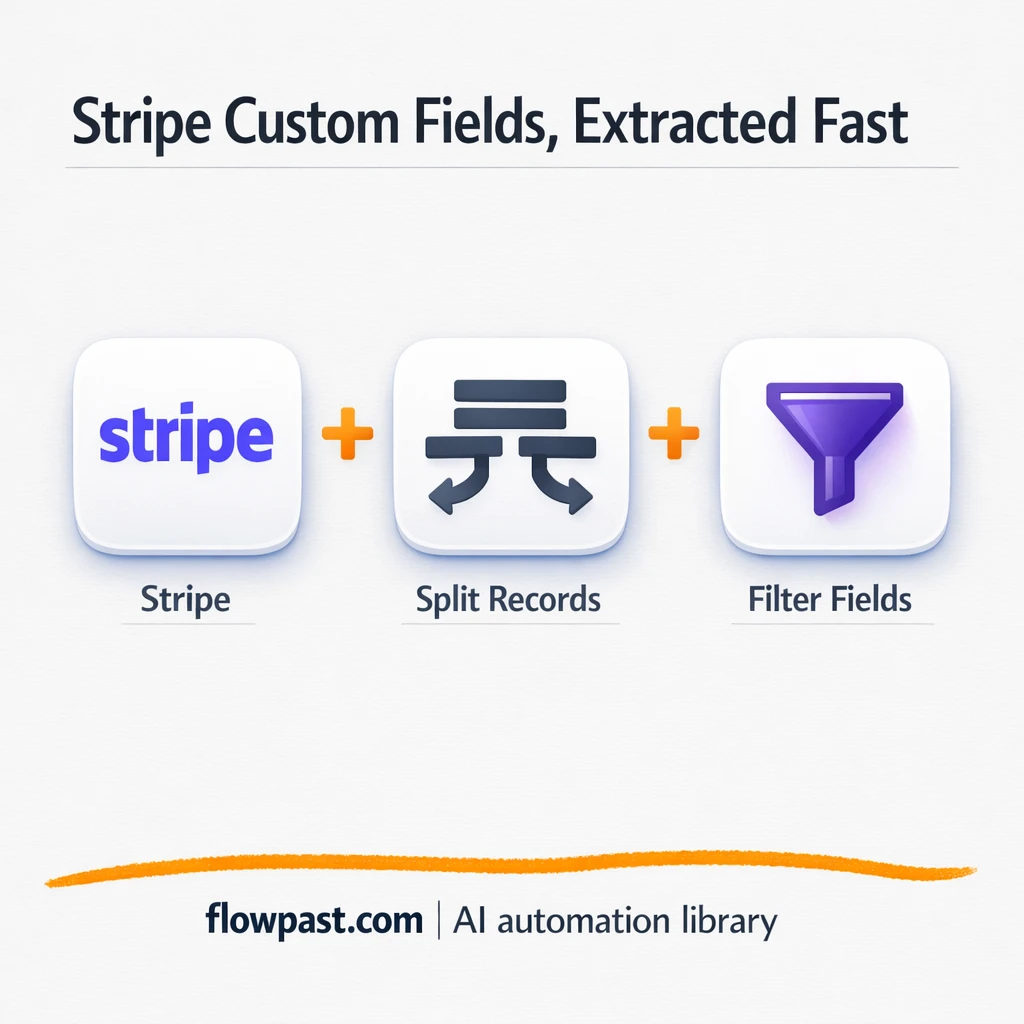
Below, you’ll see how the workflow pulls the right Stripe data, reshapes it into something usable, and filters down to the exact custom fields you care about.
How This Automation Works
The full n8n workflow, from trigger to final output:
n8n Workflow Template: Stripe to Google Sheets, custom fields you can trust
flowchart LR

    subgraph sg0["Flow 1"]
        direction LR
        n0@{ icon: "mdi:swap-vertical", form: "rounded", label: "split custom_fields", pos: "b", h: 48 }
        n1["<div style='background:#f5f5f5;padding:10px;border-radius:8px;display:inline-block;border:1px solid #e0e0e0'><img src='https://flowpast.com/wp-content/uploads/n8n-workflow-icons/httprequest.dark.svg' width='40' height='40' /></div><br/>Stripe | Get latest checkout.."]
        n2@{ icon: "mdi:swap-horizontal", form: "rounded", label: "Filter by custom_field", pos: "b", h: 48 }
        n3@{ icon: "mdi:swap-vertical", form: "rounded", label: "split all data", pos: "b", h: 48 }
        n3 --> n0
        n0 --> n2
        n1 --> n3
    end

    %% Styling
    classDef trigger fill:#e8f5e9,stroke:#388e3c,stroke-width:2px
    classDef ai fill:#e3f2fd,stroke:#1976d2,stroke-width:2px
    classDef aiModel fill:#e8eaf6,stroke:#3f51b5,stroke-width:2px
    classDef decision fill:#fff8e1,stroke:#f9a825,stroke-width:2px
    classDef database fill:#fce4ec,stroke:#c2185b,stroke-width:2px
    classDef api fill:#fff3e0,stroke:#e65100,stroke-width:2px
    classDef code fill:#f3e5f5,stroke:#7b1fa2,stroke-width:2px
    classDef disabled stroke-dasharray: 5 5,opacity: 0.5
    class n2 decision
    class n1 api
    classDef customIcon fill:none,stroke:none
    class n1 customIcon
The Problem: Stripe hides custom fields where teams don’t look
You add Stripe Checkout custom fields because you want cleaner attribution and smarter follow-up. Then you open Stripe exports and realize the obvious data (charges, invoices, customers) doesn’t include those fields in a clean, beginner-friendly way. So someone starts opening individual sessions, copying values into a spreadsheet, and “fixing it later.” Later becomes never. Reporting meetings turn into debates about lead source, and your segmentation is only as good as the last person who remembered to update the sheet.
It adds up fast. Here’s where it breaks down.
- Custom field values live in the Checkout Sessions endpoint, which most teams never touch day to day.
- Manual copy-paste from sessions into Sheets quietly introduces typos, mismatched options, and empty cells.
- If you sell multiple offers, you end up with scattered notes instead of one consistent attribution column.
- Weekly reporting becomes a cleanup project, so you either delay decisions or make them on incomplete data.
The Solution: Pull Checkout Sessions, extract custom fields, and send clean rows to Sheets
This workflow solves the annoying part: Stripe’s custom fields aren’t reliably available where you’d expect, so it goes straight to the source. n8n runs a preconfigured GET request to the Stripe Checkout Sessions endpoint, pulls all sessions from the last 7 days, and then breaks the response into individual records you can actually work with. From there, it separates the custom attributes (Stripe’s custom_fields) into clean, filterable pieces. Finally, you keep only the attributes you care about, so your Google Sheet stays tidy instead of becoming a dumping ground.
The workflow starts by retrieving recent Checkout Sessions from Stripe. Then it distributes each session and splits out each custom field into its own item. After that, a filter keeps only the custom field(s) you want to track, ready to map into a consistent sheet structure.
What You Get: Automation vs. Results
| What This Workflow Automates | Results You’ll Get |
|---|---|
|
|
Example: What This Looks Like
Say you get about 20 Checkouts a week and you track 3 custom fields (referral source, company size, use case). Manually, finding each session and copying 3 values takes maybe 5 minutes per order, which is roughly 2 hours every week. With this automation, you run one pull for the last 7 days and filter the attributes you need, then push the rows into Google Sheets. The human time drops to a quick spot check, maybe 10 minutes.
What You’ll Need
- n8n instance (try n8n Cloud free)
- Self-hosting option if you prefer (Hostinger works well)
- Stripe to retrieve Checkout Session data.
- Google Sheets to store attribution and segmentation fields.
- Stripe API key (get it from Stripe Dashboard → Developers → API keys).
Skill level: Intermediate. You’ll copy an API key, map a few fields, and validate that your filter matches the custom field names you use in Checkout.
Don’t want to set this up yourself? Talk to an automation expert (free 15-minute consultation).
How It Works
Stripe data pull. The workflow runs an HTTP request against the Stripe Checkout Sessions endpoint, pre-set to grab sessions from the last 7 days so you don’t have to wrestle with pagination on day one.
Record distribution. n8n splits the response into individual session records. That matters because Sheets likes rows, not giant nested JSON blobs.
Custom field extraction and filtering. Each session’s custom_fields is separated out, then a Filter node keeps only the attribute(s) you care about (for example, “referral_source” or “company_size”). Simple. Effective.
Google Sheets output. Once the data is shaped, you map the values into a stable sheet format so every new session lands in the same columns, with the same naming, without cleanup.
You can easily modify the “last 7 days” window to “yesterday only” (daily ops) or “last 30 days” (monthly reporting) based on your needs. See the full implementation guide below for customization options.
Step-by-Step Implementation Guide
Step 1: Configure the Trigger
This workflow does not include a trigger node, so you’ll need to add one to start the automation.
- Add a trigger node (for example, a Schedule Trigger) to the canvas before Retrieve Latest Stripe Sessions.
- Connect the trigger’s output to Retrieve Latest Stripe Sessions to start the execution flow.
Step 2: Connect Stripe and Fetch Sessions
Configure the Stripe API request to retrieve checkout sessions from the last 20 days.
- Open Retrieve Latest Stripe Sessions.
- Set URL to
=https://api.stripe.com/v1/checkout/sessions. - Set Authentication to Predefined Credential Type.
- Credential Required: Connect your stripeApi credentials.
- Enable pagination with starting_after set to
={{ $response.body.data.last().id }}and Complete Expression set to={{ $response.body.has_more == false }}. - Set JSON Query to
={ "created": { "gte":{{ $today.minus(20, 'days').toSeconds() }}, "lte":{{ $today.toSeconds() }} } }.
$today.minus(20, 'days') value in Retrieve Latest Stripe Sessions.Step 3: Split Sessions and Extract Custom Fields
These nodes normalize the Stripe response by splitting the session array and then splitting custom fields for filtering.
- Open Distribute All Records and set Field to Split Out to
data. - Open Separate Custom Attributes and set Field to Split Out to
custom_fields. - In Separate Custom Attributes, set Include to
allOtherFieldsso original session data remains available.
Step 4: Configure Attribute Filtering
The filter step selects custom field entries by key.
- Open Filter by Attribute.
- Set the first condition Left Value to
={{ $json.custom_fields.key }}and Right Value tonickname. - Set the second condition Left Value to
={{ $json.custom_fields.key }}and Right Value tojob_title. - Keep the Combinator as and if you only want records that meet both conditions.
nickname and job_title) will usually return no results. Switch the combinator to or if you want either key.Step 5: Test and Activate Your Workflow
Run a manual test to verify Stripe data is retrieved, split, and filtered as expected.
- Click Execute Workflow to run a manual test.
- Confirm Retrieve Latest Stripe Sessions returns data and pagination completes.
- Verify Distribute All Records outputs individual sessions and Separate Custom Attributes outputs individual custom field entries.
- Check Filter by Attribute for the expected filtered records.
- Toggle the workflow to Active once the test output matches your expectations.
Common Gotchas
- Stripe credentials can expire or be restricted by workspace permissions. If things break, check n8n’s Credentials section first, then confirm the key is active in the Stripe Dashboard.
- If you add Wait nodes or you’re pulling a heavier 7-day window during busy periods, processing times vary. Bump up the wait duration if downstream nodes fail on empty responses.
- Custom field keys and labels get confusing when you rename fields in Stripe Checkout. If your Filter stops matching, re-check the
custom_fieldsnames coming back from Stripe and update the filter condition.
Frequently Asked Questions
About 30 minutes if your Stripe and Google accounts are ready.
No. You’ll paste an API key and map fields in n8n. The only “technical” part is choosing the right custom field name to filter.
Yes. n8n has a free self-hosted option and a free trial on n8n Cloud. Cloud plans start at $20/month for higher volume. You’ll also need to factor in Stripe API usage (usually negligible for weekly pulls like this).
Two options: n8n Cloud (managed, easiest setup) or self-hosting on a VPS. For self-hosting, Hostinger VPS is affordable and handles n8n well. Self-hosting gives you unlimited executions but requires basic server management.
Yes, and it’s one of the best tweaks to make. Update the “Retrieve Latest Stripe Sessions” HTTP request so it pulls the window you want (daily, weekly, or monthly). Common customizations include filtering by specific custom field keys, adding more columns before writing to Google Sheets, and sending a Telegram message when a matching session is found.
Usually it’s an expired or rotated API key. Generate a fresh Stripe secret key, update it in your n8n credential, then rerun the HTTP request node to confirm you’re getting sessions back. If it still fails, check that your key has access to the right Stripe account (test mode vs live mode trips people up, honestly). Rate limiting is rare here, but it can happen if you’re pulling huge windows repeatedly.
On n8n Cloud Starter, you can usually handle a few thousand workflow executions per month, and this workflow can be structured to process many sessions per run. If you self-host, there’s no execution limit (it depends on your server). In practice, weekly pulls for small businesses are well within comfortable limits; if you’re processing very high volume, you’ll want to optimize pagination and how often you run it.
Often, yes. Stripe custom fields are the catch. Zapier and Make can struggle when the data you need lives behind a specific endpoint and comes back as nested arrays, because you end up building awkward workarounds or paying for higher-tier features to manipulate data. n8n is more forgiving with branching, filtering, and transforming the response before it hits Google Sheets, and you can self-host if volume grows. If you only need a simple “new payment → add row” flow with no custom fields, Zapier or Make can be quicker. Talk to an automation expert if you want a straight recommendation for your exact setup.
Once this is running, your attribution and segmentation stop being a weekly cleanup ritual. The workflow handles the repetitive stuff, and your sheet stays usable.
Need Help Setting This Up?
Our automation experts can build and customize this workflow for your specific needs. Free 15-minute consultation—no commitment required.
