


Telegram + Google Sheets: a journal you actually keep
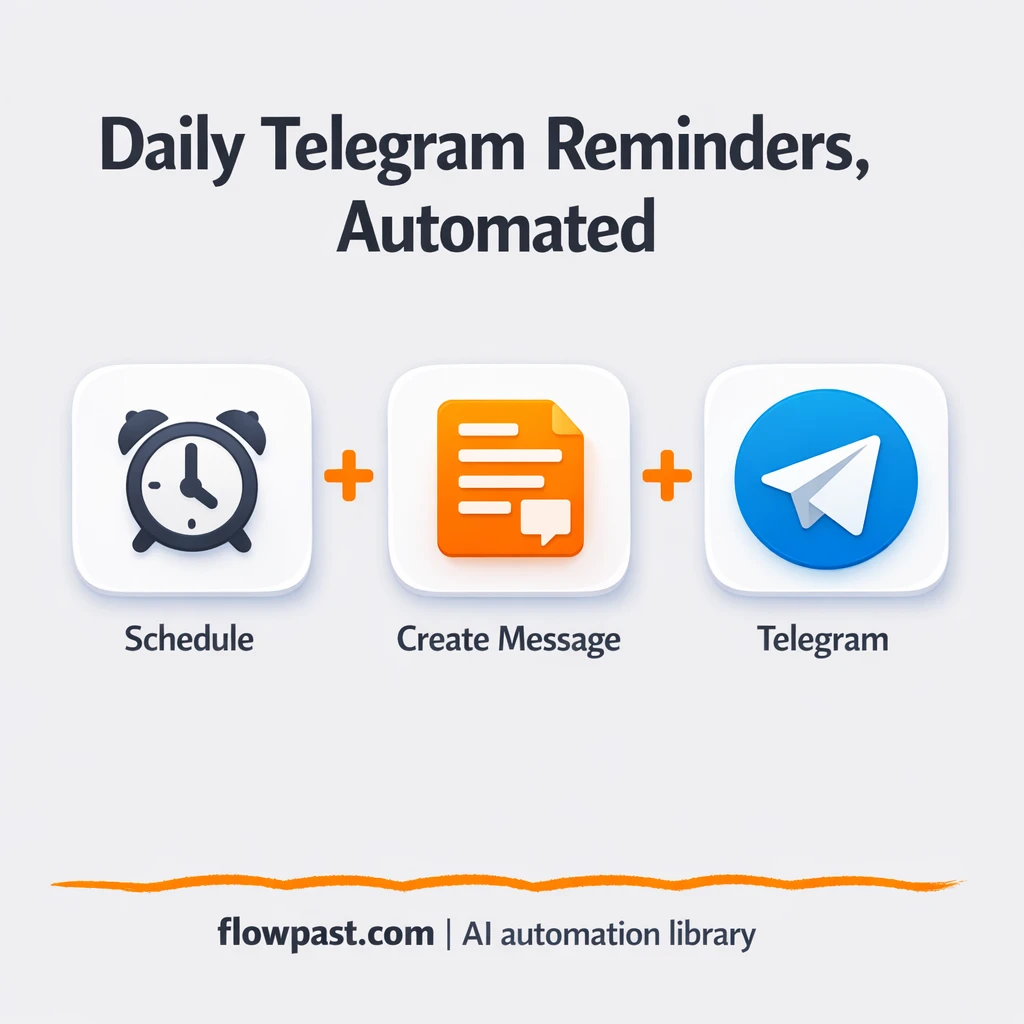

You know you “should” journal. But the habit dies in the same place every time: you forget, you get busy, and the blank page feels like work.
This Telegram journal automation hits solo founders hardest because your brain is already full. Marketers trying to stay consistent feel it too. And if you run a small team, you’ll recognize the same pattern across everyone: good intentions, zero follow-through.
This workflow fixes the boring part. It pings you in Telegram each morning with a simple journaling prompt, then you can log your replies into Google Sheets so you can actually review them later.
How This Automation Works
Here’s the complete workflow you’ll be setting up:
n8n Workflow Template: Telegram + Google Sheets: a journal you actually keep
flowchart LR

    subgraph sg0["Flow 1"]
        direction LR
        n0@{ icon: "mdi:cog", form: "rounded", label: "Dawn Schedule Trigger", pos: "b", h: 48 }
        n1@{ icon: "mdi:code-braces", form: "rounded", label: "Compose Journal Prompt", pos: "b", h: 48 }
        n2["<div style='background:#f5f5f5;padding:10px;border-radius:8px;display:inline-block;border:1px solid #e0e0e0'><img src='https://flowpast.com/wp-content/uploads/n8n-workflow-icons/telegram.svg' width='40' height='40' /></div><br/>Dispatch Telegram Prompt"]
        n1 --> n2
        n0 --> n1
    end

    %% Styling
    classDef trigger fill:#e8f5e9,stroke:#388e3c,stroke-width:2px
    classDef ai fill:#e3f2fd,stroke:#1976d2,stroke-width:2px
    classDef aiModel fill:#e8eaf6,stroke:#3f51b5,stroke-width:2px
    classDef decision fill:#fff8e1,stroke:#f9a825,stroke-width:2px
    classDef database fill:#fce4ec,stroke:#c2185b,stroke-width:2px
    classDef api fill:#fff3e0,stroke:#e65100,stroke-width:2px
    classDef code fill:#f3e5f5,stroke:#7b1fa2,stroke-width:2px
    classDef disabled stroke-dasharray: 5 5,opacity: 0.5
    class n1 code
    classDef customIcon fill:none,stroke:none
    class n2 customIcon
Why This Matters: Staying Consistent Without Another App
The hardest part of journaling is not writing. It’s remembering to do it, then choosing to do it when you’re already juggling messages, work, and life. “I’ll do it tonight” turns into “I missed three days” surprisingly fast. And once you miss a few, you stop trusting the habit, which makes it even easier to skip. The irony is that journaling is most useful when you’re busy, stressed, or moving quickly, because it helps you notice patterns you’d otherwise miss.
It adds up fast. Here’s where it breaks down in real life.
- You rely on motivation, and motivation is unreliable at 7:30 a.m. on a Tuesday.
- Notes get scattered across apps, so you cannot review a week without hunting.
- When the prompt is too open-ended, you overthink and write nothing.
- Manual copy-pasting into a tracker feels silly, so it never becomes a system.
What You’ll Build: A Daily Telegram Prompt That Can Log to Sheets
This workflow gives you a tiny “journal moment” each day, delivered where you already are: Telegram. A schedule (Cron) triggers every morning, then a small function step composes a prompt that asks you to write one thing you did yesterday. The workflow sends that prompt as a Telegram message, which means your journal starts as a simple reply, not a new app you need to open. If you choose to extend it, the reply can be captured and written into Google Sheets so your notes become searchable and reviewable over time. You get consistency without ceremony, and a paper trail without effort.
The workflow starts on a daily schedule. It generates a short prompt and sends it to your Telegram chat. With the optional reply-logging extension, your response becomes a new row in Google Sheets, ready for weekly review.
What You’re Building
| What Gets Automated | What You’ll Achieve |
|---|---|
|
|
Expected Results
Say you journal 5 days a week. Without automation, you might spend about 5 minutes finding the right note, opening an app, and staring at a blank page, so roughly 25 minutes weekly plus a lot of skipped days. With this workflow, the prompt arrives in Telegram automatically, and your “setup” is basically reading it and replying, maybe 1 minute. If you also log to Google Sheets, your weekly review becomes a quick scroll instead of digging through messages.
Before You Start
- n8n instance (try n8n Cloud free)
- Self-hosting option if you prefer (Hostinger works well)
- Telegram to deliver prompts and collect replies.
- Google Sheets to store and review journal entries.
- Telegram bot token (get it from BotFather in Telegram)
Skill level: Beginner. You’ll connect Telegram and (optionally) Google Sheets, then adjust the schedule time.
Want someone to build this for you? Talk to an automation expert (free 15-minute consultation).
Step by Step
A daily schedule triggers the run. The Cron node fires at your chosen time (this workflow is designed as a morning reminder). You can set it for weekdays only if weekends feel like too much.
A short prompt is composed. A Function Item step assembles the journaling question (“Write 1 thing you did yesterday”), and you can tweak the wording so it sounds like you instead of a robot.
The message gets sent to Telegram. The Telegram node posts the prompt to your chat, so the habit piggybacks on a tool you already open all day.
Your response can become a record. The base workflow focuses on sending the prompt, and the optional add-on can take your reply and append it to Google Sheets so it’s easy to review, filter, and search later.
You can easily modify the prompt text and schedule time to match your routine. See the full implementation guide below for customization options.
Step-by-Step Implementation Guide
Step 1: Configure the Schedule Trigger
Set the workflow to run every morning so the journal prompt is prepared on a daily schedule.
- Add and open Dawn Schedule Trigger.
- Set Trigger Times to
hour: 6so it runs at 6:00 AM. - Ensure Dawn Schedule Trigger connects to Compose Journal Prompt.
Step 2: Set Up the Journal Prompt Processor
Generate the message text that includes yesterday’s date using a Function Item script.
- Open Compose Journal Prompt.
- Paste the full Function Code exactly as shown in the workflow:
// Creates message with todays date const today = new Date() const yesterday = new Date(today) yesterday.setDate(yesterday.getDate() - 1) const message = `What did you do: ${yesterday.toISOString().split('T')[0]}` return {message}; - Confirm the output field is named
messagefor downstream use.
Step 3: Configure the Telegram Output
Send the generated prompt to your Telegram chat.
- Open Dispatch Telegram Prompt.
- Set Text to
={{$node["Compose Journal Prompt"].json["message"]}}. - Set Chat ID to
[YOUR_ID](replace with your actual Telegram chat ID). - Credential Required: Connect your Telegram Bot API credentials.
⚠️ Common Pitfall: If Dispatch Telegram Prompt does not have Telegram credentials configured, the message will fail to send. Add the Telegram Bot API credential before testing.
Step 4: Test and Activate Your Workflow
Verify the workflow runs correctly and then activate it for daily use.
- Click Execute Workflow to run a manual test.
- Check that Dispatch Telegram Prompt sends a message like
What did you do: YYYY-MM-DDto your Telegram chat. - If the output is correct, toggle the workflow Active for daily execution at 6:00 AM.
Troubleshooting Tips
- Telegram credentials can expire or be set up with the wrong chat ID. If things break, check your Telegram node credentials and the target chat/channel configuration first.
- If you’re using Wait nodes or external rendering, processing times vary. Bump up the wait duration if downstream nodes fail on empty responses.
- Default prompts in AI nodes are generic. Add your brand voice early or you’ll be editing outputs forever.
Quick Answers
About 20 minutes if you already have a Telegram bot token.
No. You’ll mostly connect Telegram and adjust the prompt text.
Yes. n8n has a free self-hosted option and a free trial on n8n Cloud. Cloud plans start at $20/month for higher volume. You’ll also need to factor in OpenAI API costs if you extend this with AI-generated prompts (usually pennies per day for light use).
Two options: n8n Cloud (managed, easiest setup) or self-hosting on a VPS. For self-hosting, Hostinger VPS is affordable and handles n8n well. Self-hosting gives you unlimited executions but requires basic server management.
Yes, and it’s the main reason to use n8n for this. You can swap the “Compose Journal Prompt” function to rotate questions (gratitude, wins, lessons learned), or replace the prompt generator with an OpenAI Chat Model node for more variety. Many people also add Google Sheets logging so every Telegram reply becomes a timestamped row. If you prefer Airtable later, the same pattern works with an Airtable node; the idea is identical.
Most of the time it’s the bot token, the chat ID, or missing permission to message the chat. Regenerate the token in BotFather if needed, then update the Telegram credentials in n8n. Also confirm the bot was started (or added to the group) and can actually post messages. If it works once and then stops, check for expired credentials or a changed chat target.
For personal journaling, it’s effectively unlimited because it’s one scheduled run per day.
Usually, yes, if you care about flexibility. n8n is great when you want to adjust logic over time (weekday-only schedules, different prompts, conditional routing) without paying extra for every branch. It also self-hosts cleanly, which means you’re not thinking about task limits for a simple daily habit. Zapier or Make can be simpler for a basic “schedule → send message” flow, but once you add reply capture, logging, and prompt rotation, n8n tends to feel less cramped. Talk to an automation expert if you want a quick recommendation for your exact setup.
Once this is live, journaling stops being a “project” and becomes a quick reply you can actually maintain. Set it up once, then let the prompt do its job.
Need Help Setting This Up?
Our automation experts can build and customize this workflow for your specific needs. Free 15-minute consultation—no commitment required.
