


Telegram + OpenAI: brand safe support replies
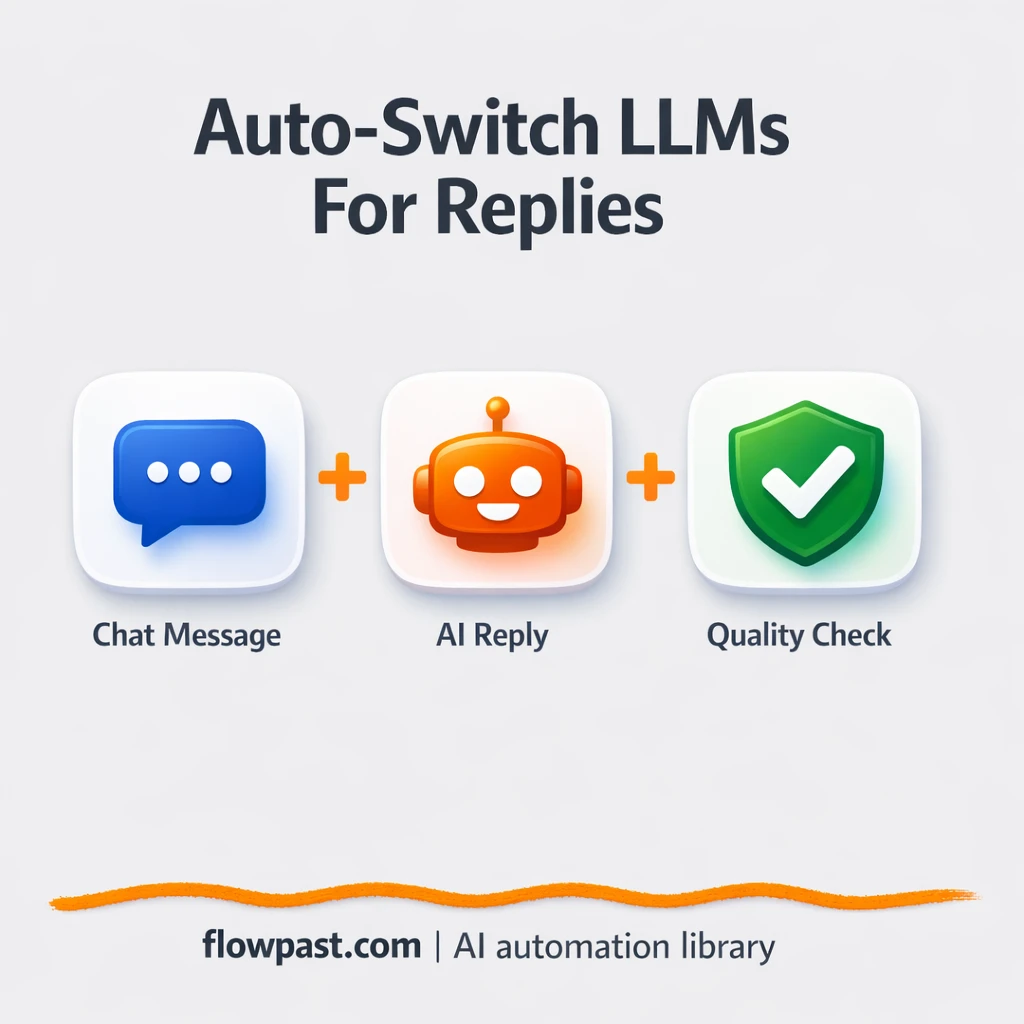

Your Telegram support inbox moves fast. The replies don’t. One teammate sounds warm, another sounds defensive, and the “quick” draft you approve still needs three edits because it’s not quite on-brand.
Support leads feel this first. Marketing managers get pulled in to “fix the tone,” and agency owners end up rewriting messages for clients at night. This Telegram reply automation catches shaky answers before they ever hit send.
This workflow routes complaints through OpenAI, checks the output quality, and retries with a stronger model when needed. You’ll see how the loop works, what you need to run it, and where the real time savings show up.
How This Automation Works
See how this solves the problem:
n8n Workflow Template: Telegram + OpenAI: brand safe support replies
flowchart LR

    subgraph sg0["When chat message received Flow"]
        direction LR
        n0@{ icon: "mdi:play-circle", form: "rounded", label: "When chat message received", pos: "b", h: 48 }
        n1@{ icon: "mdi:robot", form: "rounded", label: "Switch Model", pos: "b", h: 48 }
        n2@{ icon: "mdi:swap-vertical", form: "rounded", label: "Set LLM index", pos: "b", h: 48 }
        n3@{ icon: "mdi:swap-vertical", form: "rounded", label: "Increase LLM index", pos: "b", h: 48 }
        n4@{ icon: "mdi:cog", form: "rounded", label: "No Operation, do nothing", pos: "b", h: 48 }
        n5@{ icon: "mdi:swap-horizontal", form: "rounded", label: "Check for expected error", pos: "b", h: 48 }
        n6@{ icon: "mdi:swap-vertical", form: "rounded", label: "Loop finished without results", pos: "b", h: 48 }
        n7@{ icon: "mdi:swap-vertical", form: "rounded", label: "Unexpected error", pos: "b", h: 48 }
        n8@{ icon: "mdi:swap-vertical", form: "rounded", label: "Return result", pos: "b", h: 48 }
        n9@{ icon: "mdi:brain", form: "rounded", label: "OpenAI 4o-mini", pos: "b", h: 48 }
        n10@{ icon: "mdi:brain", form: "rounded", label: "OpenAI 4o", pos: "b", h: 48 }
        n11@{ icon: "mdi:brain", form: "rounded", label: "OpenAI o1", pos: "b", h: 48 }
        n12@{ icon: "mdi:brain", form: "rounded", label: "OpenAI Chat Model", pos: "b", h: 48 }
        n13@{ icon: "mdi:robot", form: "rounded", label: "Validate response", pos: "b", h: 48 }
        n14@{ icon: "mdi:robot", form: "rounded", label: "Generate response", pos: "b", h: 48 }
        n10 -.-> n1
        n11 -.-> n1
        n1 -.-> n14
        n2 --> n14
        n9 -.-> n1
        n14 --> n13
        n14 --> n5
        n12 -.-> n13
        n13 --> n8
        n13 --> n3
        n3 --> n4
        n5 --> n6
        n5 --> n7
        n4 --> n2
        n0 --> n2
    end

    %% Styling
    classDef trigger fill:#e8f5e9,stroke:#388e3c,stroke-width:2px
    classDef ai fill:#e3f2fd,stroke:#1976d2,stroke-width:2px
    classDef aiModel fill:#e8eaf6,stroke:#3f51b5,stroke-width:2px
    classDef decision fill:#fff8e1,stroke:#f9a825,stroke-width:2px
    classDef database fill:#fce4ec,stroke:#c2185b,stroke-width:2px
    classDef api fill:#fff3e0,stroke:#e65100,stroke-width:2px
    classDef code fill:#f3e5f5,stroke:#7b1fa2,stroke-width:2px
    classDef disabled stroke-dasharray: 5 5,opacity: 0.5
    class n0 trigger
    class n1,n13,n14 ai
    class n9,n10,n11,n12 aiModel
    class n5 decision
The Challenge: Fast Complaints, Slow “Approved” Replies
When a customer complaint lands in Telegram, you don’t just need “a response.” You need the right response. That means matching your brand tone, avoiding defensive language, and giving a clear next step. Doing that manually is a grind, especially when the message is angry or sarcastic. People draft, re-draft, ask for a second opinion, then still worry they missed something. And when you’re busy, the risk gets worse: rushed replies lead to escalations, refunds, and that awkward “let me check with my manager” follow-up you could have avoided.
It adds up fast. Here’s where it usually breaks down in real teams.
- You lose about 10 minutes per complaint just cycling drafts between “sounds fine” and “not quite us.”
- One bad-toned sentence can turn a solvable issue into an escalation thread that drags on all day.
- New hires copy patterns from old chats, so small tone mistakes get repeated until someone notices.
- Most AI drafts are acceptable on easy tickets, then fall apart on the tough ones when you need them most.
The Fix: Loop AI Drafts Until They Pass Quality Checks
This workflow treats support replies like a quality-controlled output, not a one-shot AI gamble. A customer message comes in through Telegram, then an AI Agent generates a reply using an OpenAI model. Immediately after, the workflow runs a validation step (sentiment/quality assessment) to see if the response meets your requirements. If it doesn’t, it automatically tries again, switching to the next model in your list. The loop stops as soon as the reply passes the checks, or when the workflow has tested all available models. What you end up with is a reply that’s more consistent, less risky, and far less likely to trigger a “that sounded rude” correction from your team.
The flow starts with an incoming Telegram chat message. Then n8n assigns a model index and connects that specific OpenAI Chat Model to the same reply chain. After the quality check runs, the workflow either returns the final text or increments the model index and retries.
What Changes: Before vs. After
| What This Eliminates | Impact You’ll See |
|---|---|
|
|
Real-World Impact
Say your team handles 20 Telegram complaints a day. Manually, if each one takes about 10 minutes to draft, revise, and “tone check,” that’s around 3 hours of attention daily. With this workflow, you still review the final message, but you’re usually reviewing a passed draft: maybe 2 minutes per complaint, or about 40 minutes total. Even if a few messages loop through two or three models, you still get roughly 2 hours back most days.
Requirements
- n8n instance (try n8n Cloud free)
- Self-hosting option if you prefer (Hostinger works well)
- Telegram to receive complaints and deliver replies
- OpenAI for multi-model reply generation
- OpenAI API key (get it from the OpenAI dashboard)
Skill level: Intermediate. You’ll import the workflow, add credentials, and be comfortable adjusting model order and quality thresholds.
Need help implementing this? Talk to an automation expert (free 15-minute consultation).
The Workflow Flow
A Telegram chat message triggers everything. The workflow listens for an incoming complaint (or any message you choose) and captures the text as the input to the AI chain.
The workflow selects which OpenAI model to use right now. A LangChain Code node chooses one model based on an index, so you can start cheaper and only “upgrade” when the reply doesn’t pass checks.
The AI Agent drafts a reply, then it gets judged. The workflow generates the response and immediately runs a sentiment/quality validation step. If the output fails your standards, n8n increments the model index, loops back, and tries again with the next model in line.
The best passing reply is composed and returned. Once the response meets requirements (or you hit the end of the model list), the workflow sets the final text and prepares it to send back into your Telegram chat handling.
You can easily modify the pass/fail rules to match your brand voice and escalation policy based on your needs. See the full implementation guide below for customization options.
Step-by-Step Implementation Guide
Step 1: Configure the Chat Trigger
This workflow starts when a new chat message arrives and feeds the user input into the LLM chain.
- Add and open Incoming Chat Trigger.
- Leave default settings unless you need specific trigger options (this node listens for chat input).
- Confirm the execution path goes from Incoming Chat Trigger to Assign LLM Index.
Step 2: Initialize and Iterate the LLM Index
These nodes set a starting model index and create a loop to try different models if needed.
- Open Assign LLM Index and set llm_index to
{{ $json.llm_index || 0 }}. - Open Increment Model Index and set llm_index to
{{ $('Assign LLM Index').item.json.llm_index + 1 }}. - Ensure Increment Model Index connects to No-Op Step and back to Assign LLM Index to form the retry loop.
Step 3: Set Up LLM Selection and Response Composition
This step routes the request to a specific model and generates the response text.
- Open Select LLM Engine and keep the code as provided (it selects the language model based on llm_index).
- Connect OpenAI 4o Mini, OpenAI 4o Core, and OpenAI o1 Core to Select LLM Engine as
ai_languageModelinputs. - In Compose Reply Text, set Text to
{{ $('Incoming Chat Trigger').item.json.chatInput }}and keep Prompt Type asdefine. - Confirm Compose Reply Text includes the system message:
You’re an AI assistant replying to a customer who is upset about a faulty product and late delivery. The customer uses sarcasm and is vague. Write a short, polite response, offering help.
Credential Required: Connect your openAiApi credentials in OpenAI 4o Mini, OpenAI 4o Core, and OpenAI o1 Core. OpenAI Chat Engine is connected as the language model for Assess Response Quality—ensure credentials are added to OpenAI Chat Engine.
Step 4: Evaluate Response Quality and Format Output
The workflow analyzes the generated response and either outputs it or triggers the next model attempt.
- Open Assess Response Quality and set Input Text to
{{ $json.text }}. - Verify the System Prompt Template specifies categories
pass, failand the evaluation criteria for response quality. - Open Send Output Result and set output to
{{ $json.text || $json.output }}so the workflow returns the final response or fallback text.
Execution Flow: Compose Reply Text → Assess Response Quality → Send Output Result for successful responses, while failures move to Increment Model Index and loop back.
Step 5: Add Error Handling Logic
This branch captures expected errors from LLM selection and provides safe fallback messages.
- Open Validate Expected Error and confirm the condition checks
{{ $json.error }}equalsError in sub-node Select LLM Engine. - In No Match Loop End, set output to
The loop finished without a satisfying resultto handle known errors gracefully. - In Handle Unexpected Error, set output to
An unexpected error happenedfor all other error cases.
Step 6: Test and Activate Your Workflow
Validate each stage to ensure the model routing and quality checks work as expected.
- Click Execute Workflow and send a sample message to Incoming Chat Trigger.
- Confirm Compose Reply Text produces a short, polite response and Assess Response Quality returns
passwhen criteria are met. - Verify Send Output Result outputs the final response text.
- Toggle the workflow to Active to enable production usage.
Watch Out For
- OpenAI credentials can expire or be scoped incorrectly. If things break, check the OpenAI API key status and your n8n credential entry first.
- If you add Wait nodes or rely on external moderation tools later, processing times vary. Bump up the wait duration if downstream checks fail because they received an empty or partial response.
- Default prompts in AI nodes are generic. Add your brand voice early or you will be editing outputs forever, especially on emotional complaints.
Common Questions
About an hour once you have your OpenAI key and Telegram set up.
Yes, but someone should be comfortable testing prompts and reading error logs. No coding is required for basic setup, though the LangChain Code node means you’ll want a careful, checklist-style launch.
Yes. n8n has a free self-hosted option and a free trial on n8n Cloud. Cloud plans start at $20/month for higher volume. You’ll also need to factor in OpenAI API usage, which is usually a few cents per day for low-volume support.
Two options: n8n Cloud (managed, easiest setup) or self-hosting on a VPS. For self-hosting, Hostinger VPS is affordable and handles n8n well. Self-hosting gives you unlimited executions but requires basic server management.
You can tune it in three practical places: the prompt used in the reply chain, the pass/fail rules in the Assess Response Quality step, and the order of your OpenAI model nodes. Many teams add stricter language rules for refunds, swap in a different provider for one of the model slots, or change the loop behavior so VIP customers always start on a higher-quality model.
Usually it’s an expired Telegram credential or the bot isn’t in the right chat. Reconnect the Telegram credential in n8n, confirm the bot has permission to read messages, and then retest with a fresh chat message. If it works sometimes and fails sometimes, you may be hitting rate limits or you’re testing in a chat where the bot can’t access message content.
If you self-host, there’s no fixed execution limit, so capacity mostly depends on your server and OpenAI rate limits.
Often, yes, because this workflow relies on looping, branching, and trying multiple models until a quality check passes. That’s doable elsewhere, but it gets awkward and expensive fast. n8n also gives you the self-hosted option, which matters here because this specific setup requires the LangChain Code node. Zapier or Make can still be fine for basic “message in, draft out” flows, but they’re not built for multi-try validation loops. If you’re unsure, Talk to an automation expert and describe your volume and risk tolerance.
You don’t need perfect AI. You need reliable replies that sound like your business, even on the hard tickets. Set this up once, then let the workflow do the re-trying while your team focuses on actual support.
Need Help Setting This Up?
Our automation experts can build and customize this workflow for your specific needs. Free 15-minute consultation—no commitment required.
