


Telegram to Google Sheets, clean Google Maps leads
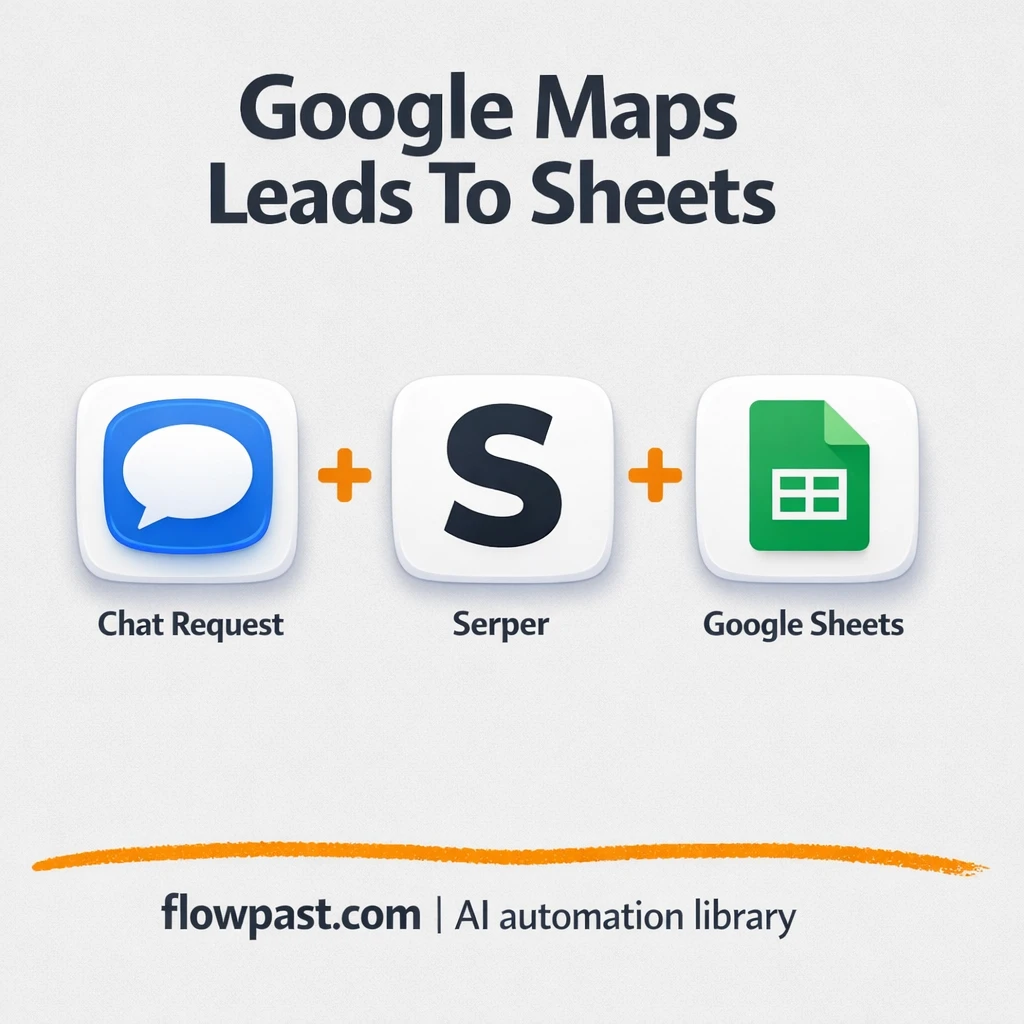

You find a good Google Maps search, you start copying names into a sheet… and then the list turns into a messy blob of half-filled rows, weird formatting, and duplicates.
This Maps leads automation hits lead gen agency teams hardest, but small business owners building their own prospect list feel it too. Even researchers doing market scans end up wasting a morning just “cleaning the spreadsheet.”
This workflow lets you send a search query in Telegram (like “coffee shops in Berlin”), pulls Google Maps results via Serper, then outputs a clean Google Sheet plus a downloadable Excel file. You’ll see how it works, what you need, and where people usually get stuck.
How This Automation Works
Here’s the complete workflow you’ll be setting up:
n8n Workflow Template: Telegram to Google Sheets, clean Google Maps leads
flowchart LR

    subgraph sg0["When chat message received Flow"]
        direction LR
        n0@{ icon: "mdi:swap-vertical", form: "rounded", label: "Split Out Serper", pos: "b", h: 48 }
        n1["<div style='background:#f5f5f5;padding:10px;border-radius:8px;display:inline-block;border:1px solid #e0e0e0'><img src='https://flowpast.com/wp-content/uploads/n8n-workflow-icons/httprequest.dark.svg' width='40' height='40' /></div><br/>Extract Serper Map"]
        n2@{ icon: "mdi:swap-vertical", form: "rounded", label: "Prepare Data", pos: "b", h: 48 }
        n3@{ icon: "mdi:swap-vertical", form: "rounded", label: "Extract Data   ", pos: "b", h: 48 }
        n4@{ icon: "mdi:play-circle", form: "rounded", label: "When chat message received", pos: "b", h: 48 }
        n5@{ icon: "mdi:swap-vertical", form: "rounded", label: "Initialization", pos: "b", h: 48 }
        n6@{ icon: "mdi:swap-vertical", form: "rounded", label: "Variables Chat", pos: "b", h: 48 }
        n7@{ icon: "mdi:cog", form: "rounded", label: "Get Data in XLSX", pos: "b", h: 48 }
        n8@{ icon: "mdi:database", form: "rounded", label: "Upsert Data in Sheets", pos: "b", h: 48 }
        n2 --> n7
        n2 --> n8
        n5 --> n1
        n6 --> n5
        n3 --> n2
        n0 --> n3
        n1 --> n0
        n4 --> n6
    end

    %% Styling
    classDef trigger fill:#e8f5e9,stroke:#388e3c,stroke-width:2px
    classDef ai fill:#e3f2fd,stroke:#1976d2,stroke-width:2px
    classDef aiModel fill:#e8eaf6,stroke:#3f51b5,stroke-width:2px
    classDef decision fill:#fff8e1,stroke:#f9a825,stroke-width:2px
    classDef database fill:#fce4ec,stroke:#c2185b,stroke-width:2px
    classDef api fill:#fff3e0,stroke:#e65100,stroke-width:2px
    classDef code fill:#f3e5f5,stroke:#7b1fa2,stroke-width:2px
    classDef disabled stroke-dasharray: 5 5,opacity: 0.5
    class n4 trigger
    class n8 database
    class n1 api
    classDef customIcon fill:none,stroke:none
    class n1 customIcon
Why This Matters: Clean lead lists without spreadsheet chaos
Manual lead collection from Google Maps is deceptively expensive. It starts with “just grab 30 businesses,” then turns into copy-paste of names, addresses, phone numbers, categories, and websites, one card at a time. After that, you still have to normalize columns so your outreach tool can use them, and you will miss things (or paste into the wrong row) when you’re moving fast. Worse, the list you share with a client or teammate looks inconsistent, which kills confidence in the work even if the leads are fine.
It adds up fast. Here’s where it usually breaks down.
- Copying 50 listings can easily take about 2 hours once you include cleanup and deduping.
- Google Maps cards don’t present data consistently, so columns end up mismatched across rows.
- Sharing the list becomes a second job because someone always wants “the Excel version.”
- When you run multiple searches, tracking which query produced which lead gets messy quickly.
What You’ll Build: Telegram → Google Maps → clean Sheets + Excel
This workflow turns a simple Telegram message into a structured lead list you can actually use. You send a query in chat, the automation packages that request, and then calls Serper to retrieve Google Maps results through an HTTP request. Next, it segments and parses the response so each business becomes a clean “row” with consistent fields (instead of a semi-random blob of text). From there, the workflow assembles a dataset, writes it into Google Sheets for sharing and collaboration, and also generates an XLSX file so you can download a formatted Excel version on demand. The end result is a repeatable lead pipeline that feels like a mini internal tool, not a one-off scrape.
The workflow starts with a chat trigger in Telegram. Then Serper returns maps results that get split into items, cleaned, and reshaped into spreadsheet-ready columns. Finally, n8n updates a Google Sheet and creates a downloadable Excel file from the same dataset.
What You’re Building
| What Gets Automated | What You’ll Achieve |
|---|---|
|
|
Expected Results
Say you run 3 searches a day (“dentists in Austin,” “emergency dentist Austin,” “cosmetic dentist Austin”) and you want about 30 results per search. Manually, pulling 90 listings and cleaning them into a usable sheet can take about 3 hours once you fix columns and remove obvious junk. With this workflow, you send 3 Telegram messages (maybe 2 minutes total), let Serper return the data, then the sheet and XLSX are ready after processing. In practice, most teams get back a couple hours a day when they’re doing this consistently.
Before You Start
- n8n instance (try n8n Cloud free)
- Self-hosting option if you prefer (Hostinger works well)
- Telegram to send the search query in chat.
- Google Sheets to store and share clean lead lists.
- Serper API key (get it from your Serper dashboard).
Skill level: Beginner. You’ll connect accounts, paste an API key, and test a few example searches.
Want someone to build this for you? Talk to an automation expert (free 15-minute consultation).
Step by Step
A Telegram chat message triggers everything. You send a query (for example, “coffee shops in Berlin”), and the workflow captures it through the Chat Message Trigger node.
The workflow prepares the request and calls Serper. It sets up variables, builds the payload, then uses an HTTP Request to retrieve Google Maps results from Serper based on your query.
Results get segmented, parsed, and assembled into a clean dataset. n8n splits the response into items, then uses Set/Edit Fields steps to normalize the fields you care about, so each business becomes one consistent row.
You get two outputs from the same source. The workflow updates your Google Sheet for easy sharing and generates an XLSX file you can download or forward.
You can easily modify the columns you keep (and the naming conventions) to match your outreach process. See the full implementation guide below for customization options.
Step-by-Step Implementation Guide
Step 1: Configure the Chat Trigger
This workflow starts when a chat message is received, then prepares variables for the Serper request.
- Add and open the Chat Message Trigger node.
- Confirm the trigger is connected to Chat Variables Setup in the canvas flow.
- Open Chat Variables Setup and define any input variables your chat message should pass into the workflow.
- Open Startup Setup and add any default values or metadata needed before the Serper request runs.
Step 2: Connect Google Sheets
The results are written to a spreadsheet, so you must connect Google Sheets credentials.
- Open Update Google Sheet and select the target spreadsheet and worksheet.
- Credential Required: Connect your Google Sheets credentials.
Step 3: Set Up the Data Retrieval and Parsing
These nodes fetch the Serper map data, split the results, and prepare fields for export.
- Open Retrieve Serper Map and configure the HTTP request parameters required by the Serper API.
- Ensure Retrieve Serper Map outputs to Segment Serper Results.
- Open Segment Serper Results to confirm it splits the API response into individual result items.
- Open Parse Retrieved Data and map the fields you want to extract from each result.
- Open Assemble Dataset and align the final output fields used by the export and sheet update.
Step 4: Configure Output and File Generation
The workflow outputs both a file and a spreadsheet update from the same dataset.
- Open Generate XLSX File and confirm it converts the dataset into an XLSX file.
- Verify that Assemble Dataset outputs to both Generate XLSX File and Update Google Sheet in parallel.
- Confirm the output mapping in Update Google Sheet matches the dataset fields created in Assemble Dataset.
Step 5: Test and Activate Your Workflow
Run a manual test to validate the full flow before enabling it in production.
- Click Execute Workflow and send a sample message into Chat Message Trigger.
- Verify Retrieve Serper Map returns data and Segment Serper Results splits it correctly.
- Confirm Generate XLSX File produces a file and Update Google Sheet writes rows to the spreadsheet.
- When results look correct, switch the workflow to Active to run it in production.
Troubleshooting Tips
- Google Sheets credentials can expire or need specific permissions. If things break, check the n8n Credentials panel and the target sheet’s sharing access first.
- If you’re using Wait nodes or external rendering, processing times vary. Bump up the wait duration if downstream nodes fail on empty responses.
- Serper responses can change based on query type and region, so your parsed fields may come back blank. If that happens, inspect the HTTP Request output and update the Set/Edit Fields mapping.
Quick Answers
About 30 minutes if your accounts are ready.
No. You’ll connect Telegram and Google Sheets, then paste your Serper API key.
Yes. n8n has a free self-hosted option and a free trial on n8n Cloud. Cloud plans start at $20/month for higher volume. You’ll also need to factor in Serper API costs based on how many searches you run.
Two options: n8n Cloud (managed, easiest setup) or self-hosting on a VPS. For self-hosting, Hostinger VPS is affordable and handles n8n well. Self-hosting gives you unlimited executions but requires basic server management.
Yes, and you probably should. You can change what gets saved by editing the “Parse Retrieved Data” and “Assemble Dataset” steps, then updating the “Update Google Sheet” mapping to match. Common tweaks include adding a “search query” column for traceability, filtering by rating or category with an If node, and renaming columns to match your CRM import format.
Usually it’s a bot token issue or missing chat permissions. Recheck your Telegram bot token in n8n, then confirm the bot is actually allowed to read messages in the chat you’re testing. If you’re using groups, privacy settings can block message content unless configured. Also, test with a simple message first (“test”) to confirm the trigger fires before blaming the Serper request.
If you self-host, there’s no execution cap (it mostly depends on your server). In practice, the limiting factors are Serper rate limits and how many results you pull per query.
Often, yes, because this kind of workflow usually needs parsing, item-by-item processing, and a clean “assemble then export” finish. n8n handles branching, transforms, and batching without feeling like you’re fighting the tool. You also get the option to self-host, which matters when you run lots of searches. Zapier or Make can still work if you keep it very simple, but complex JSON cleanup tends to get annoying. Talk to an automation expert if you want a quick recommendation for your exact volume and stack.
Once this is running, lead collection stops being a “project” and becomes a quick message you send in Telegram. The workflow handles the repetitive formatting so your list is ready to use.
Need Help Setting This Up?
Our automation experts can build and customize this workflow for your specific needs. Free 15-minute consultation—no commitment required.
