


Twilio + Calendly: appointment texts sent for you
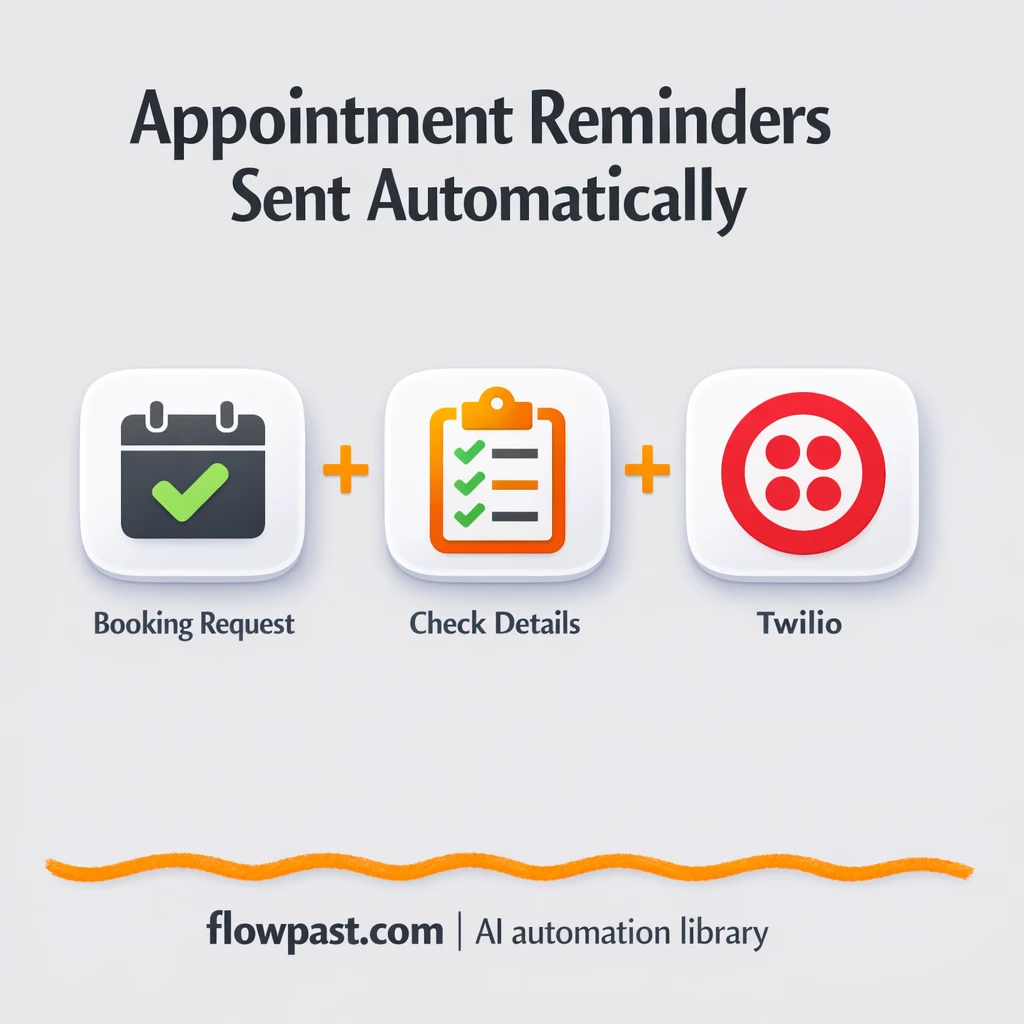

You book the appointment. Then the busywork starts. Copy the client’s name, double-check the phone number, type the same reminder message again, and hope you didn’t schedule it for the wrong day.
This Twilio Calendly SMS setup hits service business owners first, but front-desk teams and agency operators feel it too. The outcome is simple: new bookings automatically trigger a consistent, personalized text so you spend minutes setting it up, not hours chasing confirmations.
Below you’ll see the workflow, what it fixes, and how it turns every new booking into an SMS reminder without copy-paste or awkward mistakes.
How This Automation Works
The full n8n workflow, from trigger to final output:
n8n Workflow Template: Twilio + Calendly: appointment texts sent for you
flowchart LR

    subgraph sg0["Flow 1"]
        direction LR
        n0["<div style='background:#f5f5f5;padding:10px;border-radius:8px;display:inline-block;border:1px solid #e0e0e0'><img src='https://flowpast.com/wp-content/uploads/n8n-workflow-icons/webhook.dark.svg' width='40' height='40' /></div><br/>Incoming Reminder Webhook"]
        n1["<div style='background:#f5f5f5;padding:10px;border-radius:8px;display:inline-block;border:1px solid #e0e0e0'><img src='https://flowpast.com/wp-content/uploads/n8n-workflow-icons/code.svg' width='40' height='40' /></div><br/>Parse Appointment Details"]
        n2["<div style='background:#f5f5f5;padding:10px;border-radius:8px;display:inline-block;border:1px solid #e0e0e0'><img src='https://flowpast.com/wp-content/uploads/n8n-workflow-icons/twilio.svg' width='40' height='40' /></div><br/>Dispatch SMS Notification"]
        n0 --> n1
        n1 --> n2
    end

    %% Styling
    classDef trigger fill:#e8f5e9,stroke:#388e3c,stroke-width:2px
    classDef ai fill:#e3f2fd,stroke:#1976d2,stroke-width:2px
    classDef aiModel fill:#e8eaf6,stroke:#3f51b5,stroke-width:2px
    classDef decision fill:#fff8e1,stroke:#f9a825,stroke-width:2px
    classDef database fill:#fce4ec,stroke:#c2185b,stroke-width:2px
    classDef api fill:#fff3e0,stroke:#e65100,stroke-width:2px
    classDef code fill:#f3e5f5,stroke:#7b1fa2,stroke-width:2px
    classDef disabled stroke-dasharray: 5 5,opacity: 0.5
    class n0 api
    class n1 code
    classDef customIcon fill:none,stroke:none
    class n0,n1,n2 customIcon
The Problem: Appointment reminders are easy to mess up
Appointment reminders look “quick” until you’re doing them all day. One booking comes in from Calendly, another from a landing page, another from a DMs conversation. Now you’re copying names, reformatting dates, and trying to read your own handwriting on who booked what. The worst part is the mental load: you’re constantly wondering if you forgot someone, texted the wrong time, or sent a message with the wrong service details. And if you miss reminders, you don’t just lose time. You lose the slot.
It adds up fast. Here’s where it usually breaks down in real life:
- Each reminder is “only a minute,” but five bookings a day turns into about an hour of interruptions.
- Phone numbers get pasted with missing country codes, extra spaces, or the wrong digits, so messages silently fail.
- People rewrite the message every time, which means inconsistent wording and more back-and-forth from confused clients.
- If you hand this task to staff, it becomes another thing to train, audit, and fix when someone is rushed.
The Solution: New bookings trigger a personalized SMS automatically
This n8n workflow turns every new appointment into a text message, sent through Twilio, without anyone touching a template. A webhook receives the booking data from your scheduling tool (Calendly is the common one, but any platform that can “POST” booking details works). Then a short processing step extracts the customer’s name, phone number, appointment time, and service from the incoming payload. It validates the phone number so you don’t waste sends on blank or malformed fields, and it formats the appointment time into something a human would actually want to read. Finally, Twilio sends the SMS using your approved message format, personalized with the right details so it feels direct, not robotic.
The workflow starts when the booking platform sends the new appointment to your n8n webhook. From there, the “parse” step cleans and reshapes the data (name, time, service, phone). Twilio then delivers the SMS to the customer in seconds, using a consistent message every time.
What You Get: Automation vs. Results
| What This Workflow Automates | Results You’ll Get |
|---|---|
|
|
Example: What This Looks Like
Say you run a studio and you get 8 new Calendly bookings a week. Manually, you’ll spend maybe 5 minutes per booking to copy details, format the time, and write a polite reminder, so that’s about 40 minutes weekly (plus the constant context switching). With this workflow, the “work” is basically zero after setup: the booking triggers the webhook instantly, processing takes seconds, and Twilio sends the text right away. You still keep control over the wording, but you stop doing the repetitive part.
What You’ll Need
- n8n instance (try n8n Cloud free)
- Self-hosting option if you prefer (Hostinger works well)
- Calendly to send new booking data via webhook.
- Twilio to deliver SMS reminders to customers.
- Twilio Account SID + Auth Token (get them from your Twilio Console).
Skill level: Beginner. You’ll copy a webhook URL, connect Twilio credentials, and map a few fields in your booking tool.
Don’t want to set this up yourself? Talk to an automation expert (free 15-minute consultation).
How It Works
A new booking hits your webhook. Your scheduling tool sends a JSON payload to the n8n webhook URL as soon as an appointment is created.
The workflow pulls out the important fields. A Code step extracts the customer’s name, phone number, appointment time, and service. If the phone number is missing, it stops right there so you don’t “send” to nobody.
The message gets built in plain language. The raw timestamp is formatted into a human-readable date/time string, then inserted into your reminder template so it feels personal and clear.
Twilio sends the SMS. The final step pushes the personalized message to the customer’s number using your Twilio credentials, usually within seconds of the booking.
You can easily modify the SMS wording to match your brand voice, or adjust the expected booking fields to match another scheduler’s payload. See the full implementation guide below for customization options.
Step-by-Step Implementation Guide
Step 1: Configure the Webhook Trigger
Set up the inbound endpoint that your booking system will call to initiate the reminder flow.
- Add the Incoming Reminder Webhook node as the trigger.
- Set HTTP Method to
POST. - Set Path to
appointment-reminder. - Copy the production webhook URL and paste it into your booking software’s webhook settings.
Tip: Your booking system should send a JSON payload with fields like customer_name, customer_phone, appointment_service, and appointment_time.
Step 2: Set Up the Processing Node
Parse and validate the incoming appointment details before sending the SMS.
- Add the Parse Appointment Details node after Incoming Reminder Webhook.
- Paste the provided JavaScript into JS Code (it extracts and formats appointment data).
- Confirm the node expects the payload in
$input.item.json.body. - Keep the default fallback values, such as
Valued Customerandtoday, for missing fields.
⚠️ Common Pitfall: If customer_phone is missing, the code throws an error (No customer phone number found in webhook data) and the SMS will not be sent.
Step 3: Configure the SMS Output Action
Send the reminder text message to the customer using Twilio.
- Add the Dispatch SMS Notification node and connect it to Parse Appointment Details.
- Set To to
{{ $json.customer_phone }}. - Set Message to
{{ 'Hi ' + $json.customer_name + ', this is a friendly reminder for your ' + $json.service_name + ' appointment on ' + $json.appointment_time + '. We look forward to seeing you! - ' + $('Dispatch SMS Notification').parameters.from }}. - Credential Required: Connect your Twilio credentials (the node currently has none configured).
Tip: Make sure the From number in Dispatch SMS Notification is a valid Twilio SMS-enabled number in your account.
Step 4: Test and Activate Your Workflow
Verify the end-to-end flow and enable it for production use.
- Click Execute Workflow and send a test POST request to the Incoming Reminder Webhook URL.
- Confirm Parse Appointment Details outputs formatted fields like
appointment_timeandcustomer_phone. - Verify Dispatch SMS Notification sends a message to the test phone number.
- Once successful, toggle the workflow to Active for live appointment reminders.
Common Gotchas
- Twilio credentials can expire or need specific permissions. If things break, check your Twilio Console (Auth Token, account status, messaging limits) first.
- If you’re using Wait nodes or external rendering, processing times vary. Bump up the wait duration if downstream nodes fail on empty responses.
- Default prompts in AI nodes are generic. Add your brand voice early or you’ll be editing outputs forever.
Frequently Asked Questions
About 30 minutes if your Twilio account is ready.
No. You’ll mostly connect accounts and map fields from Calendly into the webhook payload.
Yes. n8n has a free self-hosted option and a free trial on n8n Cloud. Cloud plans start at $20/month for higher volume. You’ll also need to factor in Twilio SMS fees (usually a few cents per message, depending on country).
Two options: n8n Cloud (managed, easiest setup) or self-hosting on a VPS. For self-hosting, Hostinger VPS is affordable and handles n8n well. Self-hosting gives you unlimited executions but requires basic server management.
Yes, but you’ll add one extra piece. Keep the same webhook and parsing logic, then insert a delay (or a scheduled follow-up workflow) before the “Dispatch SMS Notification” step. Common tweaks include sending one text immediately, another the day before, and a final message a few hours ahead. You can also change the message template in the Twilio step without touching the rest.
Most of the time it’s invalid or rotated credentials, so regenerate the Auth Token in Twilio and update the credentials in n8n. If credentials are fine, check that your Twilio number can send SMS to the destination country, and that your account isn’t in a restricted trial state. Formatting matters too: E.164 phone numbers (like +15551234567) are the safest bet.
A lot. n8n Cloud plan limits depend on your subscription, but for most small teams it’s enough for everyday booking volume. If you self-host, there’s no hard execution cap (it depends on your server). Practically, this workflow can send messages as fast as your webhook receives bookings, and Twilio will handle delivery at scale.
Often, yes. n8n is better when you care about validation (like refusing to send if the phone is missing), formatting (turning timestamps into readable times), and controlling the logic without paying extra for every branch. It’s also easier to self-host, which can matter if you send lots of reminders. Zapier or Make can be quicker for a basic “booking → send SMS” flow, but you may end up fighting edge cases. Talk to an automation expert if you want a recommendation based on your booking volume and tools.
Once this is live, reminder texts stop being a task. They’re just something that happens in the background while you run the day.
Need Help Setting This Up?
Our automation experts can build and customize this workflow for your specific needs. Free 15-minute consultation—no commitment required.
